-5% on your order in the app

YouTube uses about 460 MB per hour at 480p and about 1.6 GB per hour at 1080p on average. Those are averages, not fixed rates, and your actual use will vary with the video, its frame rate, and how YouTube adapts the stream to your connection.
That range is why travelers run out of data faster than they expect. In 2024, Sandvine reported via CSI Magazine that YouTube generated 1.9 GB of downstream data per subscriber per day globally in the on-demand streaming category. You don't need to watch all day to feel that on a prepaid plan. One long airport session in HD can do it.
How Much Data YouTube Uses per Hour
Start with the two settings most travelers use. An hour at 480p averages about 460 MB, while an hour at 1080p averages about 1.6 GB. That's roughly three and a half times more data for the sharper picture, before you count ads, thumbnails, or anything else your phone is doing in the background.
The full picture comes from Orange Travel News and its usage estimate, which puts hourly use at about 115 MB at 144p, 162 MB at 240p, 264 MB at 360p, and 460 MB at 480p, rising to about 870 MB at 720p, 1.6 GB at 1080p, 2.5 GB at 1440p, and 4 GB at 2160p 4K.
YouTube Data Use per Hour by Resolution
| Resolution | Average per hour | Planning range per hour | Hours on a 10 GB plan |
|---|---|---|---|
| 144p | 115 MB | 30–90 MB | about 87 hours |
| 240p | 162 MB | 180–250 MB | about 62 hours |
| 360p | 264 MB | 300–450 MB | about 38 hours |
| 480p | 460 MB | 480–660 MB | about 22 hours |
| 720p | 870 MB | 1.2–2.7 GB | about 11.5 hours |
| 1080p | 1.6 GB | 2.5–4.1 GB | about 6 hours |
| 1440p | 2.5 GB | 2.7–8.1 GB | about 4 hours |
| 2160p (4K) | 4 GB | 5.5–23 GB | about 2.5 hours |
Notice the disagreement between the two columns. At 240p, the average sits below the planning range, and at 1080p the range starts well above the average. Don't treat either column as a promise. Treat them as bands and plan toward the upper end if you're buying a fixed amount of data.
The last column is the one I'd use when shopping. A 10 GB plan buys you a lot of low-resolution viewing and very little 4K, and that's before maps, messaging, photo backups, background sync, and system traffic take their share. If you want to track your own connection the same way network teams do, you can find key bandwidth monitoring KPIs and compare them against what your phone reports for YouTube.
Practical rule: Budget with the planning range, not the average, whenever running out mid-trip would leave you without maps or messaging.
Why the Same Video Can Use Different Amounts
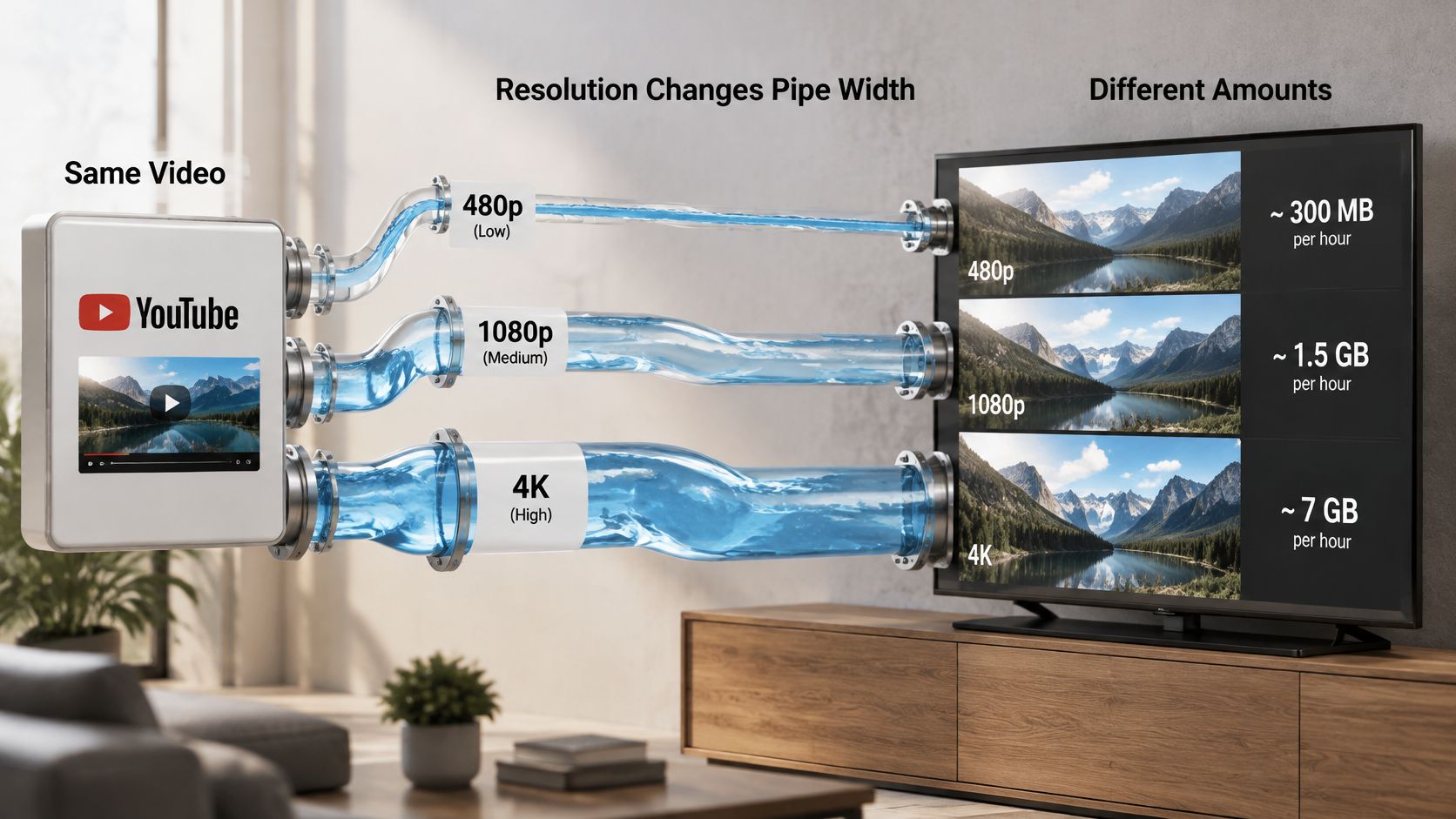
Think of data as water flowing through a pipe for every minute you watch. Viewing time is how long the tap stays open, and resolution sets how wide the pipe is. YouTube doesn't keep that pipe at one width. It adapts the stream to your connection speed, your screen, and your device, so the same video can cost you different amounts on different days.
Four things drive the difference. Resolution matters most, because each step up sends far more picture information per second. Frame rate comes next, since a 60 fps video delivers twice as many frames as a 30 fps one. Codec and compression determine how efficiently YouTube packs those frames. Video complexity finishes the job, because a static talking-head lecture compresses easily, while sports highlights, confetti, and fast animation force the pipe wider for nearly every frame.
What Bitrate Means in Gigabytes
YouTube's encoding guidance lists reference bitrates of 1 Mbps for 360p, 5 Mbps for 720p, 8 Mbps for 1080p, and 35–45 Mbps for standard-frame-rate 4K. Those are upload recommendations for creators, not guaranteed playback rates, because YouTube re-encodes videos for playback and doesn't define a single universal bitrate.
The conversion still helps you sanity check any claim. 1 Mbps sustained for one hour is about 450 MB, so you can multiply any bitrate by 0.45 to get a rough hourly figure in gigabytes. If you want to see how adaptive ladders are built, these practical FFmpeg examples for ABR show the mechanics clearly.
That's why a flat claim like "HD uses 3 GB per hour" misleads. It hides the frame rate, the content, and the adaptation. A range is the honest answer to how much data does YouTube use, and it's the only kind worth planning a trip around.
Turning Hours into a Trip Budget
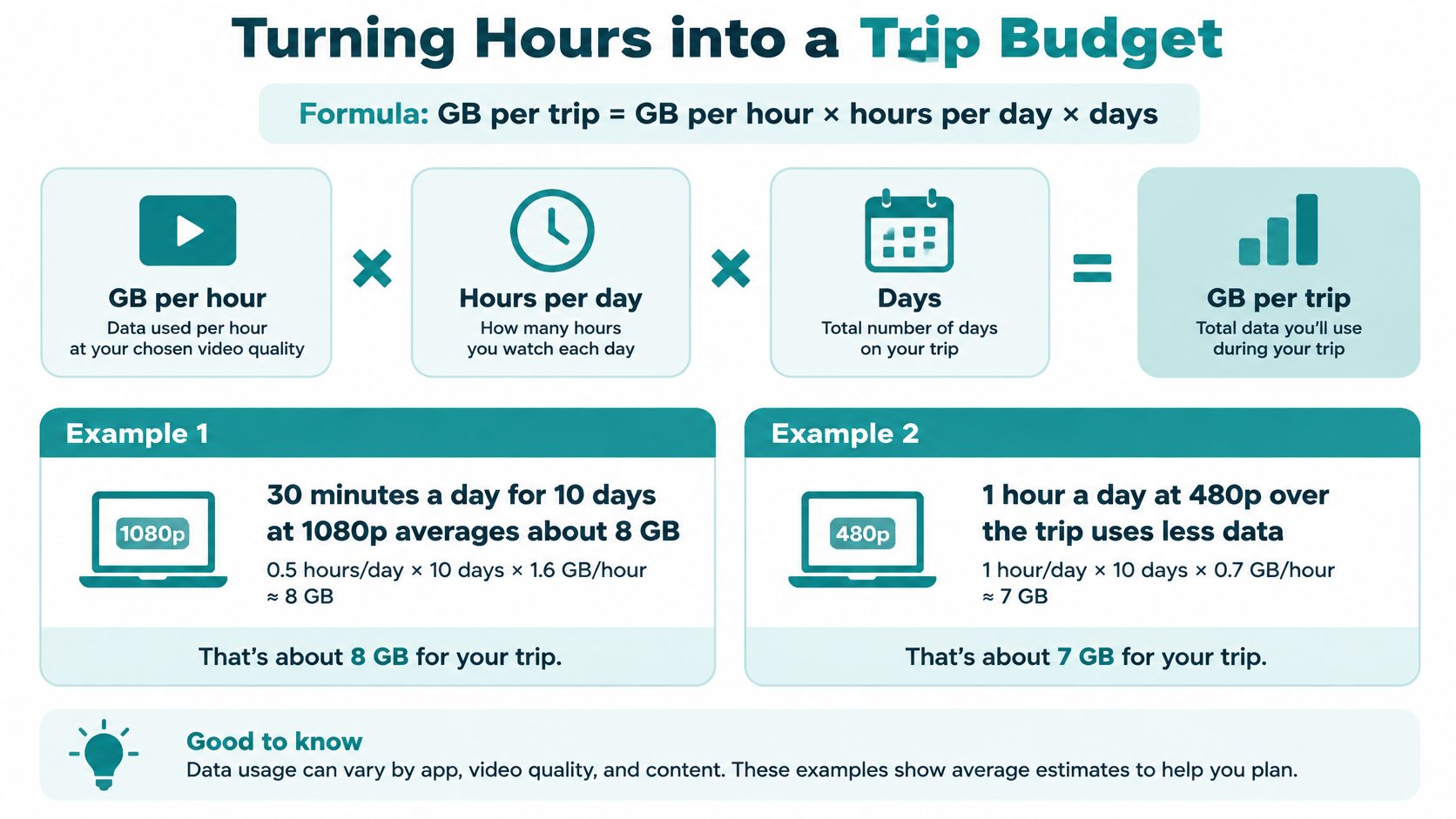
Use one formula and you'll never guess again. GB per trip = GB per hour × hours per day × days. Everything else is just choosing honest inputs for those three numbers.
Say you watch 30 minutes a day for 10 days at 1080p. At an average of 1.6 GB per hour, that's 0.5 × 1.6 × 10, which comes to about 8 GB just for YouTube. Now compare 1 hour a day at 480p over 10 days, which is 1 × 0.46 × 10, or about 4.6 GB. You watched twice as long and used a little over half the data.
Seven-Day Trip Data by Daily Viewing Time
| Daily viewing | 480p | 720p |
|---|---|---|
| 30 minutes per day | 1.6 GB | 3.0 GB |
| 1 hour per day | 3.2 GB | 6.1 GB |
| 2 hours per day | 6.4 GB | 12.2 GB |
Those totals use average hourly figures, so treat them as a floor. Android Authority's hourly ranges run from about 480–660 MB at 480p and 1.2–2.7 GB at 720p up to 2.5–4.1 GB at 1080p and 5.5–23 GB at 4K, reflecting bitrate, frame rate, video complexity, and encoding. At the top of the 1080p range, one hour a day for 10 days could reach roughly 41 GB, not 16 GB.
Add a 25–50% buffer on top of your YouTube total for maps, messaging, photos, and background updates. If you're unsure what that buffer feels like in practice, our guide to how long 1 GB of data lasts breaks it down by activity. For longer trips, multiply the weekly figure by the number of weeks, then add the buffer.
The sizing rule is simple. Light 480p viewing fits a small plan, mixed viewing with some HD fits a medium plan, and daily 1080p or any 4K needs a large plan or Wi-Fi for most of the session. That last point matters even more on cruise ships, where connectivity is limited and you can't just pop into a café to top up your viewing.
Viewing Patterns That Quietly Drain Data
The common assumption is that the one HD video selected intentionally causes high data use. In reality, the larger risk comes from the long session you didn't plan. Duration is the factor often underestimated, and YouTube is designed to prolong it.
Autoplay is the clearest example. YouTube's autoplay help page explains that autoplay can continue to another related video and, on mobile networks, stops automatically only after 30 minutes of inactivity. That safeguard never interrupts an engaged viewer, so a three-hour airport wait can run start to finish without a single tap from you.
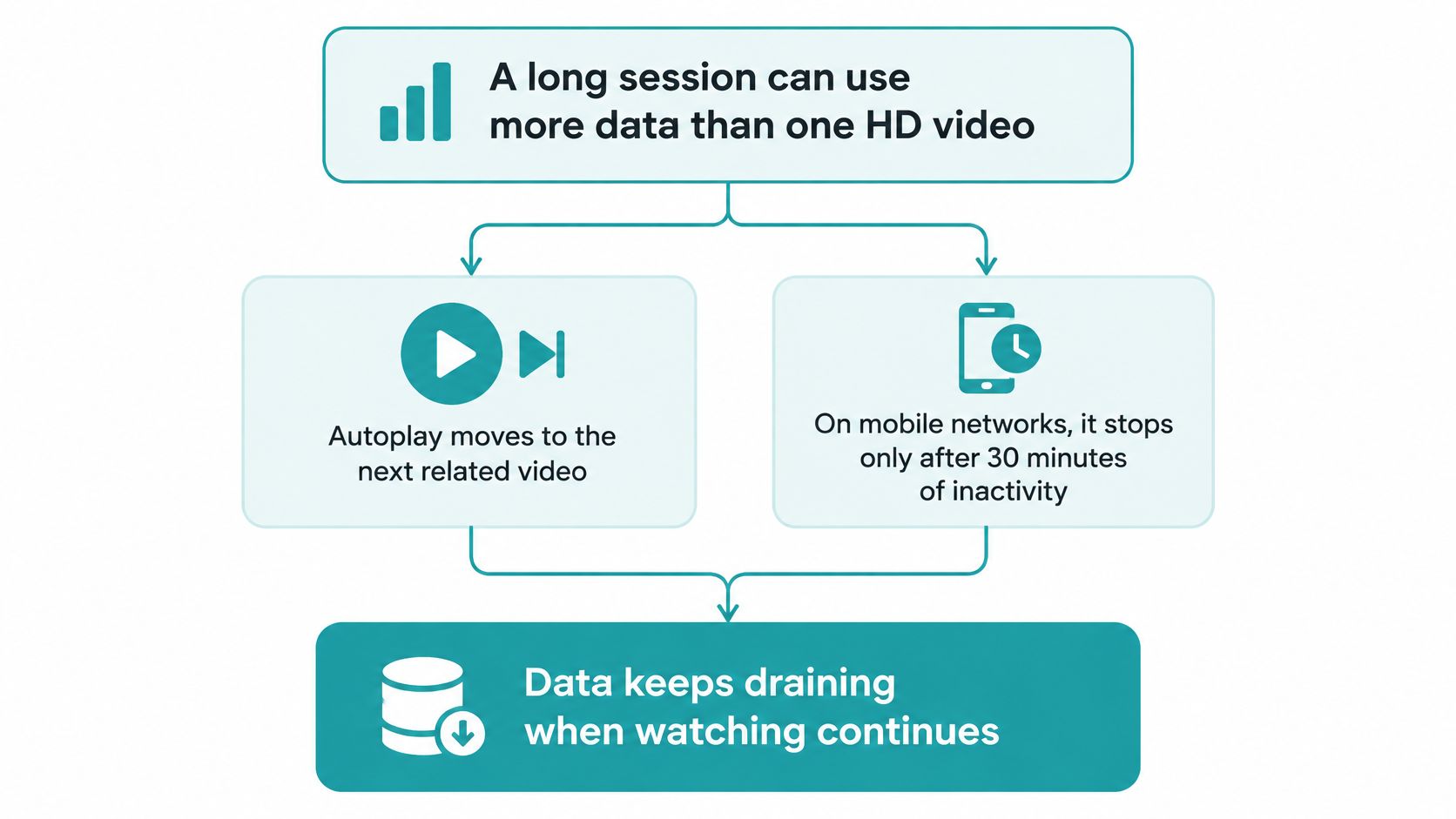
Run the math on that wait. Three hours at the 1080p average of 1.6 GB per hour is about 4.8 GB. At the top of the 1080p planning range, 4.1 GB per hour, it's about 12.3 GB, which is more than a 10 GB plan holds. Same seat, same videos, wildly different bill.
The Other Quiet Drains
- Shorts scrolling: Each clip is short, but the feed never ends, so price it by the hour like any other video at your current quality setting.
- Live streams: A match, a launch event, or a news stream runs for hours at whatever quality you started with, so check the setting before it begins.
- Casting to a television: The session keeps running on a screen that stays on for long periods, often long after you stopped paying attention.
- Background listening: Playing a video like a podcast still pulls video data unless you've changed settings or downloaded it, so drop the quality to the lowest setting you can stand.
Estimate your day by session length first and resolution second. An honest two hours at 480p is a better budget than an optimistic 30 minutes at 1080p.
How to Lower Streaming Data on the Road
Settings beat willpower. Change these once, before you leave, and you won't have to think about them at the gate.
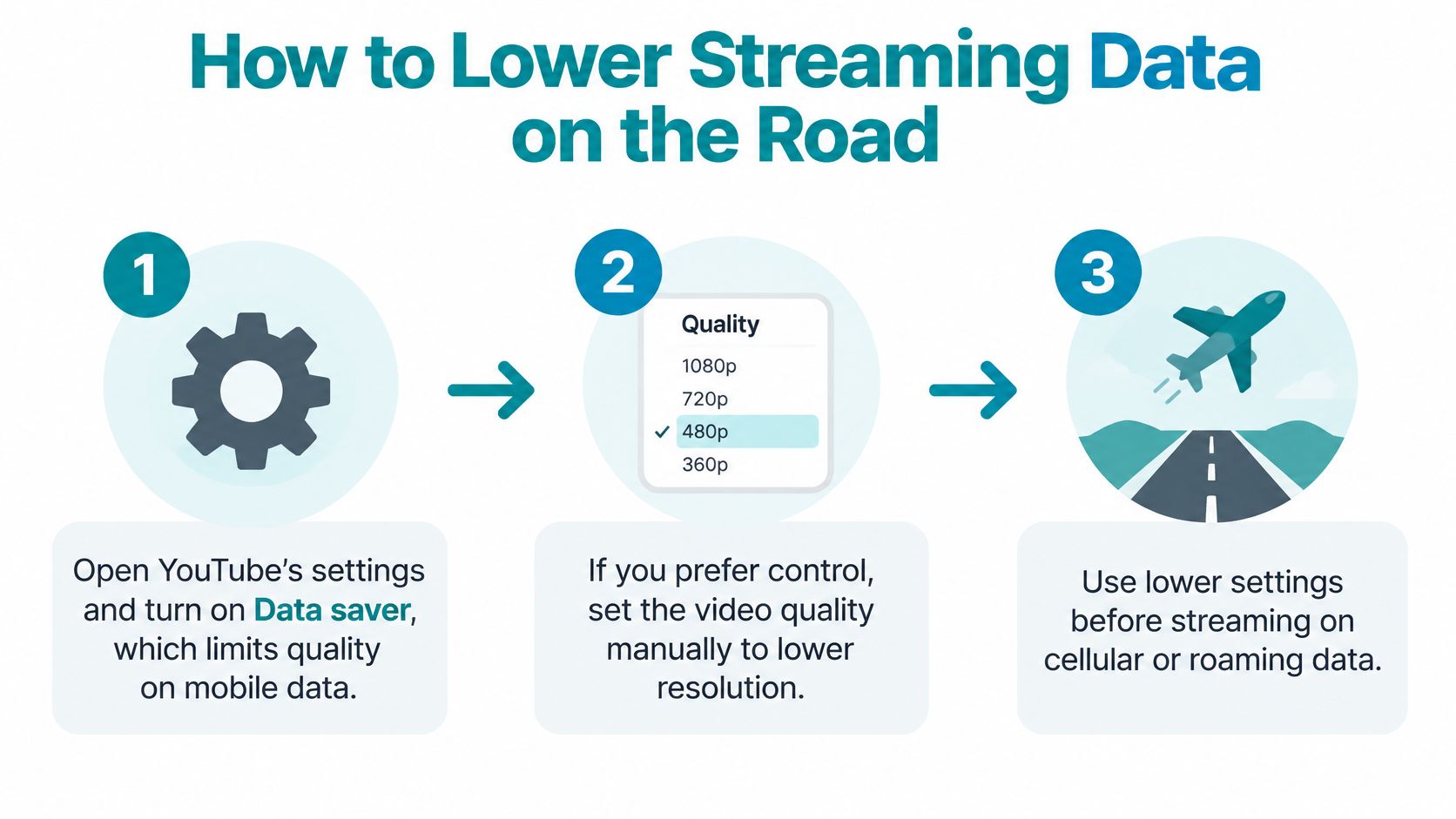
- Turn on Data saver. Open YouTube's settings and enable it so the app limits quality on mobile data automatically. Our walkthrough of data saving mode covers the matching phone-level settings.
- Or set quality manually to 480p or lower. If you'd rather control it yourself, pick the resolution for each video instead of leaving it on Auto. Moving from 1080p to 480p cuts an hour from about 1.6 GB to about 460 MB, a reduction of roughly 70%.
- Turn off autoplay on mobile data. This stops the next video from starting without you, which removes the longest accidental sessions.
- Check quality before any long session. The setting you chose on home Wi-Fi last week may still be active, and a two-hour stream is the worst time to discover that.
- Keep HD for hotel or café Wi-Fi. Enjoy 1080p there, then switch back down when you walk out. The habit matters more than any single video.
- On roaming, skip HD entirely. Navigation tutorials, vlogs, and news lose almost nothing at 360p or 480p on a phone screen.
Then run one quick test. Watch for an hour at your usual setting and check how much data your phone reports for YouTube. Before any long session after that, multiply the hours you expect by that figure and compare it with what remains on your plan.
Download Videos on Wi-Fi Before You Leave
Downloading flips the economics completely. Streamed content costs you data every time you watch it on a travel connection, while a downloaded video costs data once, on Wi-Fi, and then plays for free. Do it in this order before you depart.
- Connect to home or hotel Wi-Fi first. Don't start a single download until you're sure which network you're on.
- Turn on the Wi-Fi-only download option. YouTube's download settings guidance notes this option helps prevent accidental use of a mobile plan while preparing offline videos.
- Choose quality for your storage, not your eyes. The same guidance warns that higher-quality downloads consume more data during download and occupy more device storage, so 720p usually balances picture and space.
- Download for specific gaps. Save what you need for the flight, the train ride, and one evening of downtime. Skip entire channels you'll never open.
- Check free storage before you commit. A few long 1080p videos can fill a phone faster than you expect, and you'll want room for photos.
- Test one download in airplane mode. Confirm it plays offline while you can still fix it on Wi-Fi.
The trade-off is straightforward. Offline files take storage space, and they don't update themselves when a creator posts something new. For a trip, that's a good deal. You're trading a little storage you can clear later for mobile data you can't get back.
Choose a Data Plan Sized to Your Viewing
Let your own arithmetic pick the plan. Take your daily viewing time and likely resolution, multiply GB per hour by hours per day by days, then add a 25–50% buffer for everything else your phone does. If you watch HD often, test that total against the top of the planning range too, because heavy days run well above average.
If you're still unsure where you land, our guide to how many GBs you need walks through the same calculation across all your apps, and Simsima offers a data calculator to estimate how much data is needed based on travel habits and activities, plus a data usage tracker in the account to monitor remaining data in real time. For a multi-country trip, a Simsima travel eSIM for worldwide coverage keeps you on one plan instead of buying data at every border. If video calls are part of your trip, check how much data video calling uses and add that to your total before you buy.
Calculate your trip total first. Then choose the plan that covers it with headroom to spare.
Work out your YouTube hours, add your buffer, and size your data before you land, not after your first HD session. Simsima offers prepaid travel eSIM plans for 190+ countries that install in under a minute, so you can arrive with the right amount of data already on your phone. Pick your destination, choose the plan your numbers point to, and watch on your terms.


#YouTube data usage#YouTube video quality#mobile data travel#travel data budget#reduce YouTube data

Dimitri MorvanFounder
Founder of Simsima. A passionate traveler based in Barcelona, he helps travelers stay connected without breaking the bank on roaming fees.
LinkedIn