Goodbye plastic, hello digital.
Think of an eSIM as a virtual SIM card. It does everything your physical SIM does (connects you to networks, gives you data), but it's fully digital.

How to install your Simsima eSIM
Install it before you leave: it takes two minutes. These are the real screens of your phone, step by step.
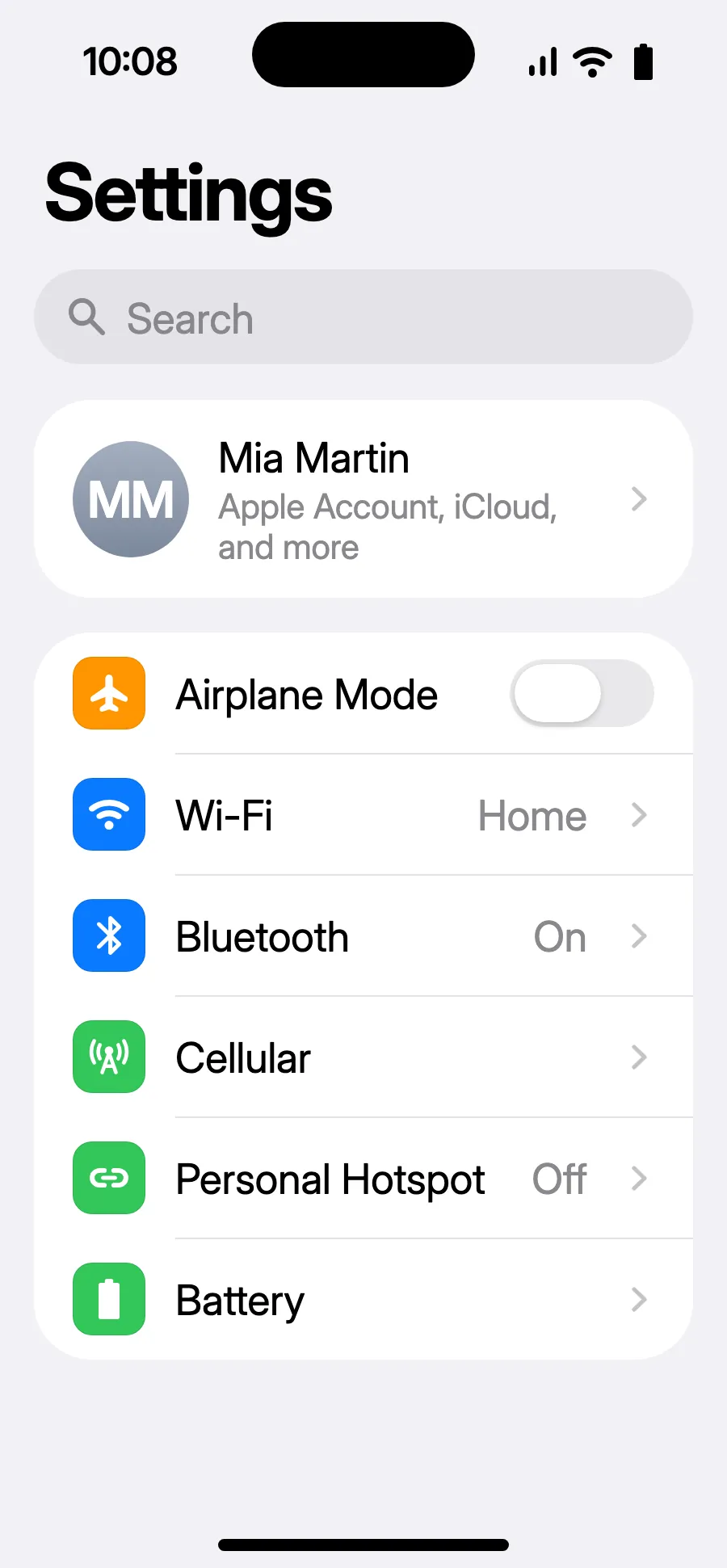
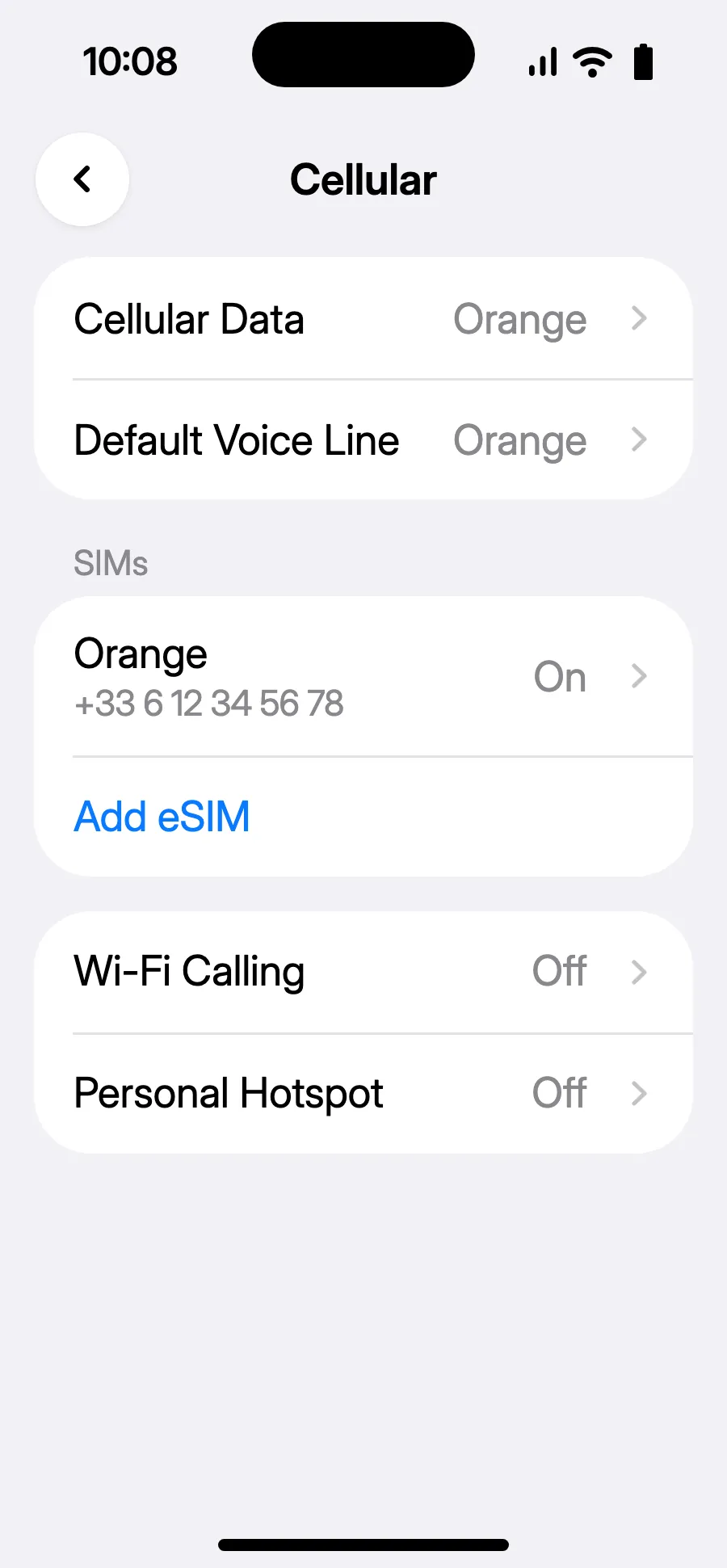
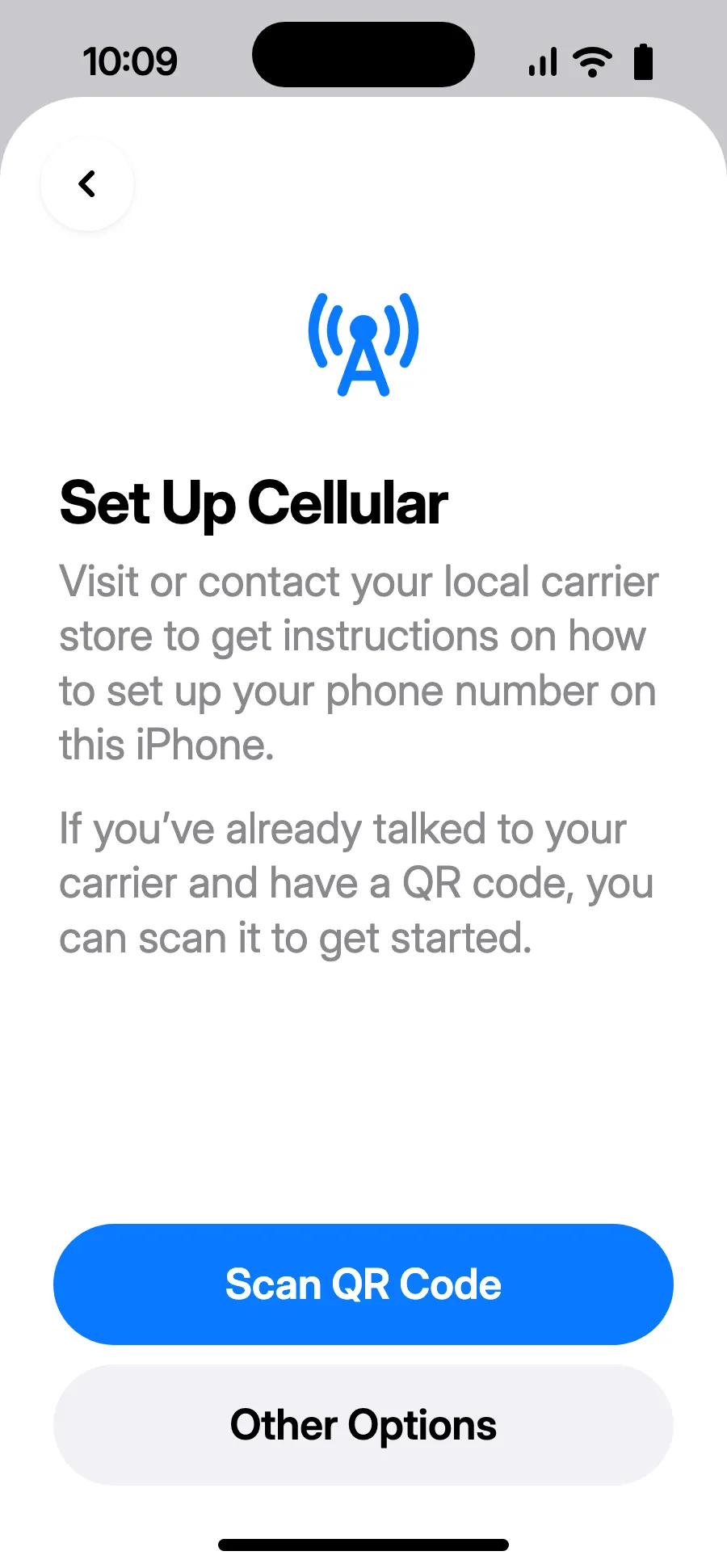
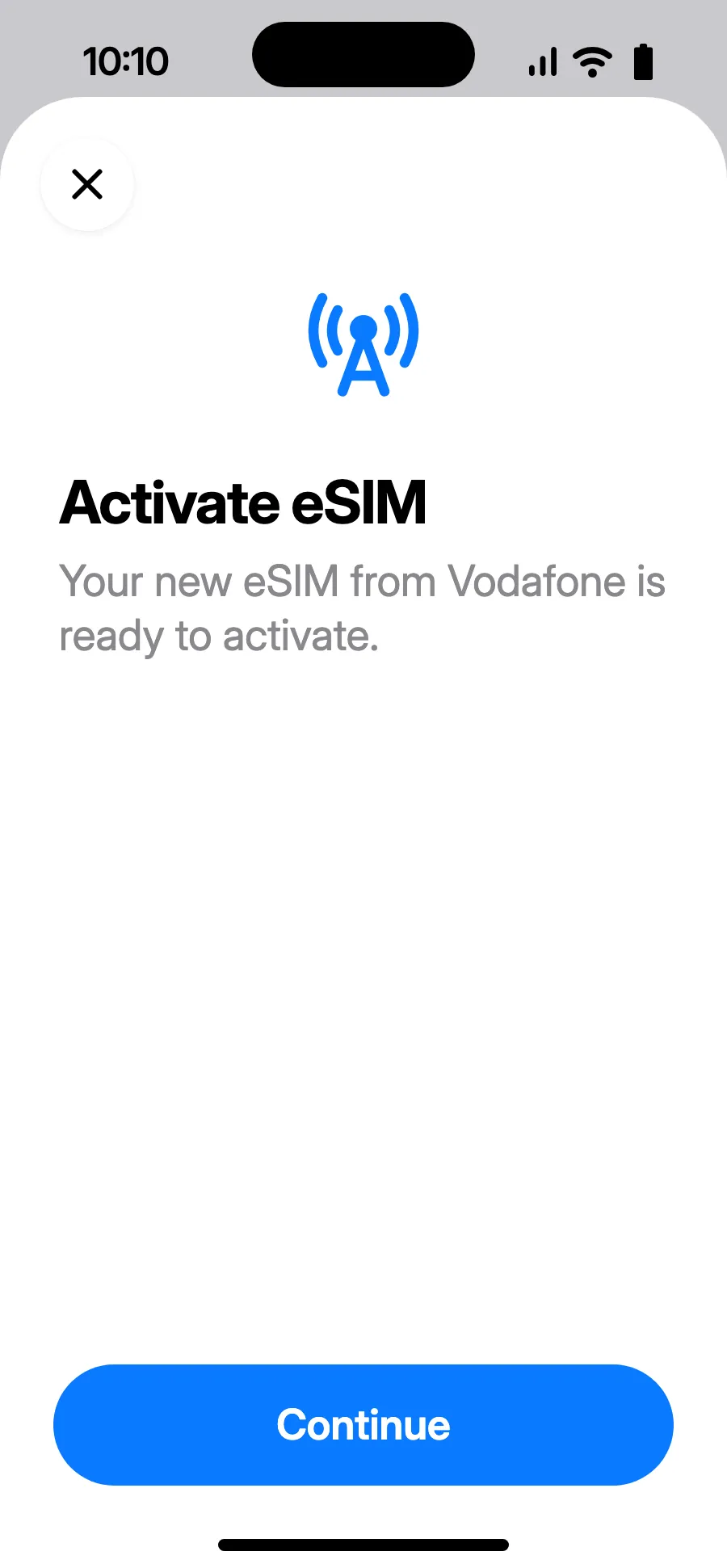
Before you leave: install your eSIMStep 1 of 11
- Open Settings, then Cellular.
- Tap “Add eSIM”.
- Tap “Scan QR Code” and scan the QR code we email you after purchase (it's also in your account).
- “Activate eSIM” opens: tap Continue.
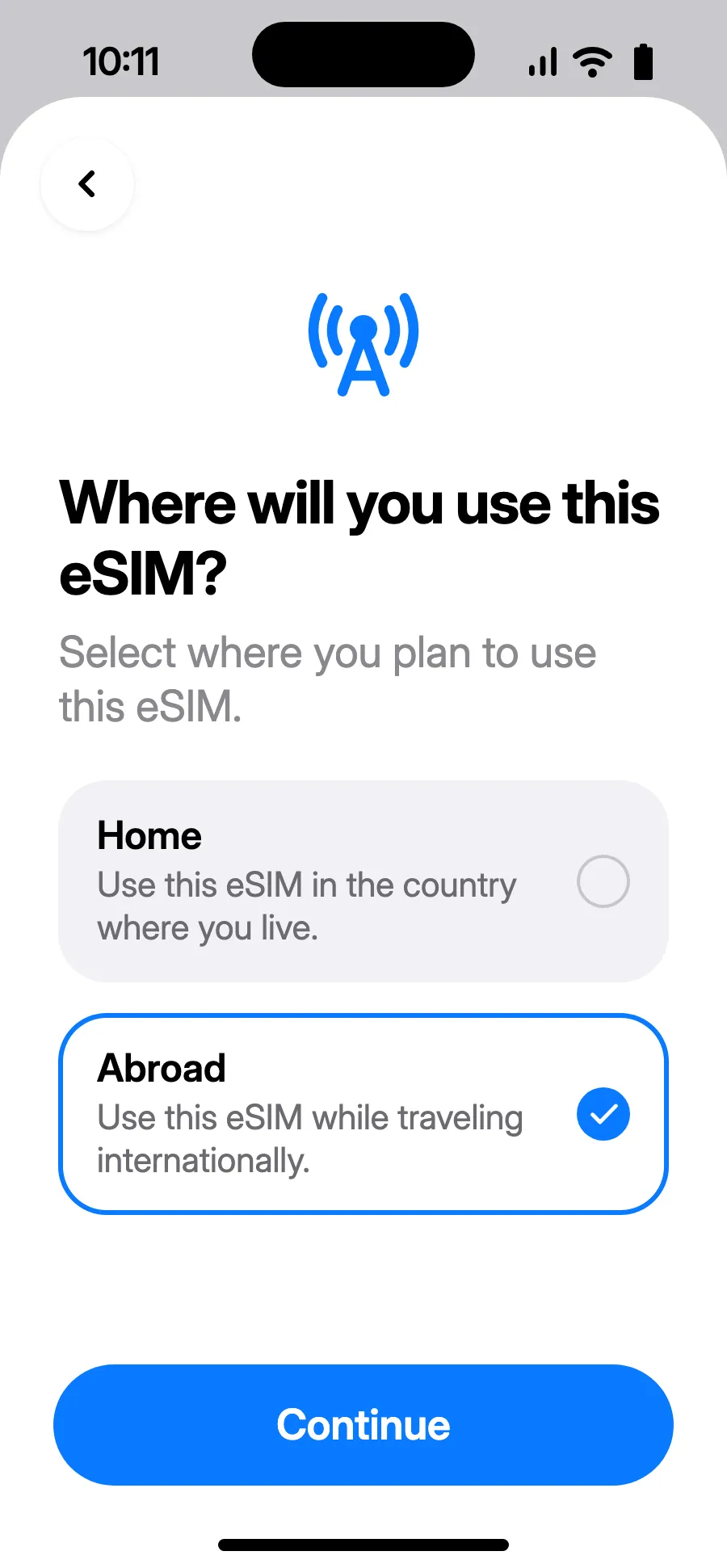
- Choose Abroad, then tap Continue.
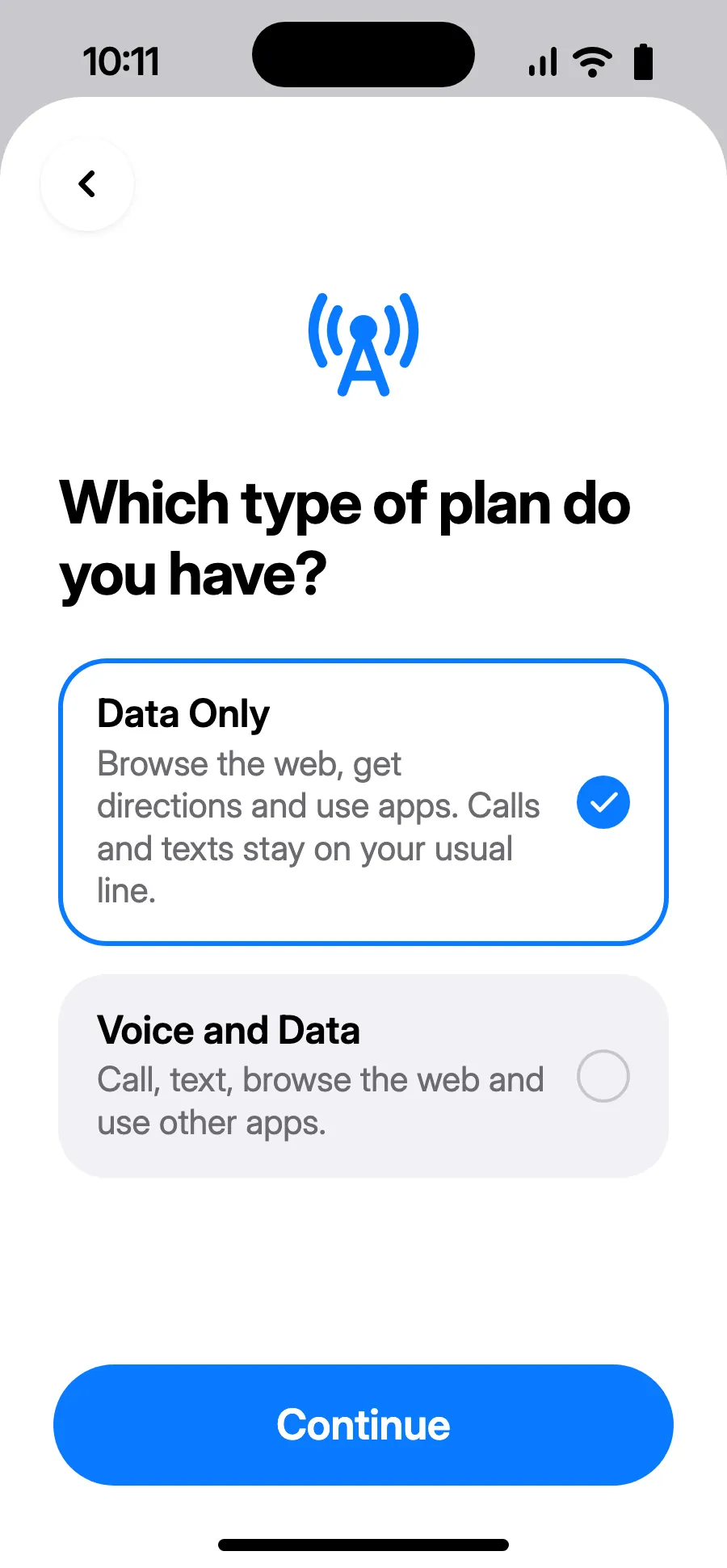
- Choose Data Only, then tap Continue. The eSIM is for data; your usual number keeps calls and texts.
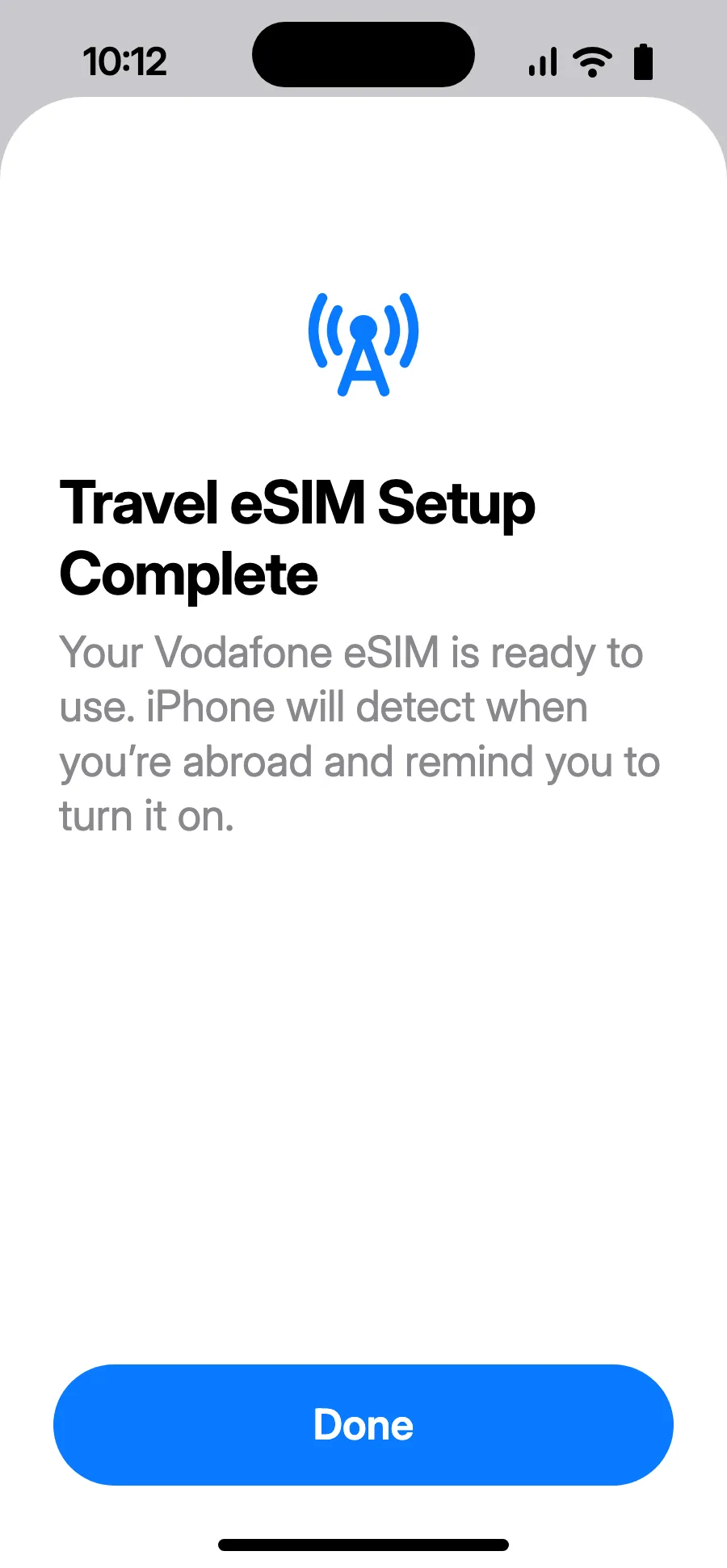
- Tap Done. Your iPhone will remind you to turn on the eSIM once you're abroad.
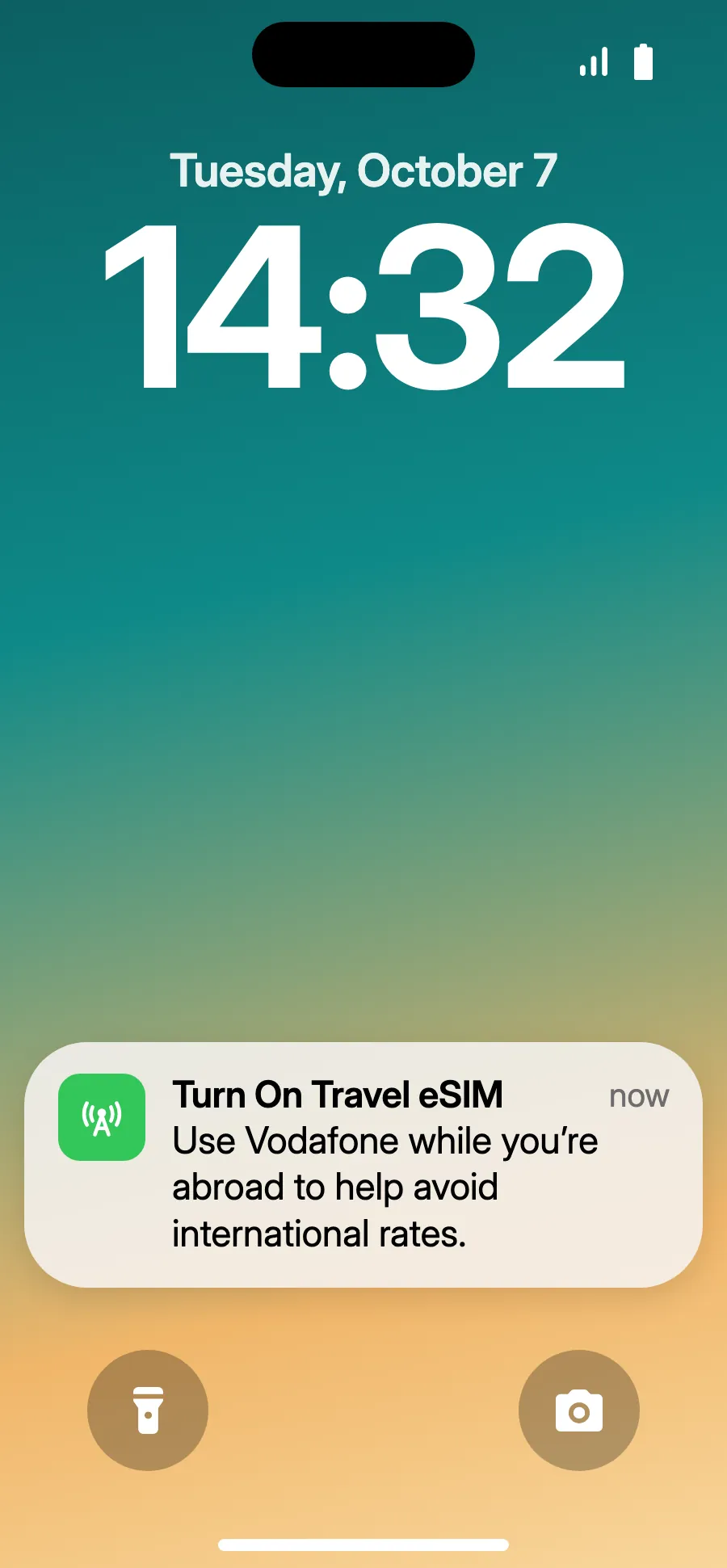
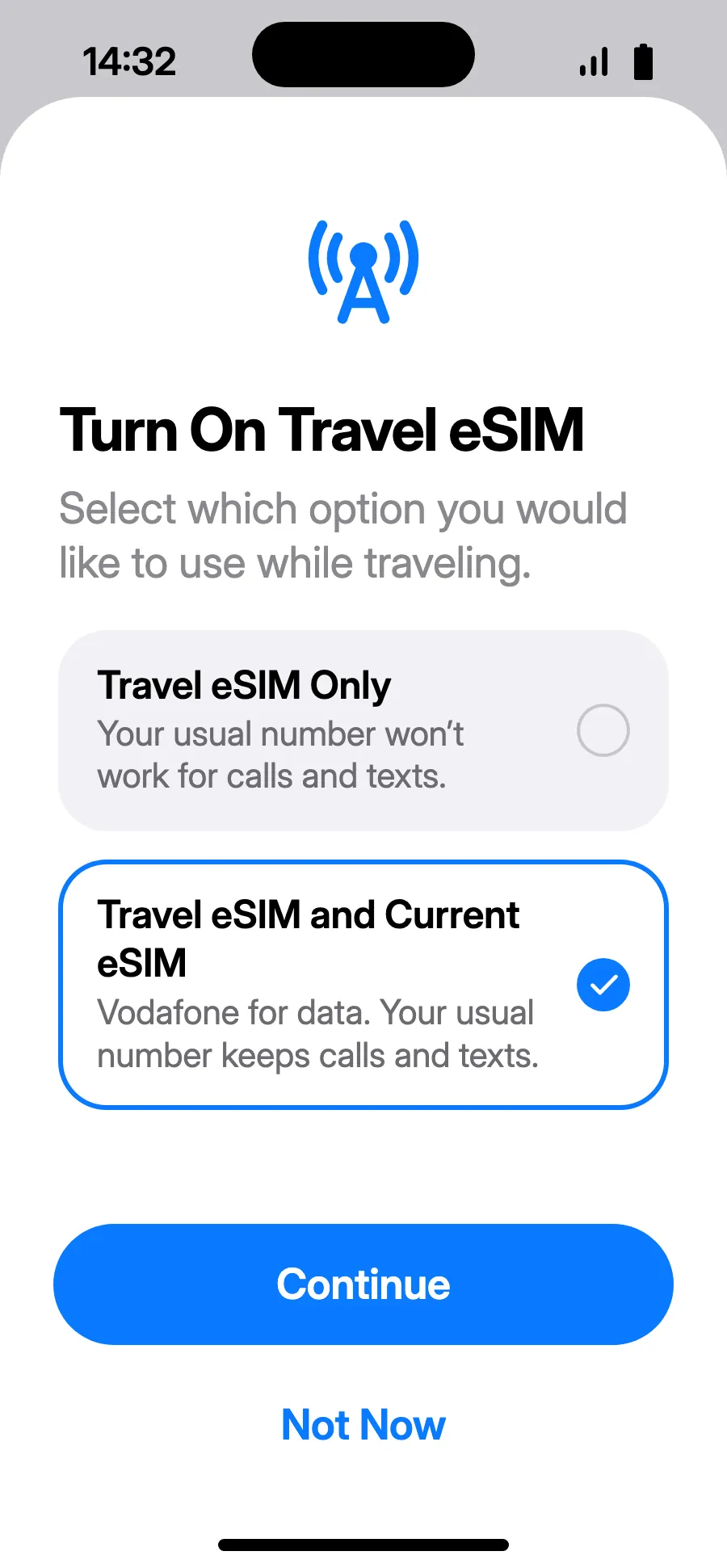
- When you land, your iPhone may show “Turn On Travel eSIM”: tap the notification.
- Choose “Travel eSIM and Current eSIM”, then Continue. You keep your number for calls and texts (bank codes included); your carrier may charge for calls you receive.
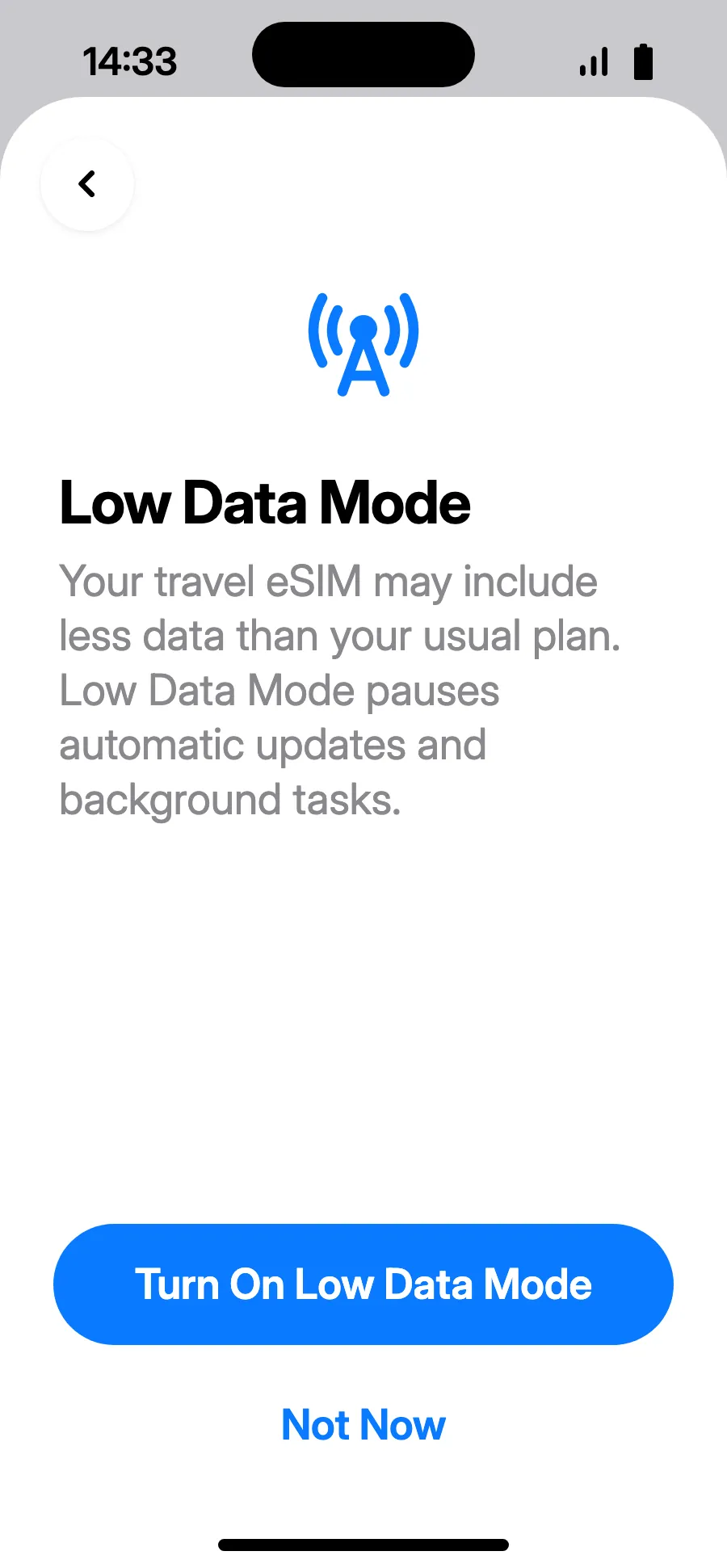
- Low Data Mode saves your plan: tap “Turn On Low Data Mode”, or “Not Now”.
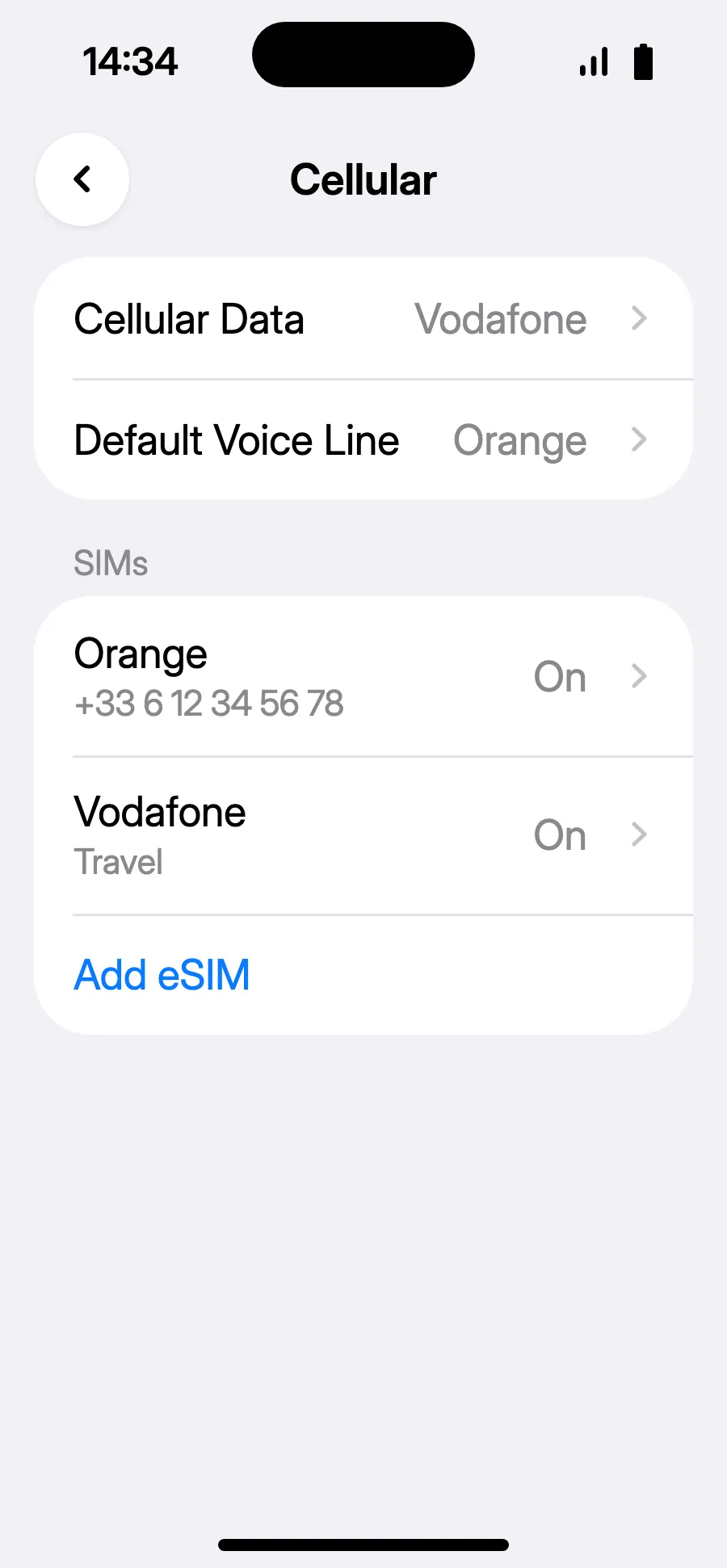
- You're set: Cellular Data shows the new eSIM.
After you buy, your QR code arrives by email and in your account. Show it on another screen, then follow these steps on your phone.
Before you leave: install your eSIMStep 1 of 8
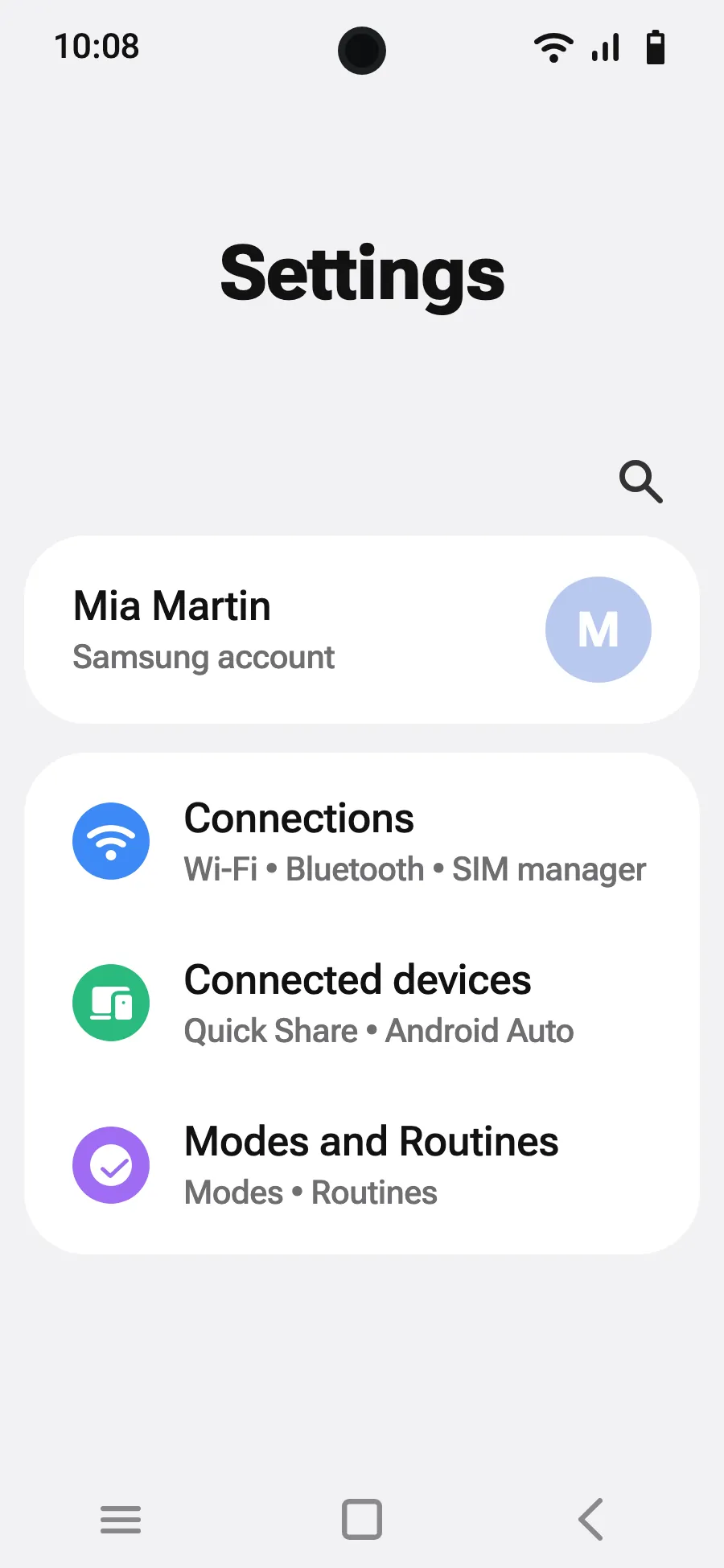
- Open Settings, then Connections.
- Tap “SIM manager”.
- Tap “Add eSIM”.
- Choose “Scan QR code”.
- Scan the QR code we email you after purchase (it's also in your account), then tap Add.
- When you land, turn on your new eSIM in SIM manager. It shows the name of a local or partner carrier.
- Choose the new eSIM for mobile data.
- In Connections, Mobile networks, turn on data roaming.
After you buy, your QR code arrives by email and in your account. Show it on another screen, then follow these steps on your phone.
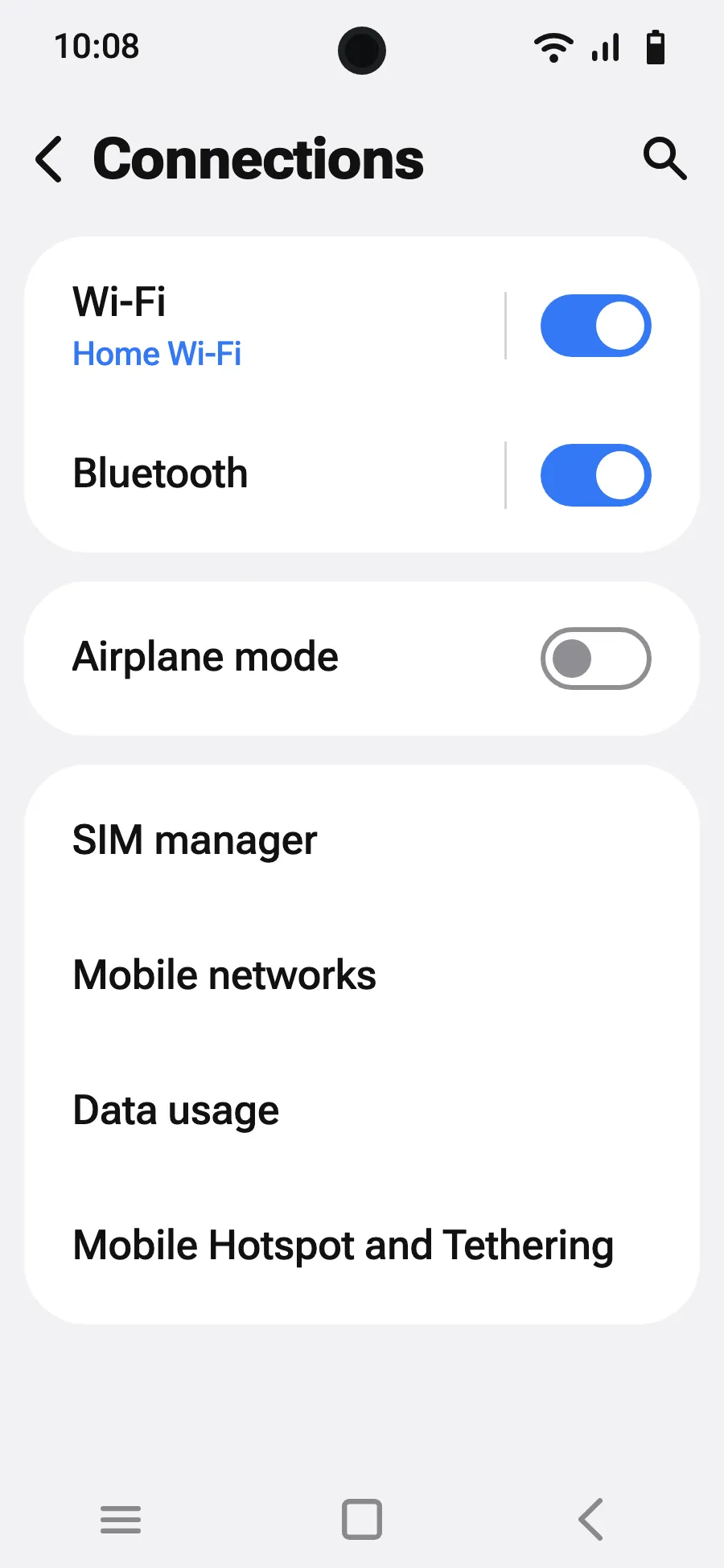
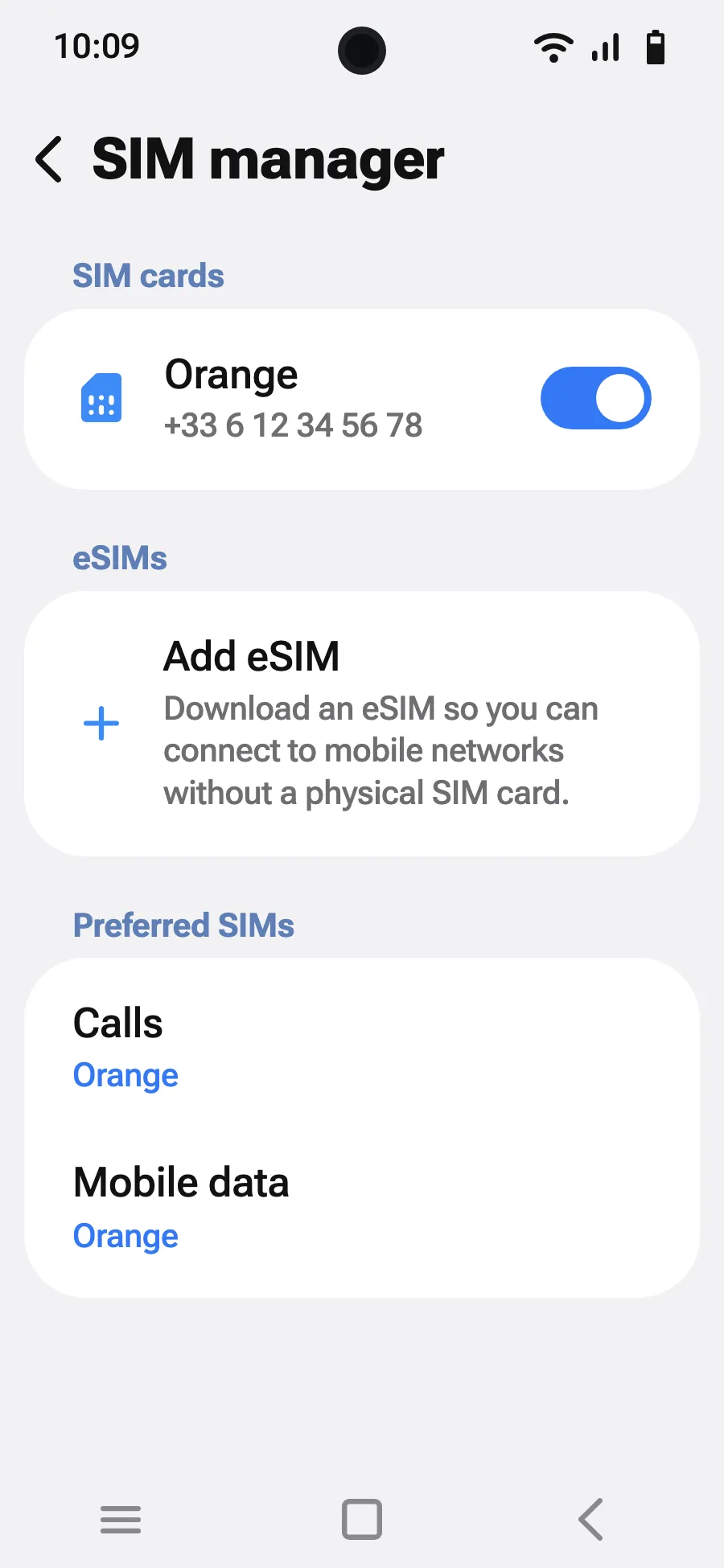
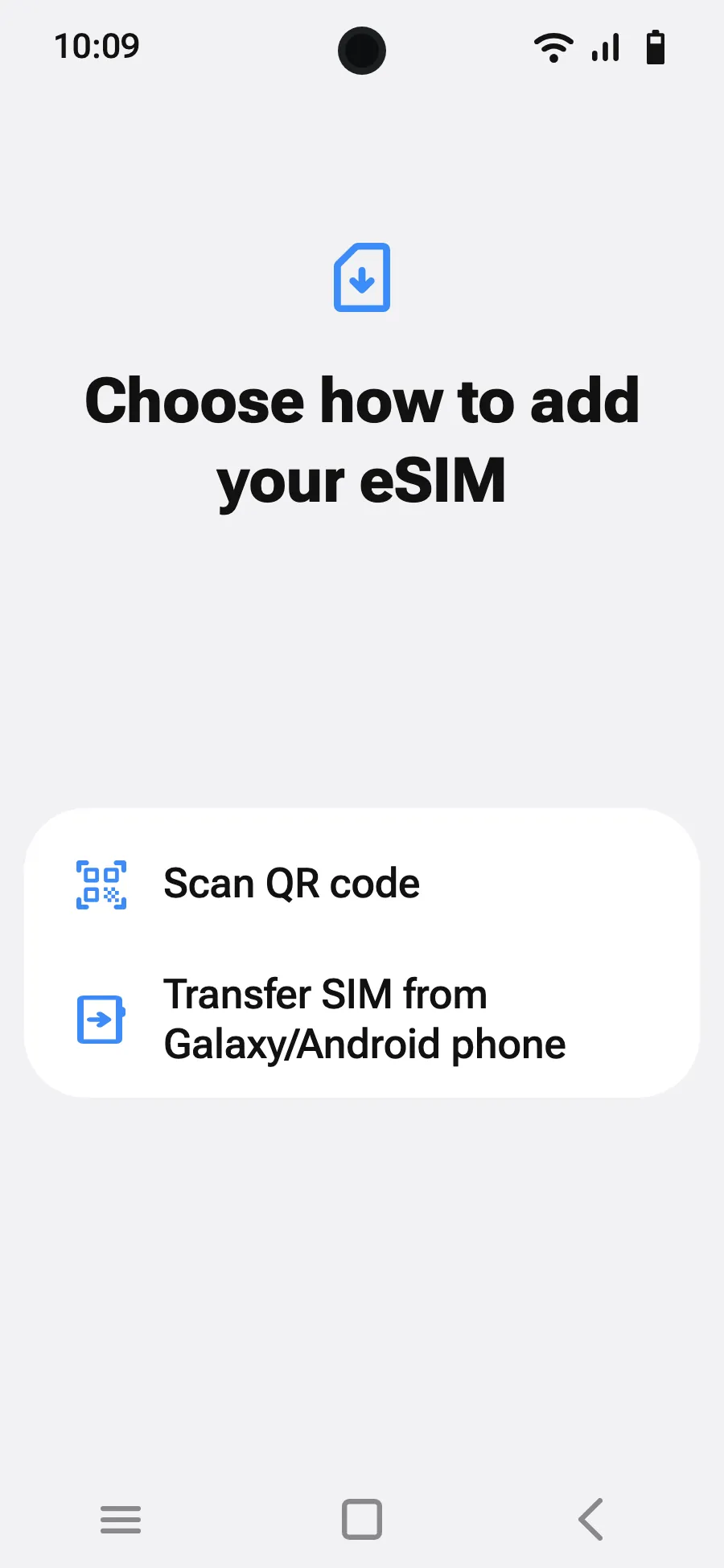
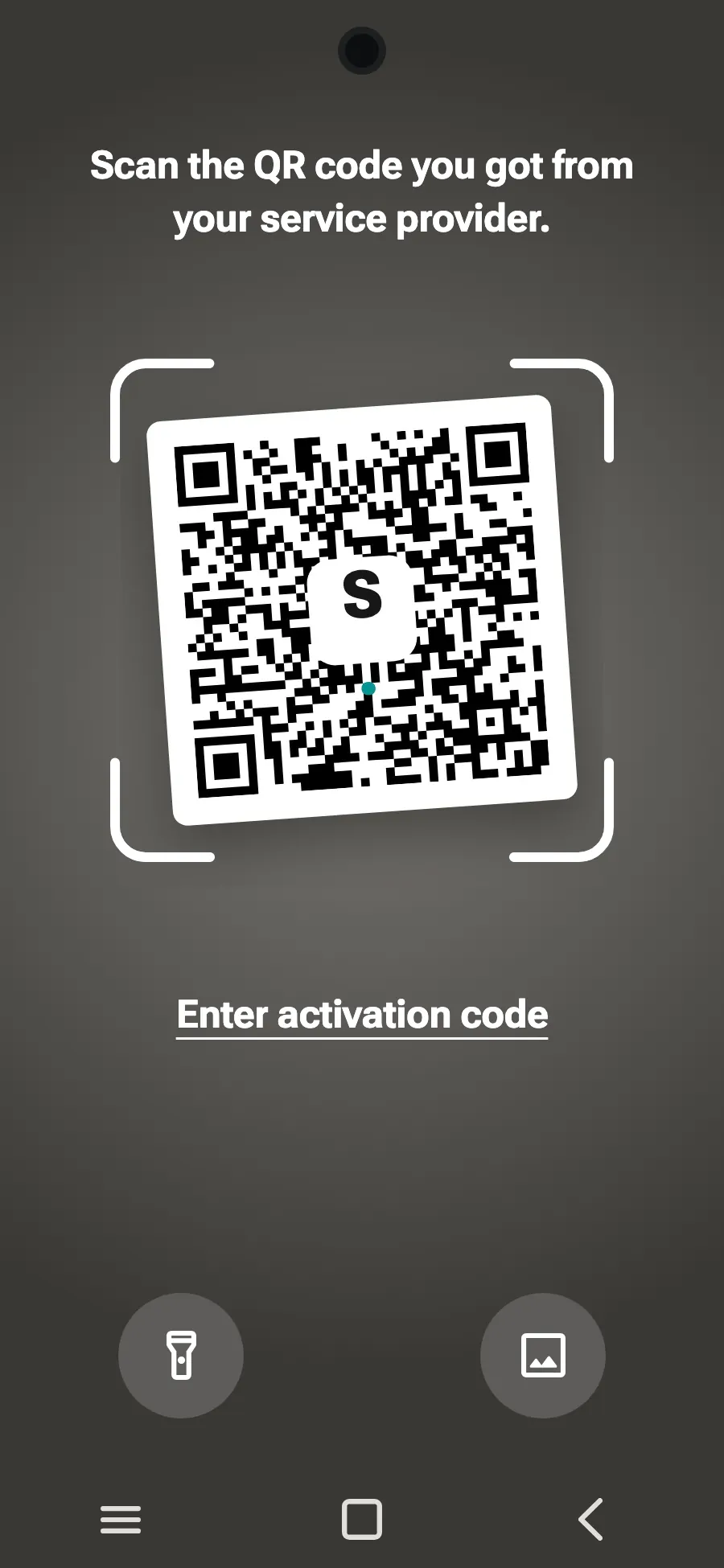
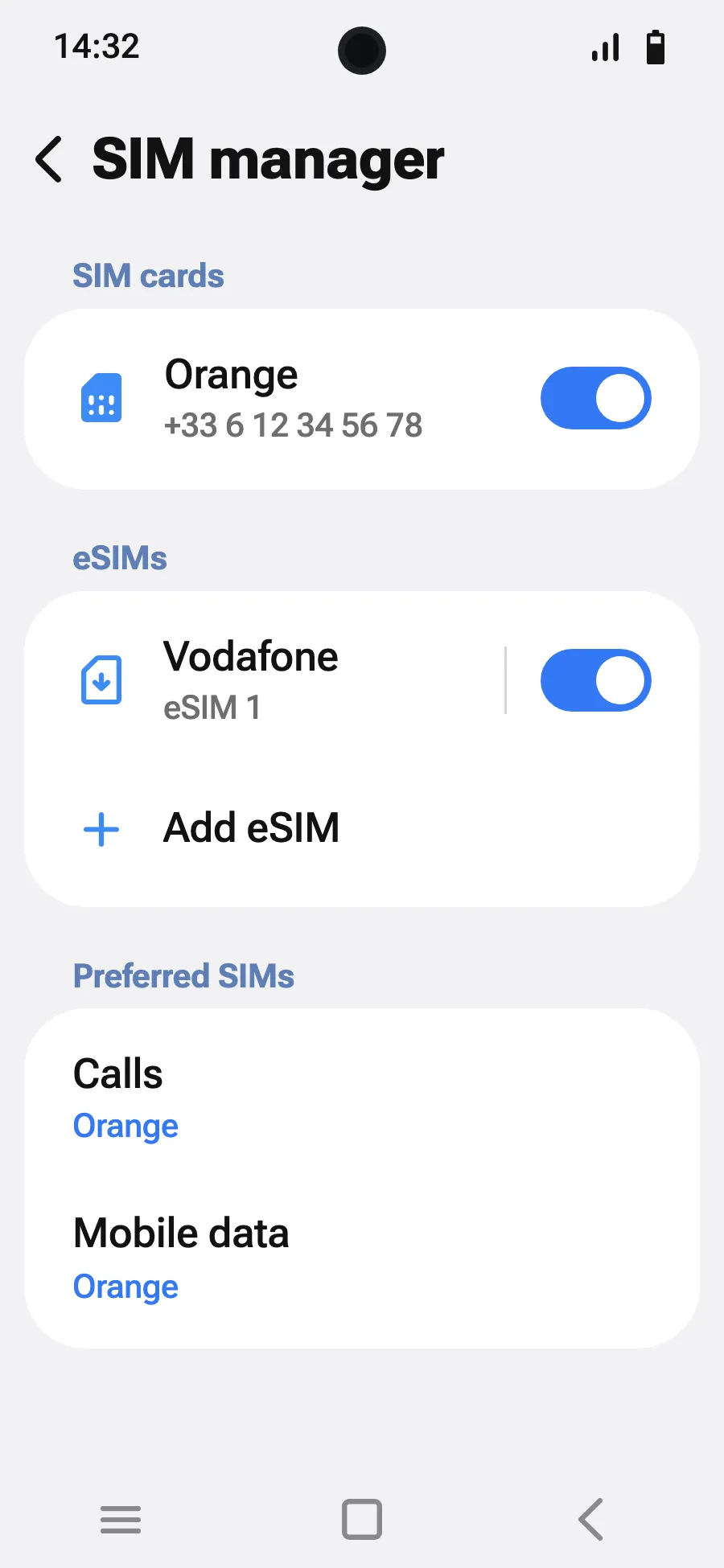
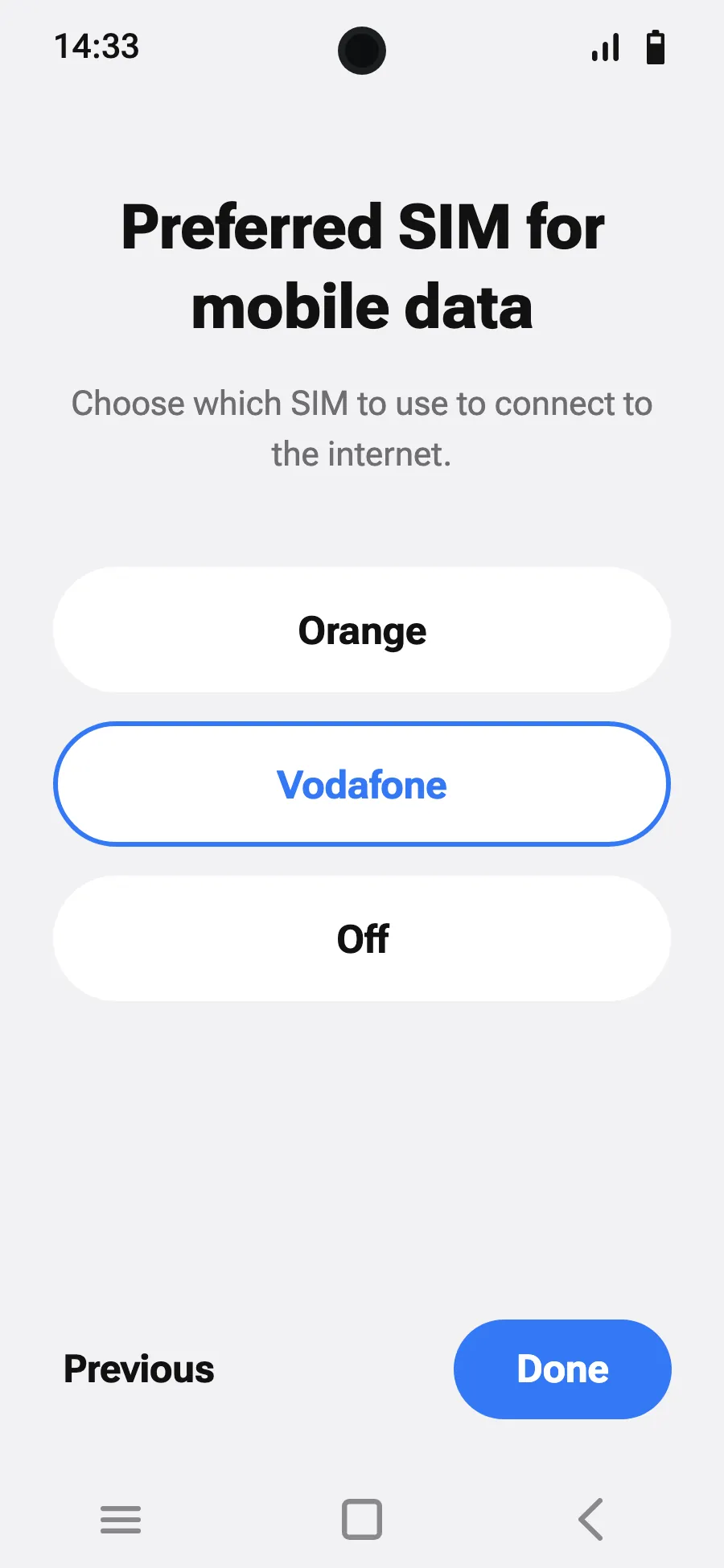
Before you leave: install your eSIMStep 1 of 7
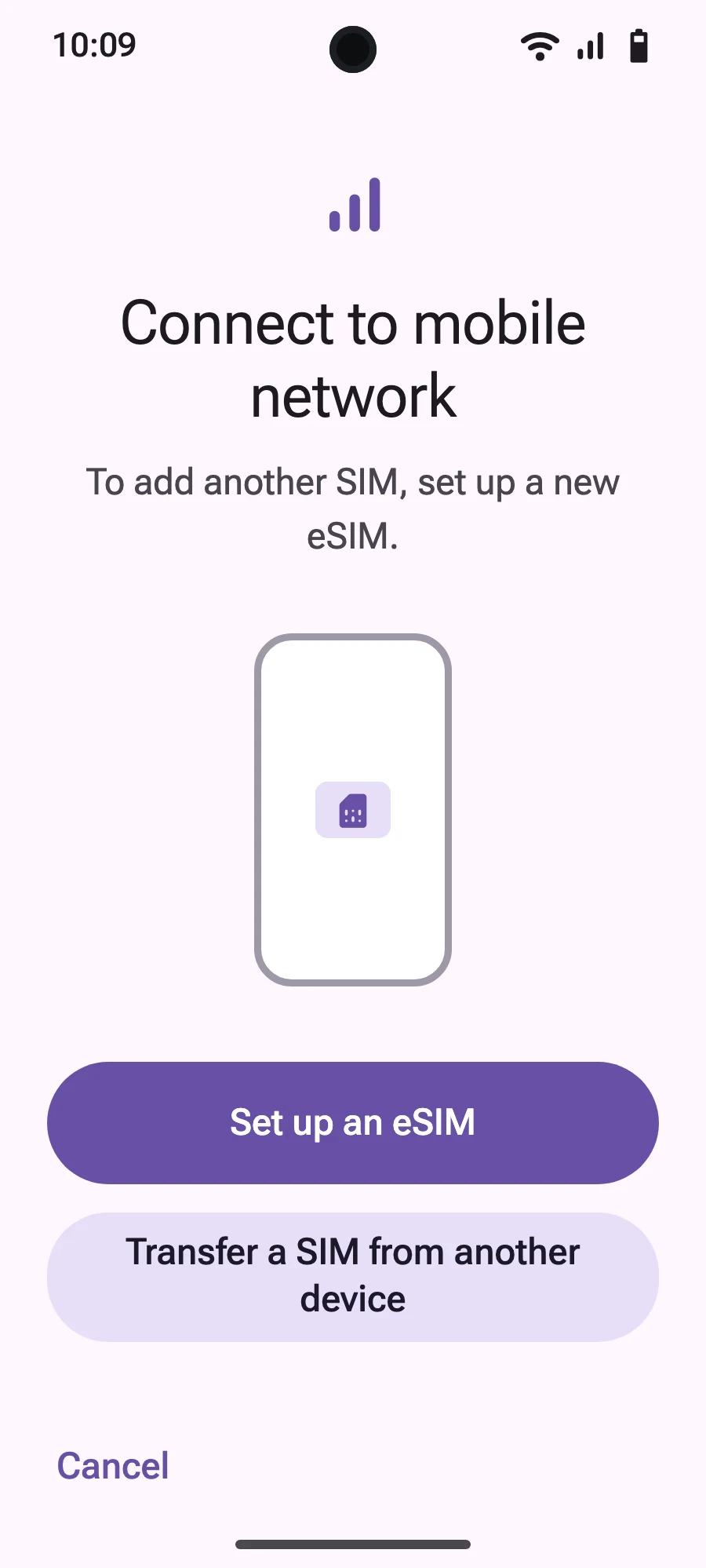
- Open Settings, then Network & internet.
- Tap “SIMs” (Add a network).
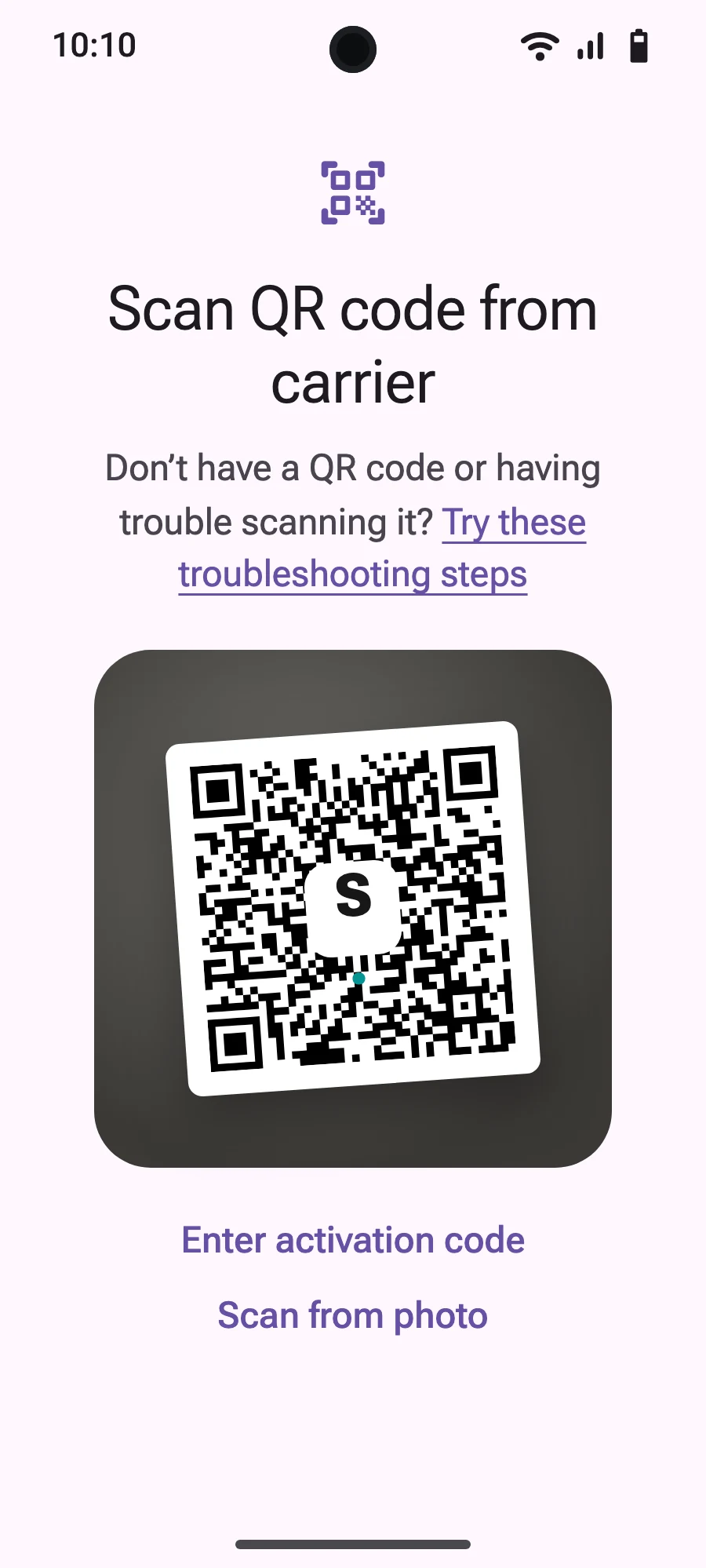
- Tap “Set up an eSIM”.
- Scan the QR code we email you after purchase (it's also in your account), then confirm.
- When you land, open your new eSIM (it shows the name of a local or partner carrier) and turn on “Use this SIM”.
- Turn on mobile data for the new eSIM.
- Turn on roaming. If nothing loads, turn off automatic network selection and pick the network manually.
After you buy, your QR code arrives by email and in your account. Show it on another screen, then follow these steps on your phone.
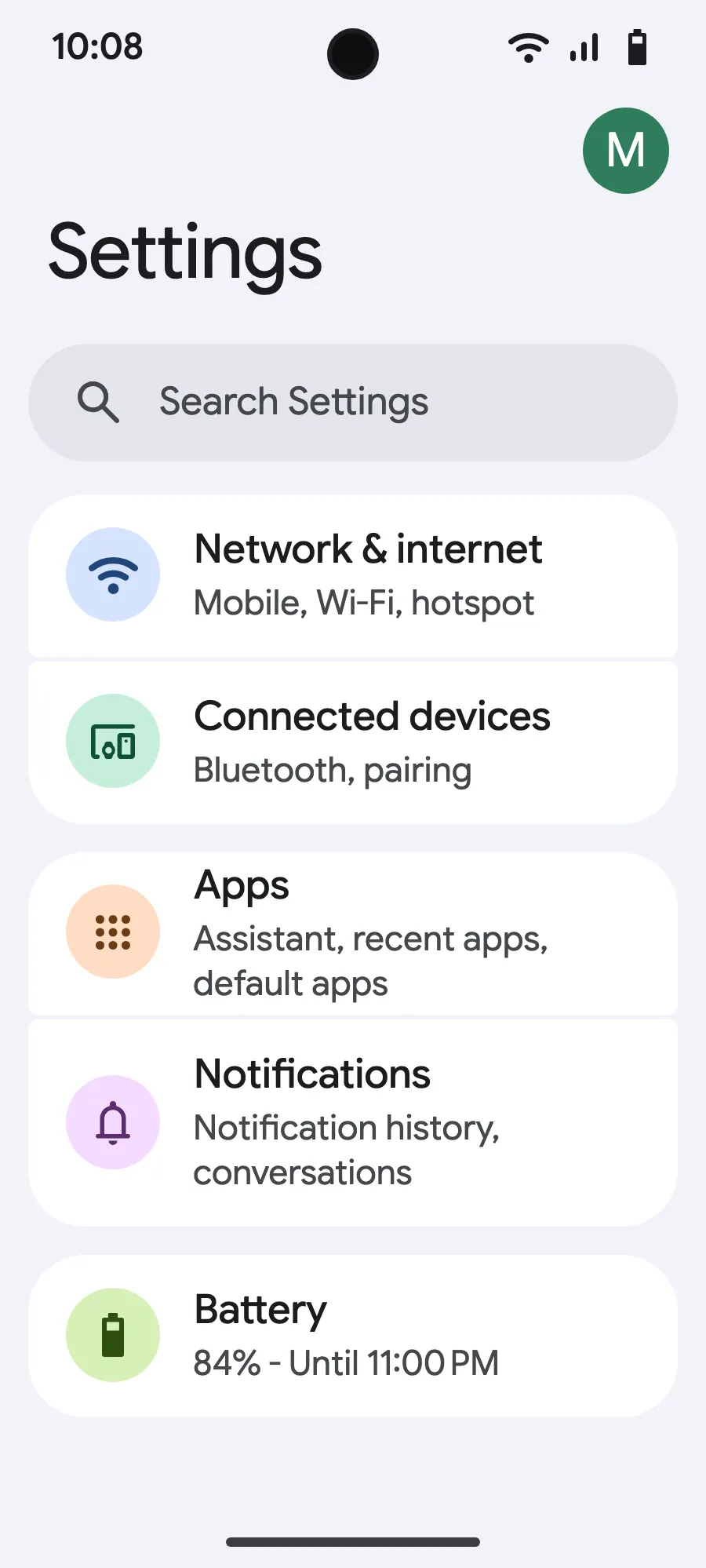
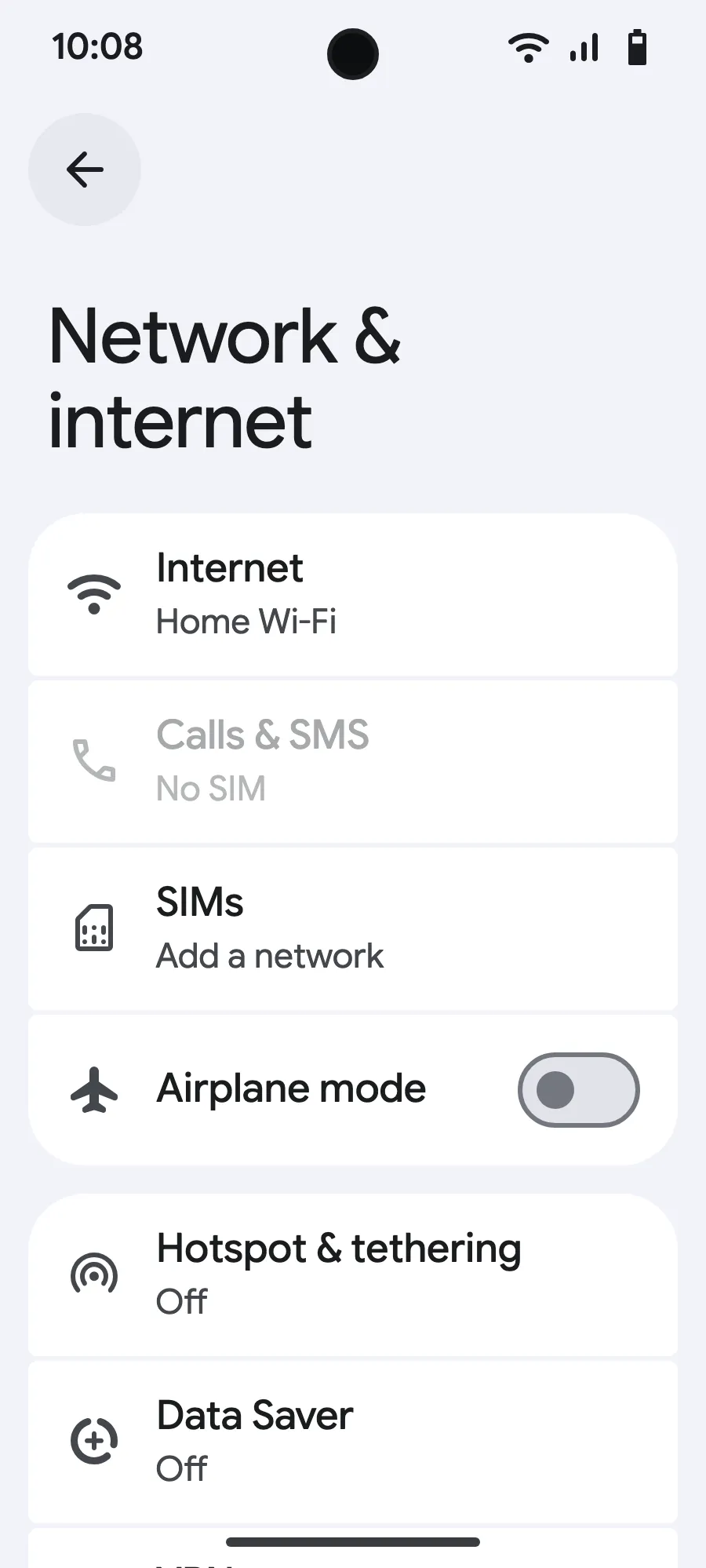
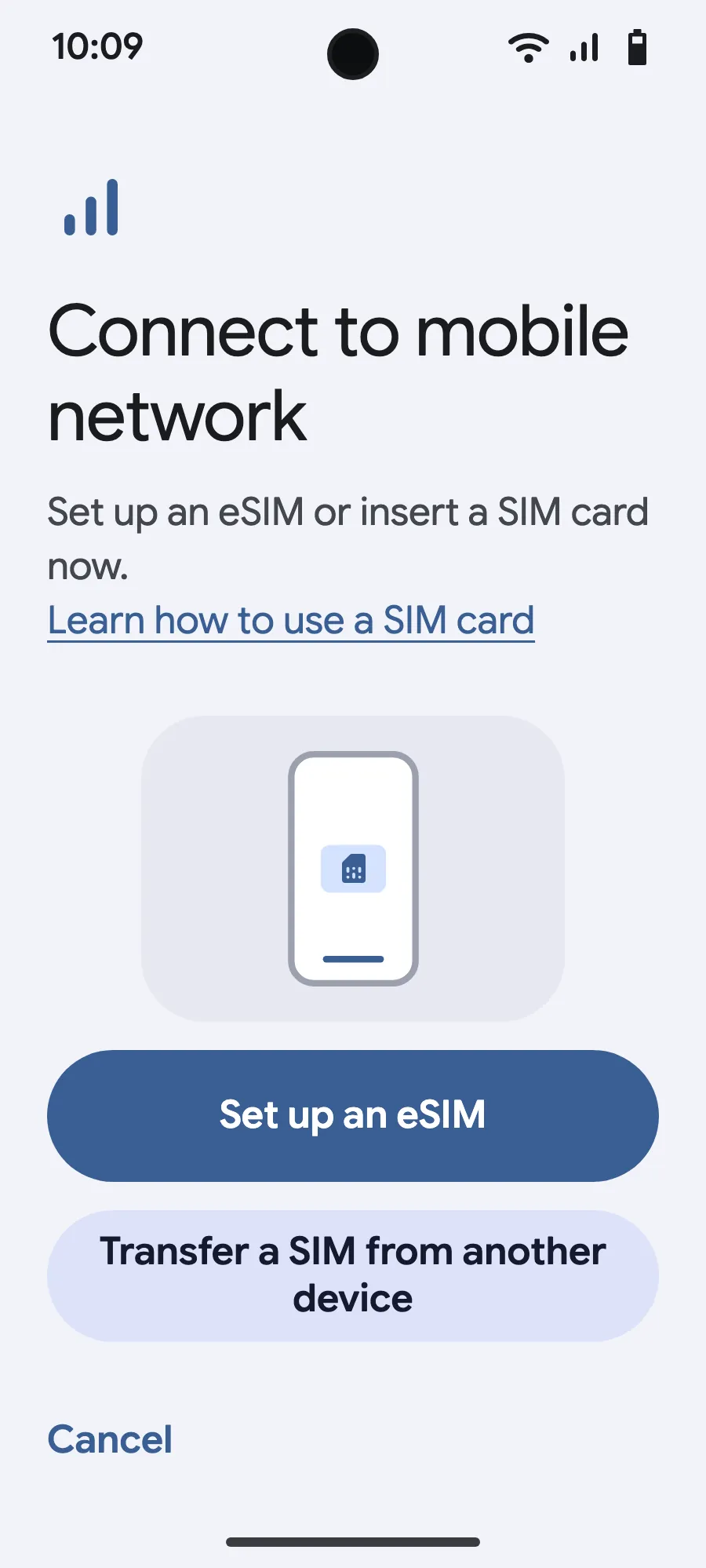
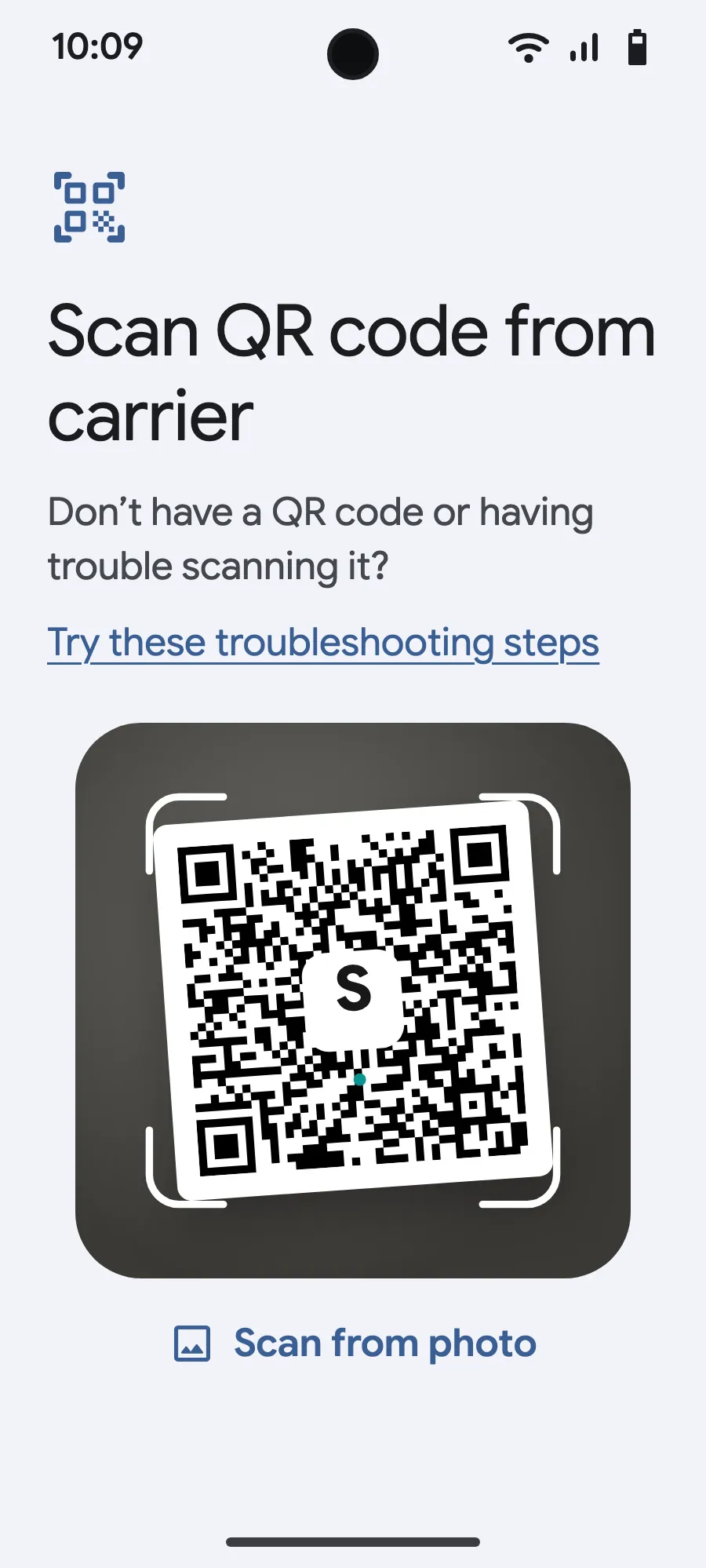
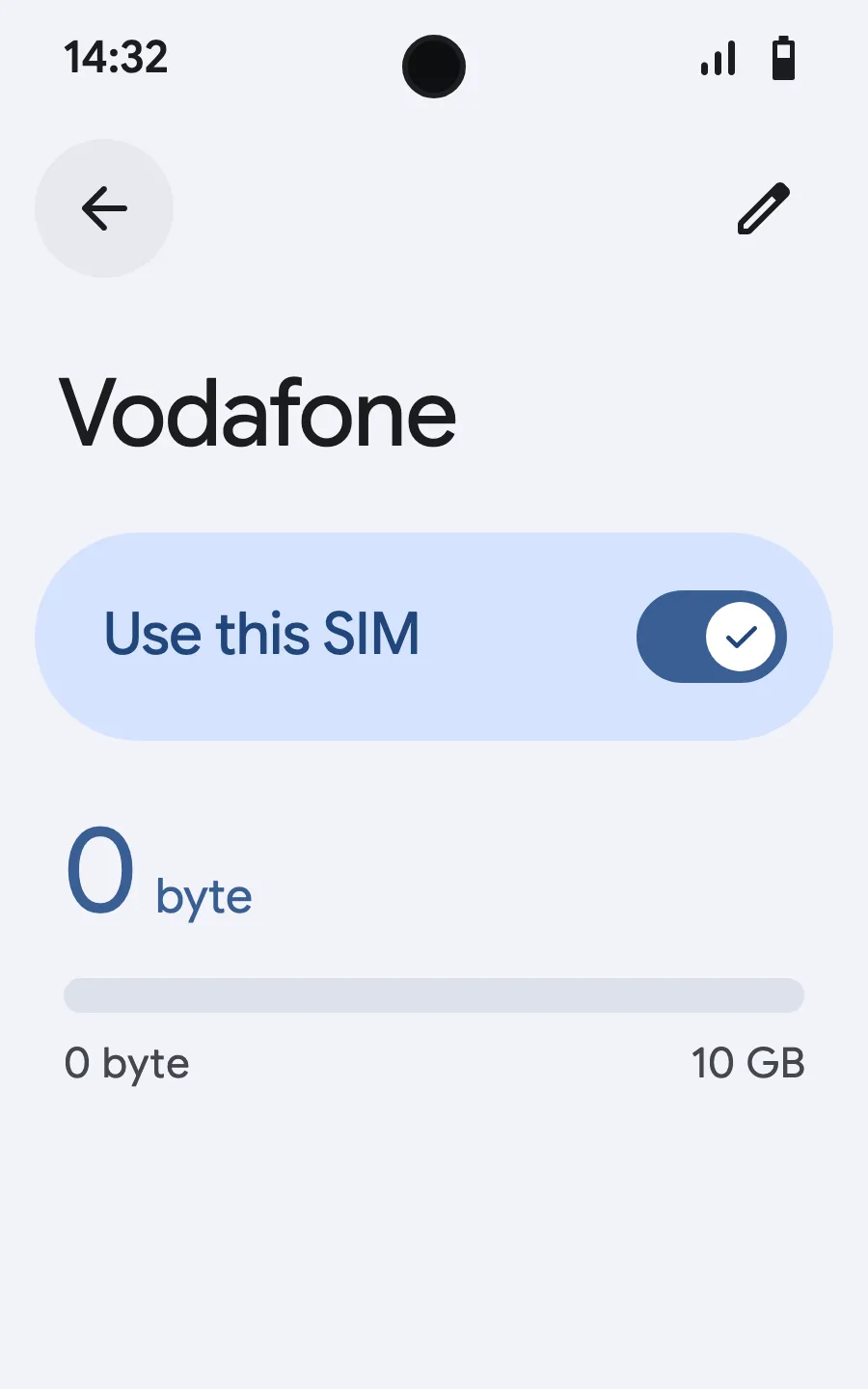
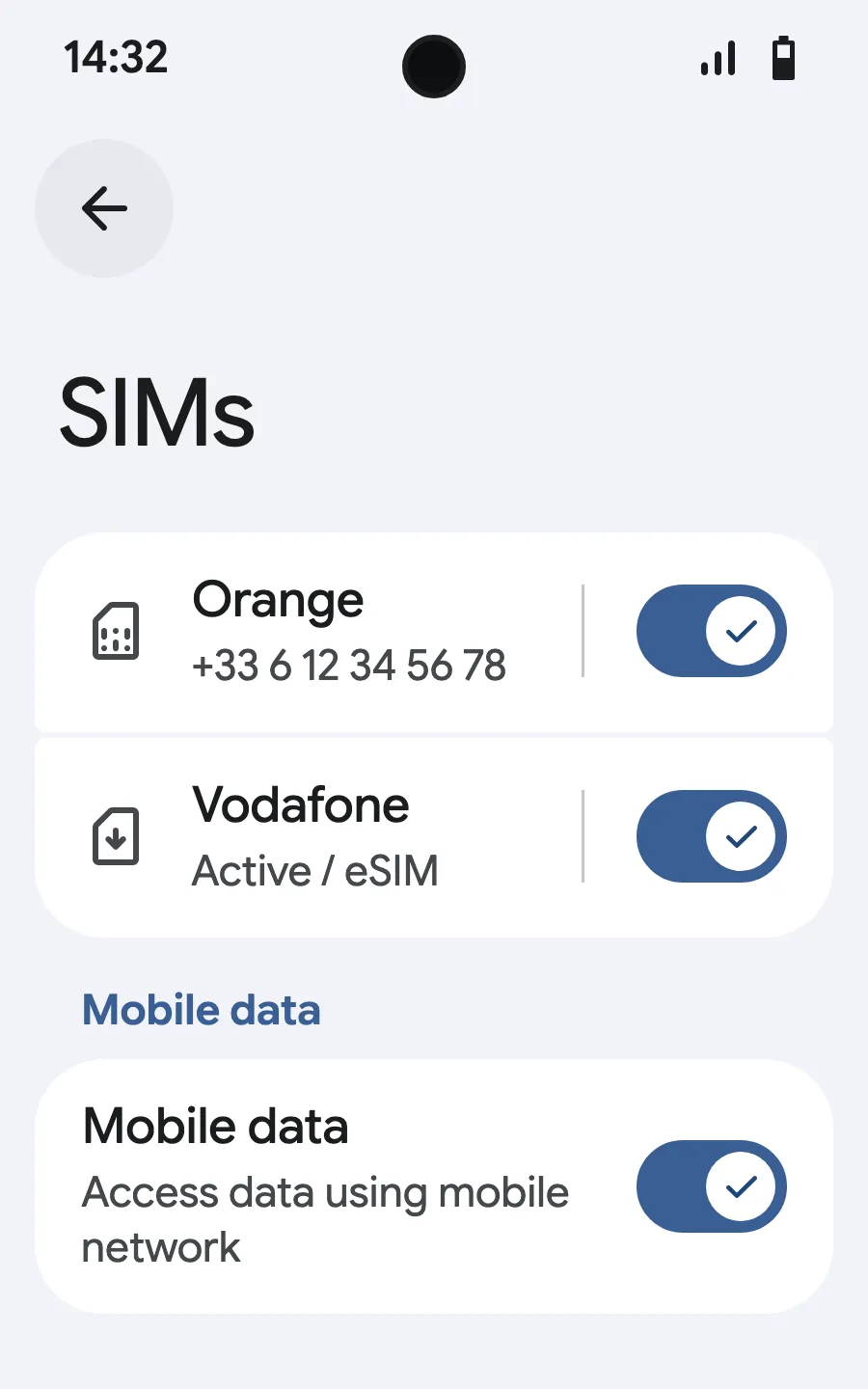
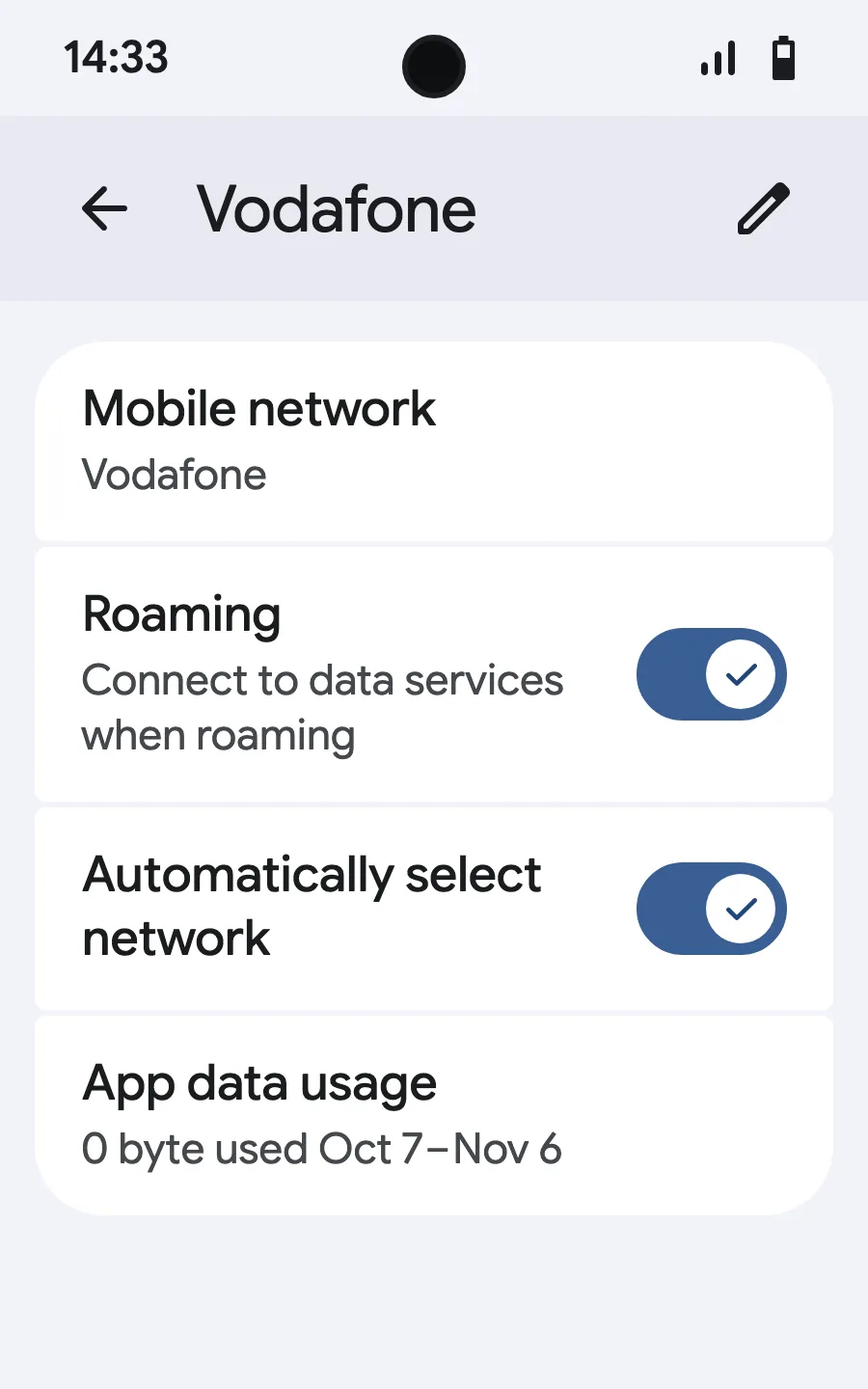
Before you leave: install your eSIMStep 1 of 8
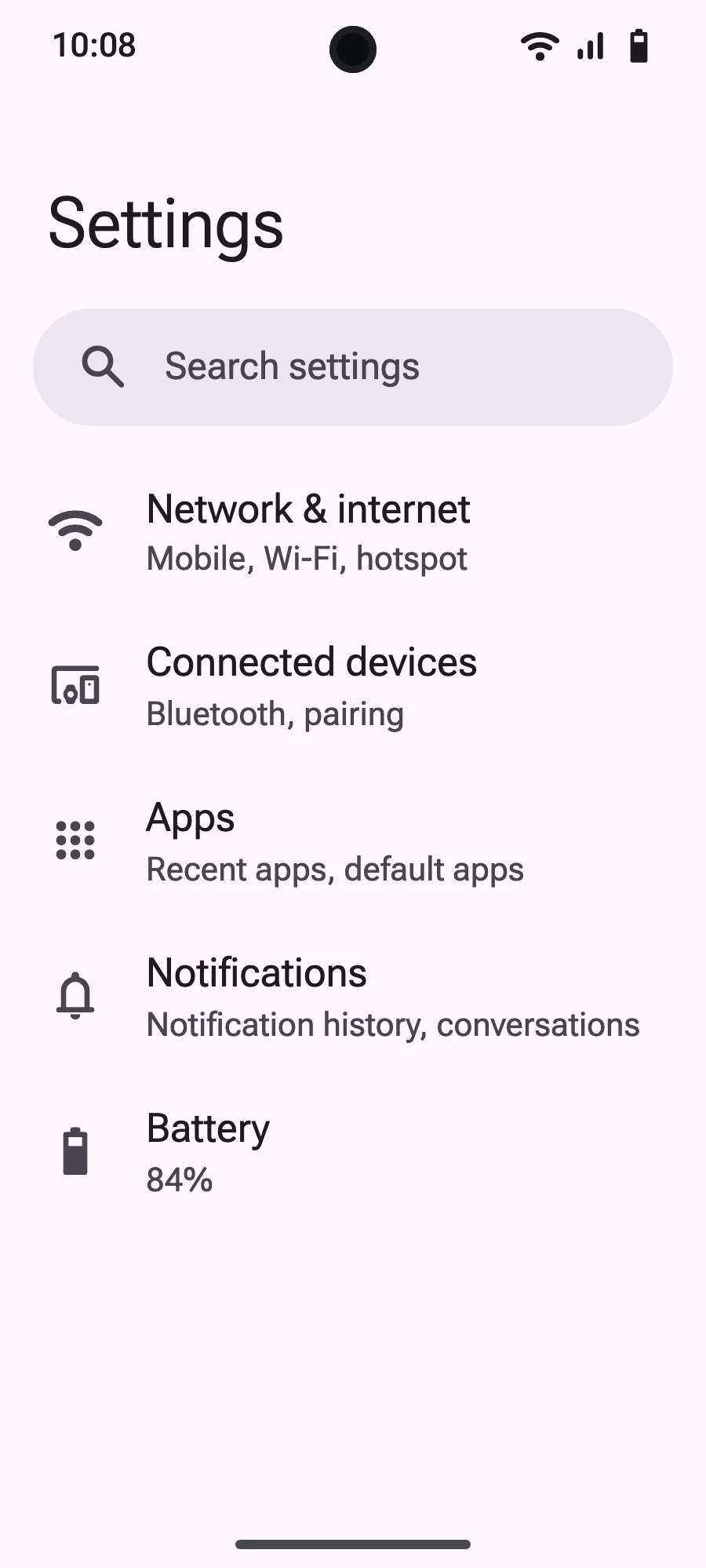
- Open Settings, then Mobile networks or Network & internet.
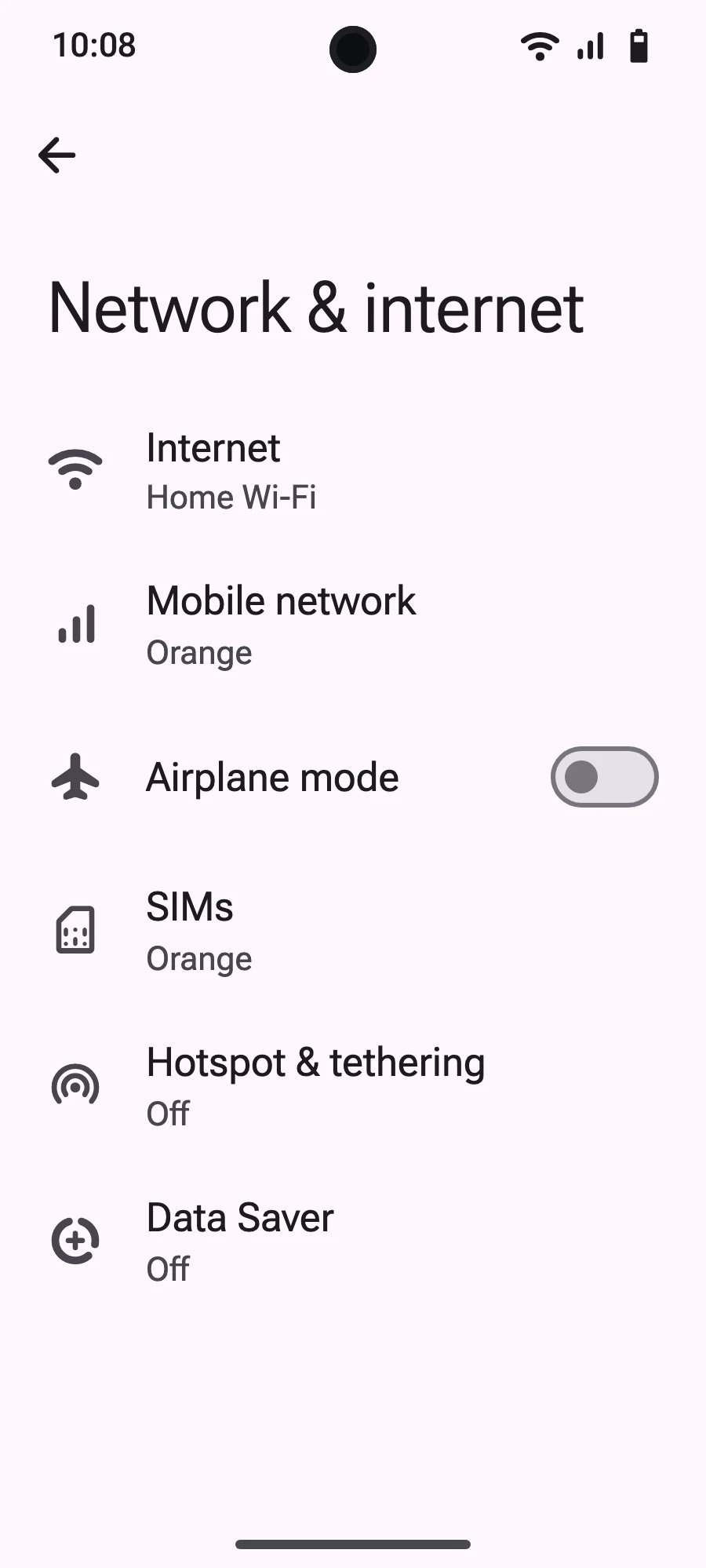
- Tap “Mobile network”.
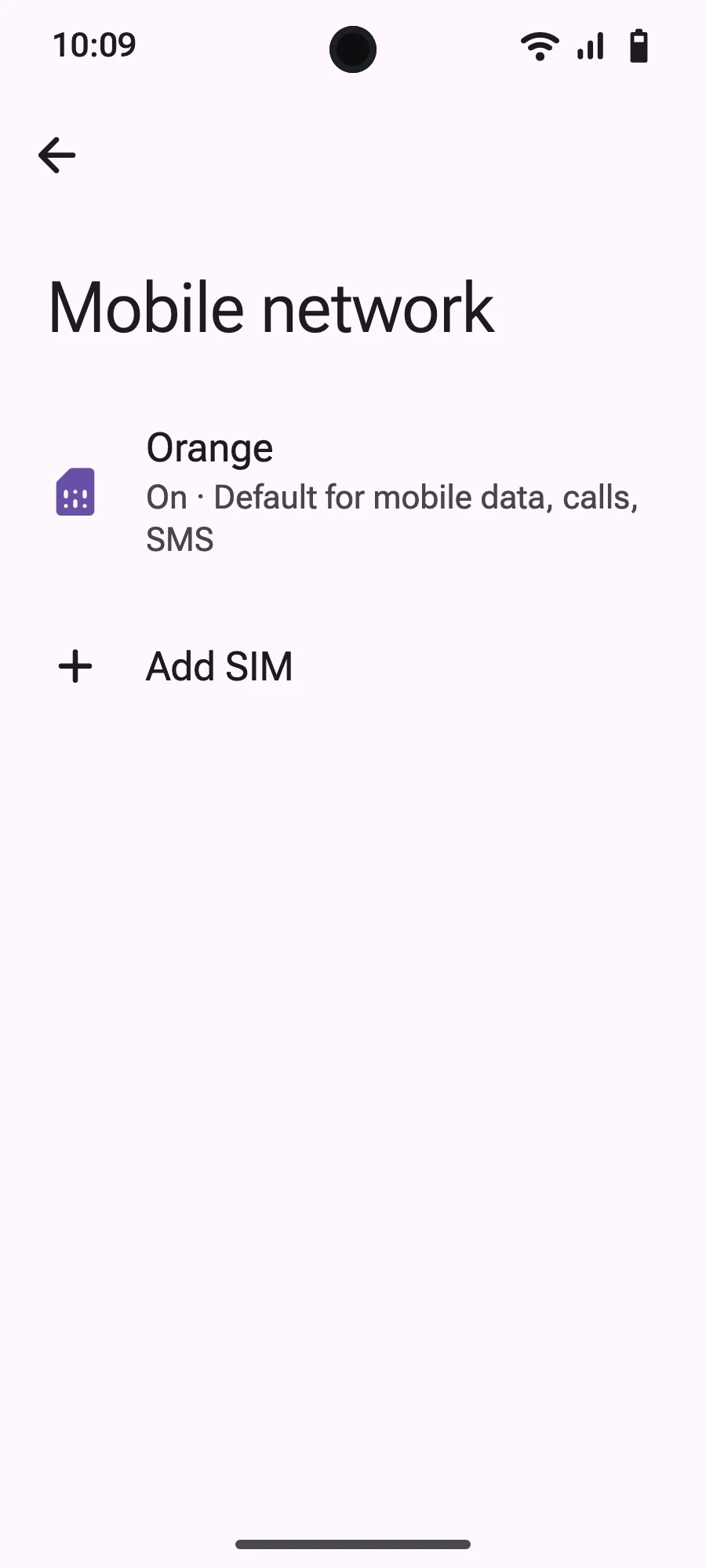
- Tap “Add SIM”.
- Tap “Set up an eSIM”.
- Scan the QR code we email you after purchase (it's also in your account), then confirm.
- When you land, open your new eSIM (it shows the name of a local or partner carrier) and turn on “Use SIM”.
- Turn on mobile data for the new eSIM.
- Turn on roaming. If nothing loads, turn off automatic network selection and pick the network manually.
After you buy, your QR code arrives by email and in your account. Show it on another screen, then follow these steps on your phone. On Xiaomi, Oppo or OnePlus the menus have other names: search for “eSIM” in Settings.
Why choose Simsima?
See how we compare with traditional options.
Simsima eSIM
- Setup time
- Instant (QR code)
- Cost
- Local rates (cheaper)
- Keep your main number
- Eco-friendly
- Multiple profiles
Physical SIM
- Setup time
- Days (shipping) / store visit
- Cost
- Variable + hidden fees
- Keep your main number
- Eco-friendly
- Multiple profiles
Roaming
- Setup time
- Instant (automatic)
- Cost
- Very expensive ($$$)
- Keep your main number
- Eco-friendly
- Multiple profiles

Manage everything from your phone
Simsima is more than mobile data: it's your travel companion. Track your usage in real time and stay connected.
- Real-time data tracking
- Fast top-ups (no reinstall needed)
- Manage multiple destinations
- Human support
Why Simsima?

Coverage in 190+ destinations
One reliable provider for the whole world. Switch destinations in a few taps.
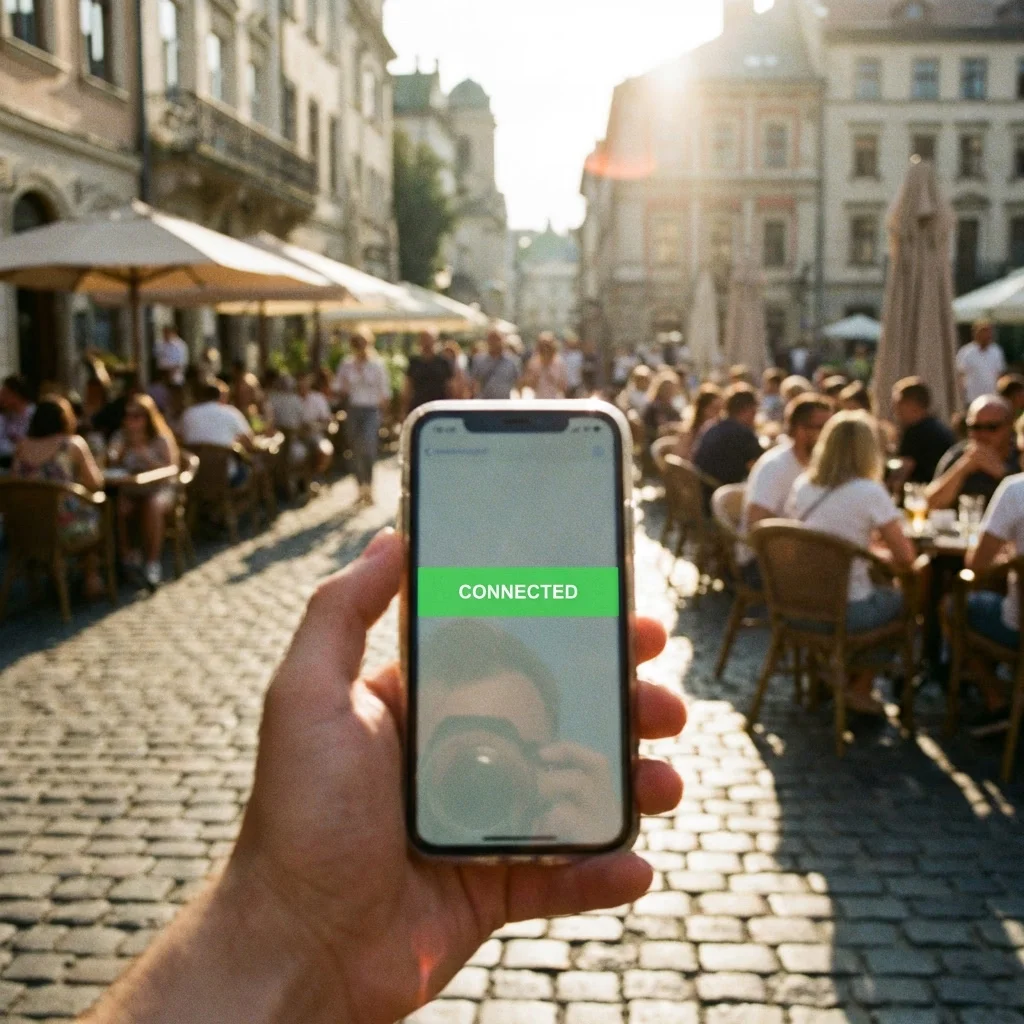
Instant delivery
No shipping, no waiting. Scan the QR code and you're ready to connect.

No roaming fees
Skip your carrier's daily roaming fees. You only pay for the data you use, at local rates.
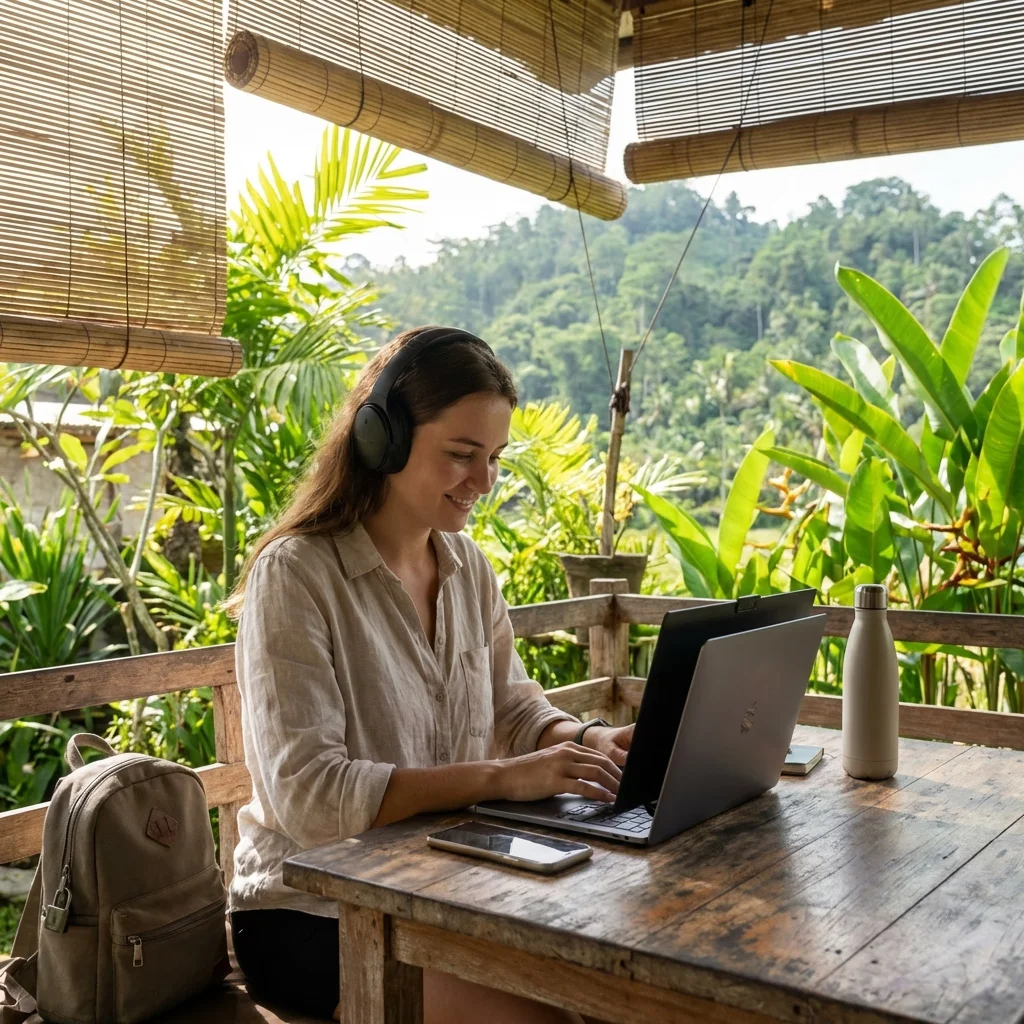
Secure connection
Much safer than public Wi-Fi. Your connection stays private and encrypted.
Have questions?
We've got you covered.
Helpful articles
Find detailed guides and answers in our Help Center



Ready to travel freely?