-5% on your order in the app
You've landed, connected to airport Wi-Fi, and installed the prepaid SIM or travel eSIM you bought for the trip. Then your phone shows “SIM not provisioned” instead of loading your map. Wi-Fi still works, but mobile service doesn't, and you're left wondering whether the phone, the plan, or the activation failed.
Don't delete the eSIM or reset the phone yet. The useful first question is where setup stopped: downloading the profile, enabling the line, getting carrier authorization, or connecting mobile data.
What SIM Not Provisioned Means Abroad
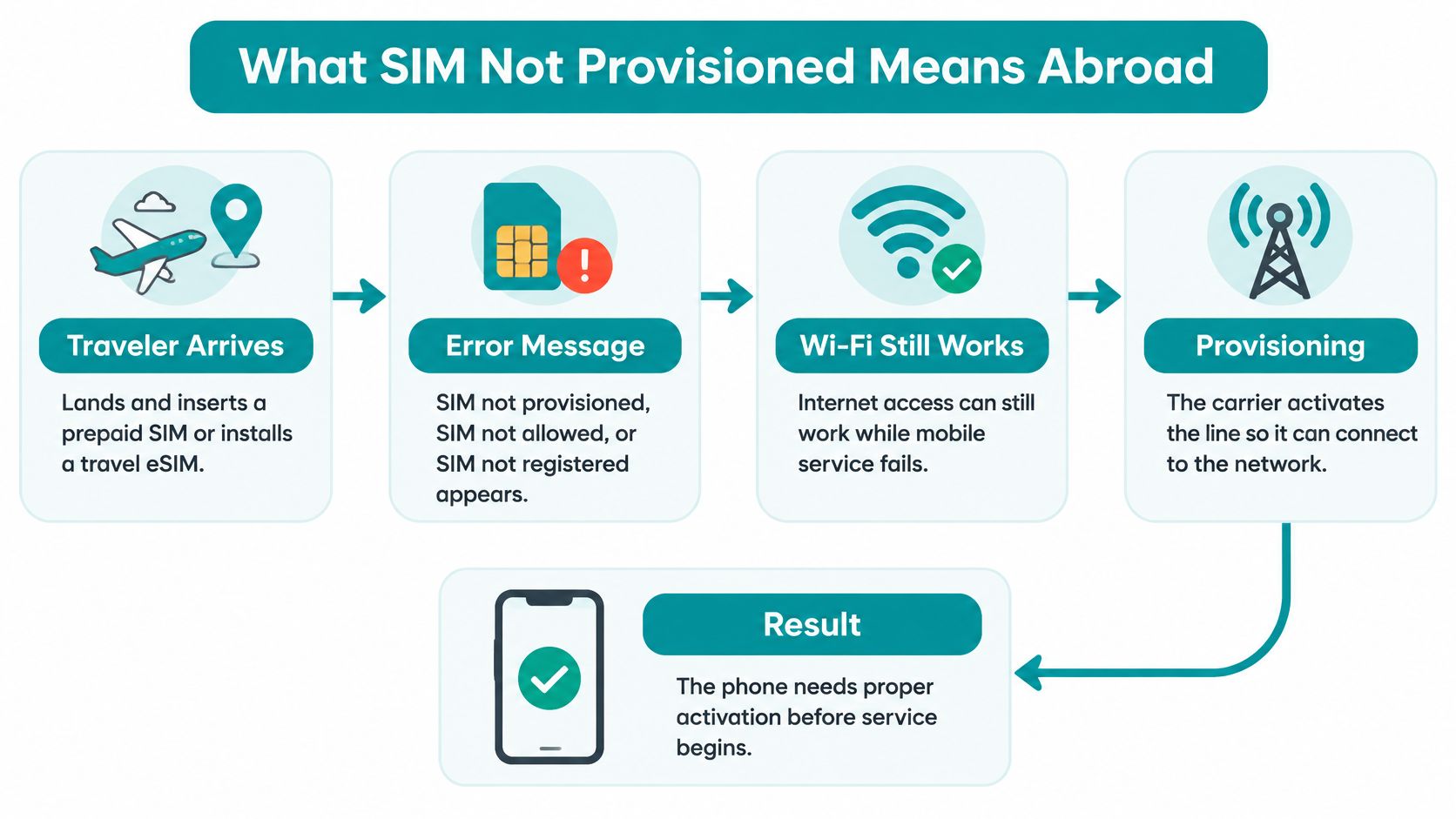
Provisioning means the carrier links your SIM's identity to an active customer account and service plan. Your phone needs that authorization before it can use the mobile network. Seeing the SIM in Settings doesn't prove the carrier has finished activating it.
Say you insert a prepaid SIM at baggage claim. The phone recognizes it, but the carrier hasn't completed your account setup. You might see “SIM not provisioned,” “SIM not allowed,” or “SIM not registered.” Those messages aren't another way to say the signal is weak.
What the phone recognizes
A physical SIM stores operator and subscriber information. With an eSIM, the phone downloads that information as a profile to an embedded universal integrated circuit card, or eUICC. The GSMA's eSIM specifications describe the remote-provisioning architecture that delivers operator and subscriber information to the embedded SIM.
Think of the profile as your line's credentials, not proof that service is already available. The phone can recognize those credentials while the carrier still refuses access.
The distinction is easier to follow as a flow.
Why activation can stop
Several things can leave a recognized SIM without service:
- Unused activation details: The required activation code or account step hasn't been completed.
- Incomplete account setup: The provider hasn't associated the subscriber with an active plan.
- Identifier mismatch: The issued profile doesn't match the intended device.
- Inactive subscription: The plan is suspended or expired.
- Carrier processing: The provider hasn't finished enabling the line.
Airport Wi-Fi can keep working throughout because it doesn't use your mobile subscription. That's why being able to browse on Wi-Fi doesn't tell you whether the SIM is active.
A restart can refresh the phone's network connection. Reseating a physical SIM can improve contact with the card. Neither action can create or correct the carrier's subscriber record.
Practical rule: Check what the phone can control, then collect evidence for what only the carrier can authorize.
For travelers, that split prevents a frustrating loop: rebooting a working phone while an unfinished activation remains unchanged.
Match Your Symptom to the Failure
SIM not provisioned symptoms and where to act
Match the exact symptom to the likely failure. Work the row that fits before trying unrelated fixes.
| Symptom | Likely failure | Next move |
|---|---|---|
| Error while scanning QR or entering code | Profile never downloaded | Stable Wi-Fi, then re-scan the same unused code |
| SOS or no service after the line appears | Line off, or carrier has not authorized it | Enable the line, restart, then contact carrier |
| Calls and SMS work, mobile data does not | Wrong data line or missing APN | Select that line for data and check APN |
| Worked earlier, now unprovisioned | Suspended, expired, or unpaid plan | Carrier account check |
| Same SIM fails in a second unlocked phone | Account, profile, or activation record | Contact the carrier |
| A known-good SIM works in your phone | Original SIM or plan, not the radio | Contact the carrier, not a hardware repair |
These are diagnostic clues, not guarantees. SOS or no service can also reflect coverage, roaming restrictions, or an unsupported device. An installation error can come from missing Wi-Fi, invalid activation details, or a carrier-locked phone rather than a defective eSIM.
Apple's platform guidance distinguishes device-side checks from carrier activation work, including verifying profile availability and the device's IMEI or EID. That distinction matters more than the wording of a generic error.
Read the symptom on the correct line
On a dual-SIM phone, check which subscription supplies each service. Your home SIM might handle calls and texts successfully while the travel eSIM supplies no data. Working calls on the home line don't prove the travel line is authorized.
A travel data-only eSIM can also install cleanly but fail to provide internet access because its access point name, or APN, wasn't populated. The APN tells the phone how to connect to the plan's data service. A missing APN isn't the same as a dead phone radio.
For example, you might see the travel line listed and enabled, yet discover that Cellular Data still points to your home SIM. That's a selection problem, not evidence that the downloaded profile needs replacing.
If the phone doesn't detect a card or profile at all, use the separate explanation of what “No SIM” means on iPhone. Detection and authorization require different troubleshooting.
Preserve what might still work
Don't delete a recoverable eSIM, factory-reset the phone, or buy another plan just because the first connection attempt failed. Even a confirmed download failure should lead to checking the activation details and replacement options before purchasing again.
Capture the screen showing the error and whether the line appears in Settings. Note the carrier name and device model, too. Those details help distinguish an installation problem from an account restriction without assuming you made a mistake.
Use the ordered device checks for disabled lines, data selection, and registration problems. When the evidence points to an inactive account or incorrect activation record, the carrier must make the correction.
iPhone and Android Menu Paths
Find the correct line before changing settings. A travel label such as “Vacation” or “Secondary” can be more useful than the displayed phone number, particularly when the eSIM is data-only.
Where to check the line on iPhone and Android
| Job | iPhone | Android |
|---|---|---|
| See if the line exists | Settings > Cellular | Settings > Network and internet or Connections > SIMs |
| Turn the line off and on | Line switch under Cellular | SIM toggle in the SIM manager |
| Choose mobile data | Cellular Data line | Preferred SIM for mobile data |
| Carrier or APN update | Settings > General > About | Access point names for that SIM |
| Find EID or IMEI | Settings > General > About | Settings > About phone |
| Add a missing eSIM | Cellular > Add eSIM | Add eSIM or Download SIM, on Wi-Fi |
Android menu names differ by manufacturer. On some phones, Connections > SIM manager contains the line controls, while APN settings sit under Mobile networks. Use Settings search for “SIM” or “access point names” if needed.
On iPhone
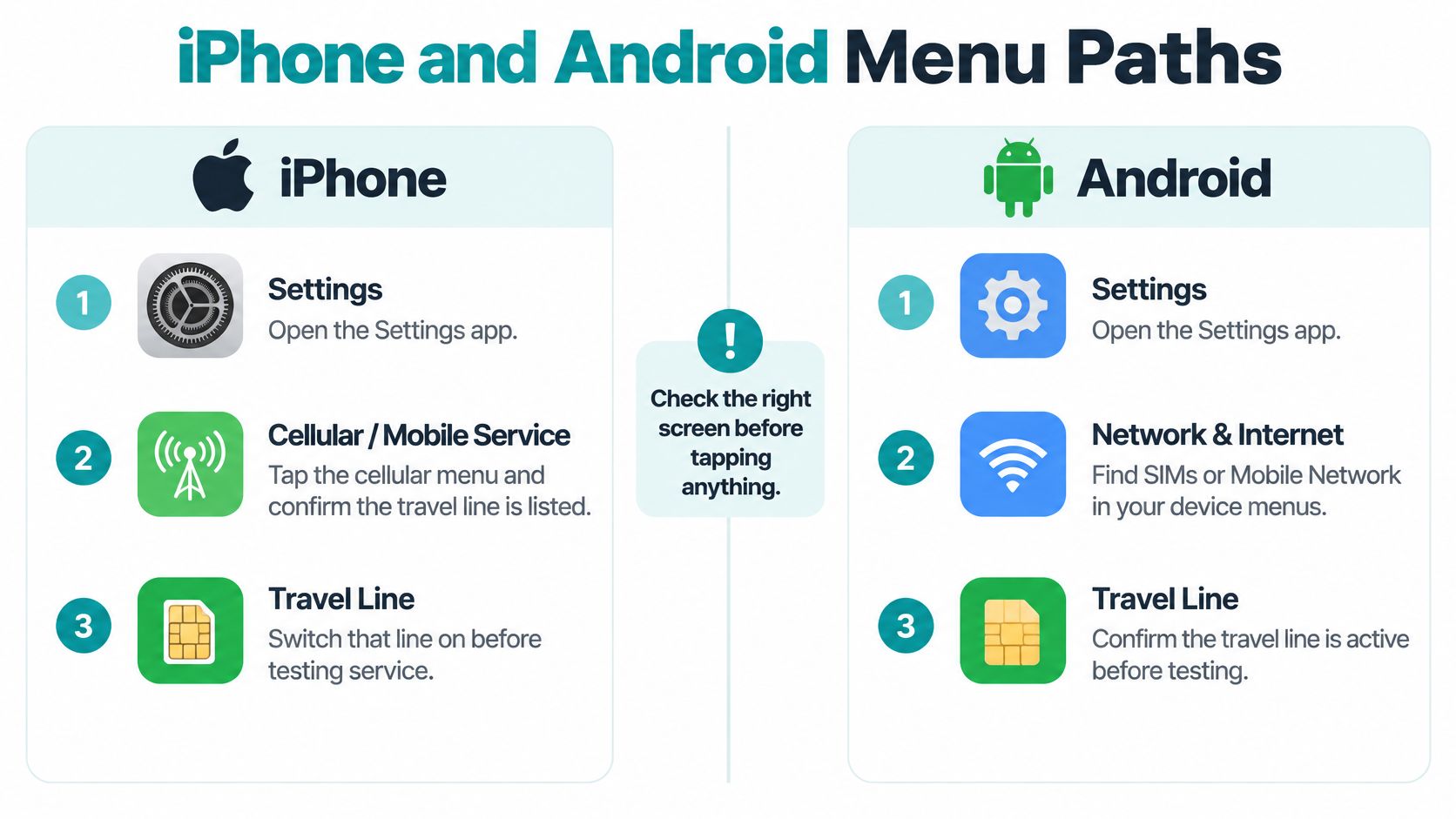
Open Settings > Cellular, sometimes called Mobile Service, and select the travel line. Confirm it's listed, switch it off and back on, then choose it under Cellular Data.
Apple's eSIM troubleshooting guidance includes checking the line, toggling Airplane Mode, restarting, and checking for carrier-settings updates. For the update check, open Settings > General > About and accept an Update prompt if one appears; the eSIM section also shows the carrier name and version.
Restart through the phone's power controls. Locking the screen doesn't restart the device.
Use these menu paths to identify the right controls before tapping.
On Android
Turn the travel SIM on in SIMs or SIM manager, then make it the preferred SIM for mobile data. Open Access point names for that specific line, not the home subscription.
If the APN is blank, enter only the value in the plan's setup instructions. Don't copy an APN from an unrelated carrier or change fields the instructions don't mention.
If the line is missing entirely, you're still in installation. If it's listed but off, enable it before testing carrier authorization.
Find the EID on eSIM-capable devices and the IMEI in the device information screen. The carrier may need both to check whether it issued the profile to the intended phone; neither identifier replaces the SIM's ICCID.
Run These Checks in Order
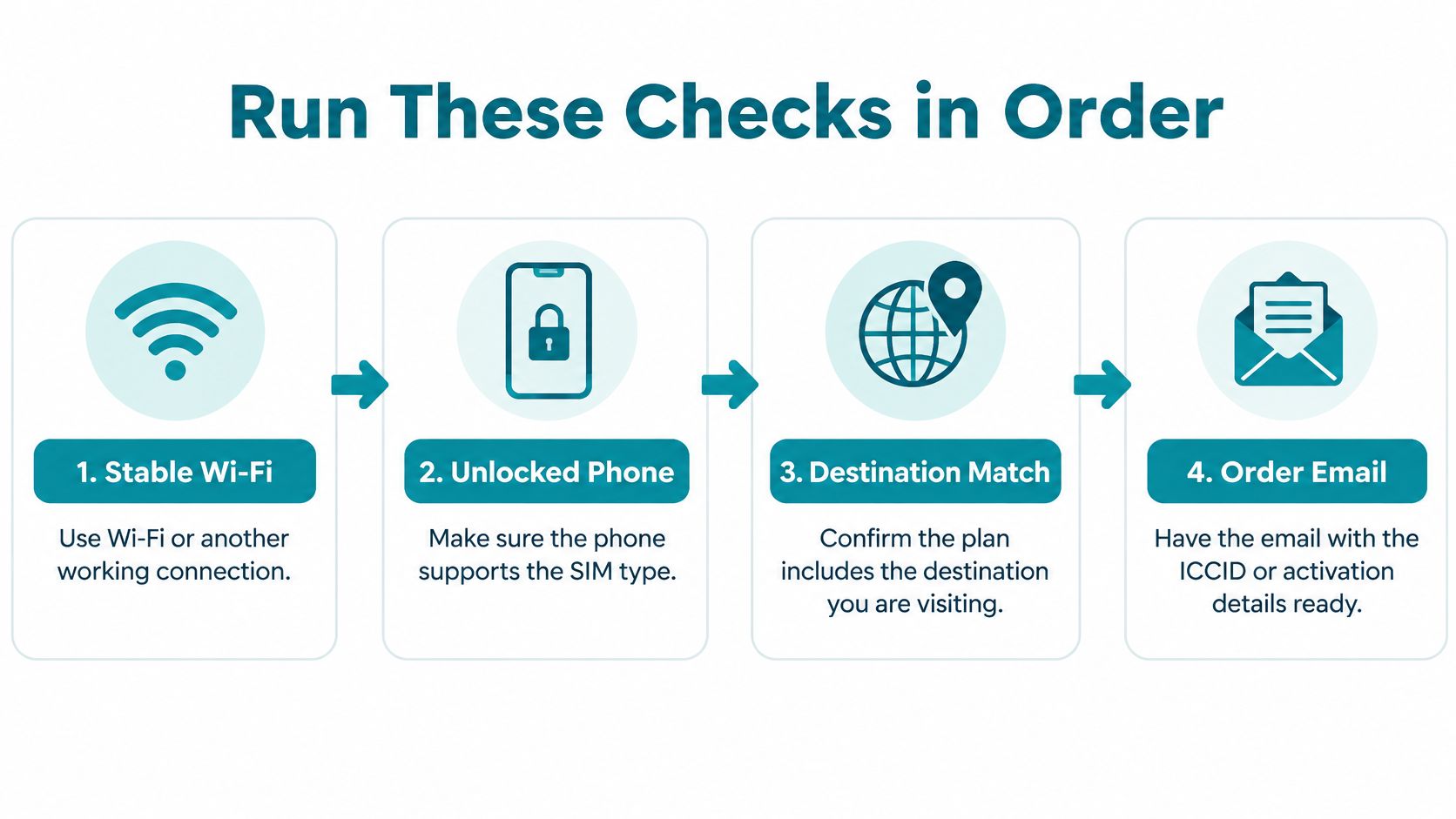
Have stable Wi-Fi or another working connection, a phone supporting the SIM type, the plan's destination details, and the order email with activation information ready. Keep the email accessible somewhere other than the phone if you'll need to scan its QR code.
The prerequisites below help prevent an interrupted retry.
Check installation and connection
The GSMA's consumer remote-provisioning analysis describes how the phone's Local Profile Assistant uses activation information to retrieve a profile from the SM-DP+ server. Downloading that profile and obtaining network service are separate stages, so check both.
Confirm status and compatibility. Make sure the phone accepts another carrier's SIM and supports the SIM type you purchased. A new activation code won't remove a carrier lock or add eSIM hardware.
Connect to reliable Wi-Fi. Complete any airport or hotel sign-in page before retrying a download. A Wi-Fi icon alone doesn't prove the phone can reach the activation service.
Check the intended line. Confirm it's present, enabled, and selected for mobile data. Keep the home line assigned to calls if that's your intended dual-SIM arrangement.
Refresh registration. Turn Airplane Mode on briefly, turn it off, and restart the phone. Watch whether a carrier name or signal indicator appears afterward, rather than immediately repeating the process.
Check the SIM connection. For a physical SIM, power the phone off completely, reseat the card correctly, and boot again. For an eSIM, disable and re-enable the line instead of deleting the profile.
Check network selection. Start with automatic selection. If the plan instructions name a supported local network and automatic selection fails, try that network manually rather than choosing random operators.
Verify destination, roaming, and validity. Confirm you're in a covered destination and within the plan's usable window. Enable data roaming on the travel line when its instructions require it, while keeping the home line's roaming settings separate.
Isolate the fault before resetting
- Run a controlled swap where practical. Test a suspect physical SIM in another unlocked, compatible phone, then test a known-good SIM in yours. For an eSIM, attempt a device transfer only if the provider supports it; don't delete the profile to imitate a physical-card swap.
If the suspect SIM fails elsewhere while a working SIM succeeds in your phone, stop and contact the carrier. That result points toward the original SIM, profile, or account, not a reason for another reset.
- Reserve a network-settings reset for unresolved device-side problems. Only consider it after the earlier checks, when the evidence hasn't already identified a carrier authorization fault. It can remove saved Wi-Fi networks and Bluetooth pairings, and it won't repair a subscriber record.
Use the platform-specific network-settings reset guide before confirming the reset. Have your Wi-Fi password available so you don't lose your only working connection.
Stop point: An unchanged provisioning error after a useful swap test is a reason to escalate, not to factory-reset.
Record the exact error, device model, EID, ICCID, and order number as you work. Note which check changed the behavior, even if it only made the carrier name appear.
When a Travel eSIM Will Not Provision
A common travel setup keeps your home number available for calls and texts while a travel eSIM handles data. Treat the travel line as its own subscription, with separate installation, enablement, and data settings.
Your goal is a visible, enabled travel line, not just a completed QR scan.
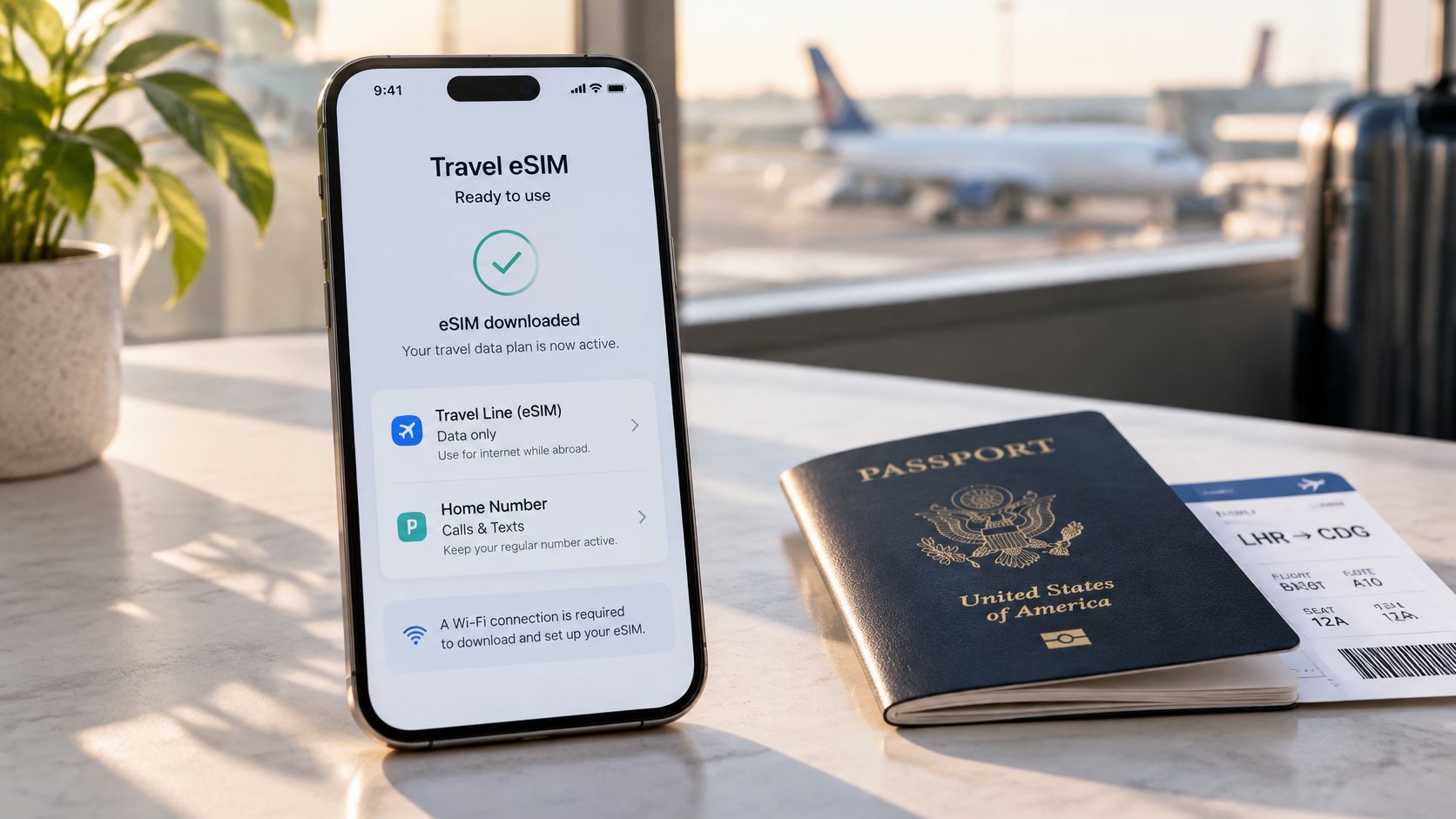
Separate download, enablement, and data
Cannot download the profile: Use a working internet connection and the installation method supplied with the order. On iPhone, Apple's cellular setup guide describes Settings > Cellular > Set Up Cellular or Add eSIM, with supported options including QR scanning, manual activation details, nearby-iPhone transfer, carrier activation, or a participating carrier's app.
Not every plan supports every method. For QR setup, frame the supplied code and follow the prompts; use manual entry only with the exact activation information provided.
Downloaded but not enabled: Look for the new line under Cellular or the Android SIM manager. Give it a recognizable label and turn it on. A confirmation email alone doesn't establish that the device installed the profile.
Enabled with signal but no data: Check the selected data line, travel-line roaming, and APN. Signal bars suggest the phone has made some network connection, but they don't prove that the data session is correctly configured.
For a complete installation walkthrough, use our eSIM setup guide.
This video provides another view of the setup process.
Don't turn a recoverable profile into a replacement request
Many QR codes are single-use. Deleting an installed profile can leave you unable to reuse its code, so try the line switch first and ask support to verify whether the existing profile remains usable.
Request a replacement when support confirms the download failed or the profile can't be recovered. Don't repeatedly toggle the line while an installation or carrier activation is still processing.
Install on home or hotel Wi-Fi before the flight when the plan's activation rules allow it. Some destination-dependent plans can remain idle until the phone reaches a covered network, so distinguish advance installation from service starting.
- Save a screenshot: Capture the line list after installation.
- Preserve your home number: Keep it available for SMS bank codes if needed, subject to your home carrier's roaming terms.
- Avoid unintended charges: Keeping a home SIM enabled doesn't make its calls, texts, or roaming data free.
Call the Carrier With This Packet
Contact the carrier or eSIM provider when installation succeeded, the line is enabled, and the error survives the relevant checks. Only the provider can validate subscriber status, correct an activation record, re-enable a suspended subscription, or issue a replacement profile.
Send evidence that narrows the problem
Provide the following through the provider's official support channel, not a public forum:
- Exact symptom: Error wording and a screenshot of the Cellular or SIM screen.
- Device details: Model, iOS or Android version, and firmware version if shown.
- Identifiers: IMEI for the affected device, EID for eSIM troubleshooting, ICCID, and order number.
- Location and timing: City, timestamp, and when the failure started.
- Network behavior: Automatic or manual selection, displayed network, and any swap-test results.
- Affected services: Whether voice, SMS, and data all fail, or only data fails.
Ask support to confirm the subscription is active, the profile is released for activation, and it's associated with the correct device identifiers. For an eSIM, explicitly ask whether the profile is tied to the intended EID.
Know whether processing is still underway
The carrier troubleshooting guide on provisioning errors says new activations can take minutes to several hours, some providers advise allowing up to 24 hours, and number transfers may complete by the end of the next working day.
| Situation | What to do before another call |
|---|---|
| New activation still processing | Get the provider's stated completion window |
| Number transfer pending | Ask whether the transfer has completed or needs action |
| Previously working line stopped | Request an account and subscription-status check |
| Confirmed profile mismatch | Ask for correction or replacement, not another restart |
Those processing windows aren't a reason to postpone reporting a clear error. Open the support case, then wait if the provider confirms processing is normal.
Tell support if the phone is locked or incompatible. A replacement QR code won't activate it. If a replacement is issued, install it once on reliable Wi-Fi and test the new line without repeating unnecessary resets.
Decide Whether to Wait or Switch Lines
Wait when the provider confirms activation is processing and its stated window still fits your trip. If your plan's service window hasn't started, buying another plan immediately may solve nothing. Keep the support case open and ask what specific event will confirm completion.
If you've already arrived and only data fails, preserve your working home number. Correct the travel line's data configuration or authorization rather than deleting everything associated with it. A usable calling line and a broken data line don't require the same remedy.
Switch when the original profile can't be released
Consider switching when the activation code is spent, the phone is unlocked and eSIM-capable, and the original provider can't make a usable profile available in time. Confirm those conditions before paying again, because another eSIM won't fix a device lock.
For that situation, we offer a Simsima travel eSIM as a prepaid alternative, paid once with no subscription. Our eSIMs connect automatically to local or partner carrier networks, with manual network selection available if automatic selection fails.
Our service is data-only. It doesn't support voice calls, SMS, or bank verification codes by text, so keep your home SIM available for those services and check its roaming terms.
Choose a replacement because the original activation can't be completed in time, not because another restart felt unproductive.
Install the replacement on Wi-Fi before boarding when its setup rules permit. On arrival, select it for mobile data and enable its required roaming setting, then test an ordinary webpage before leaving your working Wi-Fi connection.
Simsima offers prepaid travel data eSIMs for travelers who need an alternative to an unusable mobile-data line. Visit Simsima to check destination coverage and device compatibility, then install on Wi-Fi while keeping your home number available for calls and texts.


#SIM not provisioned#eSIM troubleshooting#iPhone SIM error#Android SIM error#travel eSIM

Dimitri MorvanFounder
Founder of Simsima. A passionate traveler based in Barcelona, he helps travelers stay connected without breaking the bank on roaming fees.
LinkedIn