-5% on your 1st eSIM
WELCOME5
Loading...

Learn how WiFi calling abroad works, how to enable it on iPhone and Android, avoid roaming fees, and use it with a travel eSIM.
 Dimitri Morvan
You land tired, take out your phone, and the first thing you need is the boring stuff, the bank SMS, the hotel check-in call, the message from home that says the package arrived. If you've ever stood in an airport with a travel eSIM active, your home SIM still sitting in the phone, and no idea which line is doing what, WiFi Calling Abroad is the feature that can save the day, or cost you if it's set up badly.
The practical appeal is simple. Voice over Wi‑Fi routes calls and SMS over an internet connection instead of a cellular tower, so your home number can stay usable in hotels, airports, and weak-signal neighborhoods. Market data shows the category has moved well beyond niche status, with one estimate putting the global VoWiFi market at US$2.1 billion in 2024 and another at US$6.2 billion in 2024. Both point in the same direction, the feature is mainstream, but mainstream doesn't mean effortless. VoWiFi market overview and broader VoWiFi market coverage
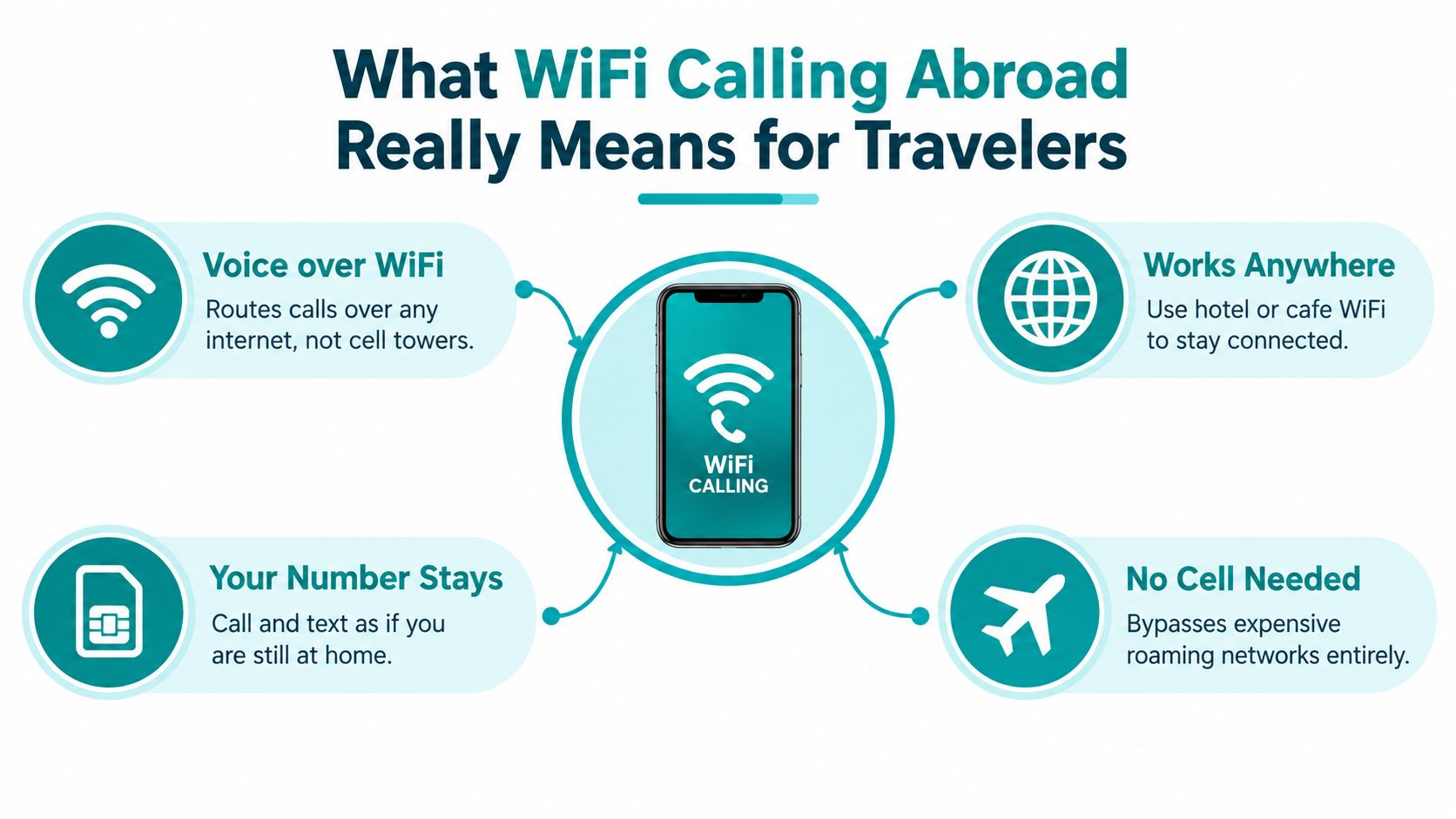
A delayed flight, weak roaming, and a hotel lobby with usable WiFi are where WiFi calling earns its keep. You connect to the internet, your phone registers the call through your carrier's voice service, and the person on the other end sees your regular number. That is what people usually want when they search for wifi calling abroad, keeping the home number alive without paying roaming charges for every voice call.
WiFi calling is not a messaging app. The carrier still handles the call and SMS path through its own voice infrastructure, so handset support and carrier policy still control whether it works. The GSMA's Voice over Wi‑Fi whitepaper reports that once WiFi Calling was supported, average service coverage rose by 35.7%, call success rate increased by 21%, and MOS improved by 50%. That points to a feature that works best as a fallback when mobile coverage is weak.
Practical rule: Use WiFi Calling when you need your regular number to behave normally over internet access, not when you want a full replacement for mobile data.
That distinction matters on the road. A travel eSIM gives you data, maps, messaging, and hotspot flexibility, but it does not preserve your home voice number. WiFi calling does preserve the number, as long as the phone, carrier, and WiFi network all cooperate. Dual-SIM settings make this trickier, because the home line and the data-only travel line can behave differently. I have seen phones keep the home line active for calls while routing data through the travel eSIM, and I have also seen the wrong line stay selected until a roaming charge showed up later. The feature is most useful in hotels, airports, coworking spaces, and cafés where the connection is good enough for voice, but cellular roaming is unreliable or expensive.
App-based calling works when both sides use the same app, but it does not keep your carrier identity intact. WiFi Calling is the better choice when you need people to call back a familiar number, or when banks, doctors, delivery companies, and family still expect your mobile line. If your trip is data-heavy and you are fine living inside apps, local data plus VoIP can work. If you want to stay reachable on the number people already know, WiFi Calling is the cleaner fit.
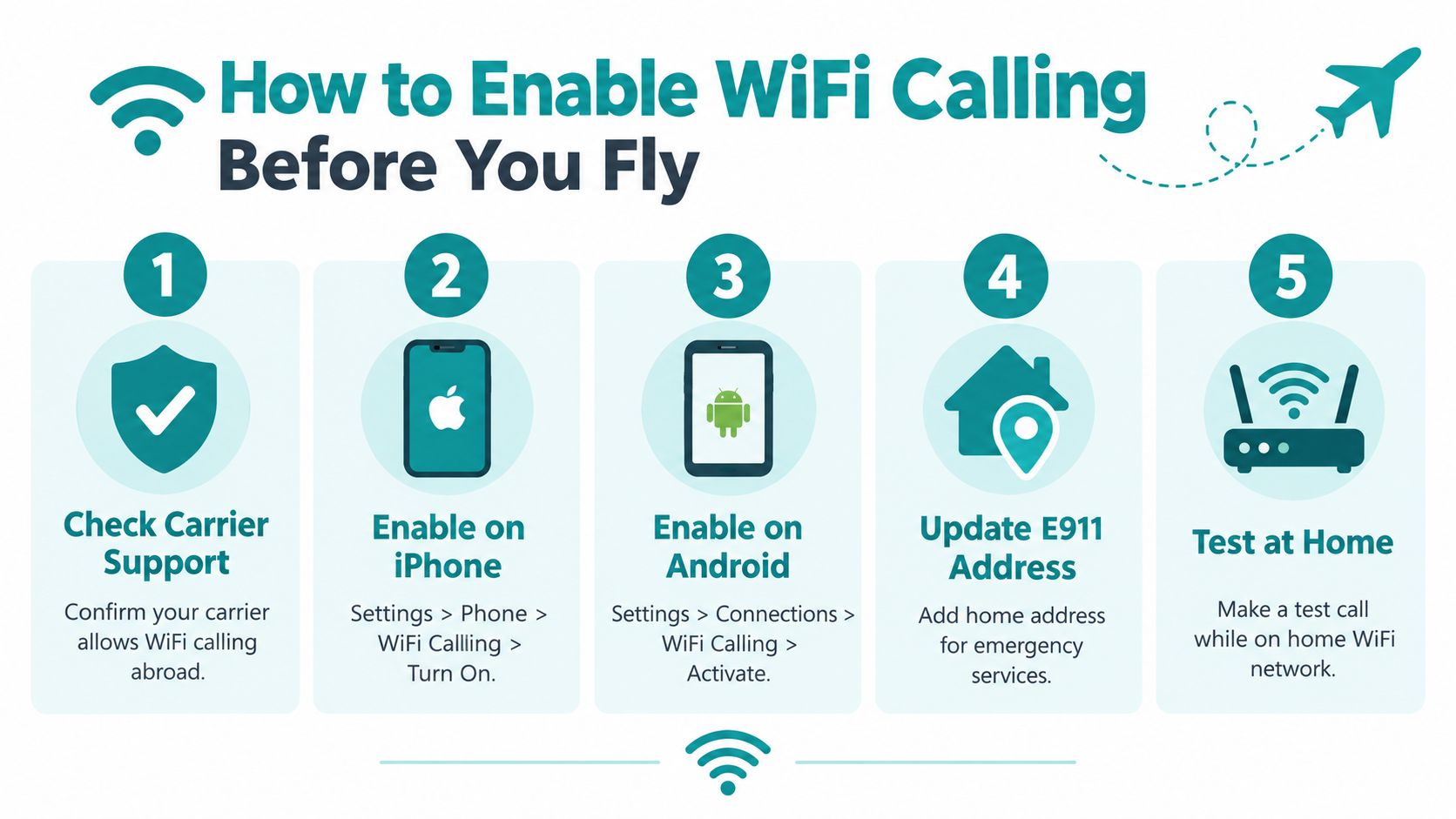
The biggest setup mistake is waiting until you are already abroad. Verizon and AT&T, for example, require home-network registration before WiFi Calling can be enabled while roaming, so the safest time to set it up is before you leave. Some carriers also ask for an emergency address during setup, which is normal and usually required before the feature is fully turned on. Carrier setup guidance for travel
Dual-SIM phones make this more annoying, because the toggle can be tied to a specific line. On iPhone, the path is Settings → Cellular → WiFi Calling, and on many Android devices it sits under the connection or network menus. Check each SIM line one by one, because the home line may be enabled while the travel eSIM line is not, or vice versa.
Before you leave, make the phone prove it can register. Place a short test call on your home WiFi, then switch briefly to another WiFi network if possible, because some carrier provisioning works on one network and fails on another if the device has not fully registered. If the toggle is hidden, grayed out, or disappears after a reboot, that usually points to provisioning or carrier support rather than a problem with the WiFi itself.
The cleanest pre-flight check is simple, your home SIM must be active, WiFi Calling must be enabled on that line, and the phone must complete one real call at home before you depend on it abroad.
If you are using an iPhone, the device should be set up before you leave, and the carrier's emergency address prompt should be completed if it appears. Android varies more by manufacturer, so the menu path can differ, but the logic stays the same, enable the line, test the call, then confirm the phone keeps the setting after a restart. If you need a broader travel-data setup alongside that home line, the practical eSIM basics are laid out in this Simsima setup guide, which is useful for sorting the data side before your flight.
A phone that looks enabled is not always registered. Ask your carrier support whether your line is provisioned for WiFi Calling and whether any IMS profile needs to be refreshed on their side. The reason is technical but practical. Carrier-side IMS and ePDG handling, as described in the carrier setup guidance for travel, is what lets the handset get an IP address from WiFi and build the tunnel it needs for voice. If that profile is missing or the line was never provisioned correctly, the toggle can sit there and still fail when you try to use it.
If you are pairing your home line with a data-only travel eSIM, check your phone's cellular-data settings before you fly. On iPhone, that usually means confirming which line handles data and which line stays reserved for calls. A quick pass through cellular data settings on iPhone can prevent the common mistake of sending data through the wrong SIM and triggering roaming charges by accident.
A phone that works well at home can behave differently once you cross a border. Carrier policy matters as much as handset support. One carrier FAQ says WiFi calling can be used for international calls, but not during international roaming, while the same carrier permits WiFi calling during national roaming in India except Jammu and Kashmir. That split is why travelers get surprised when a feature that worked yesterday stops working the moment they land. Airtel WiFi Calling FAQ
Support is broader than many travelers assume. GSMA notes that VoWiFi is widely available across carrier networks, but availability alone does not mean your own line is allowed to use it from the country you are visiting. A phone can show the WiFi Calling toggle and still fail to place a call if the carrier blocks foreign use or limits the feature to certain plans and territories.
The trap is the gap between device support and carrier approval. Some destinations and operators block WiFi calling outright. Others allow it only under specific account settings, or only while the home line is registered exactly the way the carrier expects. The safest move is to check your carrier's international policy page before you leave, not after a hotel-room call fails.
Practical takeaway: A supported phone is only half the equation. The other half is whether your home carrier still authenticates the line over foreign WiFi.
Even when WiFi calling connects, billing can still surprise you. Some carriers bill international WiFi calls per minute unless the right add-on or plan is active, and fallback behavior matters more than the call screen suggests. If the phone drops from WiFi to cellular without you noticing, a normal voice call can turn into roaming charges fast.
Dual-SIM settings make this easier to miss. A travel eSIM may carry your data, while the home line stays active for calls and SMS, but the wrong data-line selection or an automatic cellular handoff can still send traffic the wrong way. That is the point where hotel WiFi, a data-only travel eSIM, and your carrier's rules intersect, and it is where surprise charges usually start.
The practical check is simple. Confirm whether the carrier allows WiFi calling abroad, whether the destination network interferes with registration, and how the plan bills a call once it is placed. If any of those answers is unclear, treat WiFi calling as a backup, not the only way to keep your home number usable.
A dual-SIM phone can make this setup look easier than it is. WiFi Calling uses WiFi, not mobile data, but charges can still appear if the wrong line is active, if roaming stays on, or if the phone briefly reaches a foreign tower. The travel eSIM does not power WiFi calling on its own. It gives you data, while the home line still has to be active and provisioned for voice.
| Setup | Best For | Cost Risk | Number Kept |
|---|---|---|---|
| Home SIM on WiFi Calling via hotel WiFi | Short trips, predictable hotel and airport WiFi | Low if the phone stays off cellular roaming | Yes |
| Home SIM on WiFi Calling tied to travel eSIM data | Travelers who want maps and messages on the road | Medium if line selection is sloppy | Yes |
| Pure VoIP apps over travel eSIM data | Users who don't need carrier voice or SMS | Low on roaming, but app dependent | Usually no |
The middle setup is the one I use most often. My home line stays active for calls and SMS over WiFi, while the travel eSIM handles mobile data. That keeps the regular number alive without pushing everyday voice traffic onto roaming. The hard part is not the eSIM purchase, it is keeping the phone pointed at the right line.
If you need a refresher on how dual-SIM activation behaves, the setup notes in this eSIM guide show the line-selection steps people often rush through at the airport.
On most phones, the travel eSIM should carry cellular data, while the home line stays available for WiFi calling and SMS. That sounds straightforward until a reboot flips the preferred line back. If you keep the home SIM enabled but do not want it touching foreign towers, set the data line and the roaming toggle before you leave home.
Many travelers pair a home line on WiFi Calling with a data-only eSIM such as the one offered by Simsima. The value of that setup is separation. Data stays on the travel plan, voice identity stays on the home number, and the two do not interfere with each other unless the phone settings are left loose.
The trade-off is simple. A data-only travel eSIM can keep the phone online without exposing the home SIM to roaming, but it does nothing if WiFi calling is not enabled on the carrier side. If the phone drops back to cellular at the wrong moment, the home line can still be charged as a normal roaming call.
The cheapest call abroad is the one that never touches a cellular tower. On hotel WiFi, I keep the phone in airplane mode and reconnect to WiFi, with WiFi calling still enabled. That keeps the handset from registering on foreign networks, which is where a “free over WiFi” call can turn into a roaming charge.
On dual-SIM trips, the first move is simple: turn data roaming off on the home line, then let the travel eSIM carry data. That keeps background apps from waking up the wrong SIM while the phone searches for signal. If your carrier allows WiFi calling in airplane mode, that setup is usually the cleanest way to stay reachable without surprise charges.
If you want to keep recurring mobile costs visible across two lines, manage phone expenses with Gerald helps you track phone expenses while traveling.
The real failure is the handoff. When WiFi gets weak mid-call, some phones drop back to cellular routing without making it obvious, and that is where the bill changes. Coverage notes for Why WiFi calling can fail abroad point out that fallback charges can land around $2 to $5 per minute when calls revert to mobile network routing, so a short test call is not proof that the setup is safe.
If hotel WiFi is unstable, keep important calls off it. Move to a stronger network, use the travel eSIM for data, and leave the home line on WiFi Calling only when the connection is steady. A useful pre-trip checklist for tighter roaming control is in this roaming guide.
You land, connect to hotel WiFi, and WiFi Calling still refuses to register. That usually points to a missing IMS profile, a carrier policy that blocks the feature in that country, or a network that stops the secure tunnel your phone needs before it can place a carrier call. Most registration failures trace back to one of those three issues, so the fix is usually in the setup or the network, not the call app itself.
Start with the WiFi network. Hotel guest WiFi often behaves differently from apartment broadband or a café hotspot, and the network policy can block registration even when the signal looks strong. If that does nothing, toggle WiFi Calling off and back on for the home line, then restart the phone after it reconnects to WiFi. Some devices only re-register cleanly after a fresh boot.
If the line still will not come up, check whether the carrier allows WiFi Calling in that country. Some carriers apply country-level restrictions, so the feature may work at home and fail the moment you cross the border. In that case, keep the home line quiet and stop forcing repeated registration attempts.
App-based calling is the practical backup when carrier voice refuses to register. WhatsApp, FaceTime Audio, Skype, and Google Voice all become more useful once the travel eSIM is carrying data, because they do not depend on carrier voice authentication in the same way. If you want to compare app-based calling choices before your trip, affordable wifi calling options is a useful roundup.
The other move is to simplify the phone setup before you travel. Keep the travel eSIM as the data line, leave data roaming off on the home line, and test WiFi Calling on your own network before you leave. On arrival, use airplane mode plus WiFi when you want to avoid roaming risk, and switch to app calling if the carrier still will not register. That approach keeps your home number reachable without turning every failed call into a roaming surprise.
If you already rely on Simsima, the practical part stays the same. It gives you prepaid data eSIMs that work with WiFi Calling on the home line, so you can keep calls and texts on your regular number while the travel eSIM handles data.

Founder of Simsima. A passionate traveler based in Barcelona, he helps travelers stay connected without breaking the bank on roaming fees.
LinkedIn