Verified coverage
Ireland network
Access to top-tier carriers for a stable and fast connection
Need help choosing?
Not sure which plan to pick? Try our data calculator.
Is your device eSIM-ready?
A quick check to see if your phone supports eSIM.
100% secure payment
Multiple payment methods accepted







eSIM Dublin
Our Ireland eSIM works in Dublin: the same plans at the same prices as on the Ireland page. Data from the moment you land, and your usual number stays on.
Dublin, Ireland eSIM plans and prices
4% in SimCoins- Networks
- Three
- Mobile network
- 4G
- Hotspot / tethering
- Yes
- Top-up
- Yes
- Validity
- 30 days
Unlimited Dublin, Ireland eSIM plans: high-speed data every day
- 14-day refund if not activated
- Support within 24 h
- Install before you leave
Need help choosing?
Not sure which plan to pick? Try our data calculator.
100% secure payment
Multiple payment methods accepted
Getting online in Dublin
Dublin is covered by our Ireland eSIM, the same plans as the rest of the country. Install it before you fly and it connects when you land. It covers Ireland only: Belfast and the Giant's Causeway are in Northern Ireland, which is part of the United Kingdom. It's data only: your US number stays active alongside it.
DUBDublin Airport
Dublin
Your eSIM connects
As soon as your phone finds a local network. Set the eSIM as your data line and turn on data roaming for it.
Free airport Wi‑Fi
Free Wi‑Fi across the airport: select Dublin Airport Wi-Fi, no sign-up needed. Source, Oct 2026
Local SIM cards
- Three Super Surfer prepay plan
- €20
- Unlimited data in Ireland, 30 GB in the EU and 200 minutes or texts, for 28 days Source, Oct 2026
With Simsima, no passport and nothing to pick up: the eSIM is already in your phone.
Your networks on the ground
The plans on this page connect to these networks in Ireland.
 Three5G
 eir5G
- EircomEircom5G
Unlimited plans run on Three.
Signal notes
- Belfast and the Giant's Causeway
- Northern Ireland is part of the United Kingdom, outside the EU's roam-like-at-home area (the EU, the EEA, Moldova and Ukraine). Our Ireland plans don't cover it: you need a UK plan there. Source, Jan 2026
Along the way
The same plan follows you everywhere in Ireland, day trips included.
- Temple BarPubs and live music on the south bank of the Liffey
- Trinity CollegeThe Book of Kells and the Long Room library
- Guinness StorehouseThe brewery visit at St James's Gate, west of the center
- HowthFishing harbor and cliff walk, by DART train
- Belfast and the Giant's CausewaySignal notesA day trip north, across the border into the United Kingdom
Apps worth installing before you go
- TFI LiveBuses, Luas and DART in real time
- Live departures for Dublin Bus, Luas and Irish Rail, and a journey planner across all operators. No account needed. Source, Oct 2026
- Leap Visitor CardUnlimited travel in Dublin
- €8 for 24 hours, €18 for 72 hours or €24 for 7 days on Dublin Bus, Luas and DART in Zone 1. Sold at the airport (WHSmith in T1, Spar in T2). Source, Oct 2026
- FREENOWTaxis
- Books licensed taxis across Ireland, with payment in the app and no cash needed. Source, Oct 2026
- UberTaxis
- In Dublin, the app books local taxis and you pay in the app. Source, Oct 2026
- WhatsAppMessages and calls
- Runs over the eSIM's data and stays on your US number, which remains active alongside it.
Internet in Dublin: eSIM, SIM card or pocket WiFi?
Four ways to get online when you land, and what changes for you.

For a trip in Dublin, an eSIM is the simplest
Installed at home, online as soon as you land, and your number stays active. No counter, no device to return.

| Travel eSIM | Local SIM card | Pocket WiFi | Your carrier's roaming | |
|---|---|---|---|---|
| Where to get it | Online, before you fly | On arrival, at an airport counter or store | Rental: a device to pick up, then return | Already in your usual plan |
| When you're online | As soon as you land, installed at home | After buying it locally | After picking up the device | As soon as you land |
| Your number | Stays active on your usual line | Replaced by a local number, your SIM comes out | Stays on your phone | Stays active |
| ID required | None | Depends on the carrier | Depends on the rental company | None |
| Devices | Your phone, hotspot allowed | One unlocked phone | Several devices, battery to charge | Your phone |
| Price | From $3.92 | ≈ $22.41 for unlimited, 28 days (Three Ireland) source | Daily rental | Depends on your carrier |
Prices checked on 2026-10-10 on carrier and rental websites, converted at the day's rate. They may have changed since.
How to install your Dublin eSIM
Install it before you leave: it takes two minutes. These are the real screens of your phone, step by step.
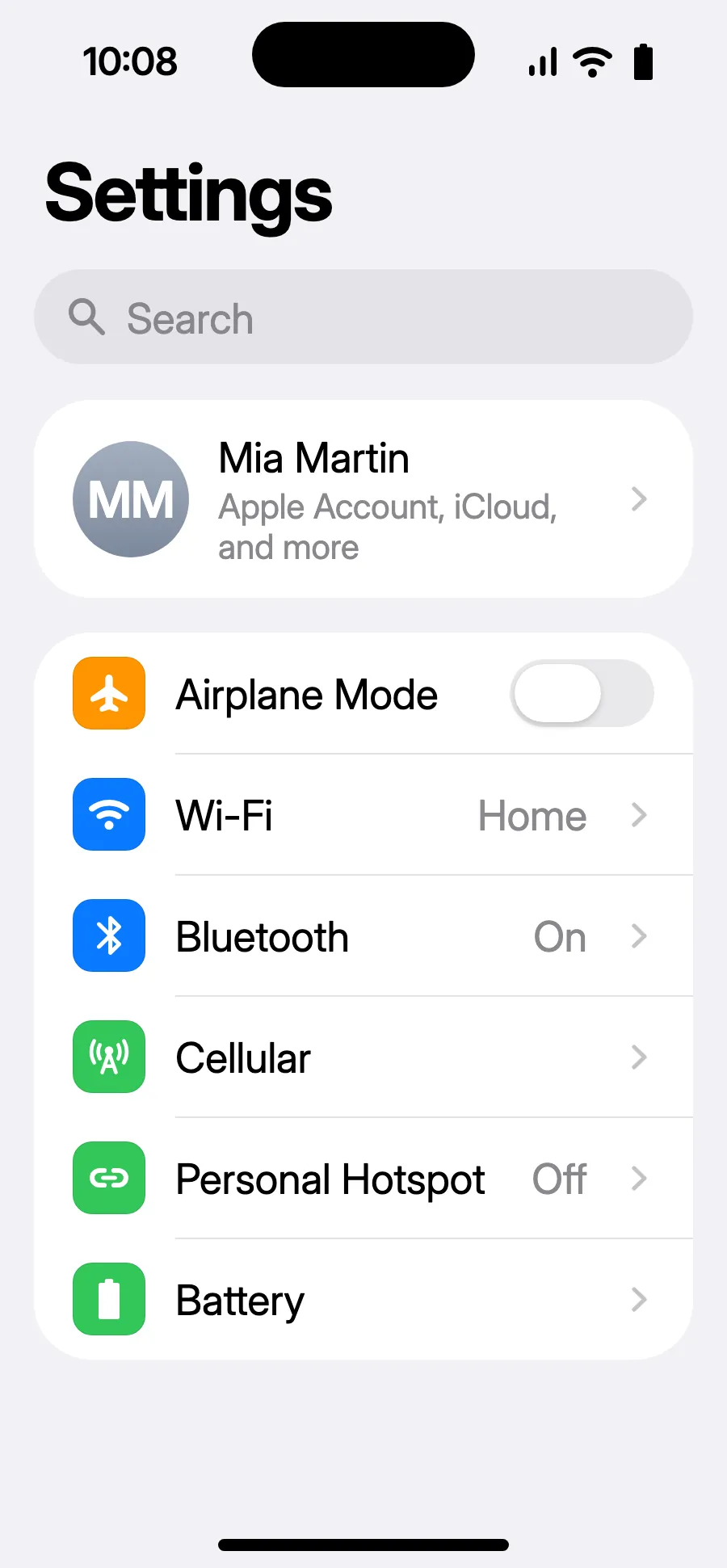
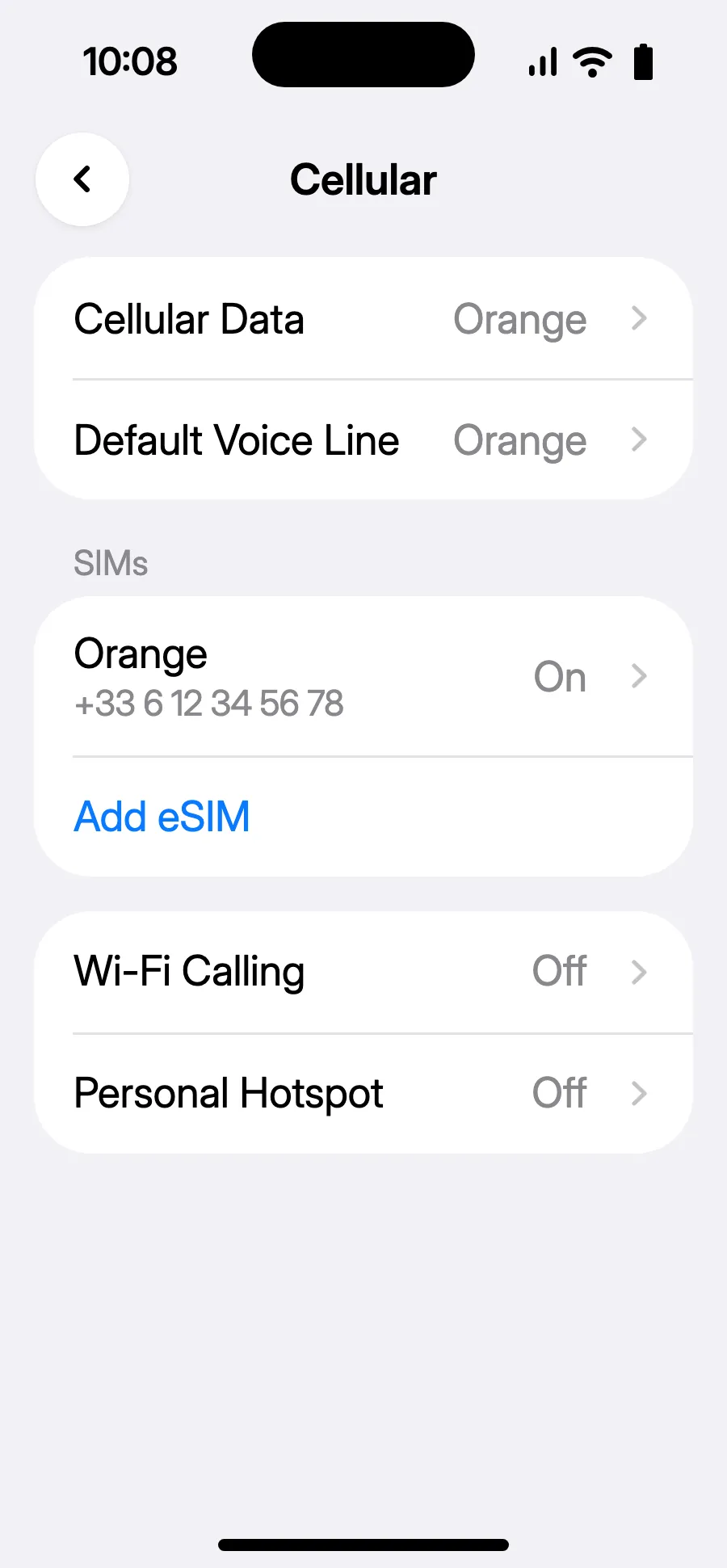
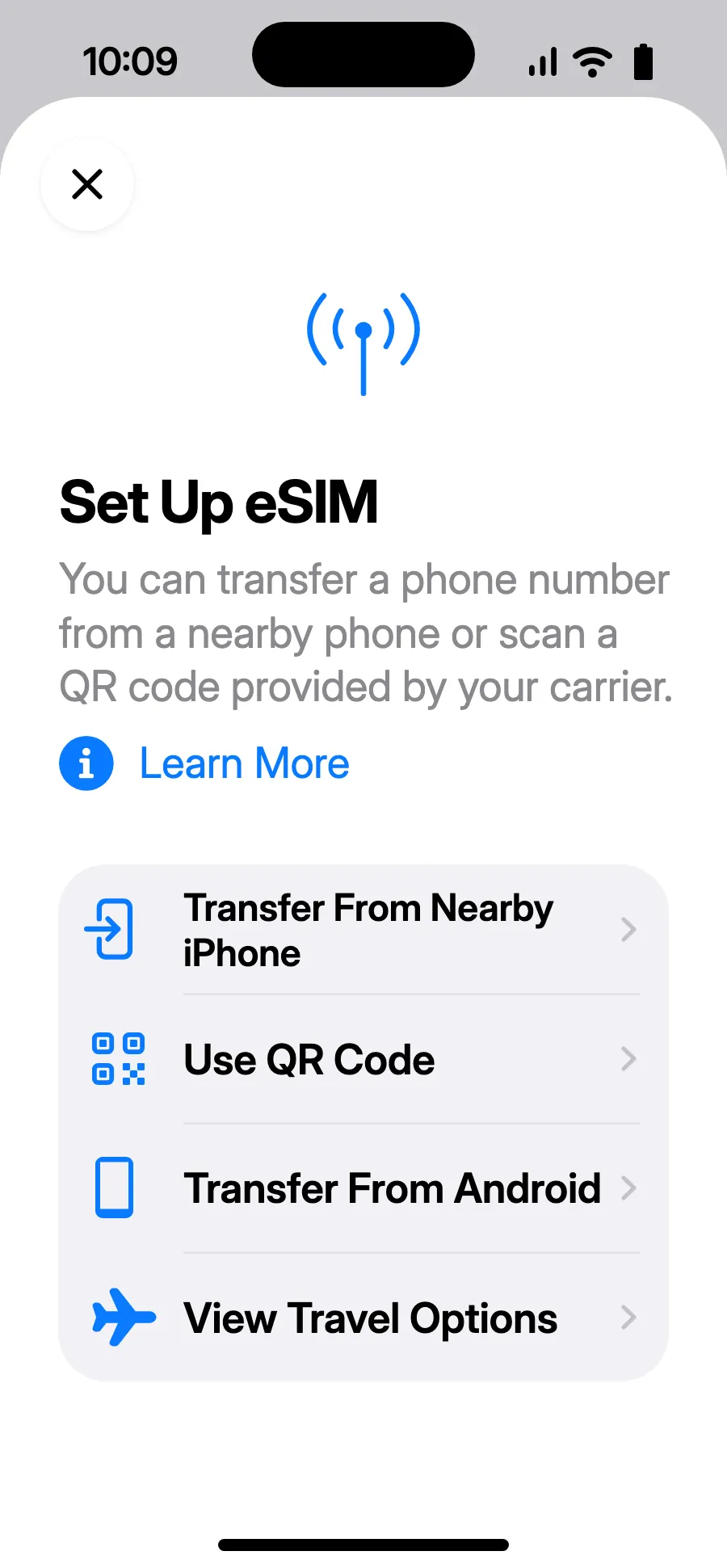
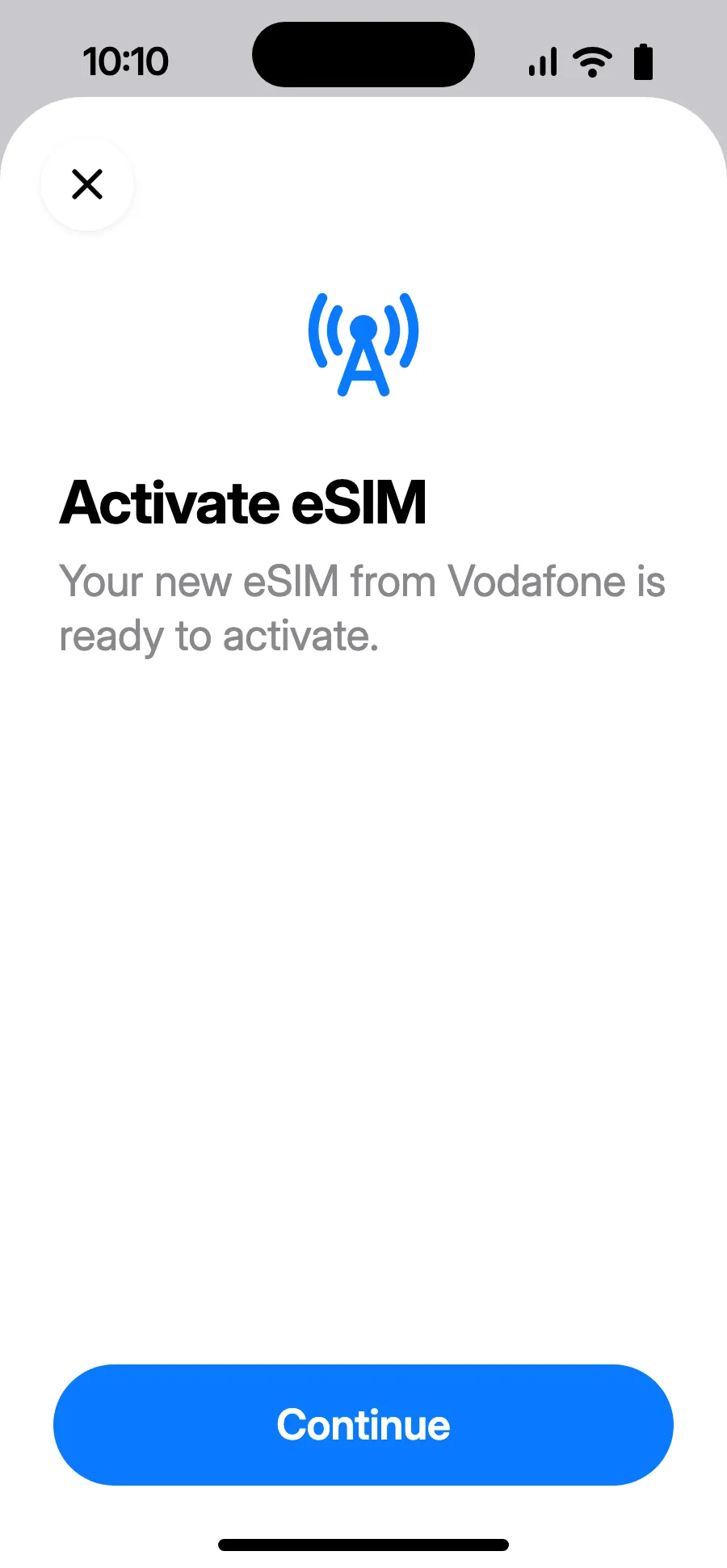
Before you leave: install your eSIMStep 1 of 11
- Open Settings, then Cellular.
- Tap “Add eSIM”.
- Tap “Use QR Code” and scan the QR code we email you after purchase (it's also in your account).
- “Activate eSIM” opens: tap Continue.
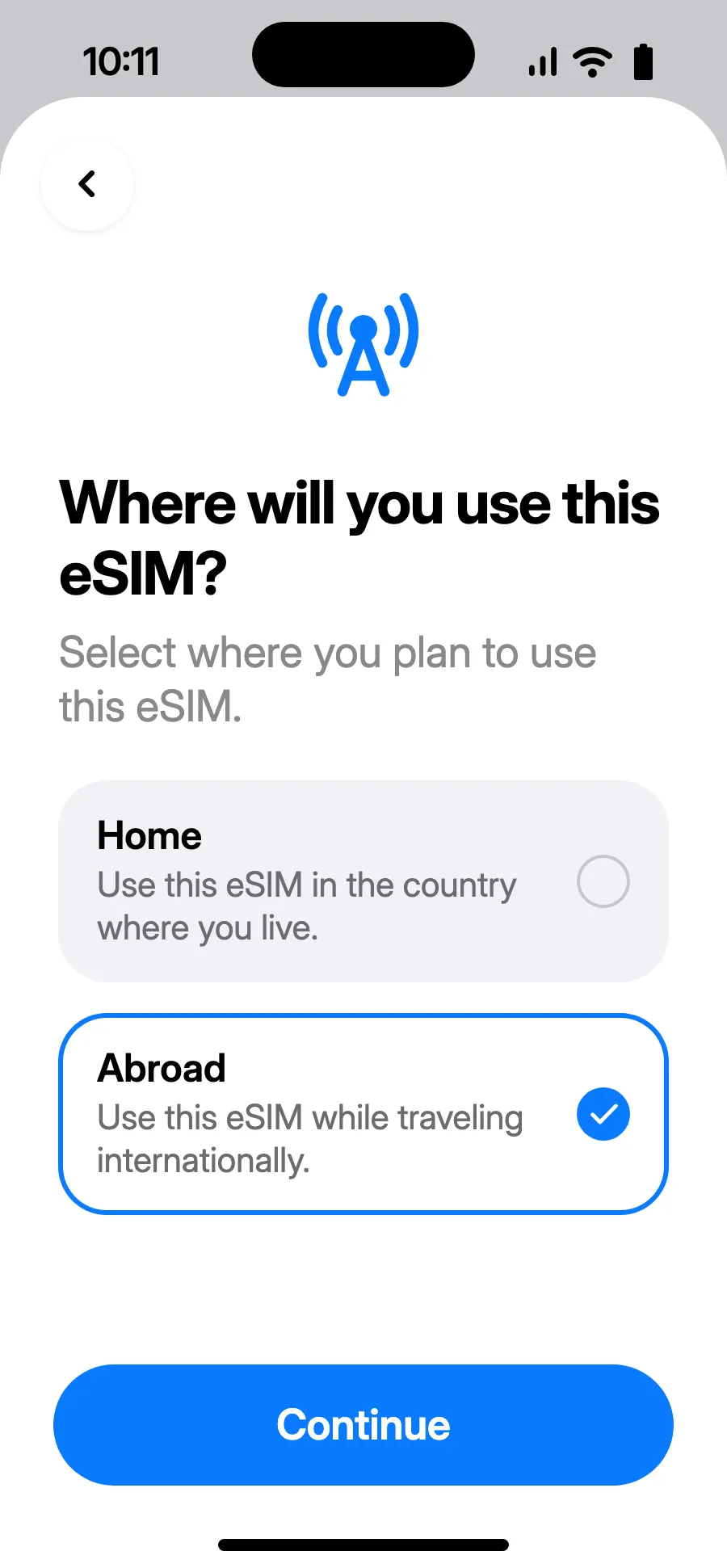
- Choose Abroad, then tap Continue.
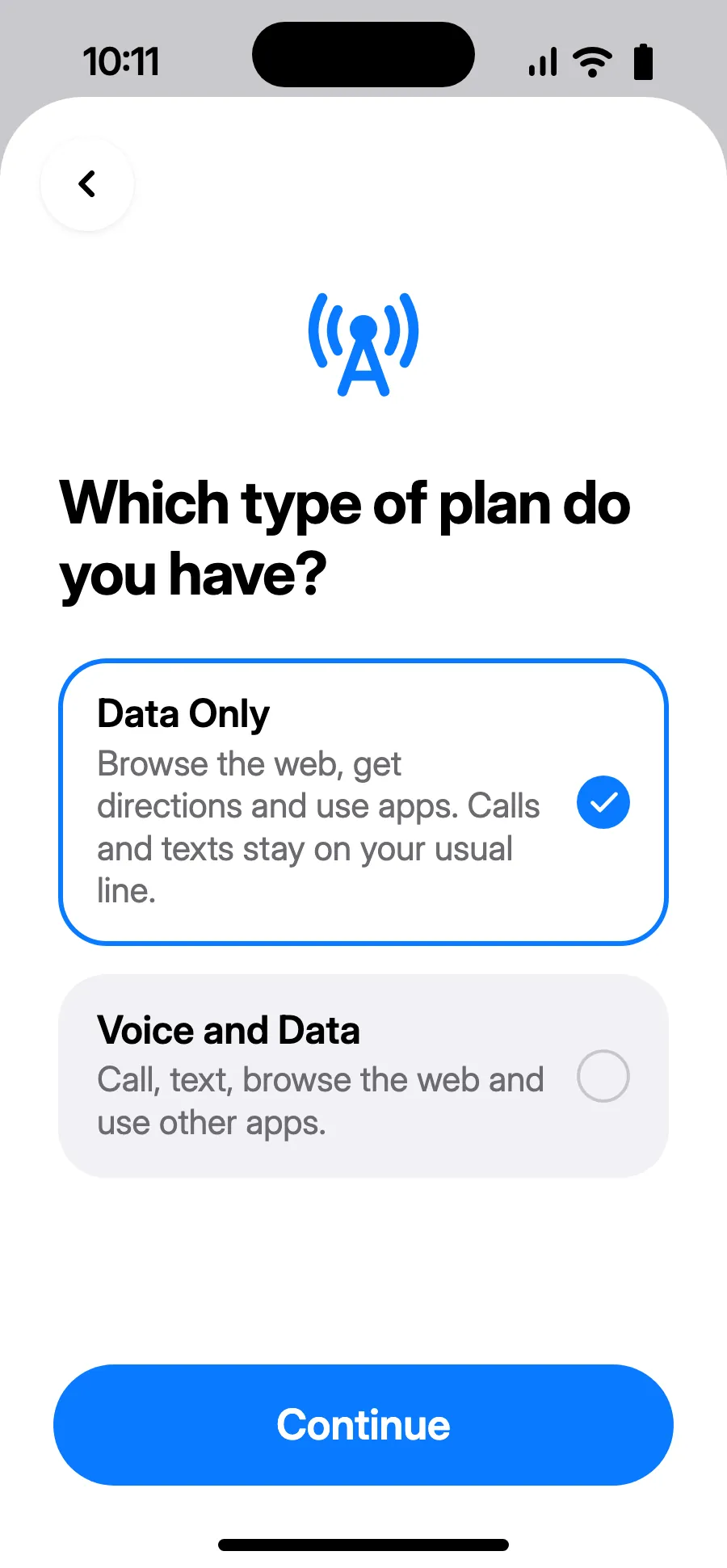
- Choose Data Only, then tap Continue. The eSIM is for data; your usual number keeps calls and texts.
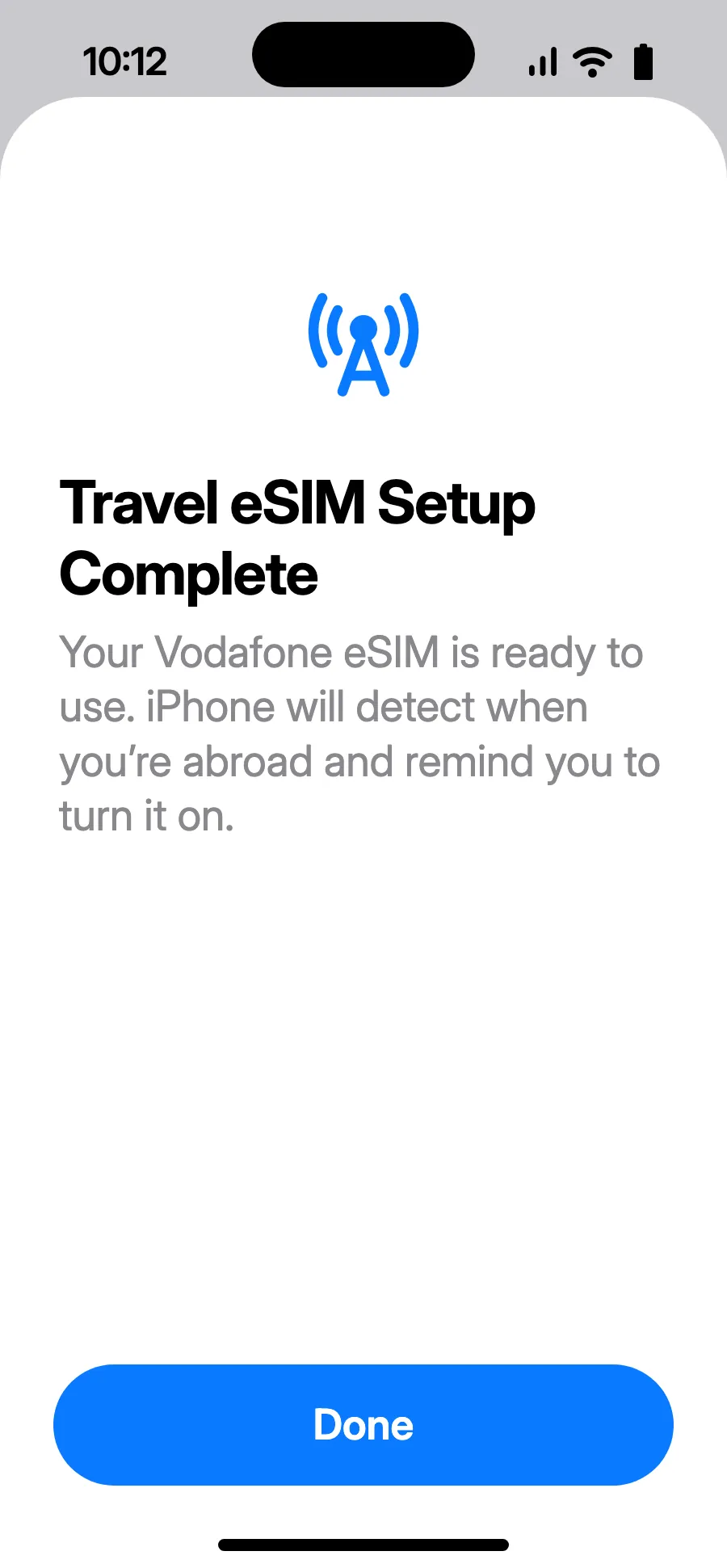
- Tap Done. Your iPhone will remind you to turn on the eSIM once you're abroad.
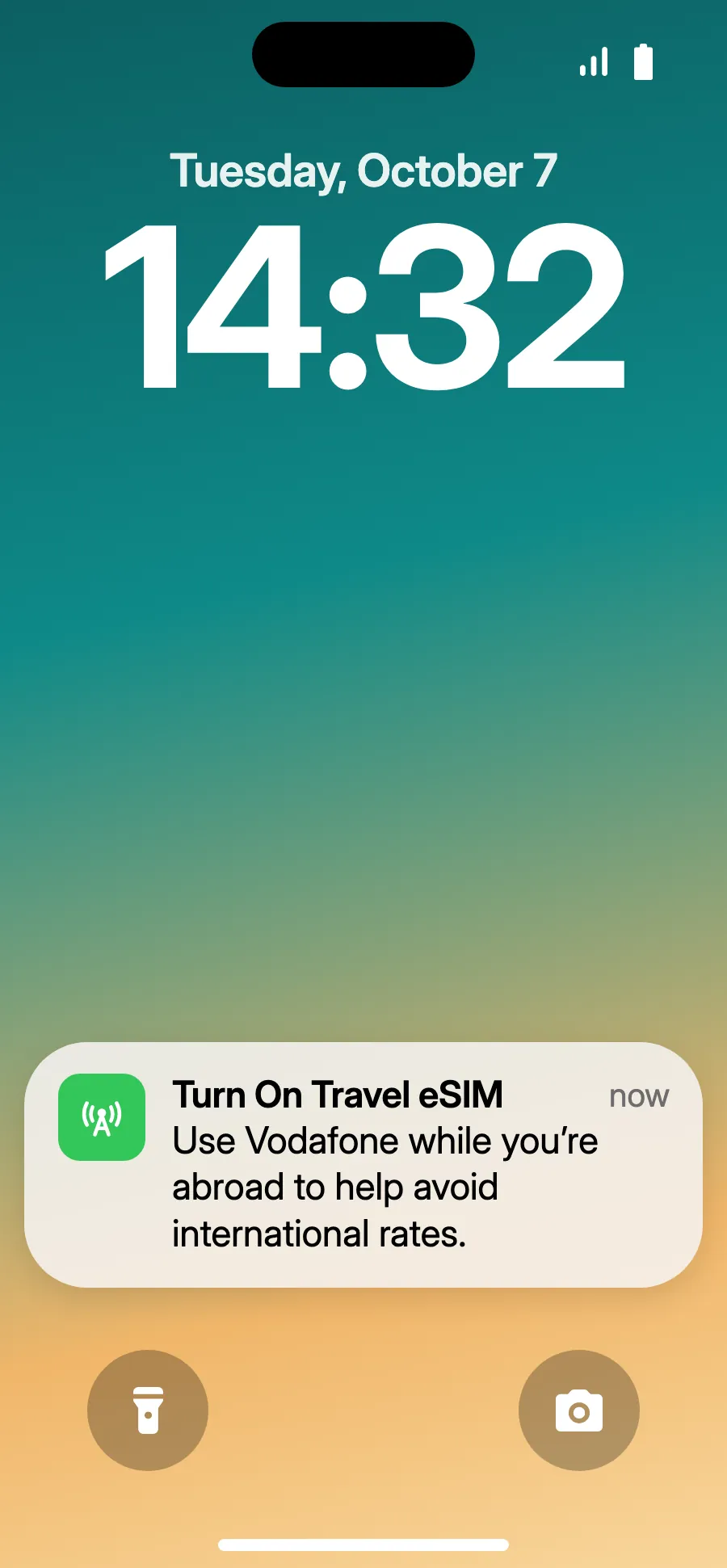
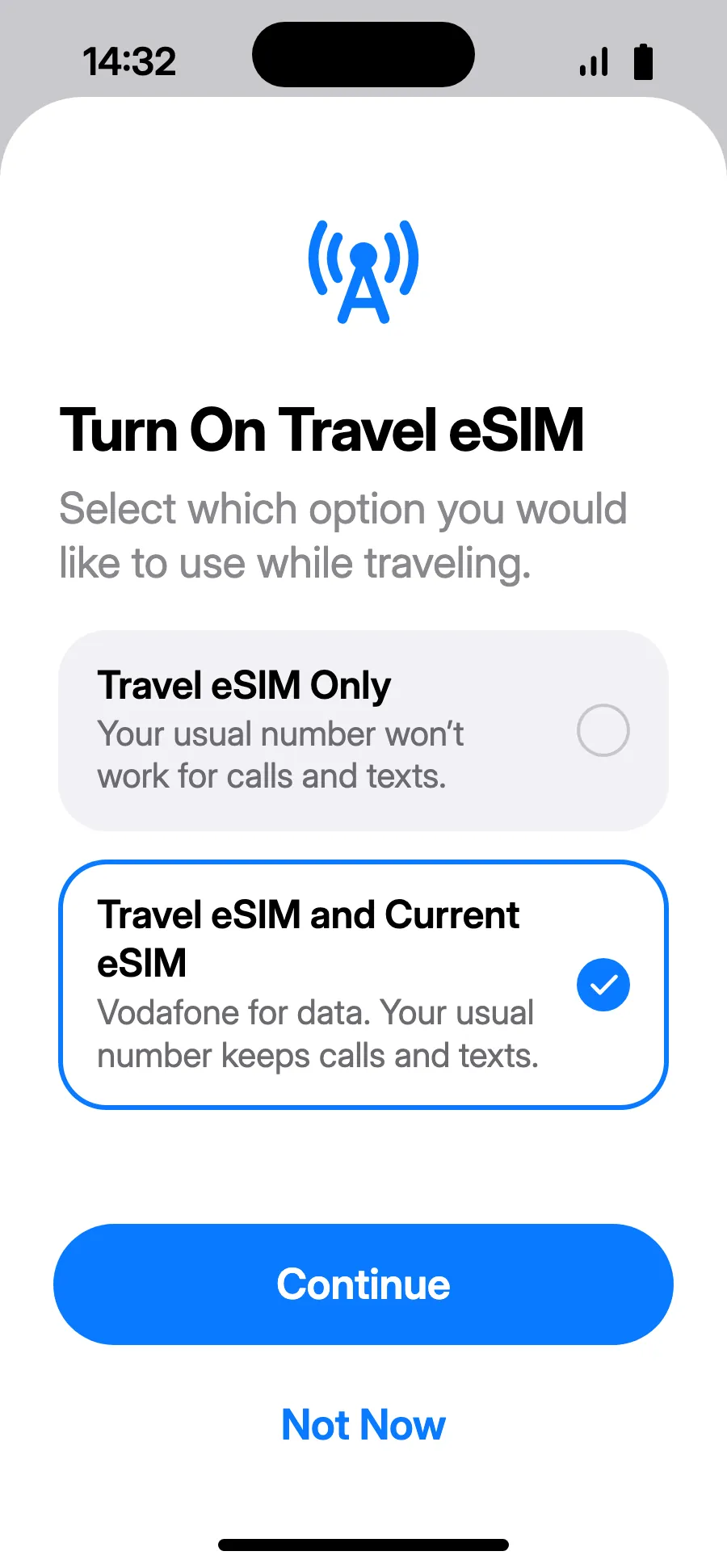
- When you land, your iPhone may show “Turn On Travel eSIM”: tap the notification.
- Choose “Travel eSIM and Current eSIM”, then Continue. You keep your number for calls and texts (bank codes included); your carrier may charge for calls you receive.
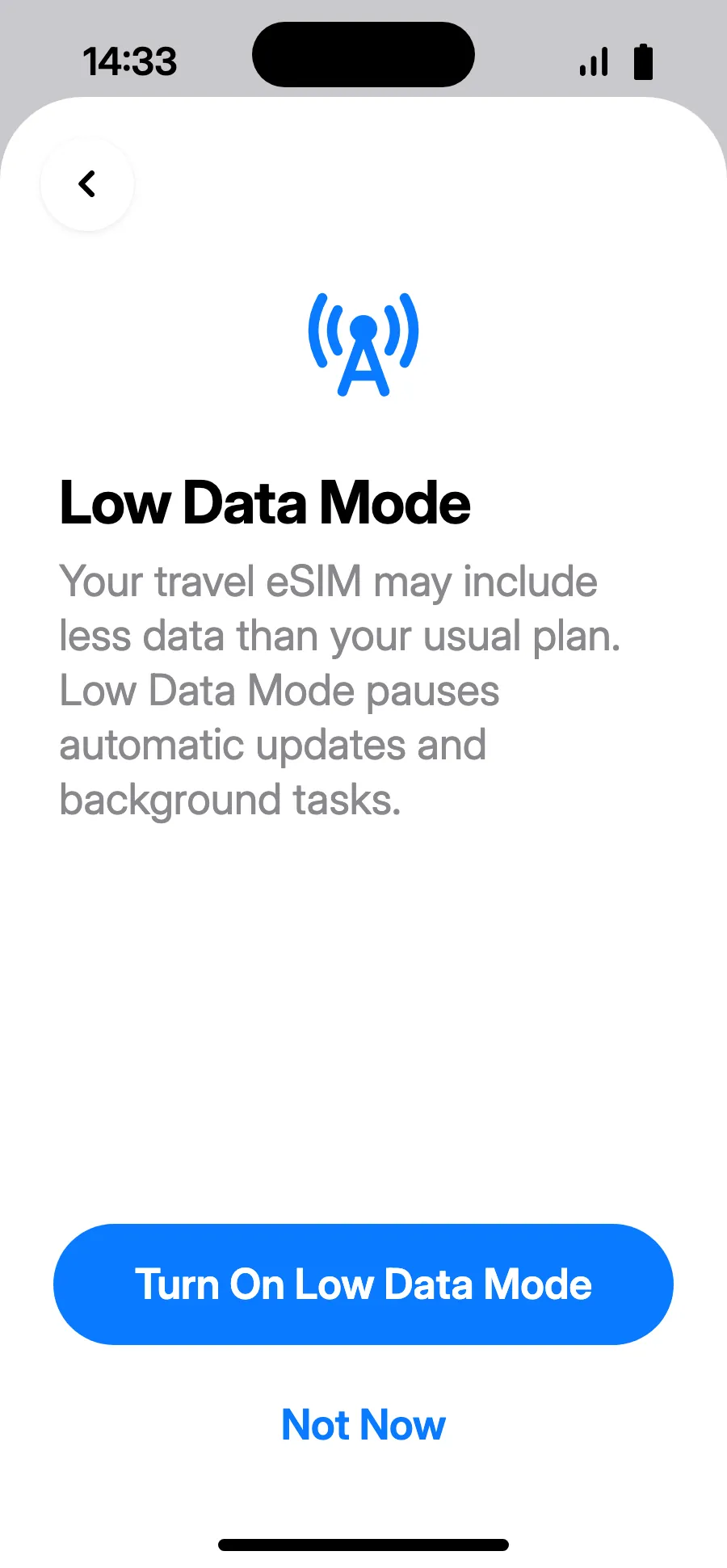
- Low Data Mode saves your plan: tap “Turn On Low Data Mode”, or “Not Now”.
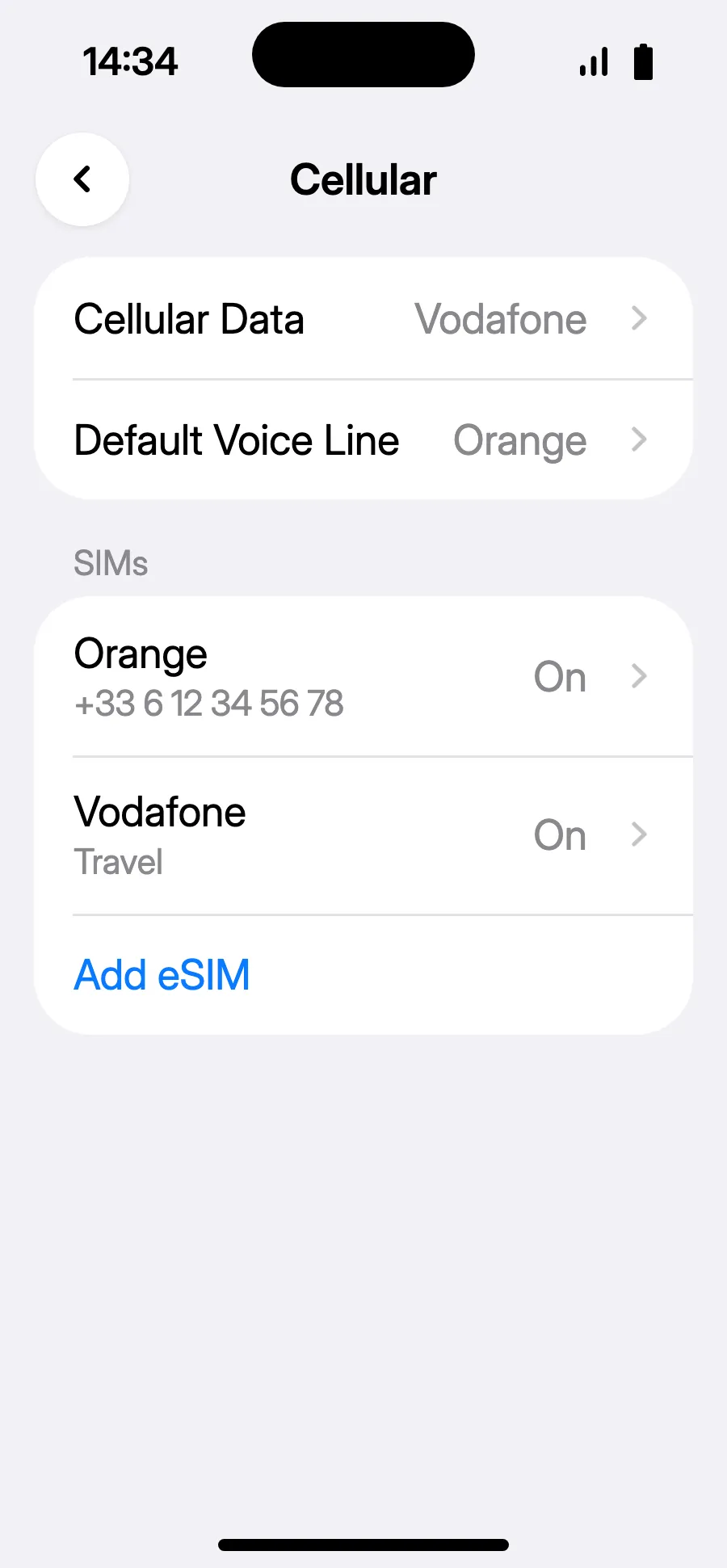
- You're set: Cellular Data shows the new eSIM.
After you buy, your QR code arrives by email and in your account. Show it on another screen, then follow these steps on your phone.
Stay on Wi-Fi and keep your phone unlocked until the installation is done. On iOS 17 or 18, if asked, keep your usual line as the default line and for cellular data.
No notification?
No notification?Step 1 of 4
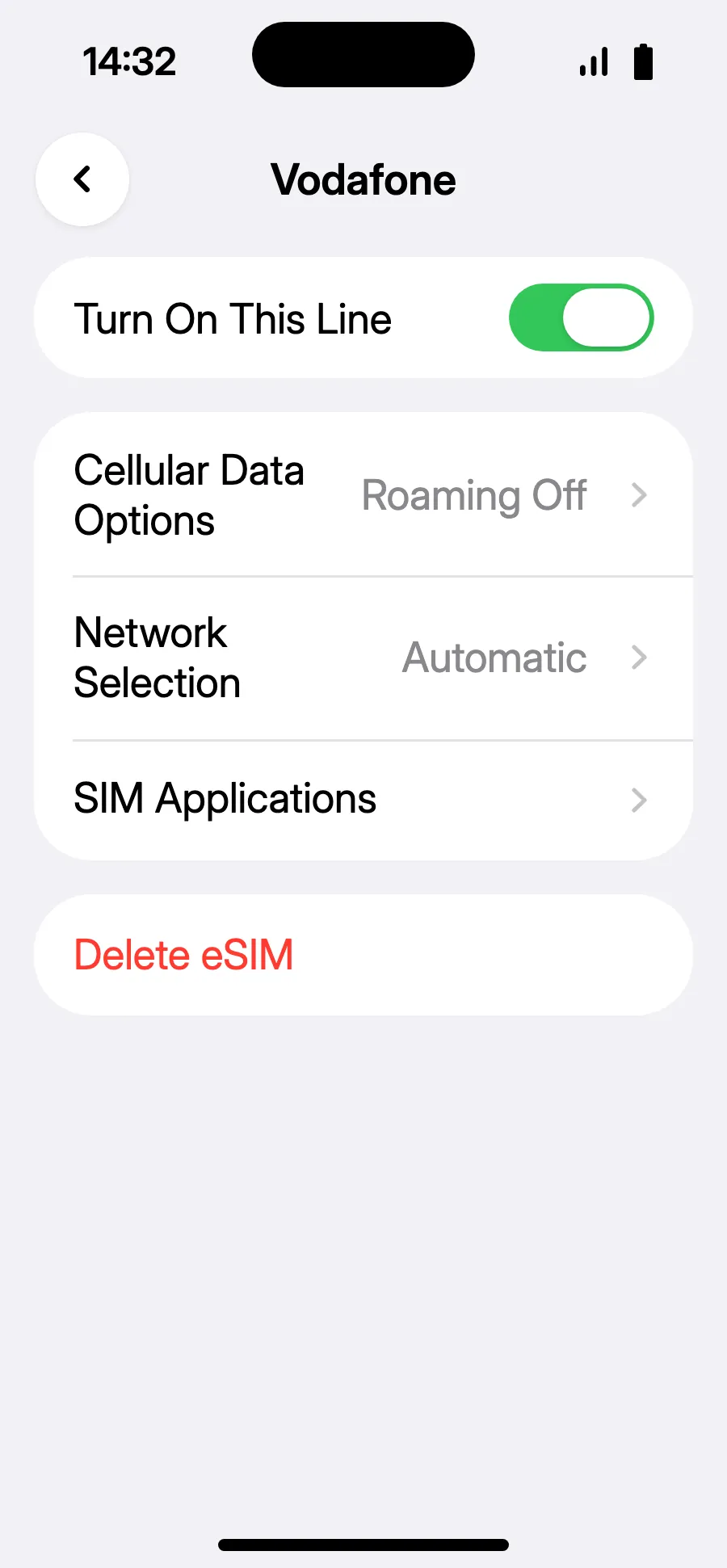
- No notification, or iOS 18 and earlier: open Settings, Cellular, tap your travel eSIM's line and turn on “Turn On This Line”.
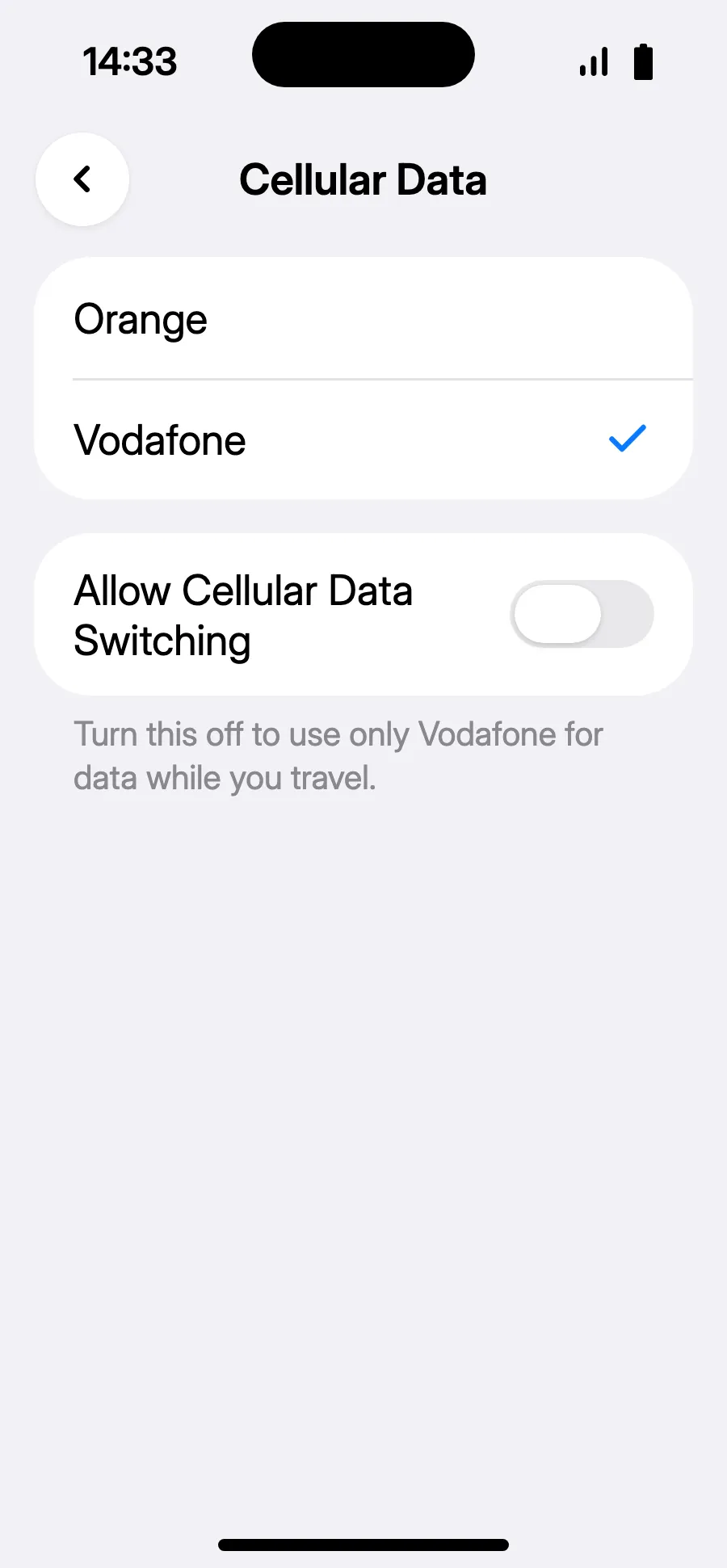
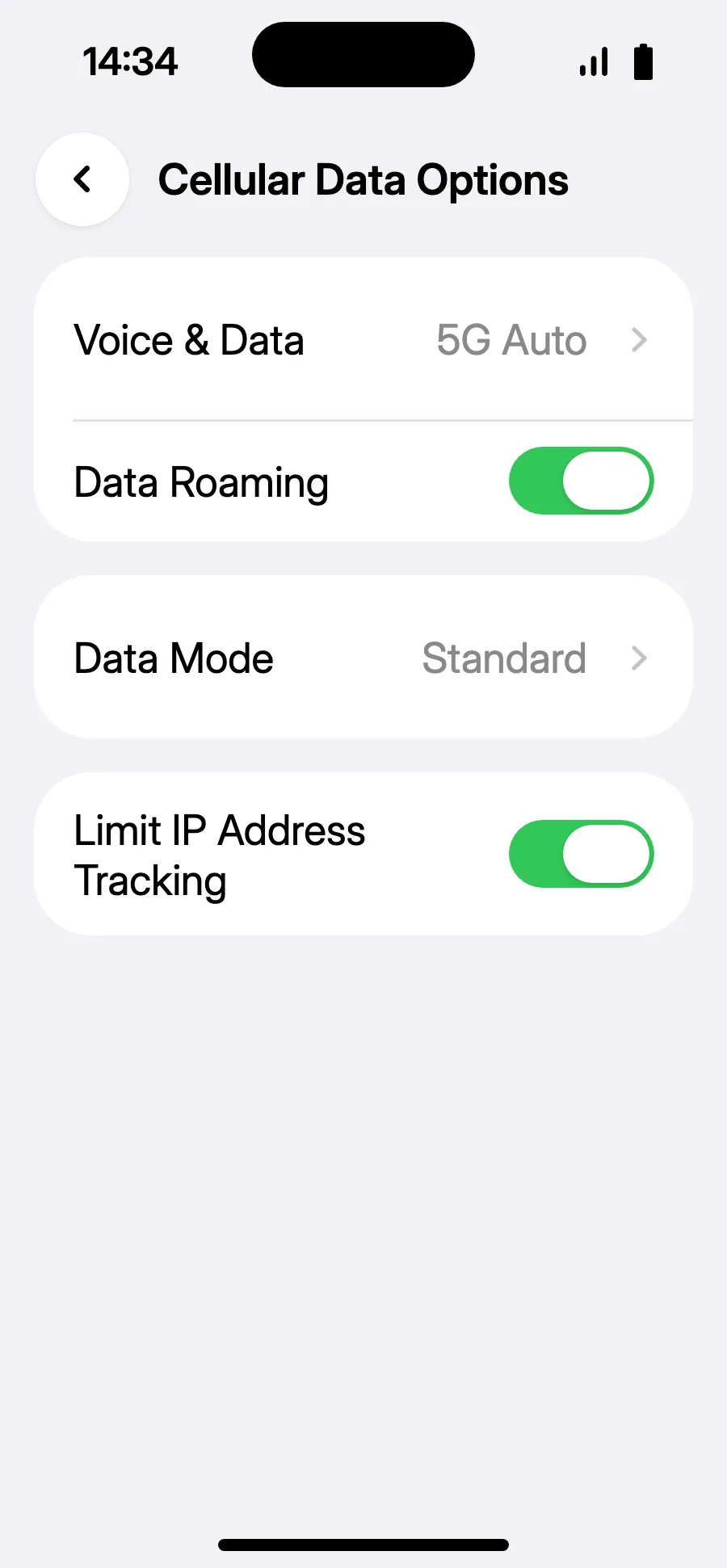
- Go back to Cellular, tap “Cellular Data”, choose the travel line and leave “Allow Cellular Data Switching” off.
- In the travel line, open “Cellular Data Options” and turn on “Data Roaming”.
- Turn on “Data Roaming”. It costs nothing extra: your eSIM uses partner networks. If nothing loads, go back and pick the network manually in “Network Selection”.
Before you leave: install your eSIMStep 1 of 9
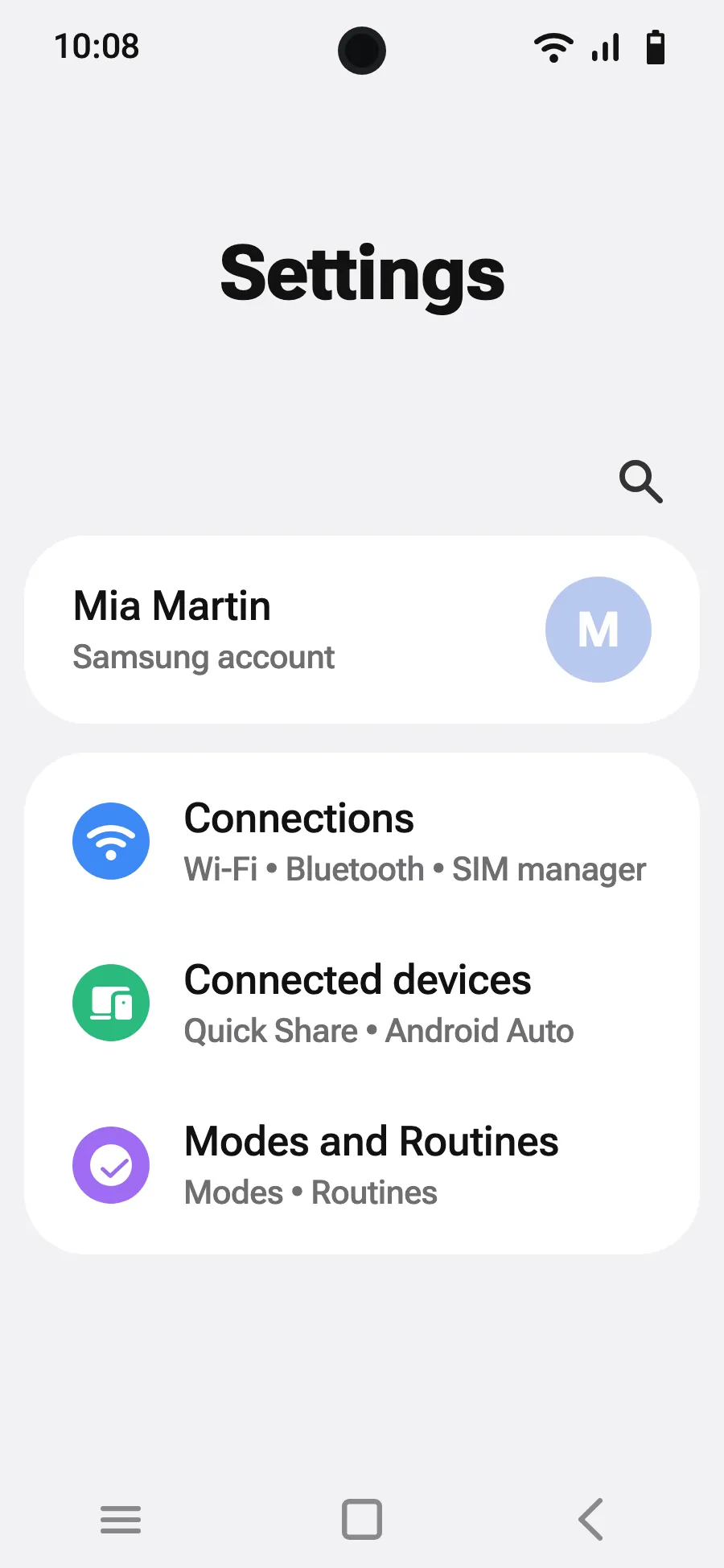
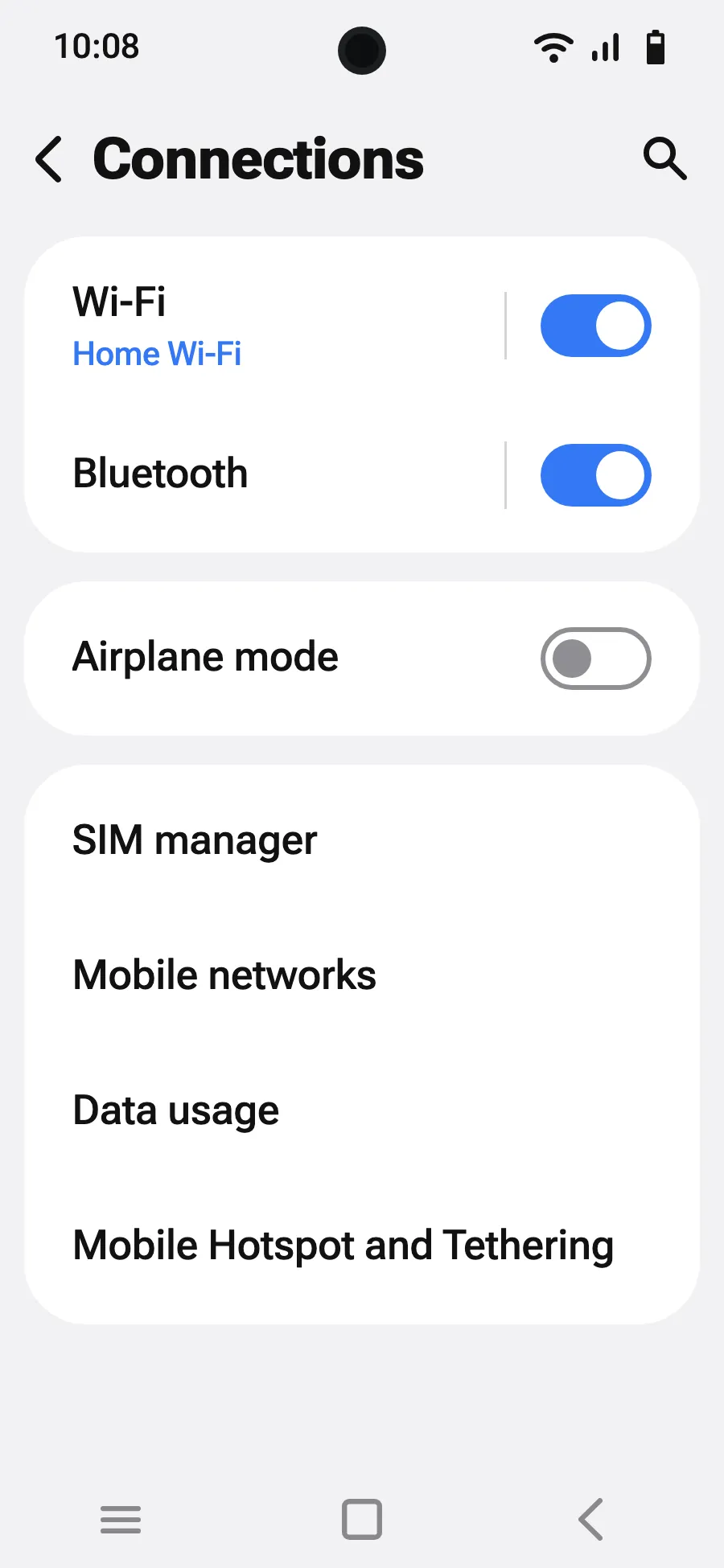
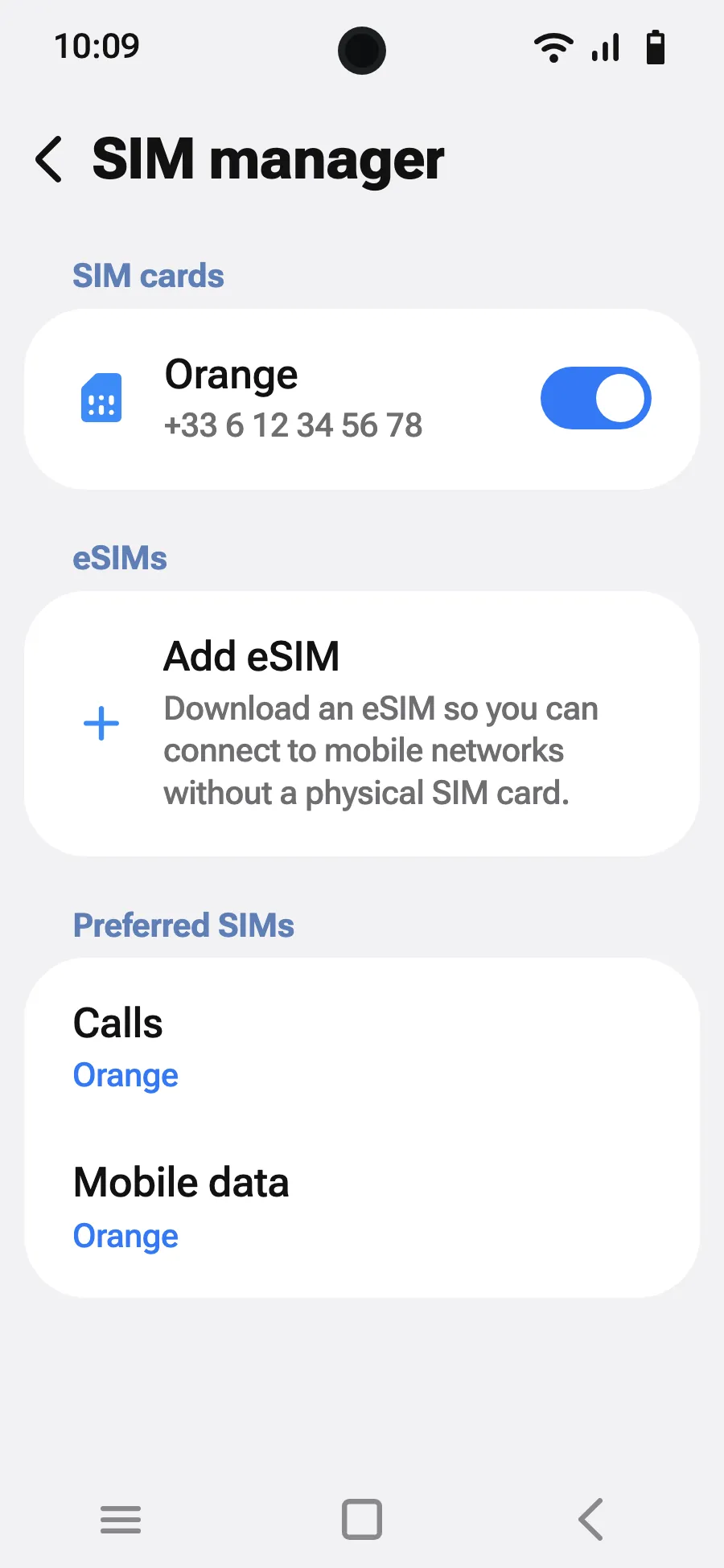
- Open Settings, then Connections.
- Tap “SIM manager”.
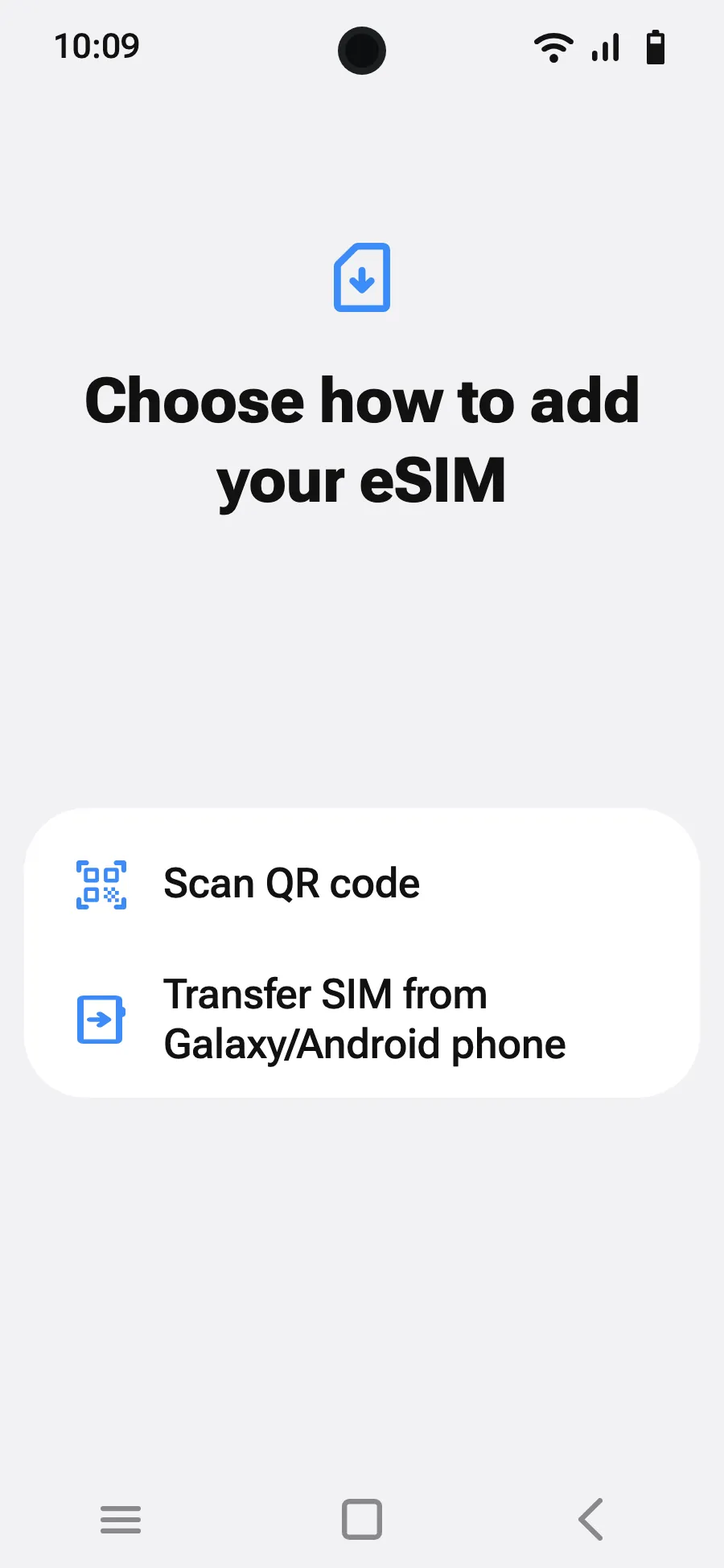
- Tap “Add eSIM”.
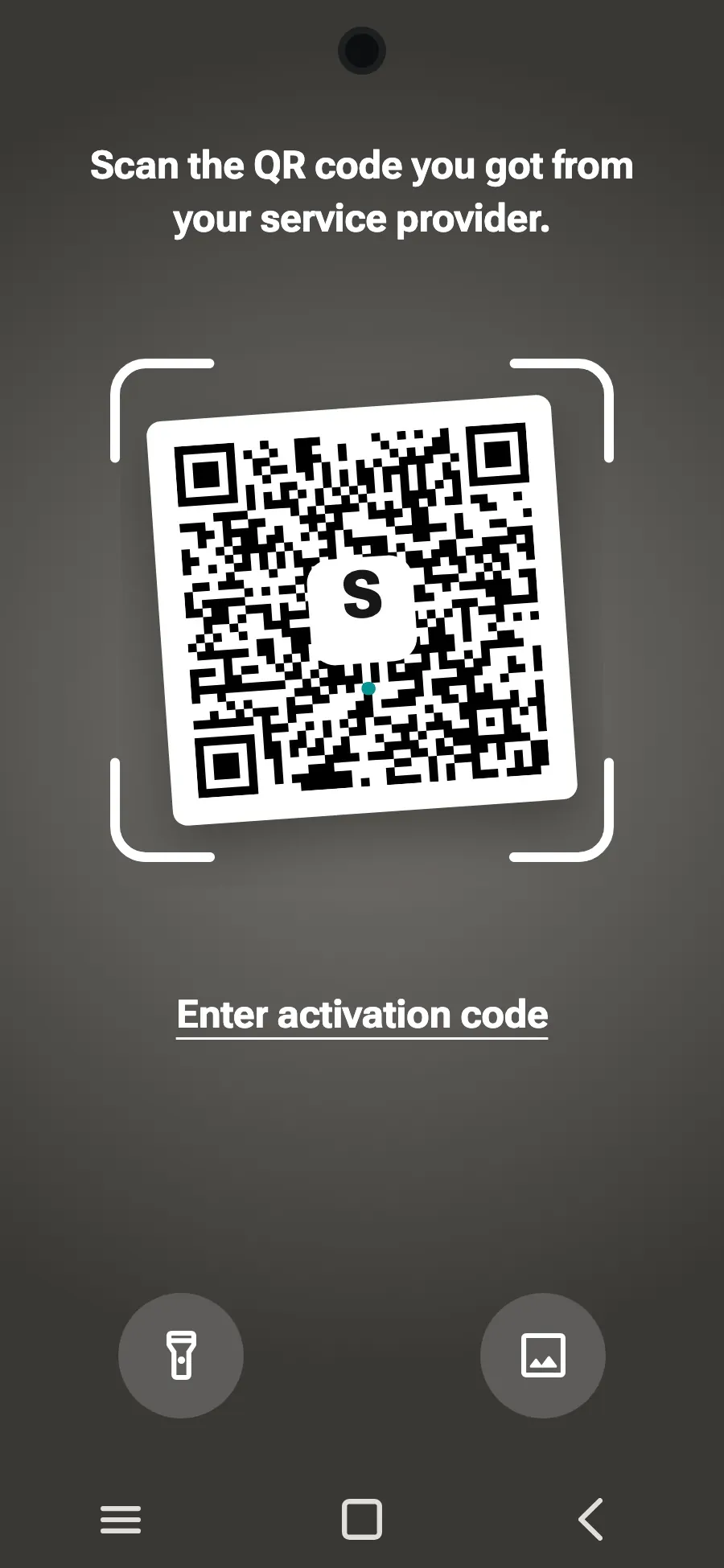
- Choose “Scan QR code”.
- Scan the QR code we email you after purchase (it's also in your account), then tap Add.
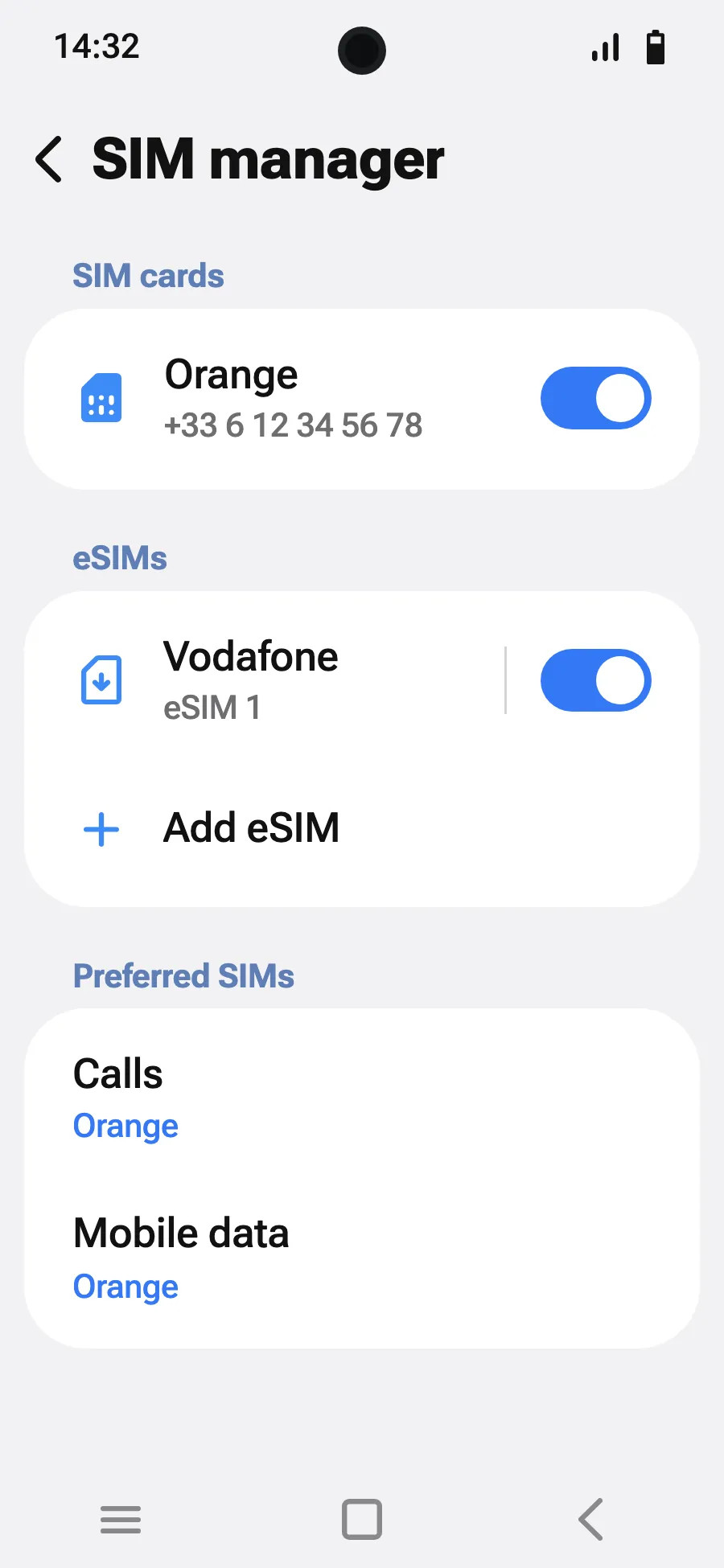
- When you land, turn on your new eSIM in SIM manager. It shows the name of a local or partner carrier.
- Choose the new eSIM for mobile data. In SIM manager, leave “Data switching” off.
- Open Settings, Connections, then “Mobile networks”.
- Turn on “Data roaming”. It costs nothing extra: your eSIM uses partner networks.
After you buy, your QR code arrives by email and in your account. Show it on another screen, then follow these steps on your phone.
Stay on Wi-Fi and keep your phone unlocked until the installation is done.
Does your plan also cover the country you live in? Turn the eSIM off in SIM manager until you leave, so it doesn't start before your trip.
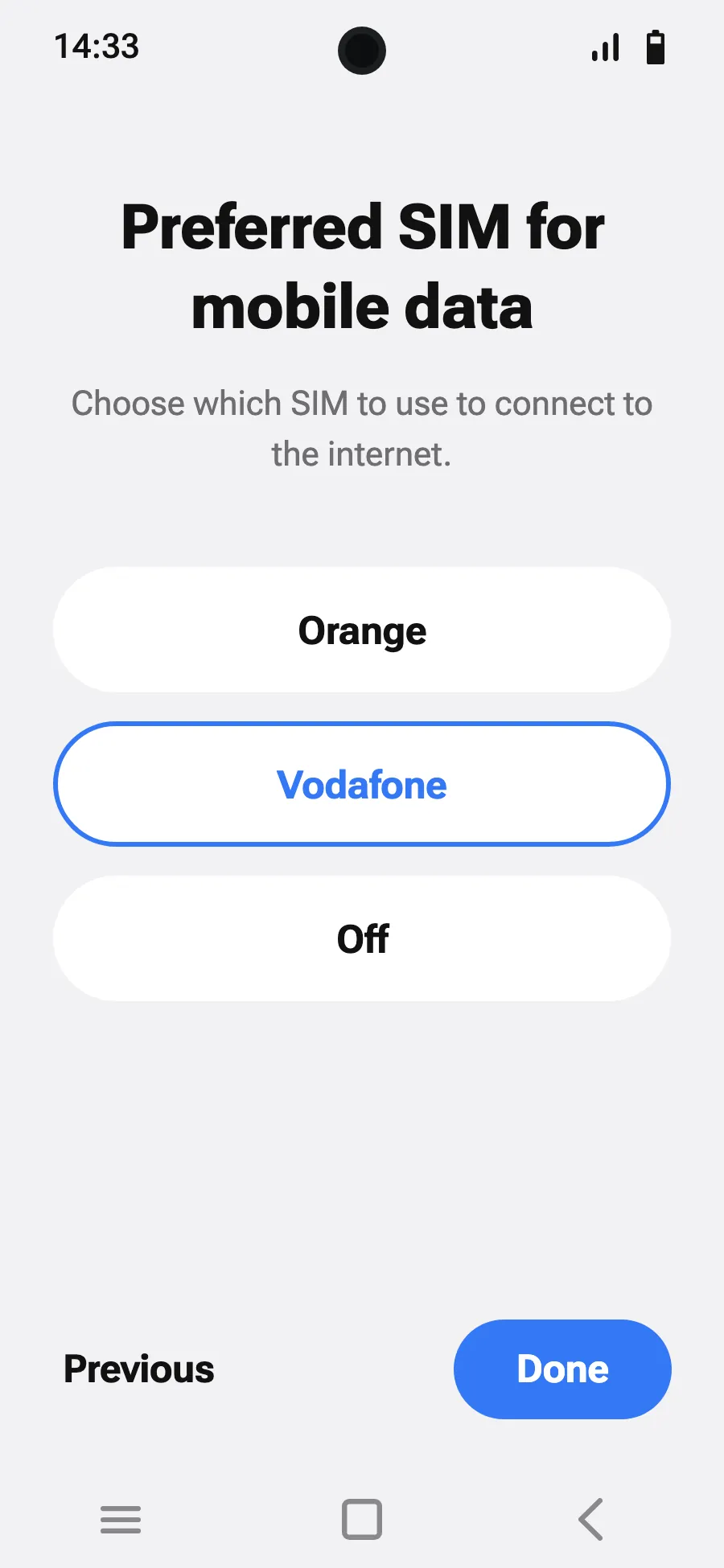
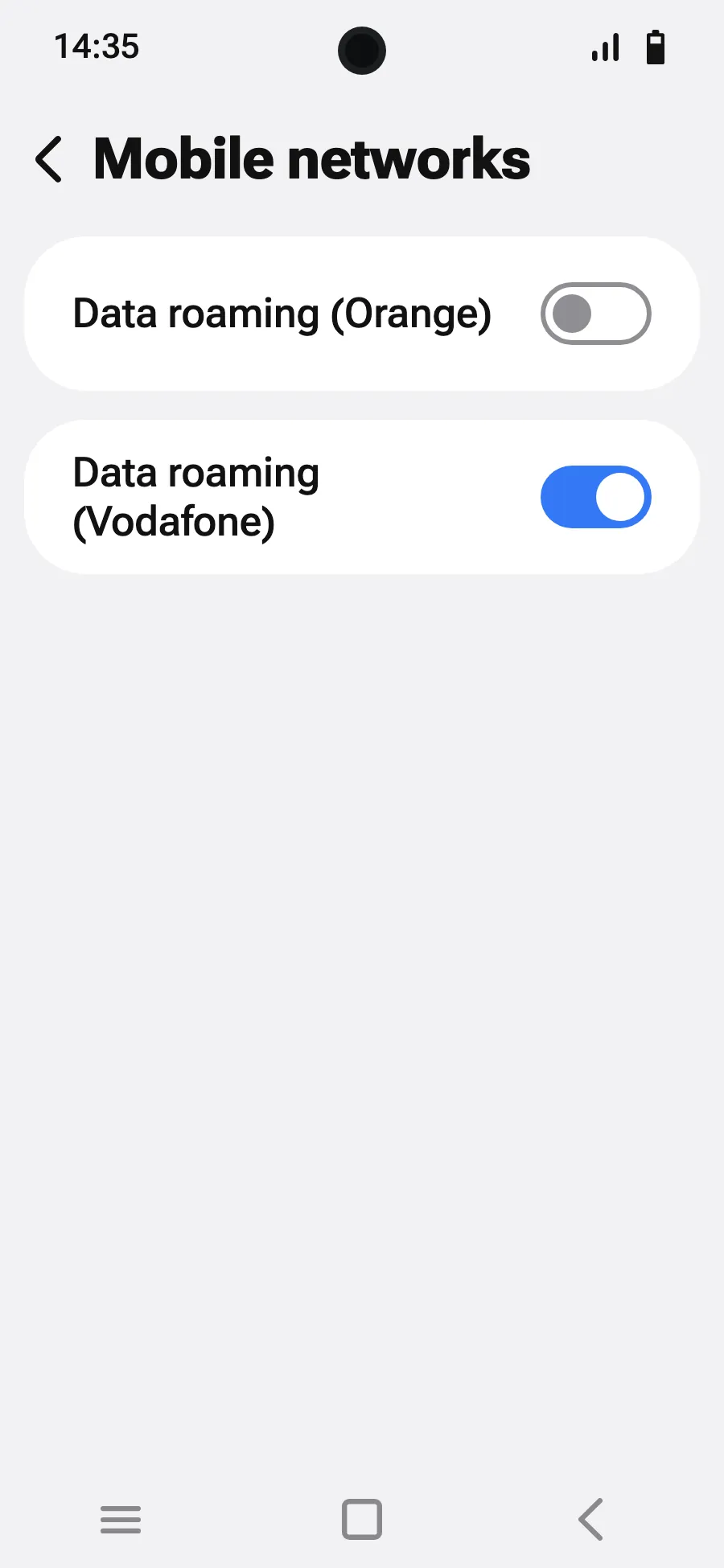
Before you leave: install your eSIMStep 1 of 8
- Open Settings, then Network & internet.
- Tap “SIMs” (Add a network).
- Tap “Set up an eSIM”.
- Scan the QR code we email you after purchase (it's also in your account), then confirm.
- If “Set your SIM preferences” appears, tap “Get started” and keep your usual SIM for calls, texts and mobile data. Data moves to the eSIM when you land.
- When you land, open your new eSIM (it shows the name of a local or partner carrier) and turn on “Use this SIM”.
- Turn on mobile data for the new eSIM. On your usual SIM, leave “Switch mobile data automatically” off.
- Turn on roaming. If nothing loads, turn off automatic network selection and pick the network manually.
After you buy, your QR code arrives by email and in your account. Show it on another screen, then follow these steps on your phone.
Stay on Wi-Fi and keep your phone unlocked until the installation is done.
Does your plan also cover the country you live in? Turn the eSIM off in Settings, SIMs until you leave, so it doesn't start before your trip.
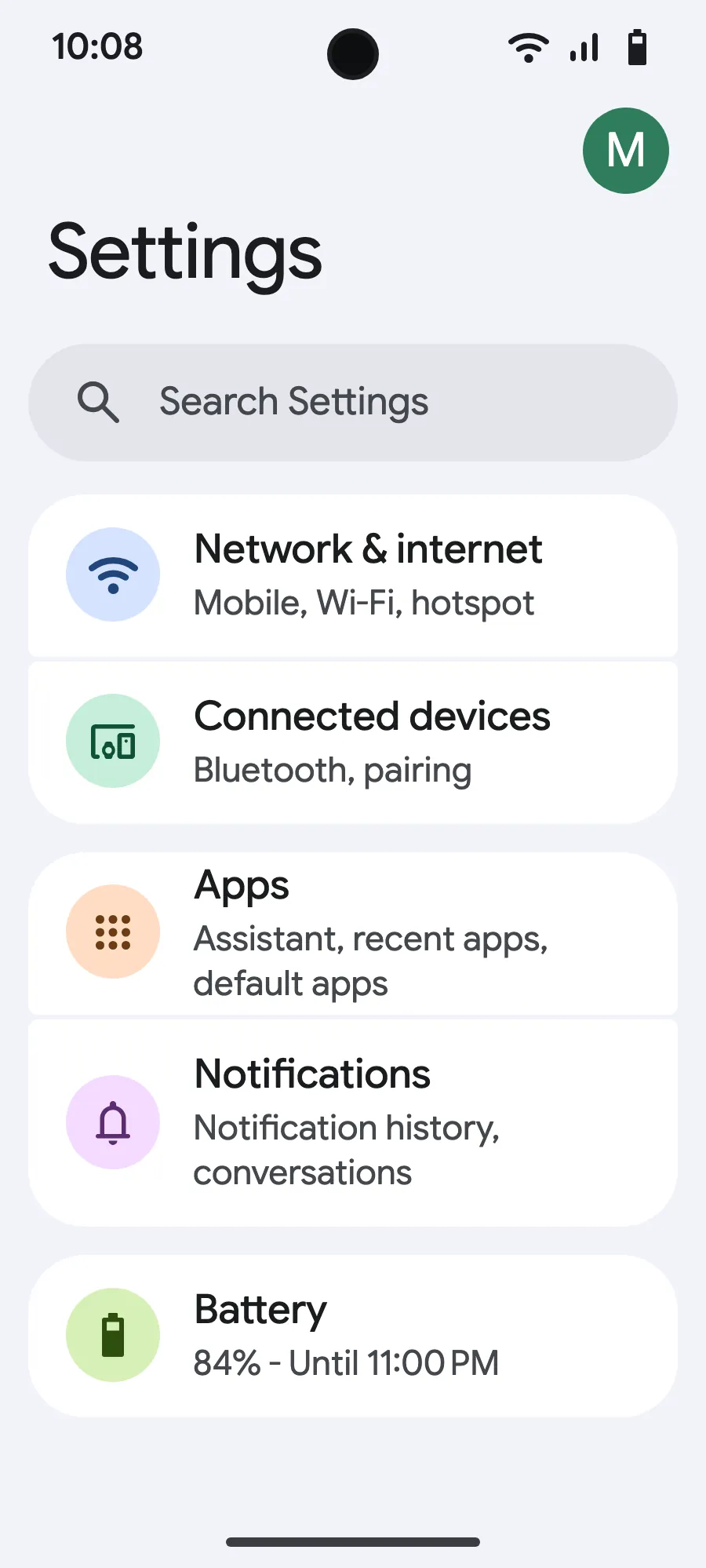
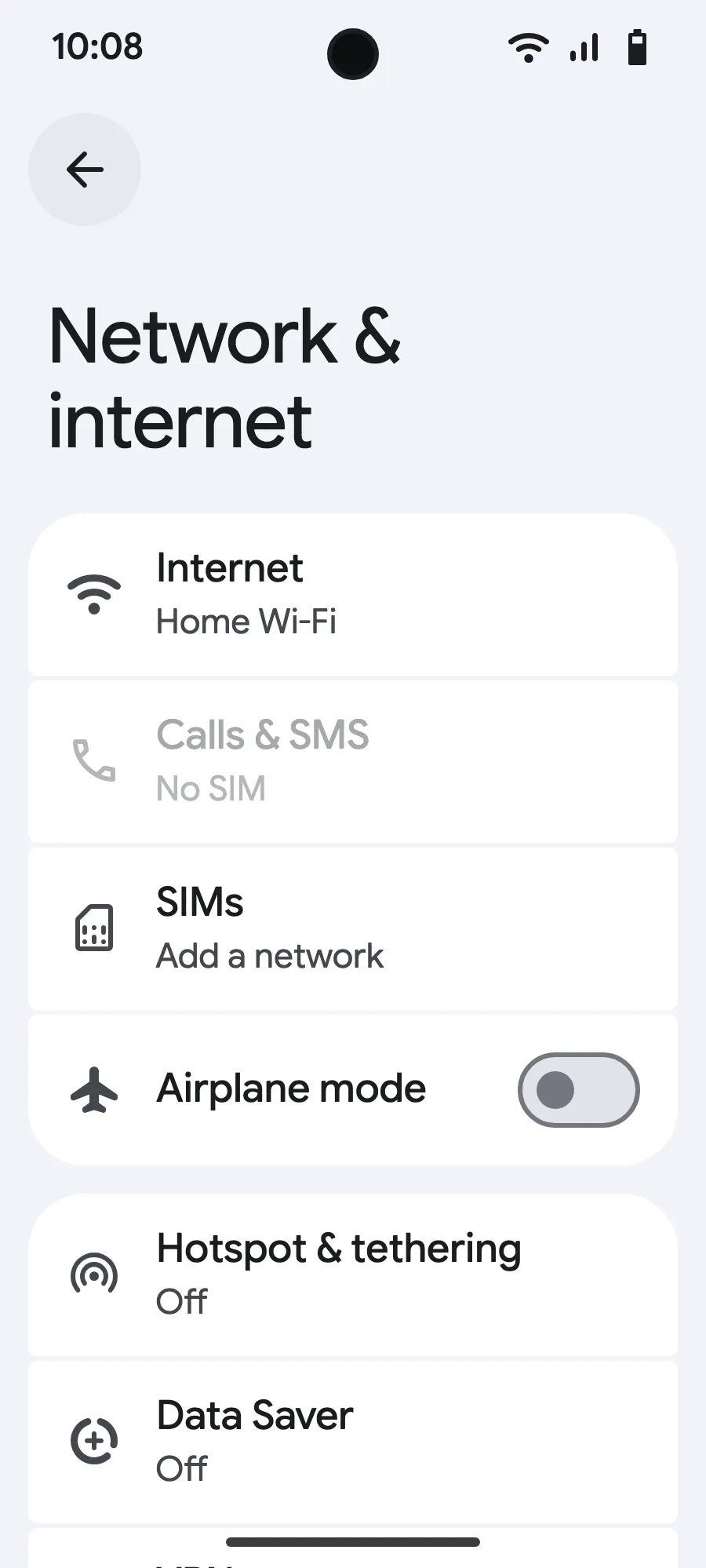
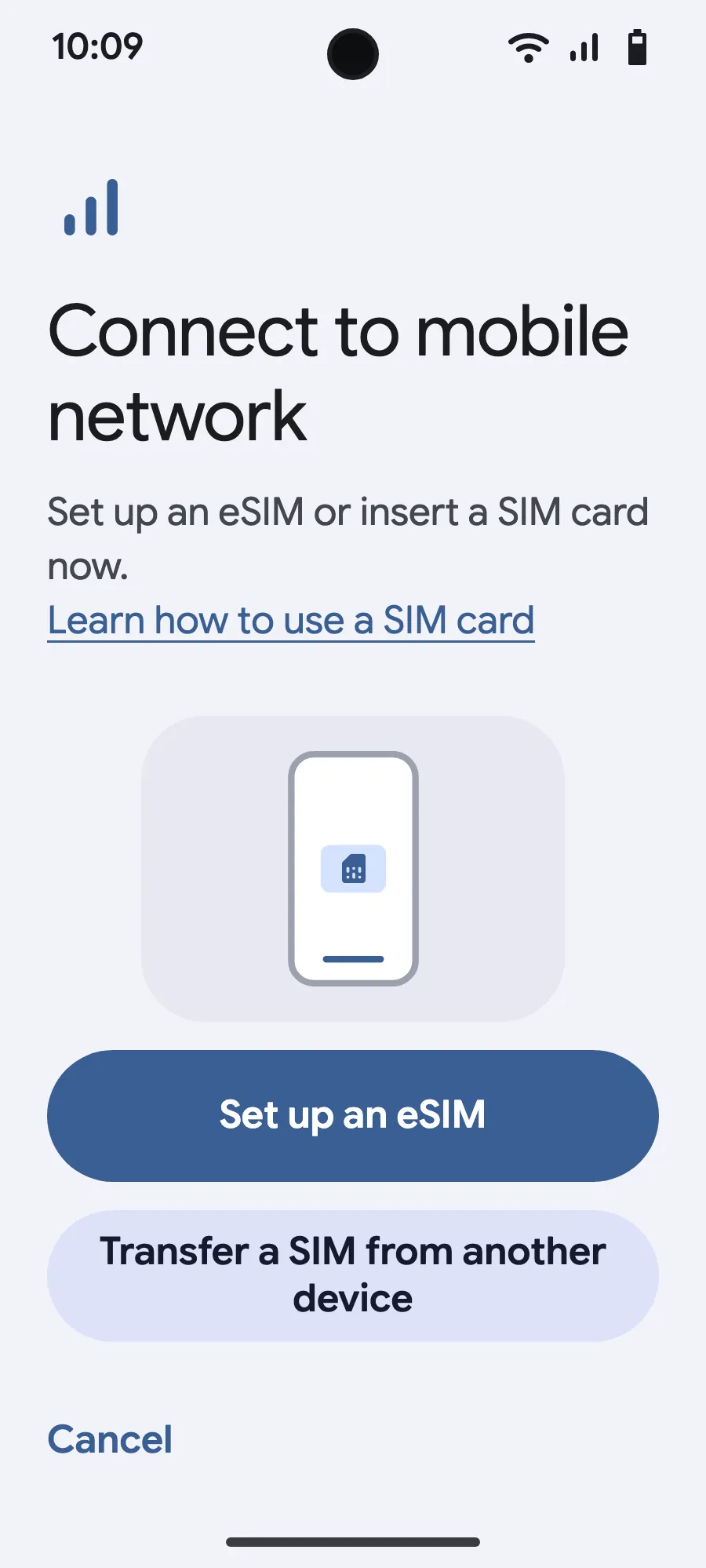
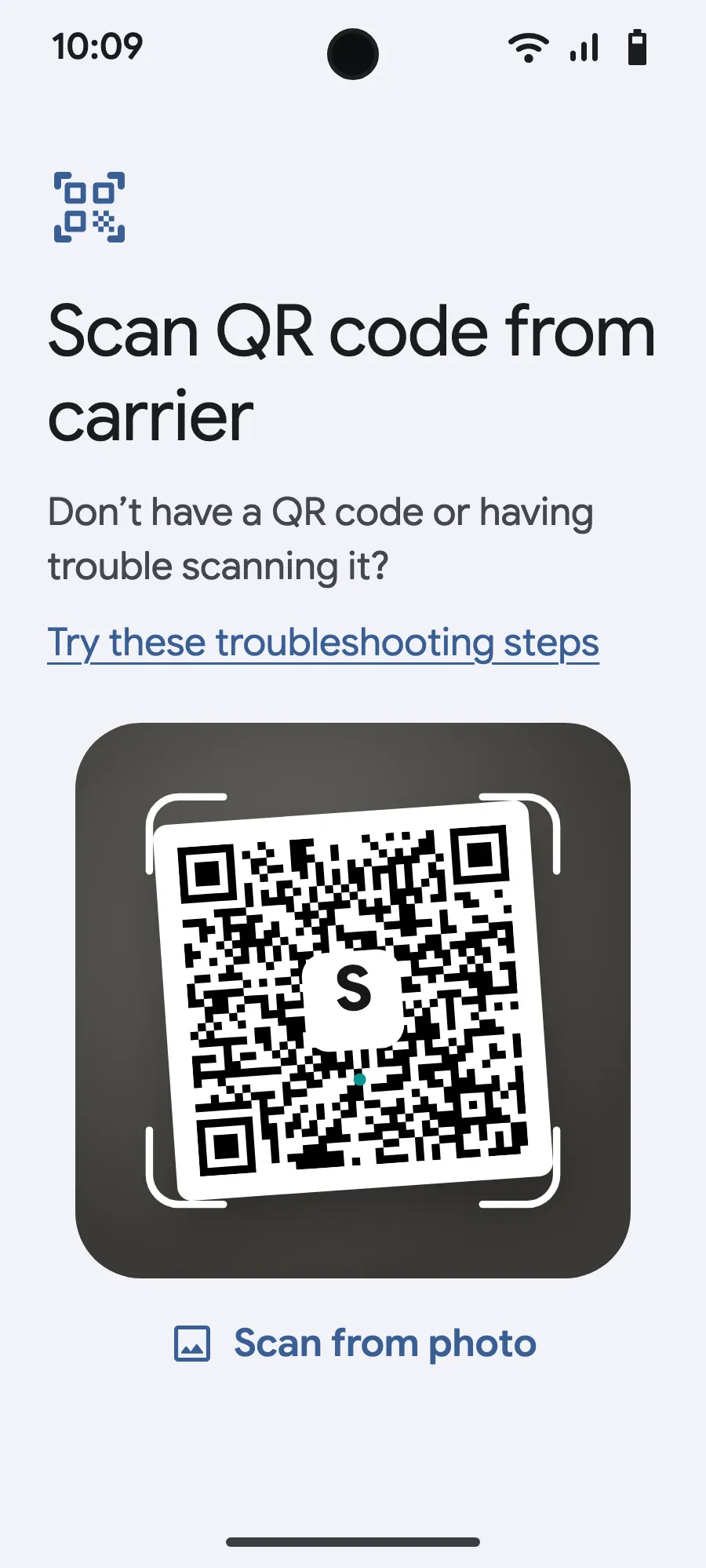
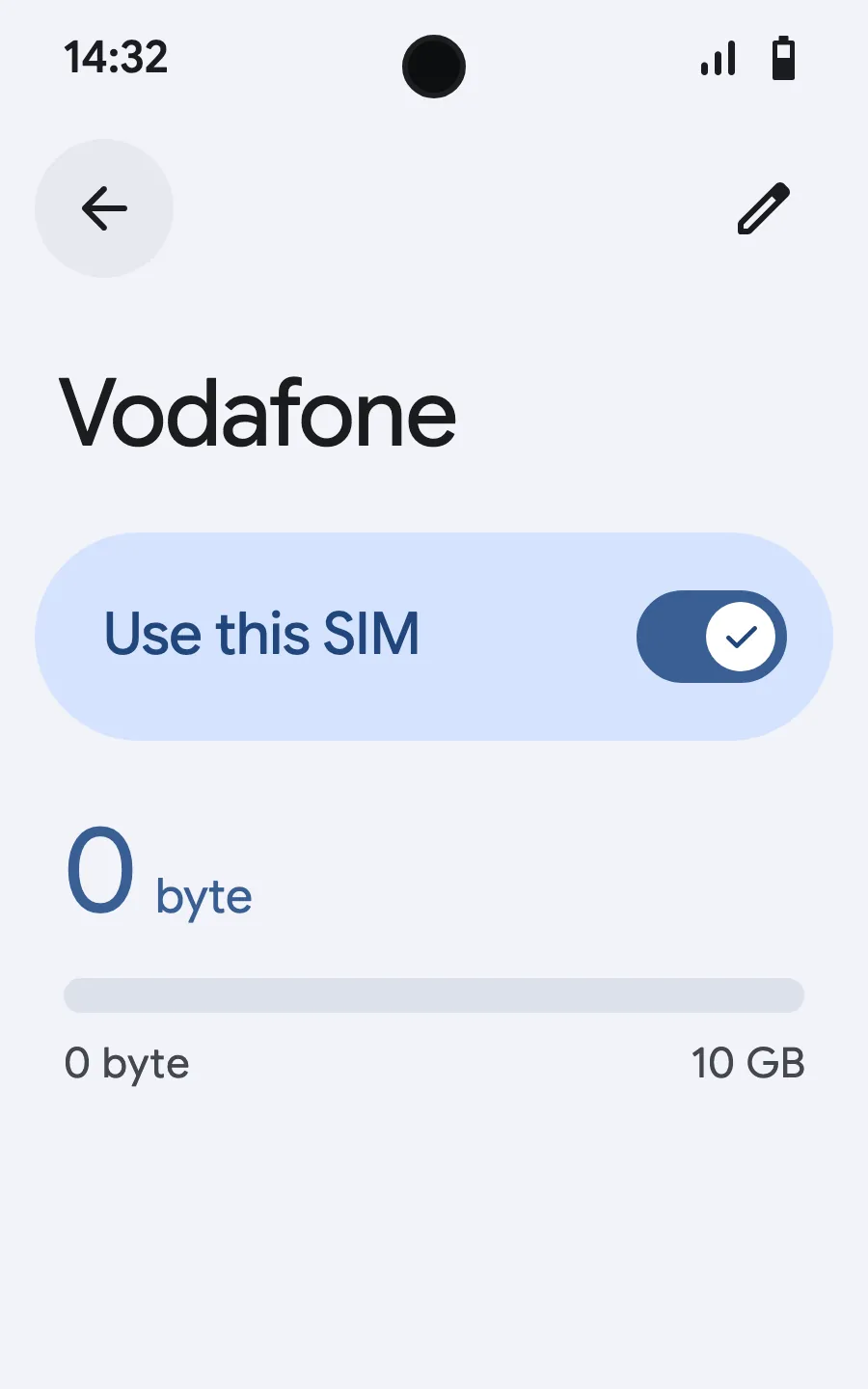
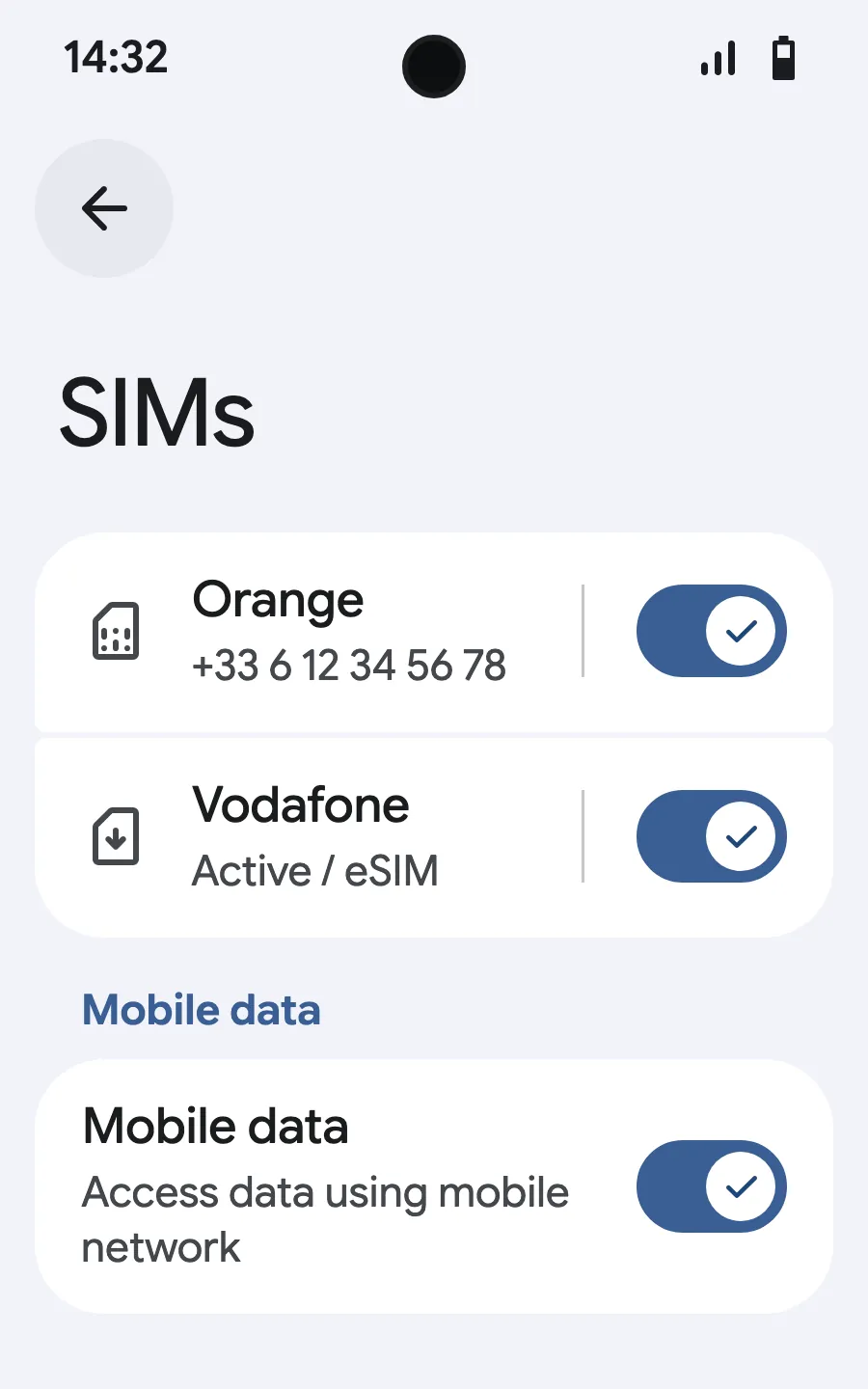
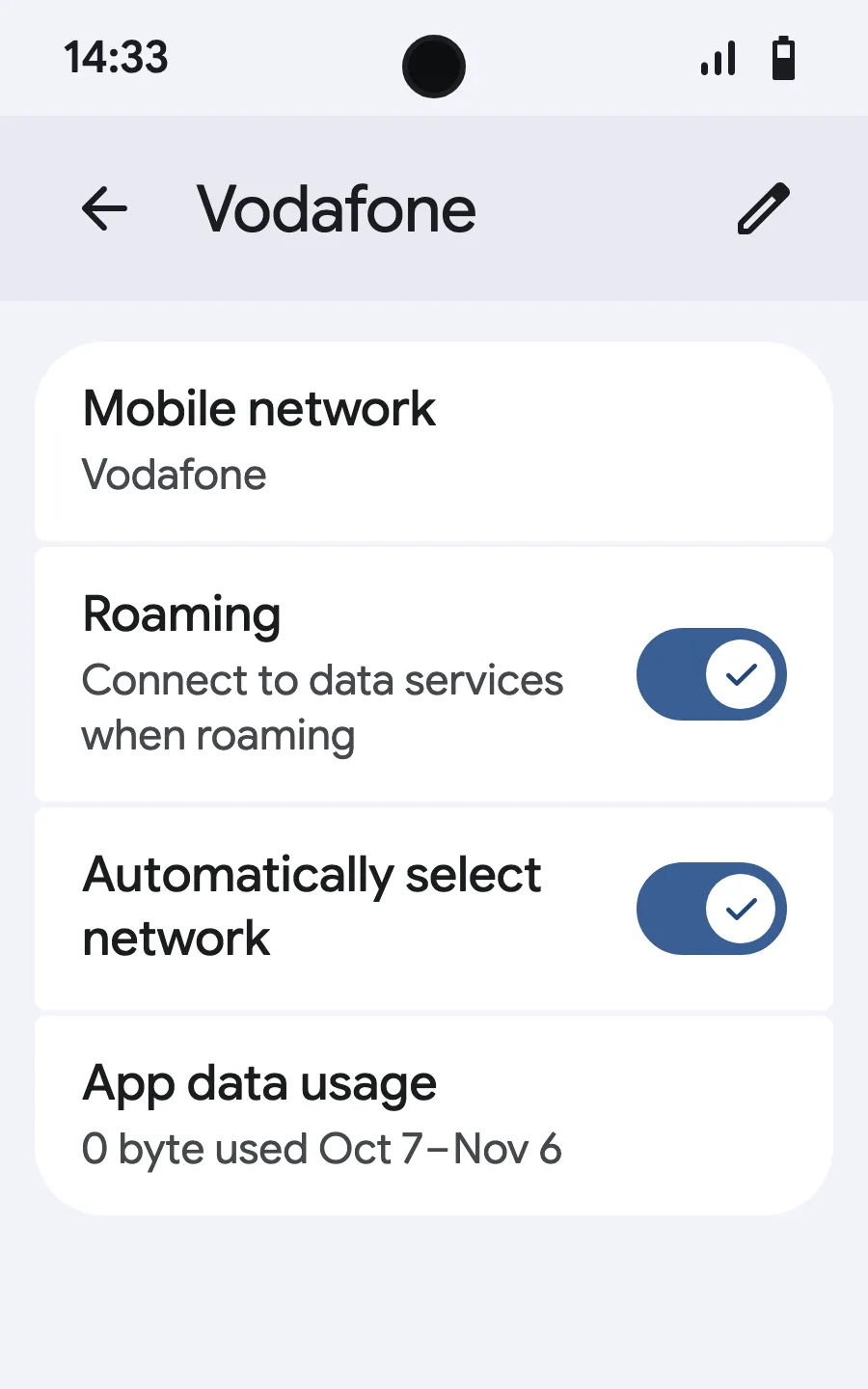
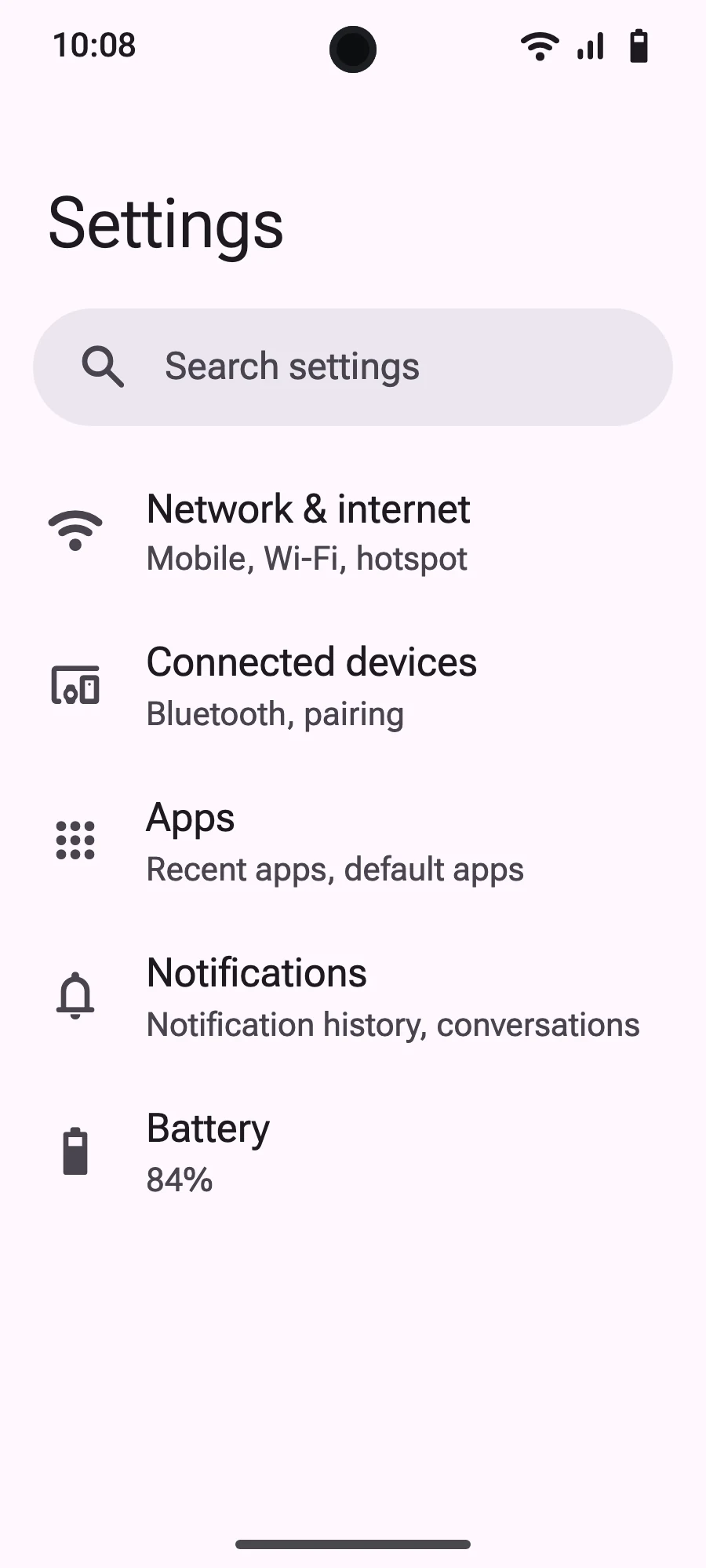
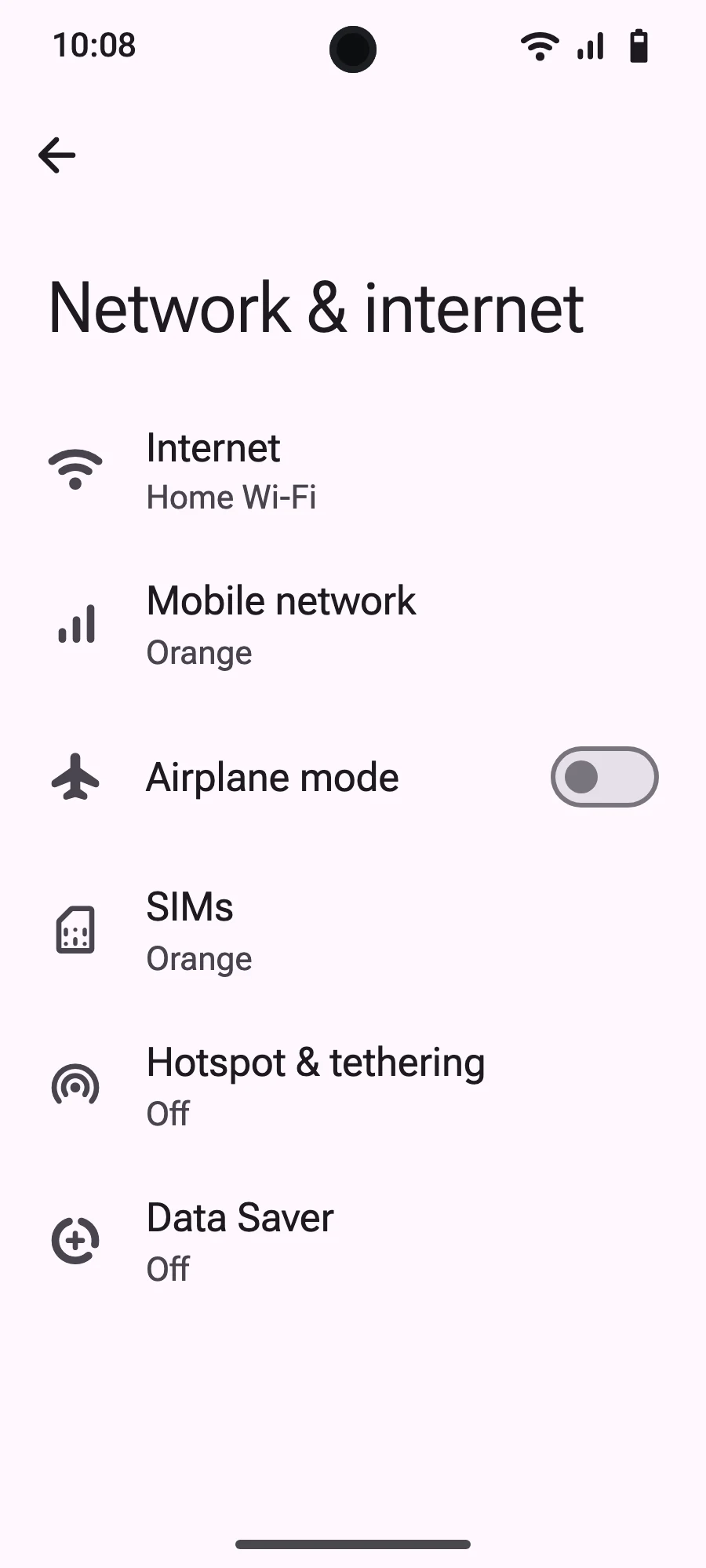
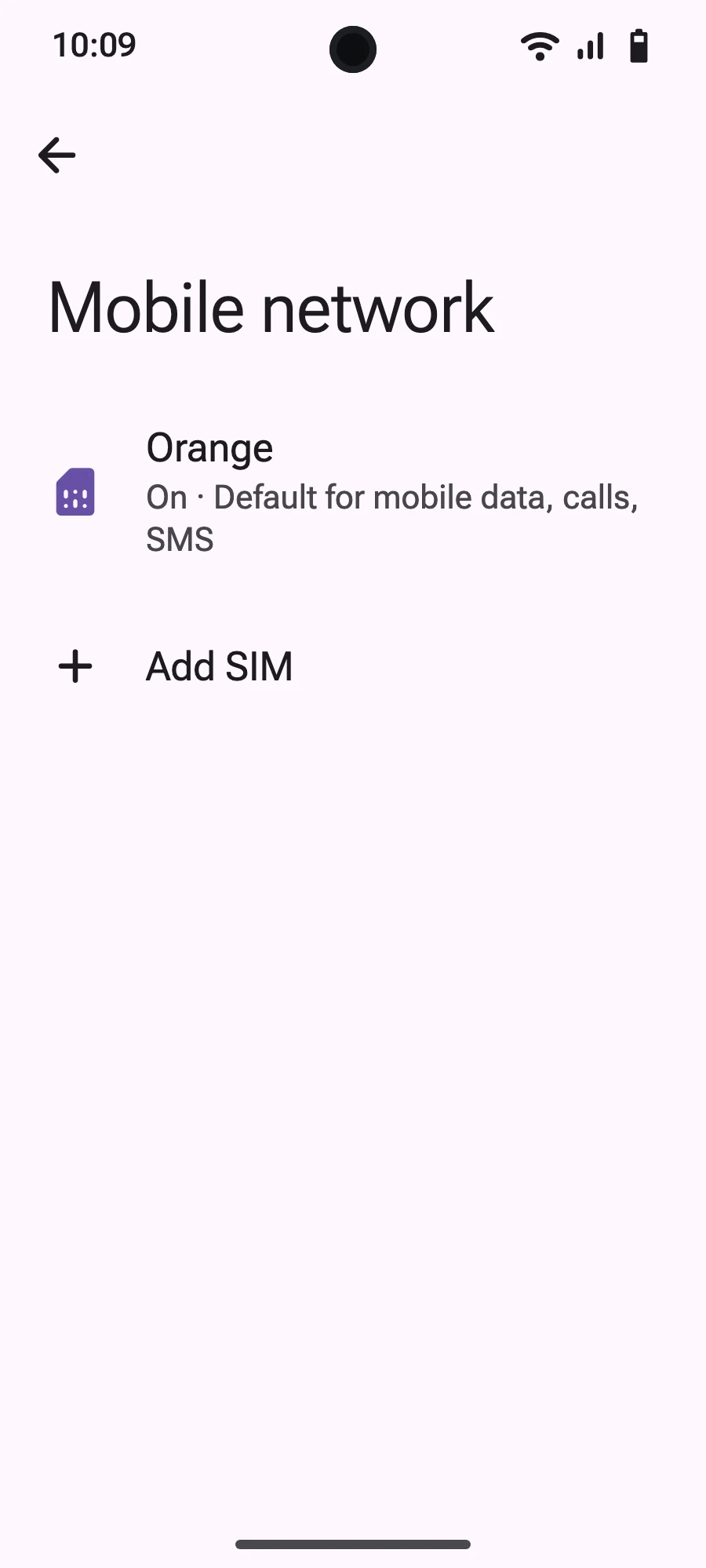
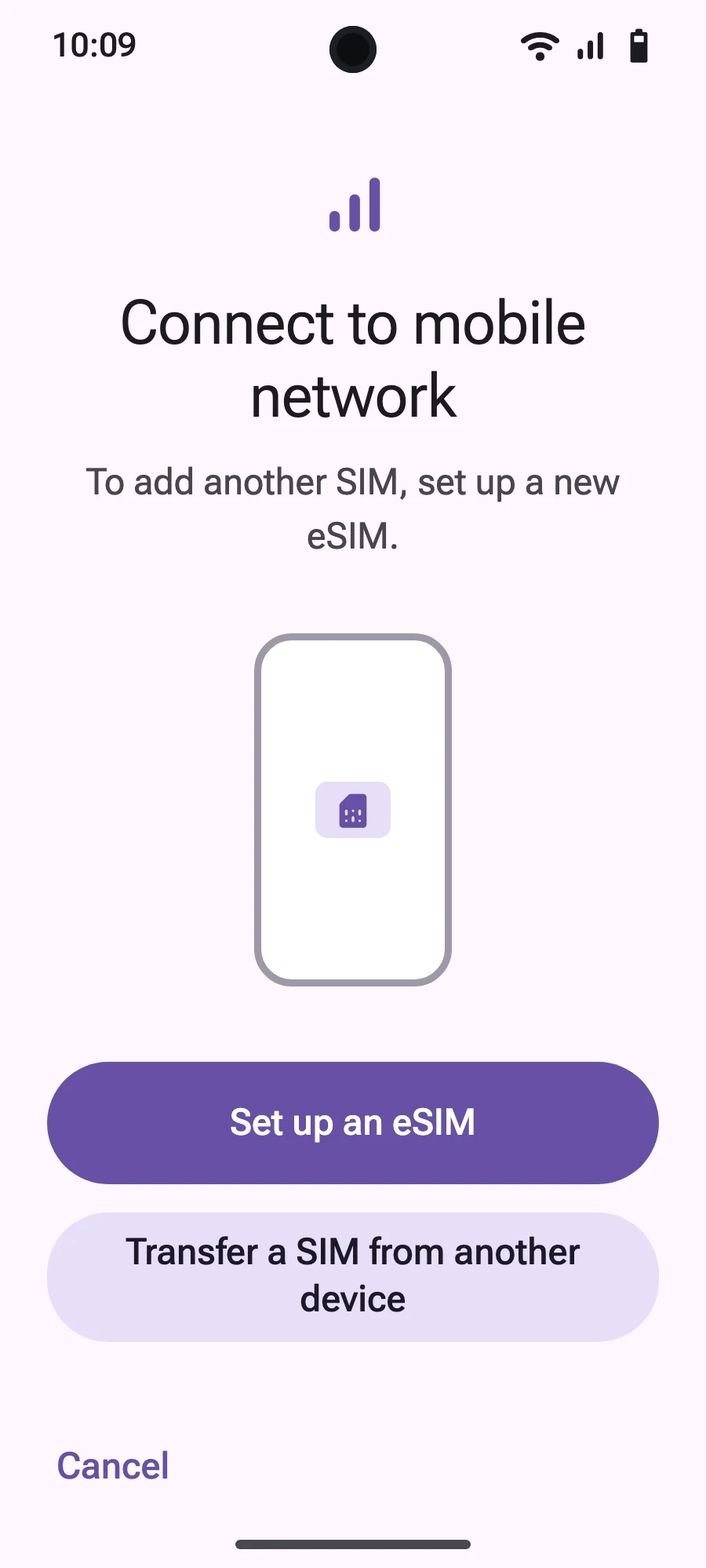
Before you leave: install your eSIMStep 1 of 9
- Open Settings, then Mobile networks or Network & internet.
- Tap “Mobile network”.
- Tap “Add SIM”.
- Tap “Set up an eSIM”.
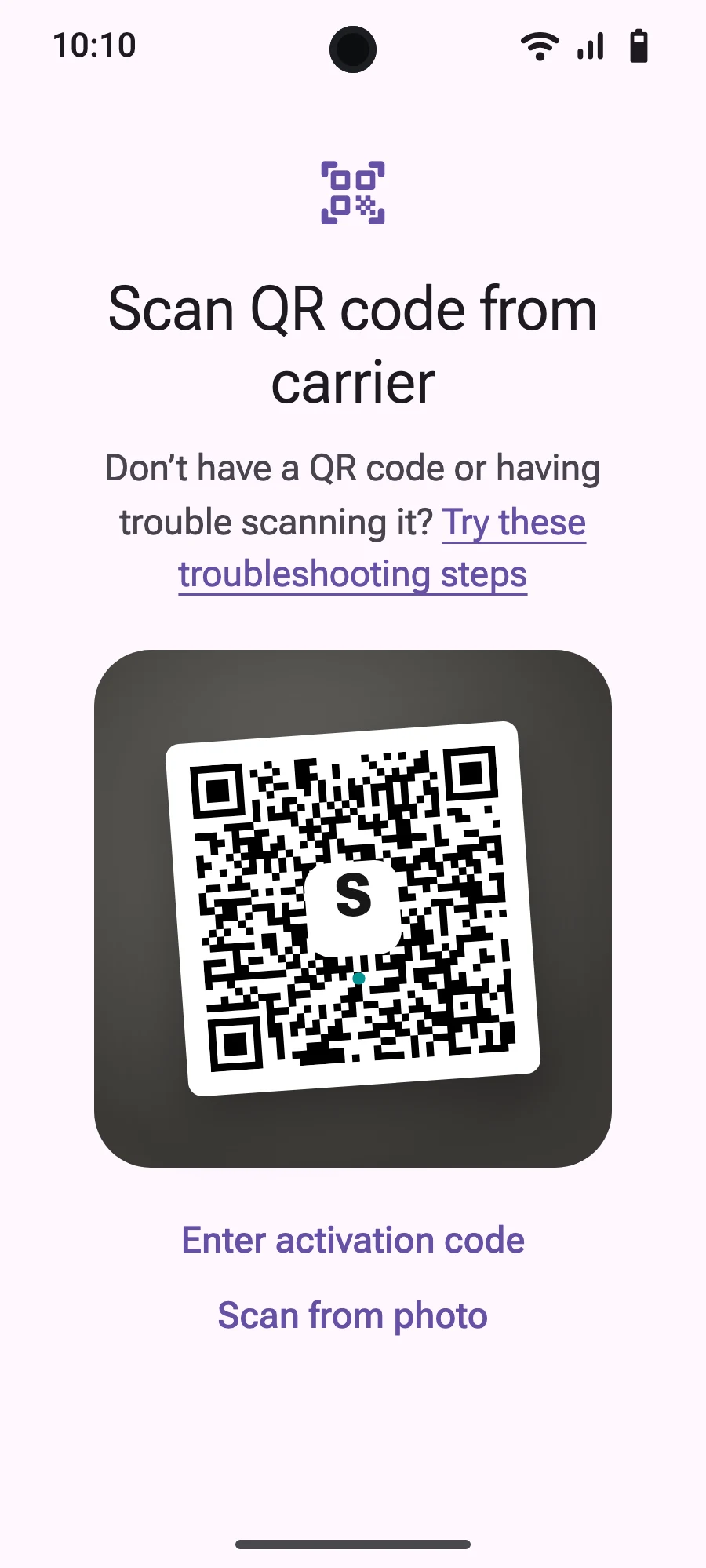
- Scan the QR code we email you after purchase (it's also in your account), then confirm.
- If “Set your SIM preferences” appears, tap “Get started” and keep your usual SIM for calls, texts and mobile data. Data moves to the eSIM when you land.
- When you land, open your new eSIM (it shows the name of a local or partner carrier) and turn on “Use SIM”.
- Turn on mobile data for the new eSIM.
- Turn on roaming. If nothing loads, turn off automatic network selection and pick the network manually.
After you buy, your QR code arrives by email and in your account. Show it on another screen, then follow these steps on your phone. On Xiaomi, Oppo or OnePlus the menus have other names: search for “eSIM” in Settings.
Stay on Wi-Fi and keep your phone unlocked until the installation is done.
Does your plan also cover the country you live in? Turn the eSIM off in Settings, SIMs until you leave, so it doesn't start before your trip.
Frequently asked questions
What travelers ask before a trip to Dublin.