Get 5% off your first eSIM:
WELCOME5
Loading...
Loading...
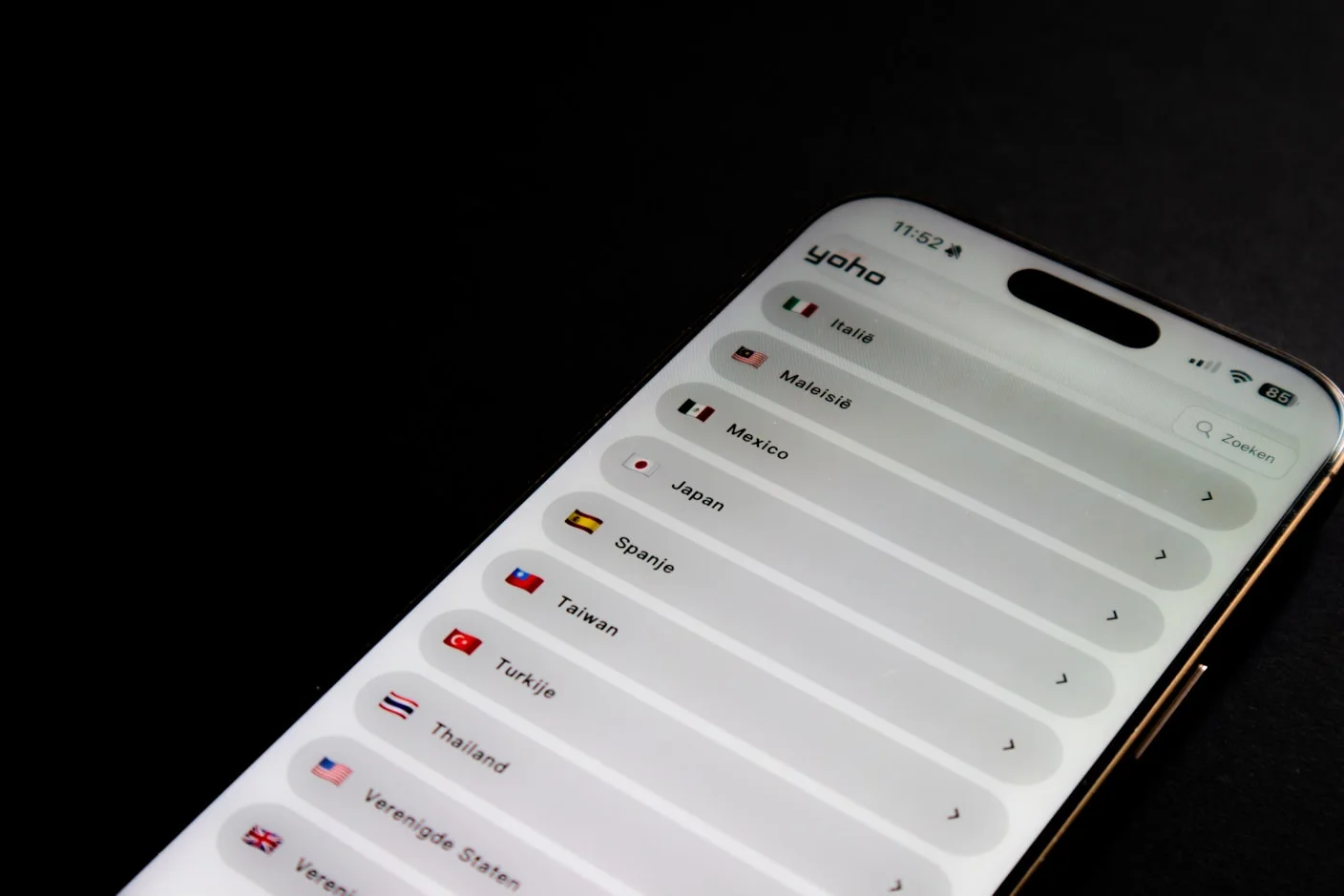
Learn how dual SIM works on every iPhone model, set it up step by step, and pair your home number with a Simsima travel eSIM for affordable data abroad.
 Dimitri Morvan
Every iPhone sold in the US since the iPhone 14 ships without a physical SIM tray — dual SIM on these models means dual eSIM, period. Even outside the US, most iPhones from the XS onward combine a nano-SIM slot with eSIM support, giving you two active lines on a single device. For travelers, the dual SIM iPhone solves a real problem: keep your home number active for calls and texts on one line, and run a travel eSIM from Simsima on the other for affordable data abroad.
Apple introduced dual SIM with the iPhone XS, XS Max, and XR in 2018. Every model since then includes it, though the configuration varies by region and generation.
These models run two eSIM profiles at once. The iPhone 17 series stores up to eight eSIM profiles, and the iPhone 17 Air is the first iPhone with no physical SIM tray in any market — including China, Hong Kong, and Macao. You can check whether your specific model is eSIM-ready on Simsima's device compatibility page.
iPhone uses Dual SIM Dual Standby (DSDS). Both lines stay connected to their respective networks, so you can receive calls, FaceTime, iMessage, SMS, MMS, and RCS messages on either number. Only one line handles cellular data at a time — you pick which one under Settings > Cellular. The data line gets access to 5G where available, while the other line stays on 4G/LTE for voice and messaging.
This architecture is exactly what makes the dual SIM iPhone valuable for international travel. Your primary line stays registered on your home carrier, receiving calls and authentication codes. Your second line connects through a local or regional eSIM for mobile data at local rates — no roaming surcharges.
For a detailed walkthrough of the eSIM installation process — including how Simsima's Smart Link works — see how it works on Simsima.
The most practical dual SIM configuration for travelers is simple: your home carrier on Line 1 (for calls, texts, and two-factor authentication codes) and a Simsima travel eSIM on Line 2 (for mobile data abroad). You stay reachable on your regular number without paying your carrier's data roaming fees.
Simsima offers travel eSIM plans for over 200 destinations. After purchasing a plan from the Simsima eSIM catalog, you receive a Smart Link by email. Tap that link on your iPhone and the eSIM profile installs automatically — no QR code scanning, no manual APN configuration. The entire process takes under two minutes, and you can do it from home before your trip.
A few details that set Simsima apart for iPhone travelers:
Since modern smartphones (including iPhone) store up to eight eSIM profiles, frequent travelers can keep Simsima profiles for their most-visited destinations and switch between them through Settings > Cellular without reinstalling anything.
Yes. All US-sold iPhone 14 and later models run two eSIMs simultaneously with no physical SIM tray. Outside the US, iPhone 13 and later models support dual eSIM alongside the nano-SIM option.
Yes. Dual SIM Dual Standby keeps both lines active. You receive calls and texts on your home number while the travel eSIM handles data. Answering a call on your home line abroad may incur standard voice roaming charges from your home carrier.
Yes, your iPhone must be carrier-unlocked to accept an eSIM from a different provider. iPhones purchased directly from Apple are typically sold unlocked. Contact your carrier if you are unsure about your lock status.
After purchasing a plan on Simsima, you receive a Smart Link by email. Tap it on your iPhone and the eSIM installs automatically in one step — no QR code or manual APN settings needed. You can install before your trip and activate when you arrive.
iPhone 17 models store up to eight eSIM profiles with two active at once. iPhone 14 through 16 models also store multiple profiles, with the exact limit depending on iOS version. Older models (XS through 12) are more limited.
Check if your iPhone supports eSIM — Full list of eSIM-compatible devices including all dual SIM iPhone models
How Simsima eSIM installation works — Step-by-step guide to purchasing and activating a Simsima travel eSIM via Smart Link
Browse Simsima travel eSIM plans — Find eSIM plans for over 200 destinations worldwide

Founder of Simsima. A passionate traveler based in Barcelona, he helps travelers stay connected without breaking the bank on roaming fees.
LinkedIn guides
 guides
 guides