-5% on your 1st eSIMuntil October 31
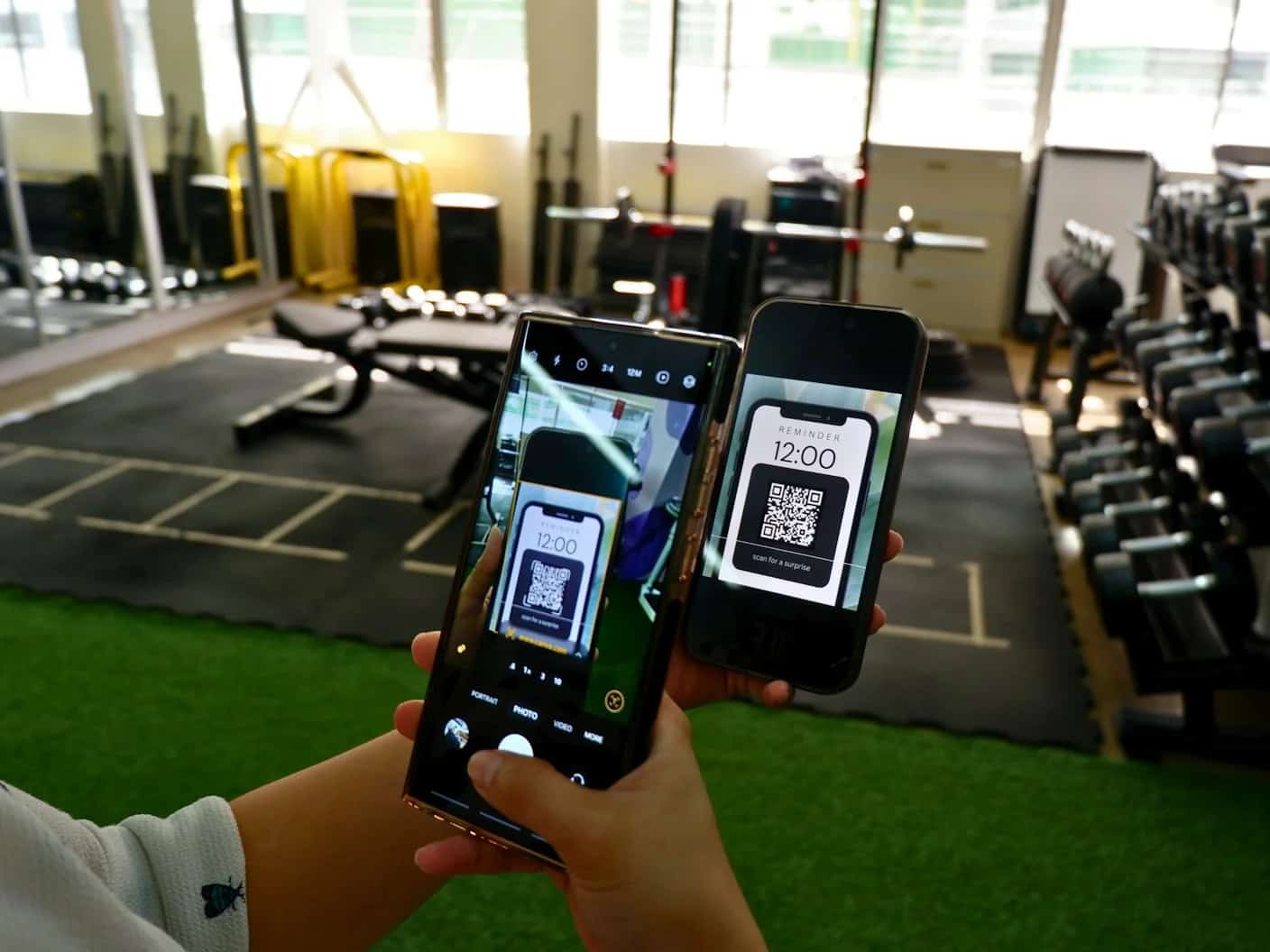
To activate an eSIM on an iPhone 14, or any iPhone from the XS onward, connect to Wi-Fi, open Settings > Cellular, tap Add eSIM, choose Use QR Code and scan the code your provider sent. Tap Continue, then Add Cellular Plan. The new line appears under Cellular within a minute. The same steps apply on iOS 26 for the iPhone 15, 16, 17 and Air.
A Simsima eSIM skips the scanning on iPhone: the order email has a Smart Link that opens the setup screen directly on iOS 17.4 or later. Do it at home before you fly. The plan does not start then: it starts when the eSIM connects to a local network at your destination.
Key takeaways
- Settings > Cellular > Add eSIM > Use QR Code is the standard path on every eSIM iPhone, from the XS to the iPhone 17 and Air
- On iOS 17.4 and later you can also tap an install link, or press and hold a QR code shown in Mail or a browser
- The iPhone needs Wi-Fi or another connection to download the eSIM, and it must be unlocked to accept a travel eSIM
- Converting your own number from a physical SIM to an eSIM is done in the same menu, with Convert to eSIM
- Once the line shows under Cellular, set it as the data line and turn on Data Roaming for it when you land
Before you start: Wi-Fi, an unlocked iPhone and the right iOS
- An iPhone XS, XS Max, XR or later. Apple lists these as the minimum on its eSIM setup page.
- A connection to download the profile. Apple asks for Wi-Fi or a cellular network; in some countries, eSIM-only iPhones can activate without Wi-Fi.
- An unlocked iPhone: Settings > General > About shows No SIM Restrictions next to Carrier Lock.
- iOS 17.4 or later if you want to install from a link or press and hold a QR code. Check in Settings > General > Software Update.
- The activation details from your provider: a QR code, an install link, or an SM-DP+ address with an activation code.
Activate with a QR code, step by step
These steps follow Apple's iPhone User Guide. They are identical on the iPhone 11, the iPhone 14 and the iPhone 17; only the menu name changes to Mobile Data in some regions.
- Open Settings and tap Cellular.
- Tap Add eSIM. On an iPhone with no line yet, the button reads Set Up Cellular.
- Tap Use QR Code. If you do not see it, tap Other Options first.
- Hold the iPhone so the QR code sits inside the frame on screen.
- Tap Continue, then Add Cellular Plan. Enter a confirmation code only if your provider gave you one.
- Give the line a label, such as Travel, when the iPhone asks how you will use your plans.
Two shortcuts exist. If the code is on another screen, you can scan it with the Camera app and tap the Cellular Plan Detected banner. If the code is on the iPhone itself, on iOS 17.4 and later, open the email or web page that shows it, touch and hold the QR code image, then tap Add eSIM.
Install from a link, or type the details by hand
Some providers send a link instead of a code. Apple's eSIM setup page describes the flow on iOS 17.4 and later: tap the link, tap Allow when the Activate New eSIM notification appears, then tap Continue. This is how the Smart Link in a Simsima email works on iPhone.
If you only have an SM-DP+ address and an activation code, go to Settings > Cellular > Add Cellular Plan and tap Enter Details Manually at the bottom of the screen. Type both values exactly as written, including dollar signs or hyphens.
Your own number: carrier activation, Quick Transfer and Convert to eSIM
Carriers such as T-Mobile, AT&T and Verizon often use eSIM Carrier Activation. When the carrier assigns an eSIM to your iPhone, a Carrier Cellular Plan Ready to Be Installed notification appears: tap it, then tap Continue. Some carriers do the same through their own App Store app.
Moving a number from your previous iPhone uses eSIM Quick Transfer. Apple's conditions: both phones signed in to the same Apple Account, nearby with Bluetooth on, and running iOS 18.4 or later. On the new iPhone, go to Settings > Cellular > Add eSIM and choose the number, or tap Transfer From Nearby iPhone.
To switch from a physical SIM to an eSIM on the same iPhone, go to Settings > Cellular, tap Set Up Cellular or Add eSIM, choose the number that uses the physical SIM and tap Convert to eSIM. Apple warns that the physical card stops working afterwards, and the carrier has to support the conversion.
Simsima recommendation
Ready to skip the international roaming charges?
Browse Simsima eSIM plans — activation on arrival, local networks, no contract.






Check the new line, then set it up for the trip
Go to Settings > Cellular and make sure the new line, listed below eSIMs, is turned on. Then set it up for travel:
- Tap Cellular Data and select the travel line, so your home line stops using data abroad.
- Leave Allow Cellular Data Switching off, otherwise the iPhone may fall back to your home line when the signal dips.
- On arrival, tap the travel line and turn on Data Roaming. The Simsima eSIM then connects to a local network and the plan starts.
- Keep Data Roaming off on your home line, and leave the line on if you still want calls and texts on your usual number.
On iOS 26 and later, a Turn On Travel eSIM notification may appear when you land. Apple's travel eSIM page lists the choices: Travel eSIM Only, or Travel eSIM and Current eSIM to keep your home number reachable while the travel eSIM carries data.
When the iPhone will not add the eSIM
- There is no Add eSIM button: update iOS, then check the model. An iPhone X or older cannot use eSIM at all.
- The iPhone says the plan cannot be added or is not supported: the most common cause is a carrier lock. Check Carrier Lock in Settings > General > About.
- The code was already used: most QR codes install only once. Ask the provider for help rather than buying a second plan.
- The line installed at home but shows No Service: that is expected before departure for a plan that starts on arrival.
- Nothing works after a few tries: keep the line, do not delete it, and contact the provider with the EID and IMEI shown in Settings > General > About.
Frequently Asked Questions
Usually because the iPhone is locked to another carrier, which blocks plans from other providers. It can also happen with iPhones sold in China mainland, where Apple lists only a few models with eSIM. Check Carrier Lock in Settings > General > About, and ask your carrier to unlock the phone if needed.
On iOS 17.4 or later, open the email or page with the code, touch and hold the QR code image and tap Add eSIM. On older versions, use Enter Details Manually with the SM-DP+ address and activation code, or display the code on another screen.
T-Mobile and other US carriers mostly use eSIM Carrier Activation or their own app. Wait for the Carrier Cellular Plan Ready to Be Installed notification, tap it and tap Continue. For account-specific problems, only the carrier can help.
You need some internet connection to download the profile. Apple says the iPhone should be on Wi-Fi or a cellular network, and that eSIM-only models can activate without Wi-Fi in some countries. Installing at home on Wi-Fi avoids the question entirely.
Adding the profile takes about a minute. A carrier eSIM for your own number can take longer while the carrier switches the line. A Simsima travel eSIM is installed in minutes at home and starts working when it reaches a supported network at your destination.
Apple says you then need a new eSIM from your carrier. With Simsima, a deleted eSIM cannot be reinstalled on your own, so contact support, which usually replies within 24 hours, before buying another plan.
how Simsima works — See the full Smart Link activation process and how Simsima delivers your eSIM
eSIM compatible devices — Check whether your iPhone or other device supports eSIM before purchasing
browse eSIM plans — Explore Simsima's full catalog of travel eSIM plans for 190+ destinations
#eSIM#iPhone#activation guide#travel eSIM#Smart Link

Dimitri MorvanFounder
Founder of Simsima. A passionate traveler based in Barcelona, he helps travelers stay connected without breaking the bank on roaming fees.
LinkedIn