-5% on your order in the app

Spotify uses about 43 MB per listening hour at Normal quality, which is the baseline most travelers should plan around. At Very High quality, available only on Premium, it uses about 144 MB per hour.
That gap is what catches people out on a limited travel plan. The same playlist, on the same phone, can cost a little over three times as much data after one settings change, and you won't notice it from the sound on a train or through basic earbuds in a busy airport. If you're asking how much data does Spotify use for a real trip, the useful answer isn't a single hourly number. It's hours per gigabyte, total listening hours on your itinerary, and whether video podcasts or automatic quality are stepping up in the background. Work those three things out before you leave and Spotify rarely becomes a problem. Leave them unchecked and a modest music habit can eat most of a small eSIM plan.
Spotify Data Use per Hour at Each Quality Level
At Normal quality, Spotify works out to about 43 MB per listening hour, and I'd treat that as your planning default on mobile data. It sounds clean enough for commutes, walks, and background listening, and it leaves your allowance with room for maps and messages. Higher settings only make sense on Wi-Fi or when you're certain you have data to spare.
The full range comes from Spotify's own bitrate settings. According to Spotify's audio quality guide, its mobile, desktop, and tablet settings correspond to approximately 24 kbit/s for Low, 96 kbit/s for Normal, 160 kbit/s for High, and 320 kbit/s for Very High for Premium.
The Four Quality Levels as a Travel Budget
Converting those bitrates into payload volume gives you the table below. These are the numbers to copy into your own trip math.
| Quality | Approximate bitrate | Data per hour | Hours per 1 GB |
|---|---|---|---|
| Low | 24 kbit/s | 10.8 MB | 92.5 hours |
| Normal | 96 kbit/s | 43.2 MB | 23.1 hours |
| High | 160 kbit/s | 72 MB | 13.8 hours |
| Very High (Premium only) | 320 kbit/s | 144 MB | 6.9 hours |
Read the last column first when you're buying a travel plan. One gigabyte stretches across a long trip at Low, covers a solid week of daily listening at Normal, and disappears in a single long travel day at Very High. That's the nonlinear part. Quality steps don't add a little data at a time, they multiply it.
Practical rule: Very High uses about 3.3 times the data of Normal. If you can't hear a clear difference on your travel headphones, you're paying triple for nothing you'll notice.
These figures are theoretical payload estimates, calculated before protocol overhead, buffering, metadata, advertisements, and retransmissions. Real usage on an actual phone runs somewhat higher, because the app also loads artwork, playlists, recommendations, and occasional retries when your connection drops in a tunnel or between cell towers. Don't budget to the last megabyte using the table alone. Treat it as the floor, not the ceiling.
For a broader view of what the subscription tiers include and which one suits your listening, a Spotify subscription assessment from HearSmart is a useful companion resource before you decide whether Premium's downloads and Very High quality are worth it for your trip. It's also worth comparing music with video if your plan is tight, since our guide to how much data YouTube uses on mobile shows how quickly moving images outpace audio.
Do one check before you leave home. Open Spotify on every device you'll travel with, confirm the cellular streaming quality, and set it to Normal. Settings don't always match across a phone, tablet, and laptop, and the device you forgot to check is usually the one still set to Very High.
Data Needed for Trips of Different Lengths
Hourly rates only become useful when you turn them into a trip total. The table below uses 1 GB = 1,000 MB and counts Spotify audio only, before overhead, ads, and buffering.
| Listening hours | Low | Normal | High | Very High |
|---|---|---|---|---|
| 5 hours | 0.05 GB | 0.22 GB | 0.36 GB | 0.72 GB |
| 10 hours | 0.11 GB | 0.43 GB | 0.72 GB | 1.44 GB |
| 20 hours | 0.22 GB | 0.86 GB | 1.44 GB | 2.88 GB |
| 40 hours | 0.43 GB | 1.73 GB | 2.88 GB | 5.76 GB |
A Worked Example You Can Copy
Say you'll listen for 20 hours during a travel month, spread across flights (with in-flight connectivity), trains, walks, and quiet evenings. At Normal, that's about 0.86 GB, a manageable slice of almost any travel plan. The same 20 hours at Very High need about 2.9 GB, which can consume nearly all of a 3 GB plan before you've opened a map or sent a single photo.
The math is simple enough to redo for your own itinerary. Multiply your expected hours by the hourly rate for your chosen quality, then divide by 1,000 to get gigabytes. If you'll listen for an hour each morning and an hour each evening on a ten-day trip, you're at 20 hours, so use that row. If music plays in the background while you work, count work hours too. Background listening is still listening as far as your data counter is concerned.
How to Estimate Your Hours Honestly
- Transit time: Add up commutes, rail journeys, drives, airport waits, and any flights where you'll stream rather than use downloads.
- Daily routine: Include workouts, walks, cooking, and wind-down listening at your accommodation if you won't be on Wi-Fi.
- Spillover listening: Count podcasts or playlists you start on Wi-Fi and keep playing after you walk out the door, because the stream switches to mobile data without asking.
Once you have an hours estimate, add a 20 to 30 percent buffer. That buffer covers the protocol overhead and retransmissions the theoretical rates exclude, plus the sessions you'll forget to predict. I wouldn't skip it on a small plan. A buffer you don't use costs nothing, while a plan that runs dry two days early forces you into an awkward top-up decision mid-trip.
The table counts Spotify only. Maps, messaging, photo uploads, email, and social apps all need their own allowance on top, and for most travelers those apps matter as much as music. Our related guide on how many GBs you need for a trip walks through a full allocation across apps so you can size the whole plan, not just the playlist.
A week with 10 hours of Normal listening uses about 0.43 GB. At that level, a music habit rarely dominates a trip's data unless video gets involved.
That's the reassuring takeaway for audio listeners. Spotify at Normal is one of the lighter streaming habits you can carry abroad. The risk isn't music itself, it's unplanned extras layered on top of it.
Why Video Podcasts Multiply Data and How to Keep Spotify Lean
An audio episode sends one stream of sound to your phone. A video podcast sends that same sound plus a continuous moving picture, which demands a new frame many times every second. It's the difference between listening to the radio and watching television in the next room at the same time. The picture is where the data goes.
The comparison below shows why the two formats belong in different budget categories.

What Video Actually Costs
According to Spotify's internet and data usage guidance, videos use more data because their files are larger, and the exact rate varies with resolution, compression, frame rate, adaptive streaming, and whether video remains active on screen. Spotify doesn't publish a single video rate for that reason, so any fixed figure you see is a measurement under one set of conditions, not a promise.
What the measurements agree on is the direction and the scale: video podcast playback runs several times heavier than Normal audio under comparable settings, and the gap widens as resolution climbs. That changes the arithmetic of a travel plan completely. A 5 GB allowance stretches to about 115 hours of Normal audio, while video playback burns through the same allowance in a small fraction of that time, and that's before any other phone traffic touches the plan.
The cost hides in two places. First, episodes with video can start playing with the picture on, even when you only wanted to listen while walking or driving. Second, automatic quality adapts to network conditions, so a strong 5G signal in a city center can step your stream up to a heavier rate without asking. You're not doing anything wrong when this happens. The app is behaving as designed, and your budget absorbs it.
The short video below walks through where these playback settings live in the app, which helps if your menus don't match the labels in the checklist.
A Settings Checklist for Limited Data
- Set cellular and Wi-Fi quality separately: Keep Normal or Low on mobile data, so a strong connection can't raise your hourly rate. You can leave Wi-Fi higher for home and hotel listening.
- Turn off video podcast playback: Switch episodes to audio only, or save video versions for Wi-Fi, because the moving image is the expensive part.
- Turn off or limit automatic quality: A locked quality setting makes your usage predictable, which matters more than marginal sound gains on the road.
- Look for a data saver option: Labels and placement vary by app version, and our walkthrough of data saving mode settings covers the phone-level controls that sit alongside in-app ones.
- Keep mobile data downloading off: Downloads belong on Wi-Fi, so a playlist refresh never lands on your travel allowance.
- Pause or close the app when you're done: Background playback keeps streaming, and a playlist left running in a hotel room while you're out still counts.
Check Spotify as its own line in your phone's data settings rather than watching only the system-wide total. The total mixes Spotify with everything else, which makes it hard to spot whether music, video, or another app is responsible when usage jumps. A sudden spike after a podcast-heavy day usually points to video, not audio.
Before you leave, decide whether you need video at all. For commutes, flights, and walking tours, you're rarely watching the screen, so audio gives you the same content at a fraction of the cost. Recheck these settings after app updates too, since updates occasionally reset preferences or rename controls, and a setting you fixed in January may not survive to your June trip.
How to Download Music and Podcasts Before You Travel
Downloading is the cleanest way to take Spotify off your data budget entirely. A track saved to your phone over home Wi-Fi uses storage, not mobile data, and it keeps playing in airplane mode, in tunnels, and in rural areas with no usable signal. For long flights and cross-country trains, it's also more reliable than streaming, since there's no connection left to drop.
The process below takes a few minutes per playlist. Do it the evening before you travel, not at the airport gate on a congested network.
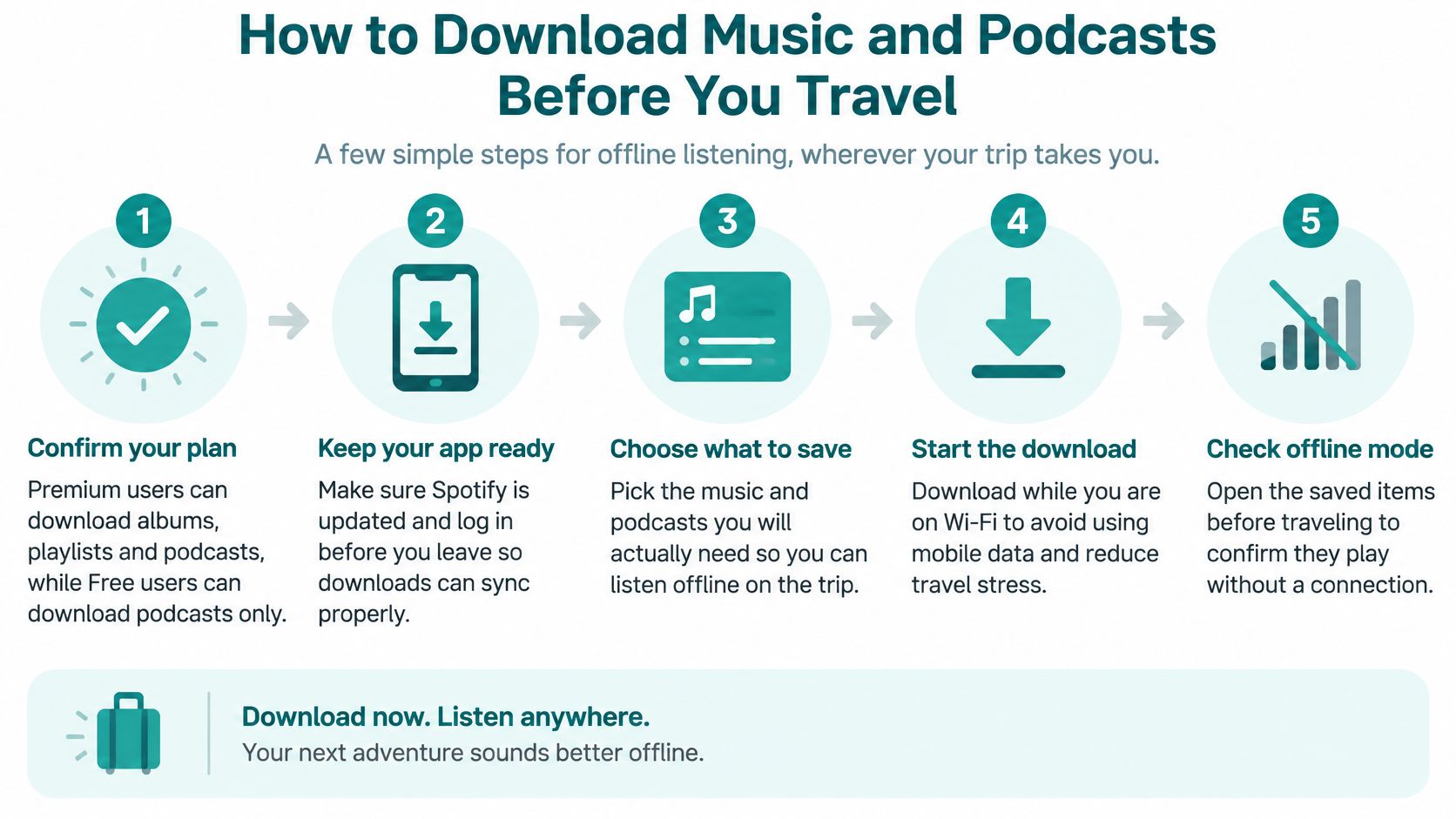
Step by Step, With the Reason for Each Step
- Confirm your plan first. According to Spotify's guide to listening offline, Premium users can download albums, playlists, and podcasts for offline playback, while Free users can download only podcasts. If you're on Free and your trip depends on music downloads, you'll need to decide about Premium before departure, not on the plane.
- Keep downloads on Wi-Fi. Spotify's settings keep mobile data downloading turned off unless you explicitly enable it. Leave it off. There's no reason to spend travel data on files you could have saved free at home.
- Open the playlist, album, or podcast and switch on its download control. Do this for everything you realistically plan to hear, including a backup playlist for delays. Start early enough that large libraries can finish.
- Choose a download quality that fits your ears and your phone. Higher quality files require more storage, and on travel earbuds in a noisy cabin, Normal usually sounds fine. Reserve higher settings for quiet listening on good headphones.
- Check your free storage before you start. Spotify recommends having at least 1 GB of free device storage for downloads, and the amount you need grows with playlist length and chosen quality. Clear space first if you're close to full, and remember you'll also want room for trip photos and videos.
- Verify the download indicator beside each track. Downloaded tracks show the offline or download indicator, and a track without it isn't saved. A playlist that looks downloaded at the top level can still have stragglers that failed midway.
- Test in airplane mode before you leave. Switch airplane mode on for a few minutes, then play a downloaded track and skip around the playlist. If everything plays with no connection, you're set. If something stalls, you're finding out at home on Wi-Fi, where it's free to fix.
The airplane mode test is the step people skip, and it's the one that matters most. Two minutes at home beats discovering a failed download above the Atlantic.
A few habits make downloads work harder on longer trips. Refresh your playlists on hotel or café Wi-Fi every few days so you aren't stuck with the same rotation for two weeks, and delete downloads you've finished with to keep storage free for photos. If you're traveling with limited phone storage, prioritize one long all-purpose playlist and a handful of podcast episodes over your entire library. You won't miss the deep cuts as much as you'd miss having something reliable queued up on a six-hour bus ride.
Downloads also change your data math in a way worth remembering when you size a plan. Every hour you listen offline is an hour you can subtract from your streaming estimate entirely, at any quality. A traveler who downloads most listening can pick a smaller data plan with confidence, because Spotify's share of it drops close to zero. Do this work at home, on Wi-Fi, and your travel data stays available for the things that can't be prepared in advance.
How to Check Spotify Data Use on Your Phone
Estimates tell you what to expect. Your phone tells you what really happened, and on a trip that distinction matters. Both major systems track data per app, so you can isolate Spotify instead of guessing from your overall usage.
On iPhone
- Open Settings on your iPhone.
- Tap Cellular to see mobile data broken down by app.
- Scroll to Spotify and read the figure under its name, which shows the mobile data Spotify has used since the last reset.
On Android
- Open Settings on your Android phone.
- Tap Network and internet, then Data usage to reach the usage breakdown.
- Tap Spotify to see its mobile usage for the current cycle.
Menu names can shift slightly depending on your operating system version and phone manufacturer, so if a label doesn't match exactly, look for the closest equivalent under network or connections settings. The per-app list is there on every current phone. You just need to find the right door.
Run a One-Day Test Against Your Estimate
Note Spotify's figure at the start of a day. Listen for a set number of hours at your usual quality, then check the figure again and compare the change with the hourly rates from earlier. If two hours at Normal moved the counter by noticeably more than expected, something else is going on, most likely automatic quality, video playback, or downloads happening over mobile data. That test turns a vague worry into a specific setting to fix.
Track Spotify's own number, not just the phone total. The total also includes system updates, maps, messages, and every other app on the device, so a spike there may have nothing to do with music. Spotify's line answers the question you're asking.
Before you fly: Reset the data counter on the day your trip starts, so every readout during the trip covers the travel period only and not months of home listening.
Check the figure each evening for the first few days of a trip. Early readings let you correct course while most of your allowance is still intact, and they confirm whether your pre-trip settings changes held. Once the numbers match your plan, you can relax and check less often.
Choose a Data Amount for Your Trip
Put the pieces together with one formula. Trip data equals your Spotify audio hours times your per-hour rate, plus video hours at the higher video rate, plus allowances for maps, messages, and photos, plus a 20 to 30 percent buffer. Every part of that formula is a number you can estimate from your itinerary, and none of it requires guessing.
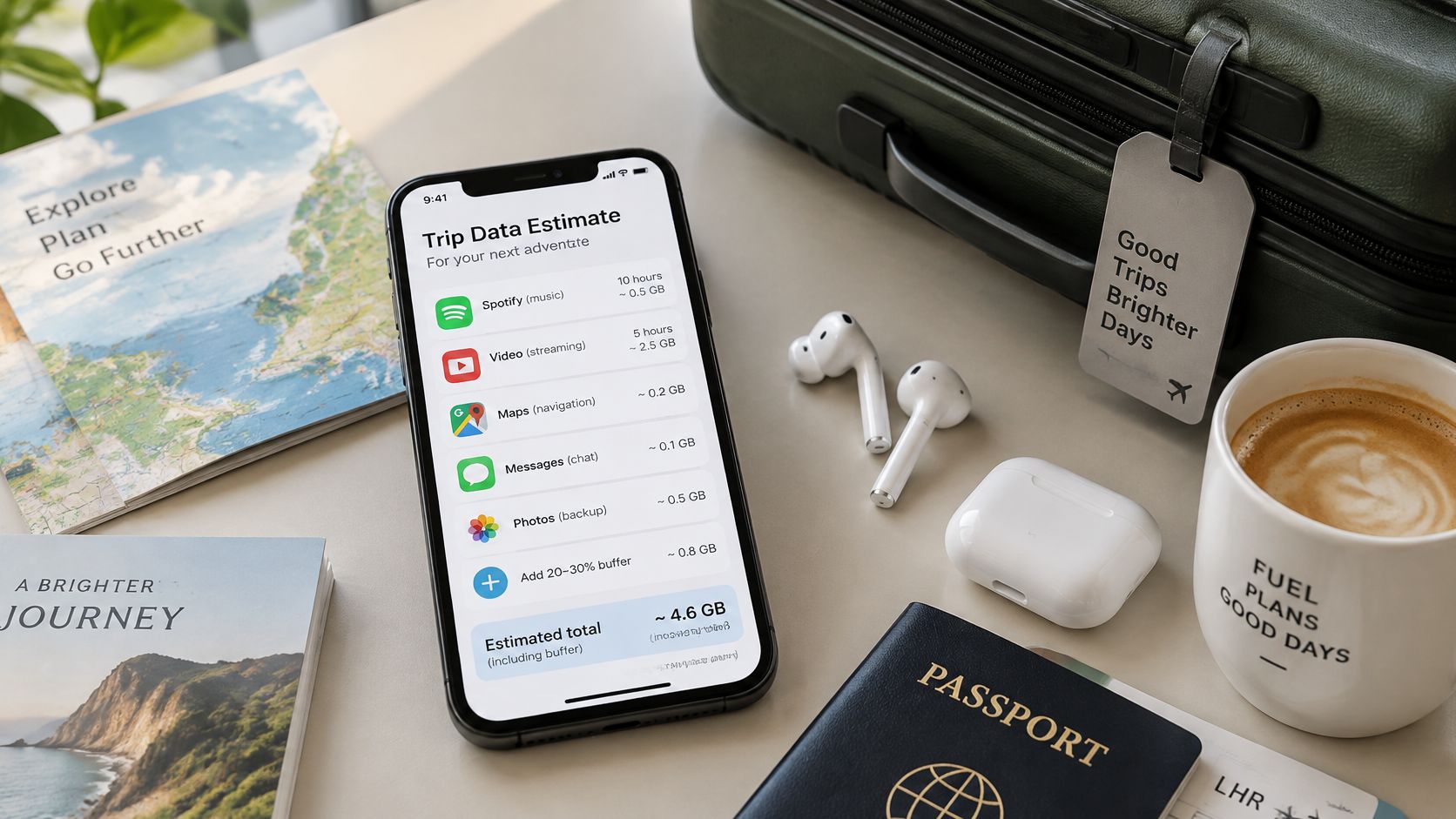
Here's the formula worked through. 20 hours of Normal music is about 0.86 GB, and 2 hours of video podcasts add about 0.45 GB, which brings Spotify to roughly 1.3 GB before other apps. Add modest allowances for maps, messaging, and photos, apply the buffer, and a 3 GB plan is a comfortable choice for a two-week trip with light app use. If you download most of your listening instead, Spotify's share shrinks and you can size the plan mainly around your other apps.
If you'd rather not run the arithmetic yourself, our data usage calculator estimates how much data you need based on your travel habits and activities, and the data usage tracker in your account lets you monitor remaining data in real time once you're on the road. We also offer a guide on making data last longer, covering the settings that consume data and how to cap usage on iPhone and Android. If your route crosses several countries, a Simsima travel eSIM for worldwide coverage is worth comparing before you land, and you should confirm plan details on the official site before buying.
Do these three things and you're done. Set Spotify to Normal, download your playlists before departure, and check your remaining data on day one. That combination handles the large majority of travel listening without stress.
Music is one of the easiest travel data habits to control, and Simsima helps you size the rest of your plan around it with prepaid eSIM data for trips across multiple countries. Estimate your listening hours, download what you can on Wi-Fi, and pick a plan that matches your real usage rather than a guess. Visit Simsima to compare plans for your destination and get connected before you land.


#Spotify data usage#Spotify data#offline music downloads#travel mobile data

Dimitri MorvanFounder
Founder of Simsima. A passionate traveler based in Barcelona, he helps travelers stay connected without breaking the bank on roaming fees.
LinkedIn