 Verified coverage
Egypt network
Access to top-tier carriers for a stable and fast connection
Need help choosing?
Not sure which plan to pick? Try our data calculator.
Is your device eSIM-ready?
A quick check to see if your phone supports eSIM.
100% secure payment
Multiple payment methods accepted










eSIM Cairo
Our Egypt eSIM works in Cairo: the same plans at the same prices as on the Egypt page. Data from the moment you land, and your usual number stays on.
Cairo, Egypt eSIM plans and prices
4% in SimCoins- Networks
- Orange, etisalat, and Vodafone
- Mobile network
- 4G / 5G
- Hotspot / tethering
- Yes
- Top-up
- Yes
- Validity
- 30 days
Unlimited Cairo, Egypt eSIM plans: high-speed data every day
- 14-day refund if not activated
- Support within 24 h
- Install before you leave
Need help choosing?
Not sure which plan to pick? Try our data calculator.
100% secure payment
Multiple payment methods accepted
Getting online in Cairo
Cairo is covered by our Egypt eSIM, the same plans as the rest of the country. Install it before you fly and it connects when you land at Cairo airport, with no queue at a SIM counter and no passport copy to hand over, then keeps working at Giza and on a trip down the Nile. It's data only: your usual number stays active alongside it.
CAICairo International Airport
Heliopolis, north-east Cairo
Your eSIM connects
As soon as your phone finds a local network. Set the eSIM as your data line and turn on data roaming for it.
Local SIM cards
- e& Egypt Travel 200, tourist line
- EGP 200
- 7 GB, 100 local minutes and 5 international calls, taxes included; for tourists only, not renewable Source, Oct 2026
- WE Mobile Egypt 100, tourist line
- EGP 100
- 5 GB, 60 local and 20 international minutes for 30 days, price before tax; for tourists only Source, Oct 2026
Egypt's telecom regulator requires the original passport in an operator's shop: the shop keeps a color copy and you sign the contract in person. Source, Nov 2023
With Simsima, no passport and nothing to pick up: the eSIM is already in your phone.
Your networks on the ground
The plans on this page connect to these networks in Egypt.
 Orange5G
 Vodafone5G
 etisalat5G
Opensignal's February 2026 report ranks WE first in Egypt. Among the networks our plans use, Vodafone does best: second nationally for download speed and reliability, ahead of e& and Orange. These plans use Vodafone: 1 GB, 3 GB, 5 GB, 10 GB, 20 GB, unlimited 5 days, unlimited 7 days, unlimited 10 days, unlimited 15 days, and unlimited 30 days. Source, Feb 2026
Along the way
The same plan follows you everywhere in Egypt, day trips included.
- Giza pyramids and the SphinxOn the western edge of the city
- Grand Egyptian MuseumTutankhamun's treasures, next to the pyramids
- Khan el-Khalili and Islamic CairoThe old bazaar, mosques and the Citadel
- Egyptian Museum in Tahrir SquareThe historic museum in the city centre, by the Nile
- SaqqaraThe step pyramid of Djoser, a half-day trip south
Apps worth installing before you go
- UberRide-hailing
- Available in Cairo 24/7, including rides from the airport, and you can book up to 30 days ahead. Source, Oct 2026
- inDriveRides at a price you agree in the app
- Cairo has its own inDrive city page, with Ride, Comfort and Moto options; you set the fare and choose a driver, and payment shown is cash. Source, Oct 2026
- WhatsAppMessages and calls
- Messages run over the eSIM's data and your usual number stays active alongside it. Opensignal measured app-call quality (WhatsApp, Skype, Messenger) on Egypt's four networks in early 2026. Source, Feb 2026
Internet in Cairo: eSIM, SIM card or pocket WiFi?
Four ways to get online when you land, and what changes for you.

For a trip in Cairo, an eSIM is the simplest
Installed at home, online as soon as you land, and your number stays active. No counter, no device to return.
| Simsima.Travel eSIM | Local SIM card | Pocket WiFi | Your carrier's roaming | |
|---|---|---|---|---|
| Where to get it | Online, before you fly | On arrival, at an airport counter or store | Rental: a device to pick up, then return | Already in your usual plan |
| When you're online | As soon as you land, installed at home | After buying it locally | After picking up the device | As soon as you land |
| Your number | Stays active on your usual line | Replaced by a local number, your SIM comes out | Stays on your phone | Stays active |
| ID required | None | Passport required to buy source | Depends on the rental company | None |
| Devices | Your phone, hotspot allowed | One unlocked phone | Several devices, battery to charge | Your phone |
| Price | From $1.50 | Depends on the local carrier | Daily rental | Depends on your carrier |
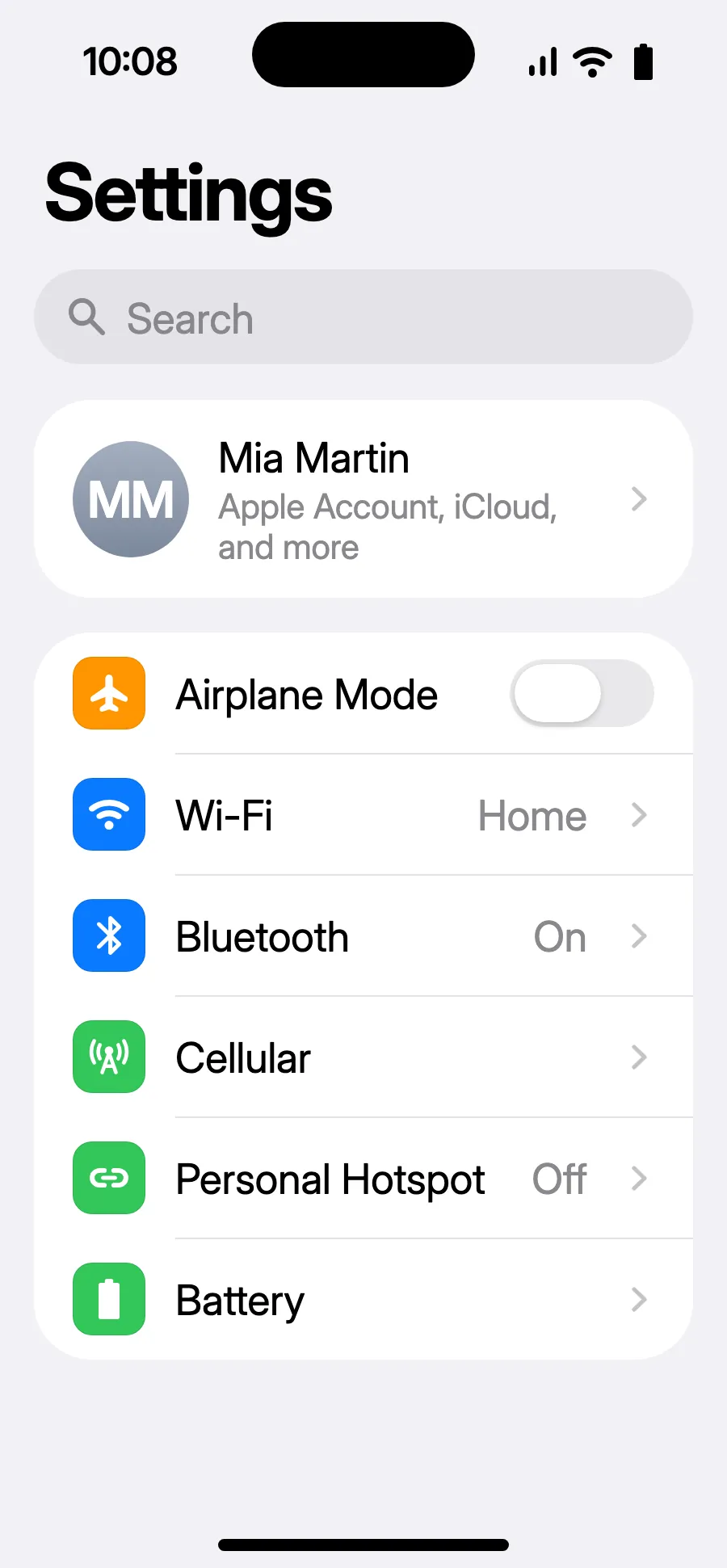
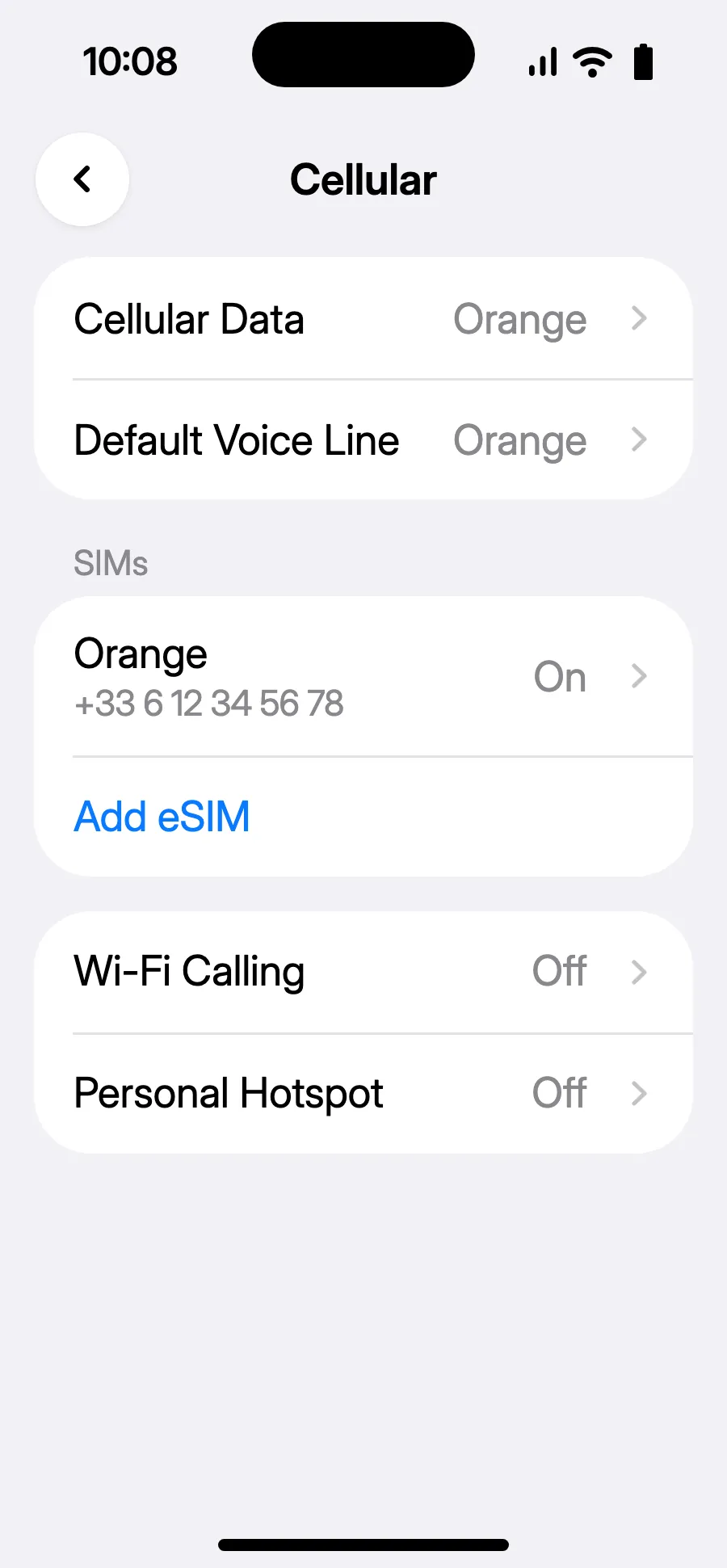
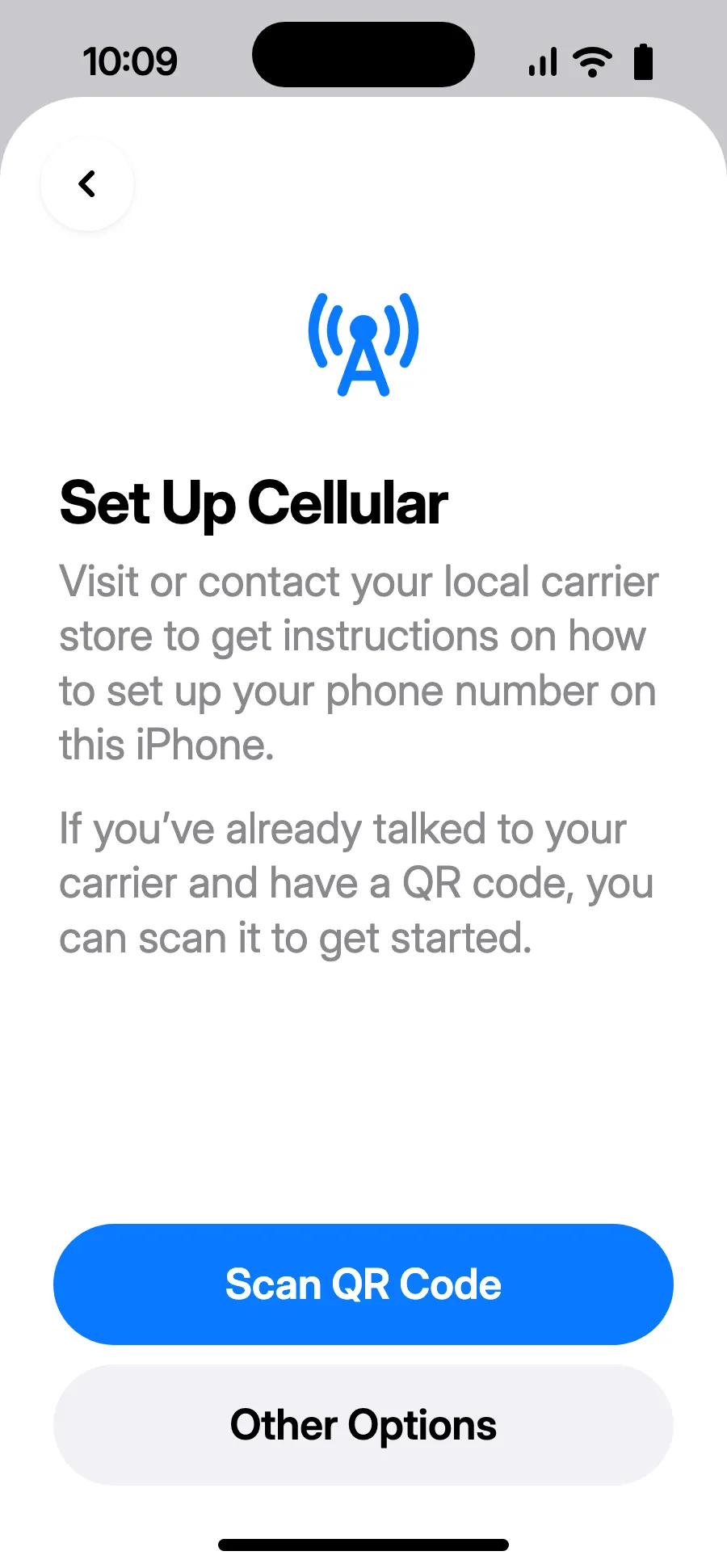
How to install your Cairo eSIM
Install it before you leave: it takes two minutes. These are the real screens of your phone, step by step.
Before you leave: install your eSIMStep 1 of 11
- Open Settings, then Cellular.
- Tap “Add eSIM”.
- Tap “Scan QR Code” and scan the QR code we email you after purchase (it's also in your account).
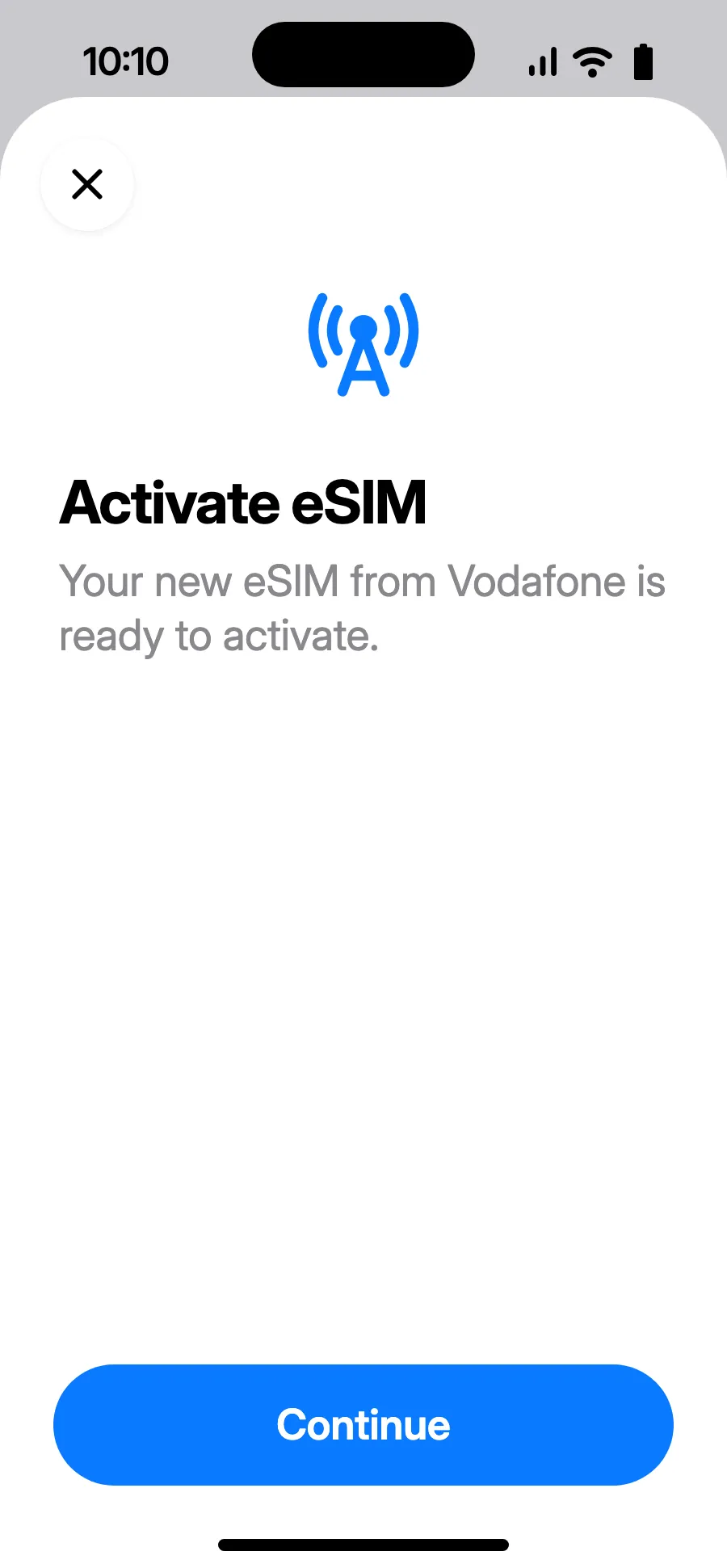
- “Activate eSIM” opens: tap Continue.
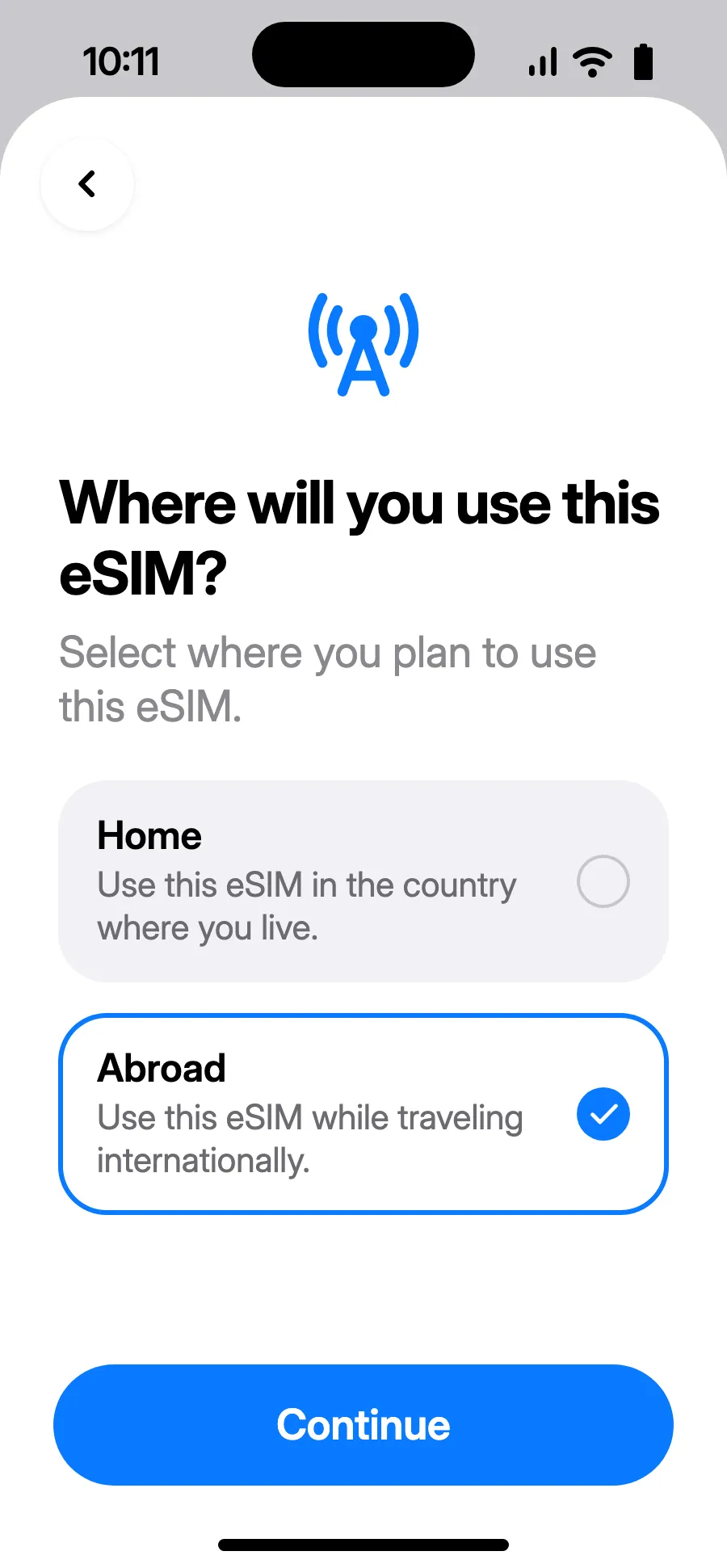
- Choose Abroad, then tap Continue.
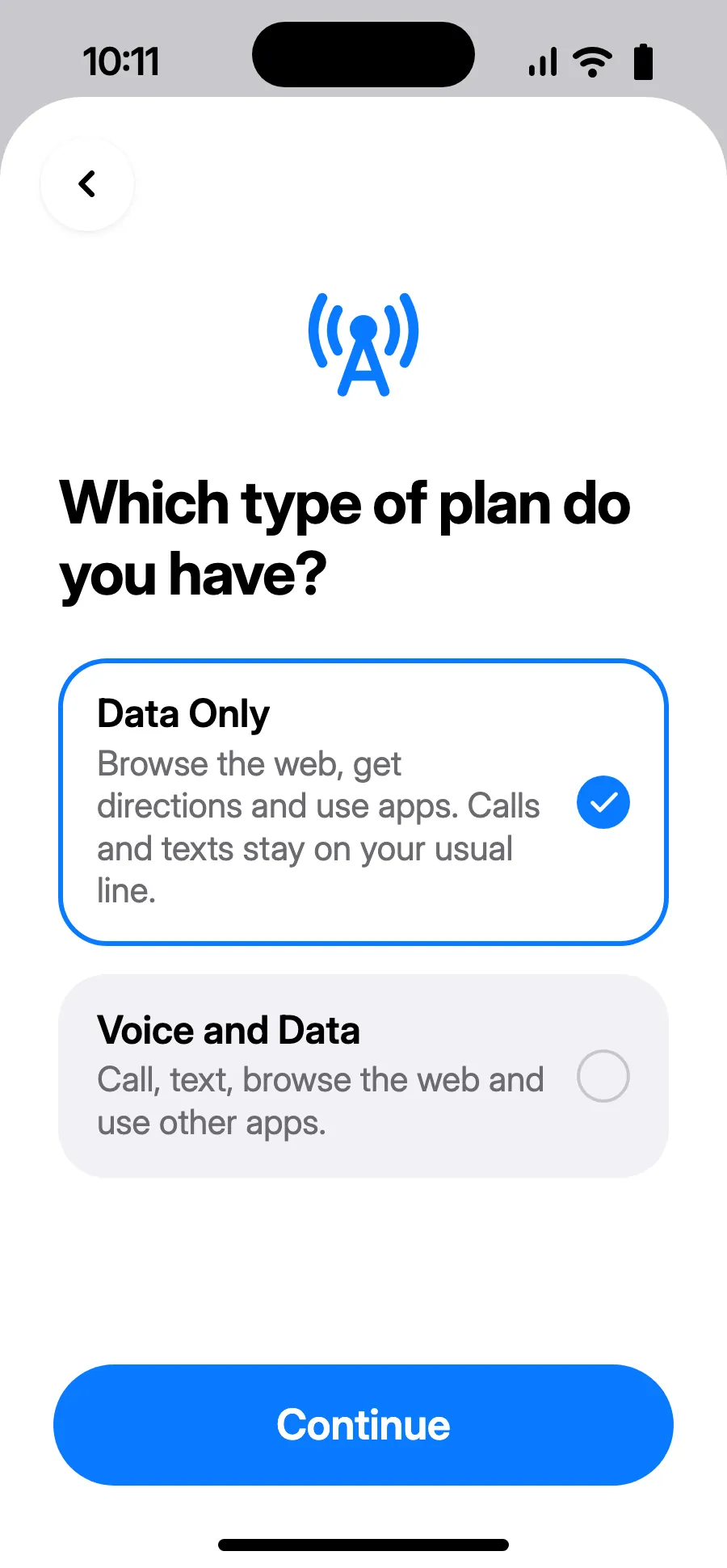
- Choose Data Only, then tap Continue. The eSIM is for data; your usual number keeps calls and texts.
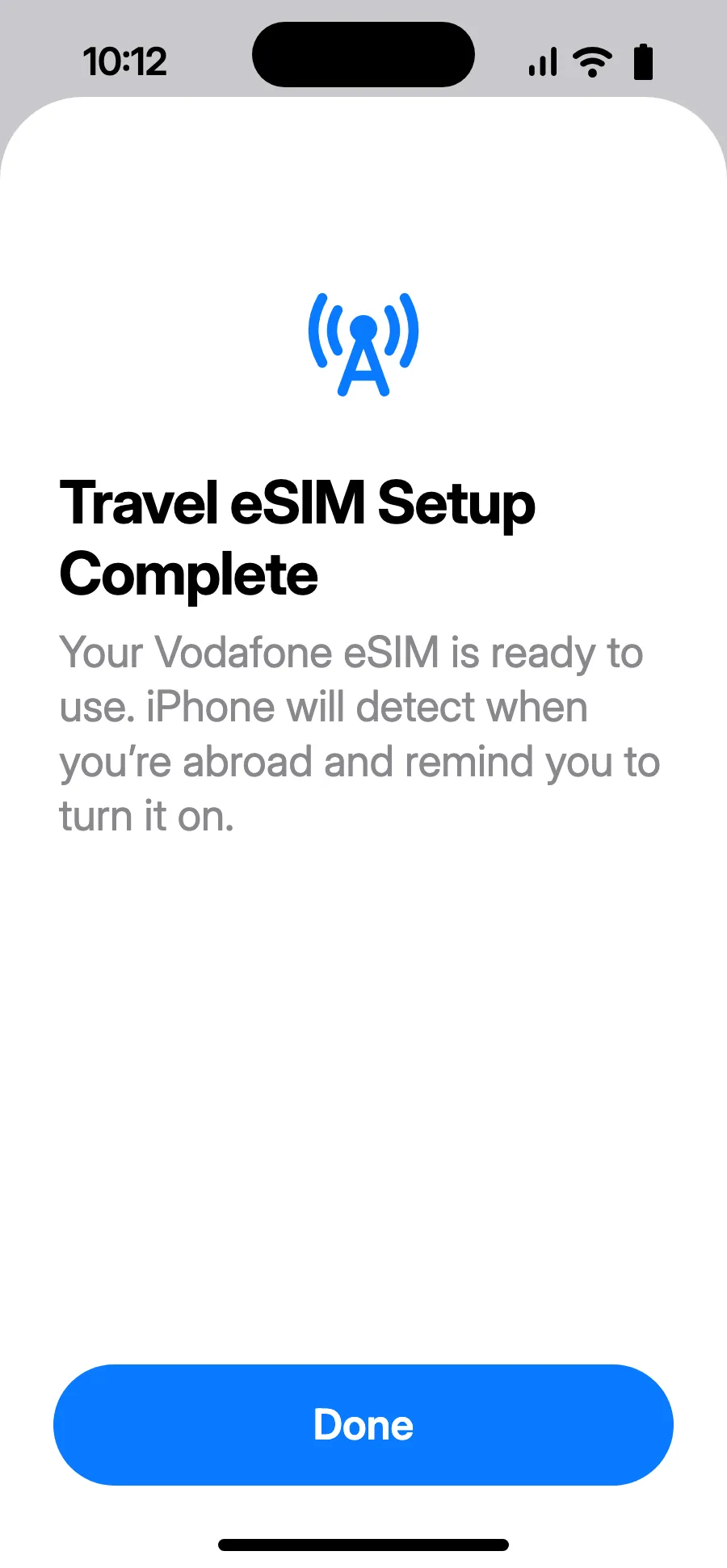
- Tap Done. Your iPhone will remind you to turn on the eSIM once you're abroad.
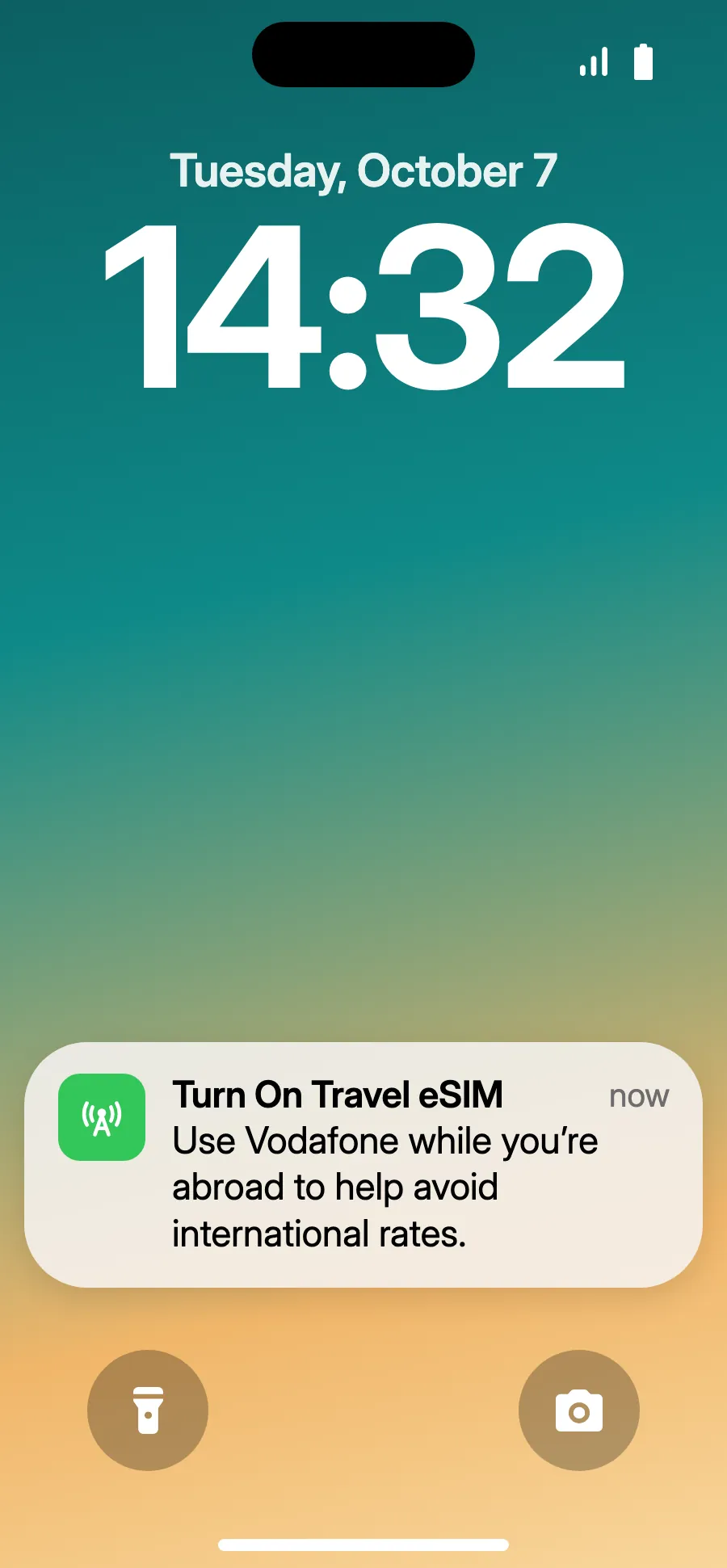
- When you land, your iPhone may show “Turn On Travel eSIM”: tap the notification.
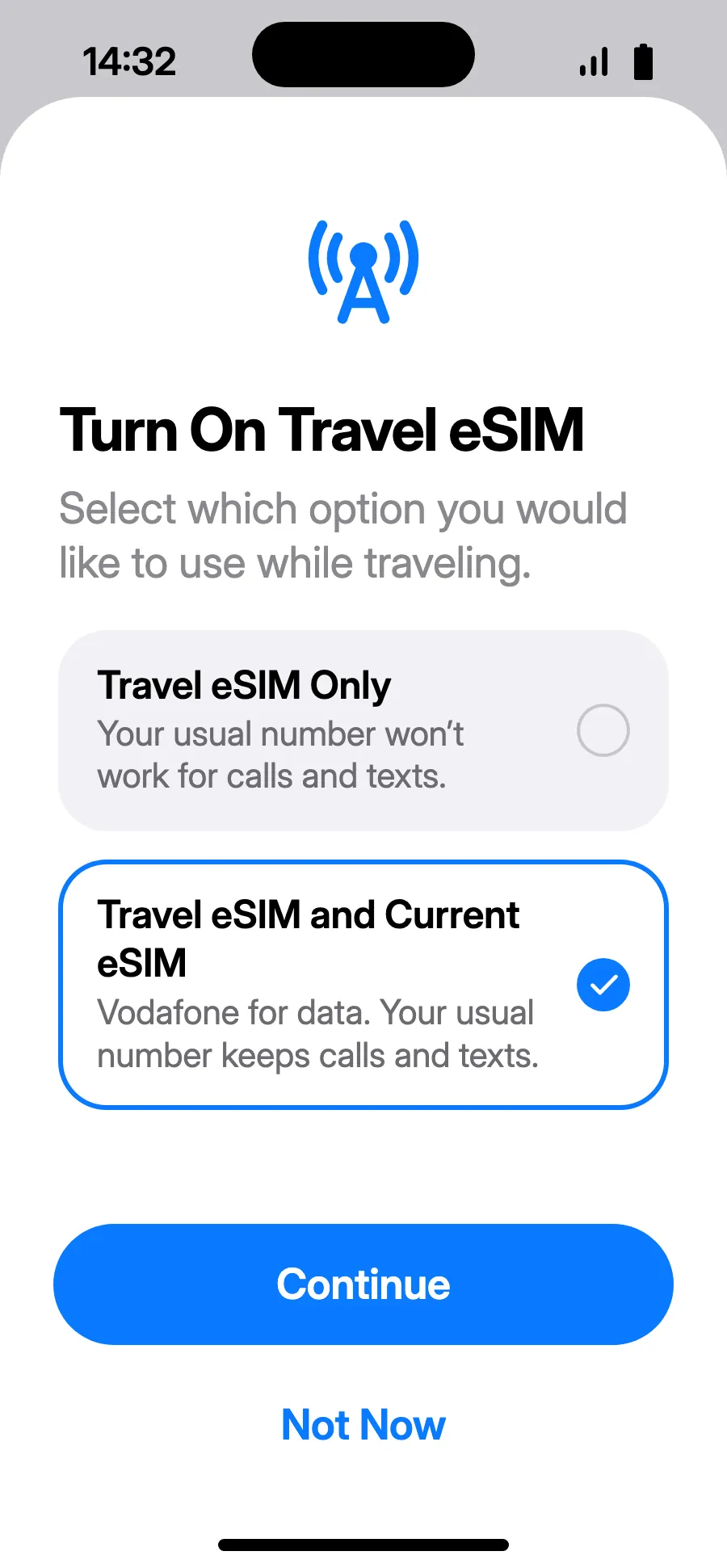
- Choose “Travel eSIM and Current eSIM”, then Continue. You keep your number for calls and texts (bank codes included); your carrier may charge for calls you receive.
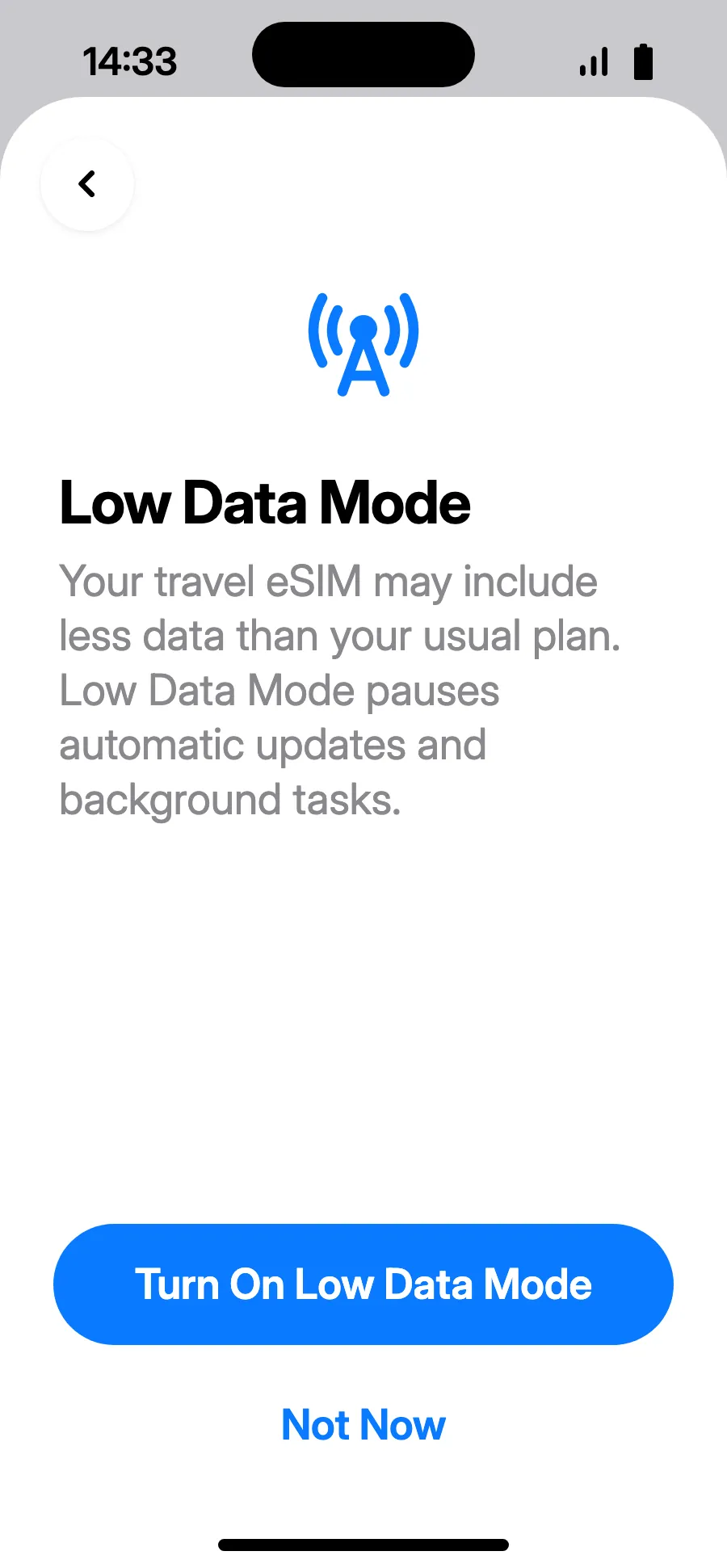
- Low Data Mode saves your plan: tap “Turn On Low Data Mode”, or “Not Now”.
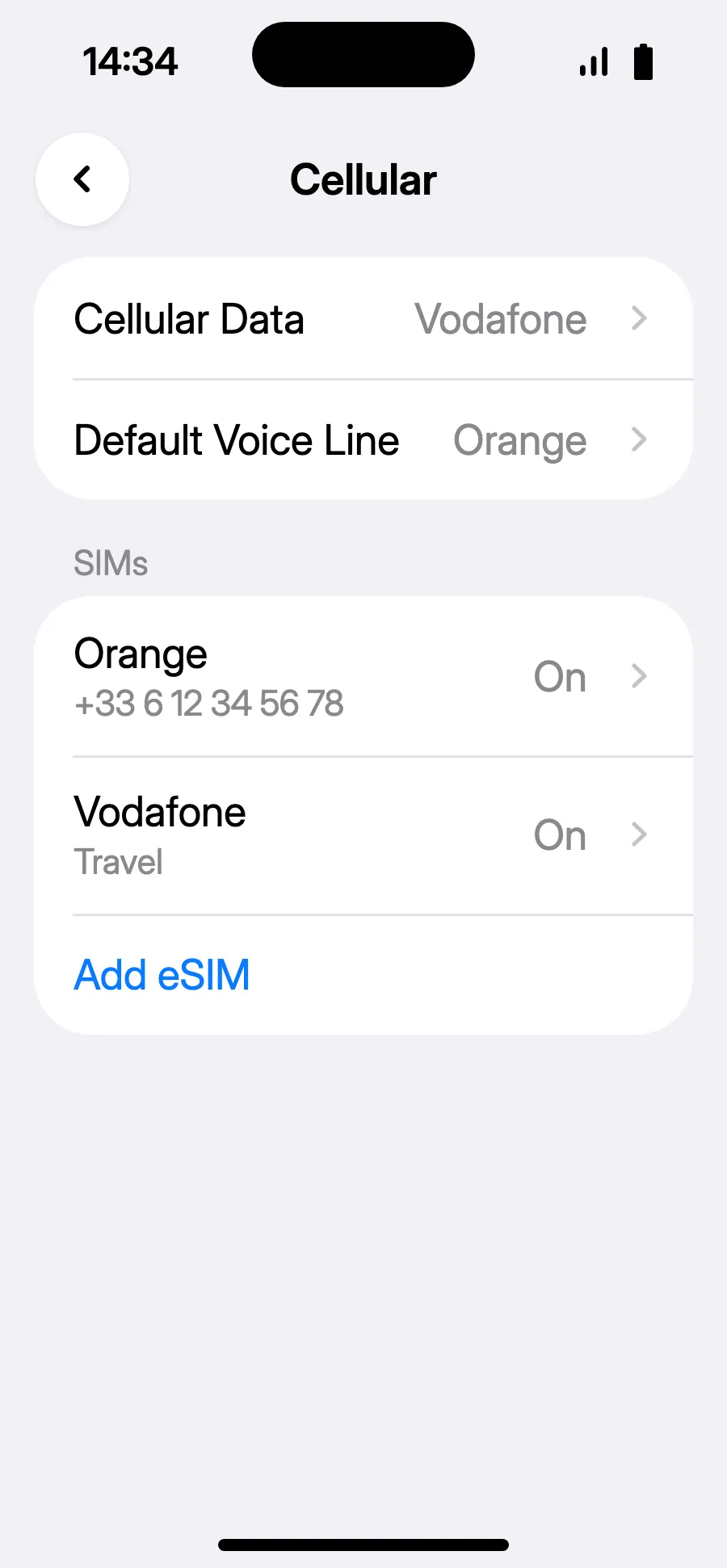
- You're set: Cellular Data shows the new eSIM.
After you buy, your QR code arrives by email and in your account. Show it on another screen, then follow these steps on your phone.
Before you leave: install your eSIMStep 1 of 8
- Open Settings, then Connections.
- Tap “SIM manager”.
- Tap “Add eSIM”.
- Choose “Scan QR code”.
- Scan the QR code we email you after purchase (it's also in your account), then tap Add.
- When you land, turn on your new eSIM in SIM manager. It shows the name of a local or partner carrier.
- Choose the new eSIM for mobile data.
- In Connections, Mobile networks, turn on data roaming.
After you buy, your QR code arrives by email and in your account. Show it on another screen, then follow these steps on your phone.
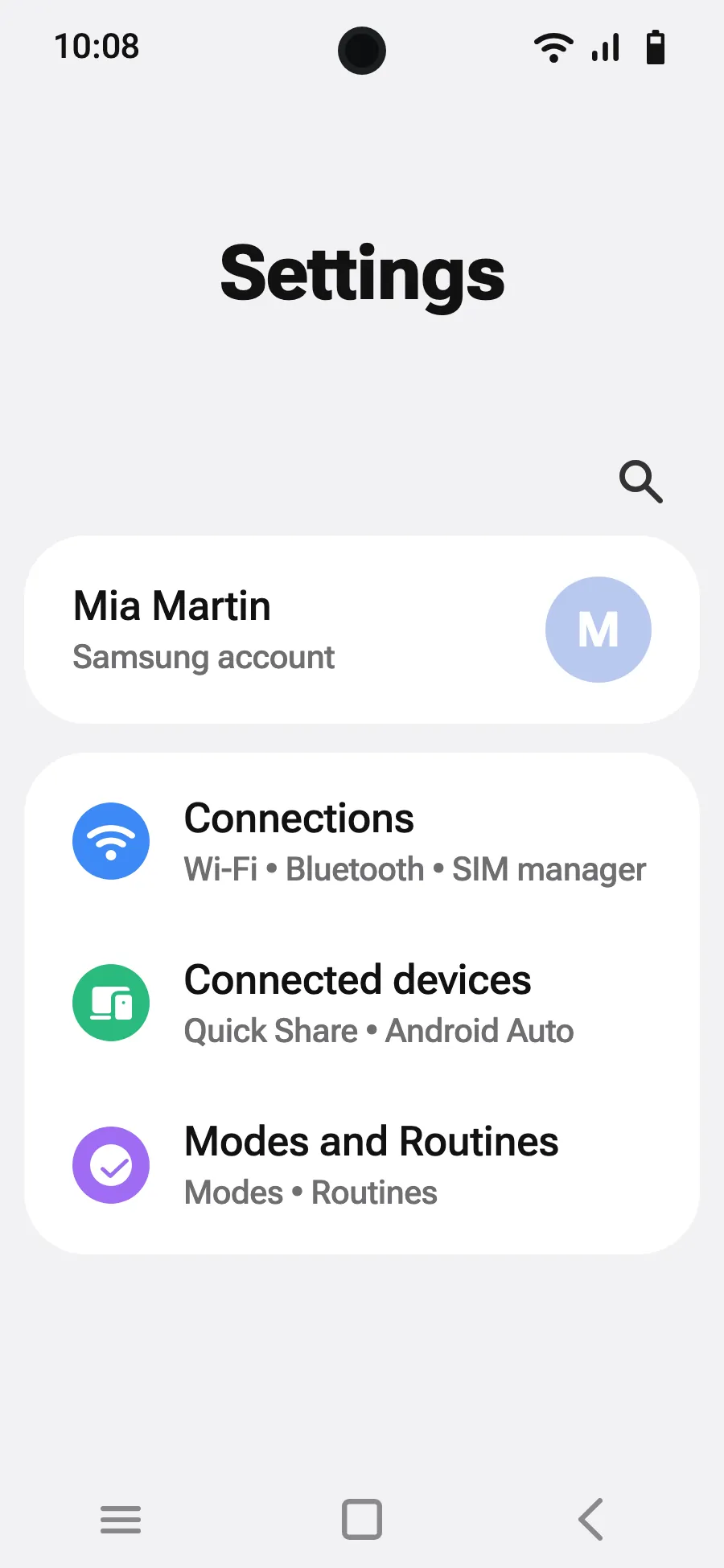
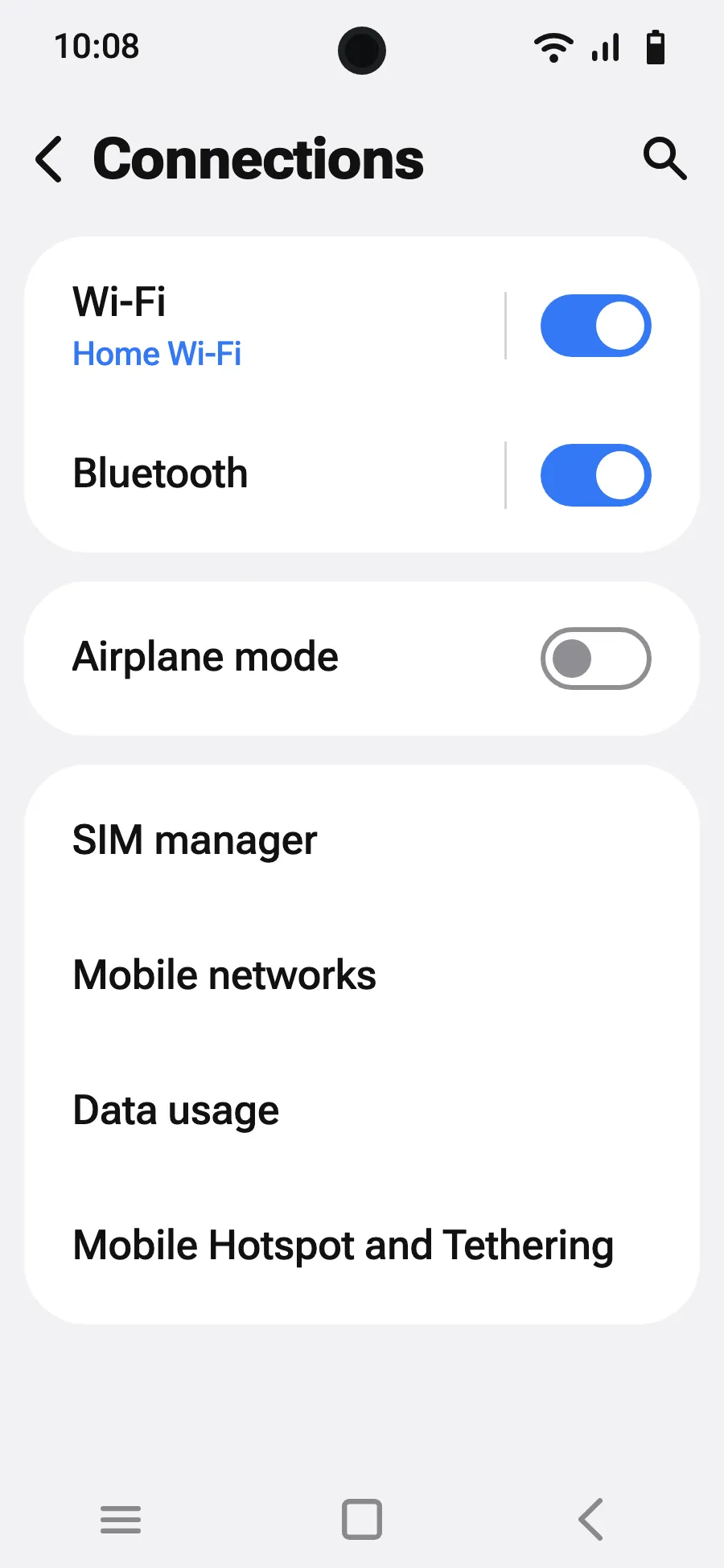
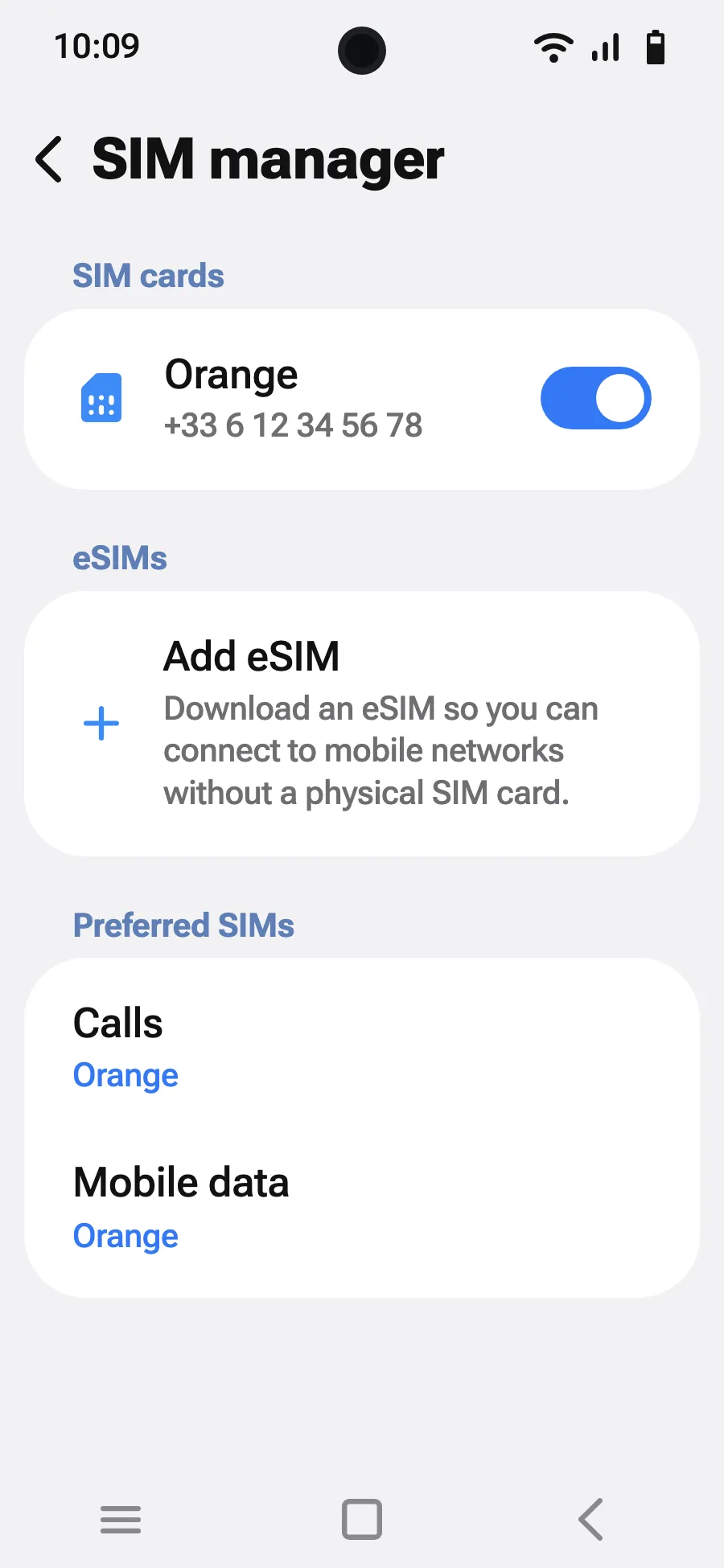
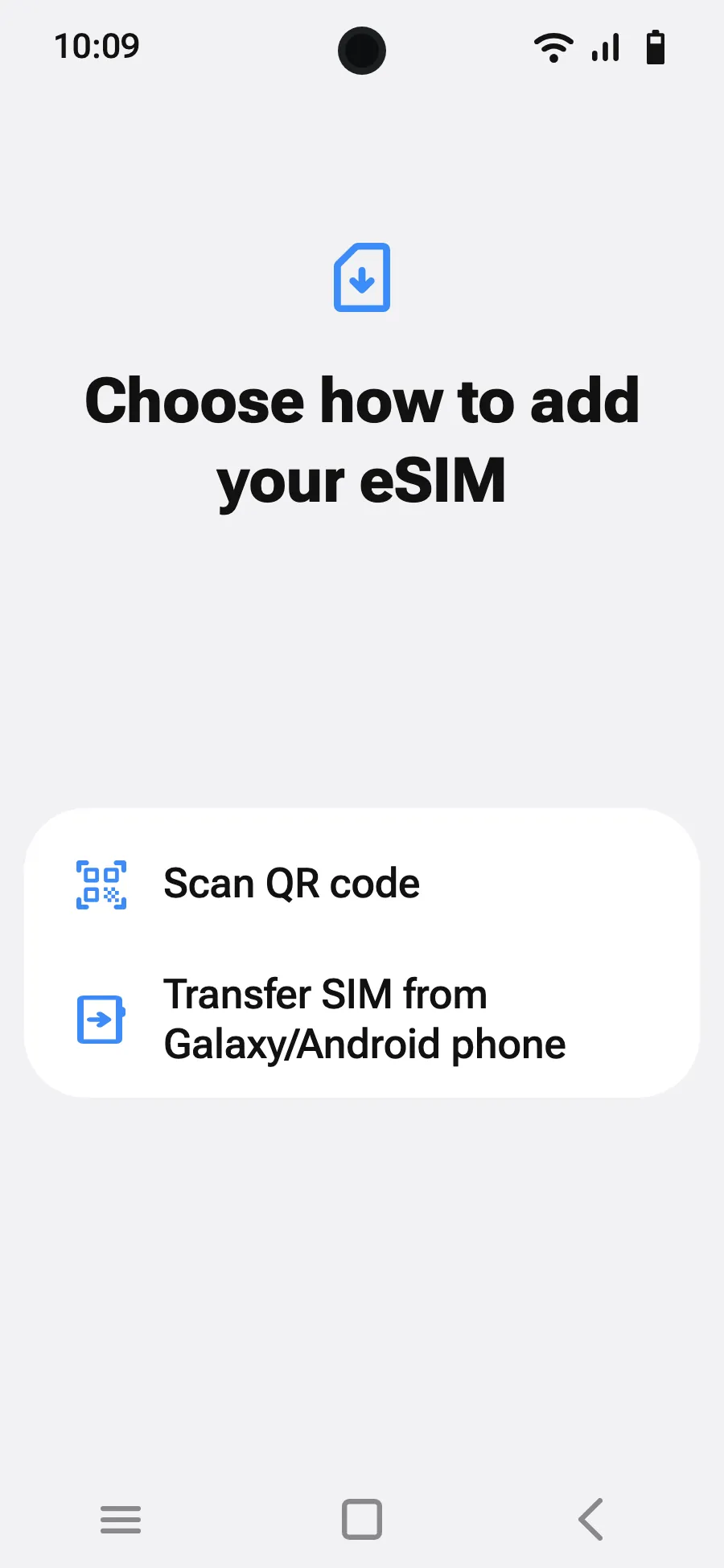
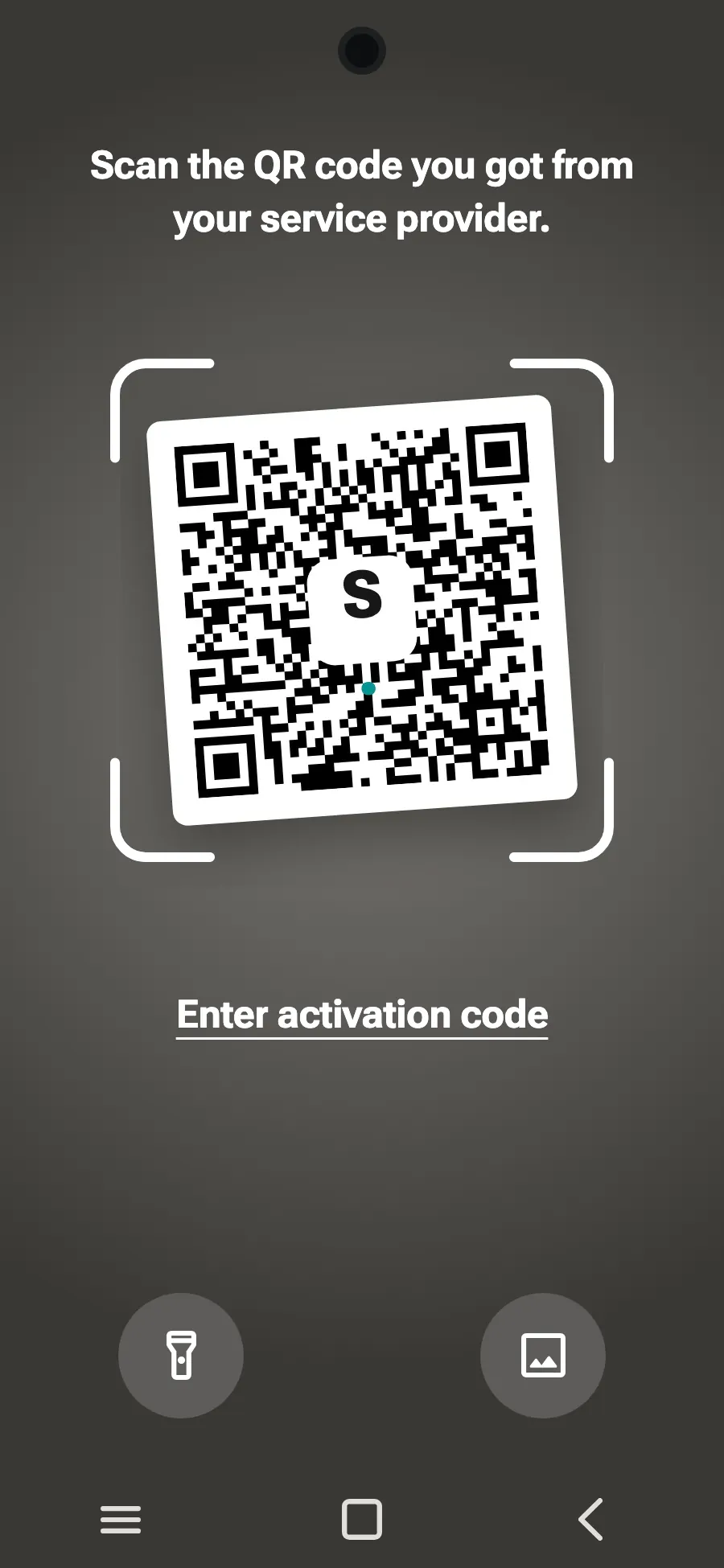
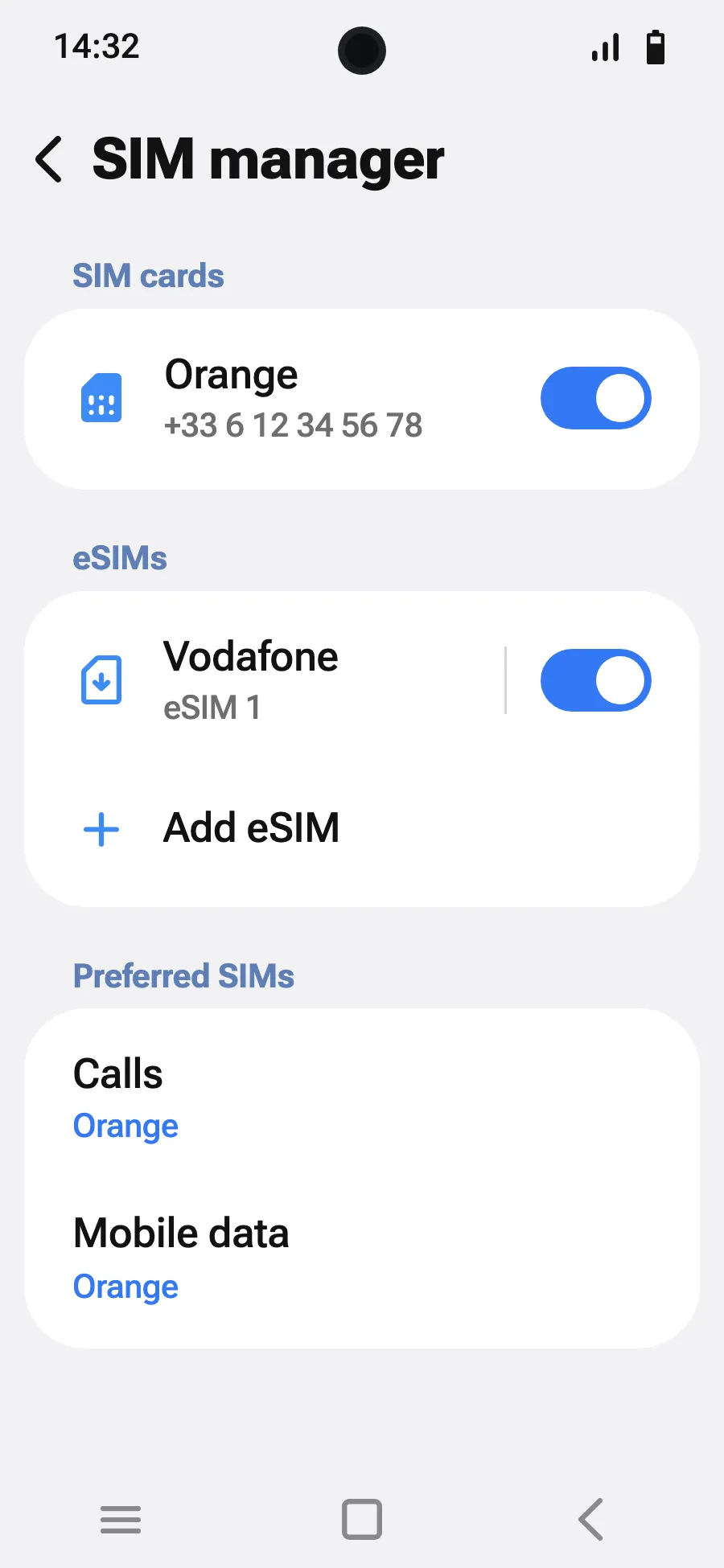
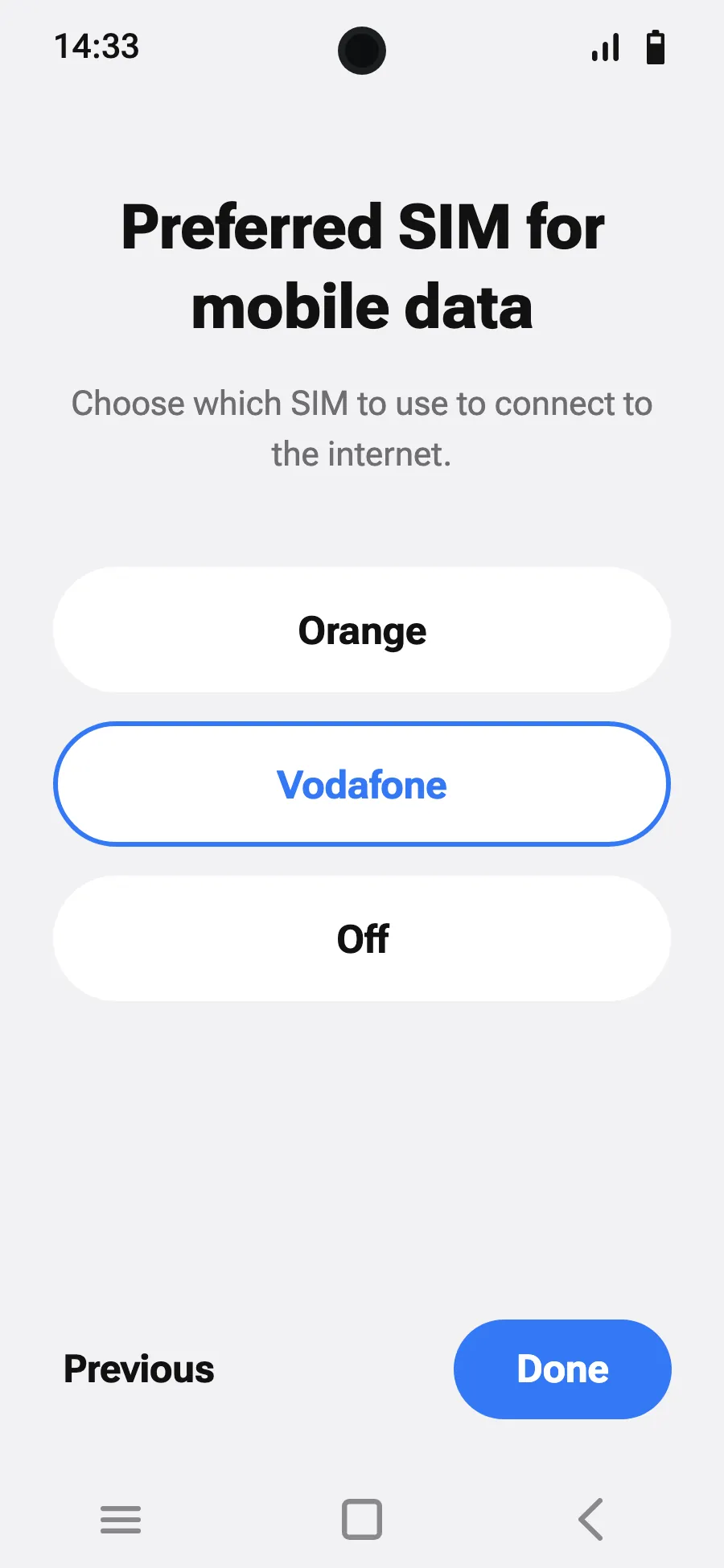
Before you leave: install your eSIMStep 1 of 7
- Open Settings, then Network & internet.
- Tap “SIMs” (Add a network).
- Tap “Set up an eSIM”.
- Scan the QR code we email you after purchase (it's also in your account), then confirm.
- When you land, open your new eSIM (it shows the name of a local or partner carrier) and turn on “Use this SIM”.
- Turn on mobile data for the new eSIM.
- Turn on roaming. If nothing loads, turn off automatic network selection and pick the network manually.
After you buy, your QR code arrives by email and in your account. Show it on another screen, then follow these steps on your phone.
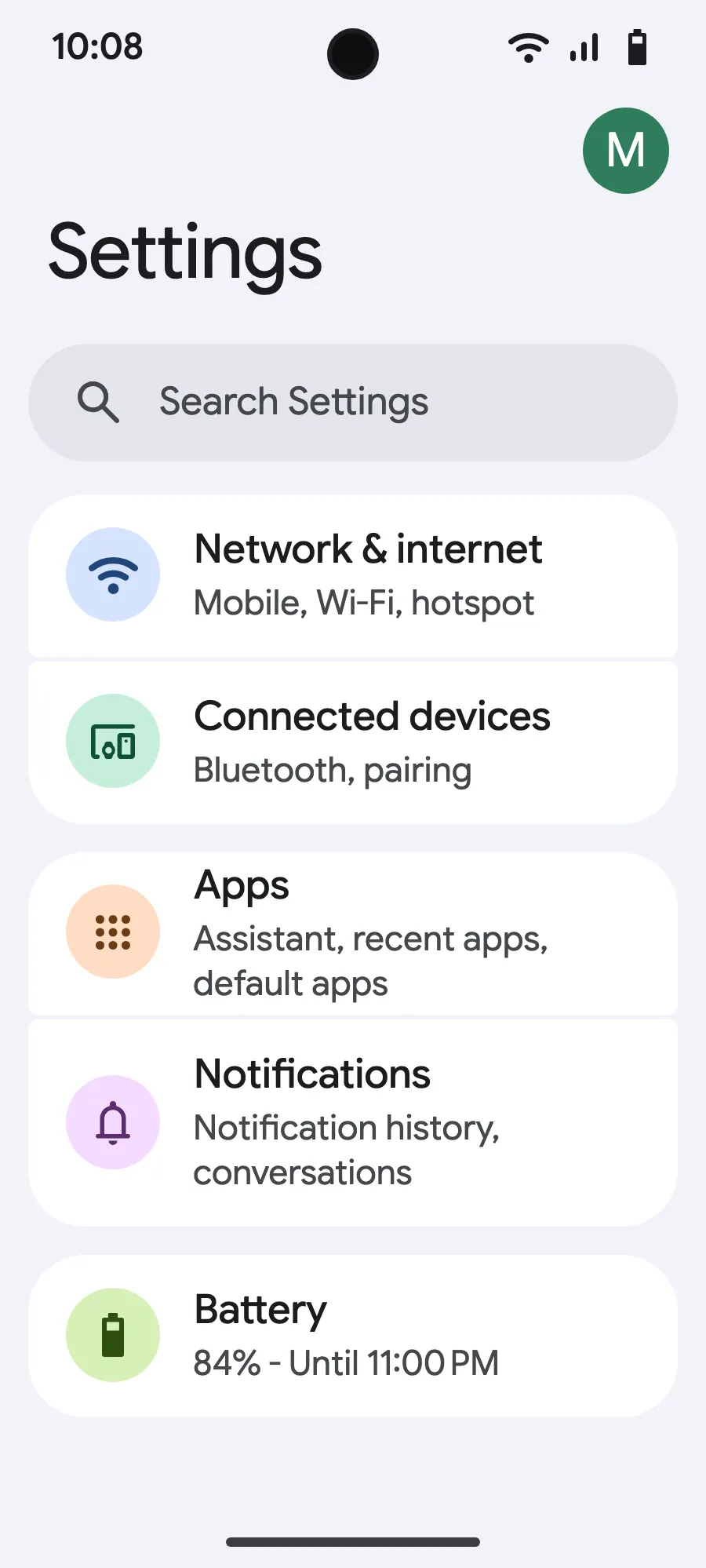
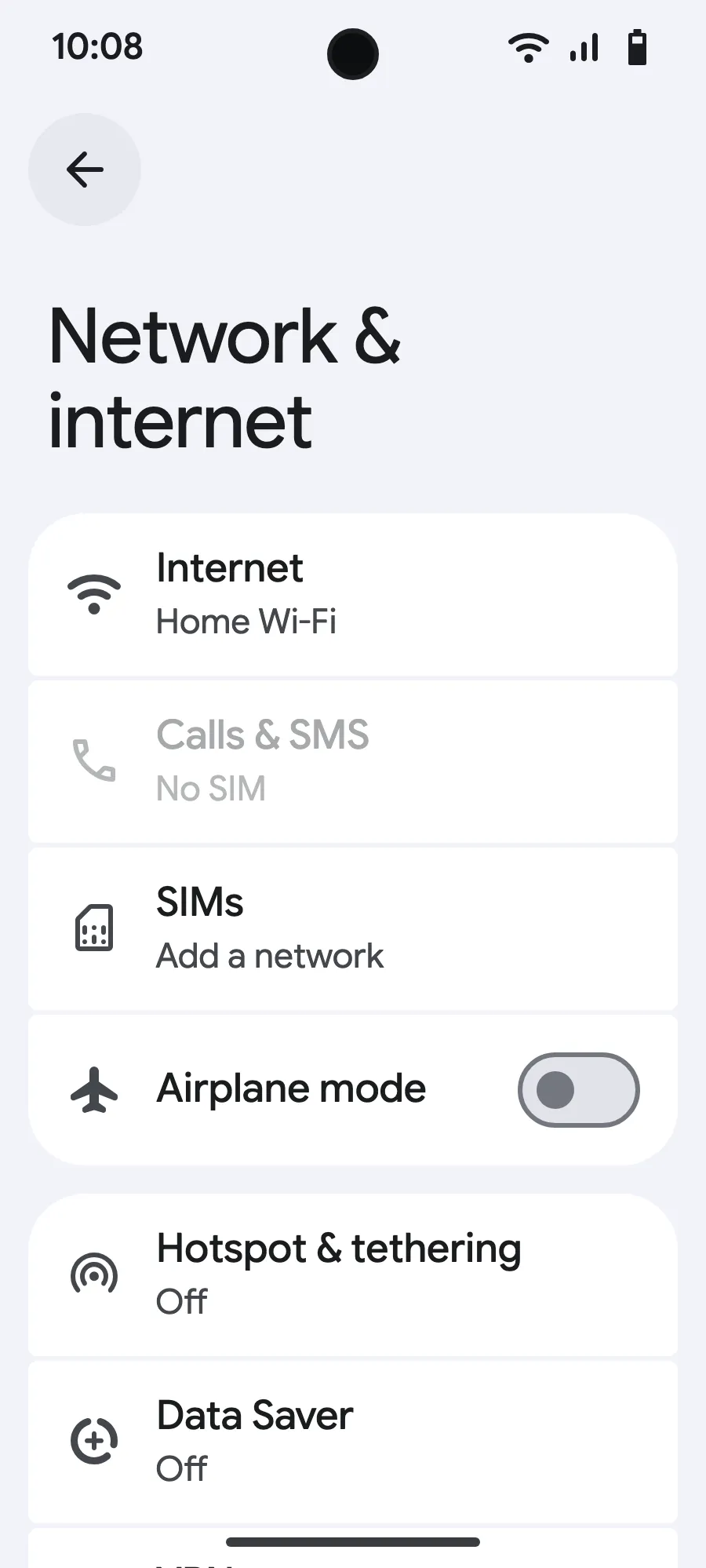
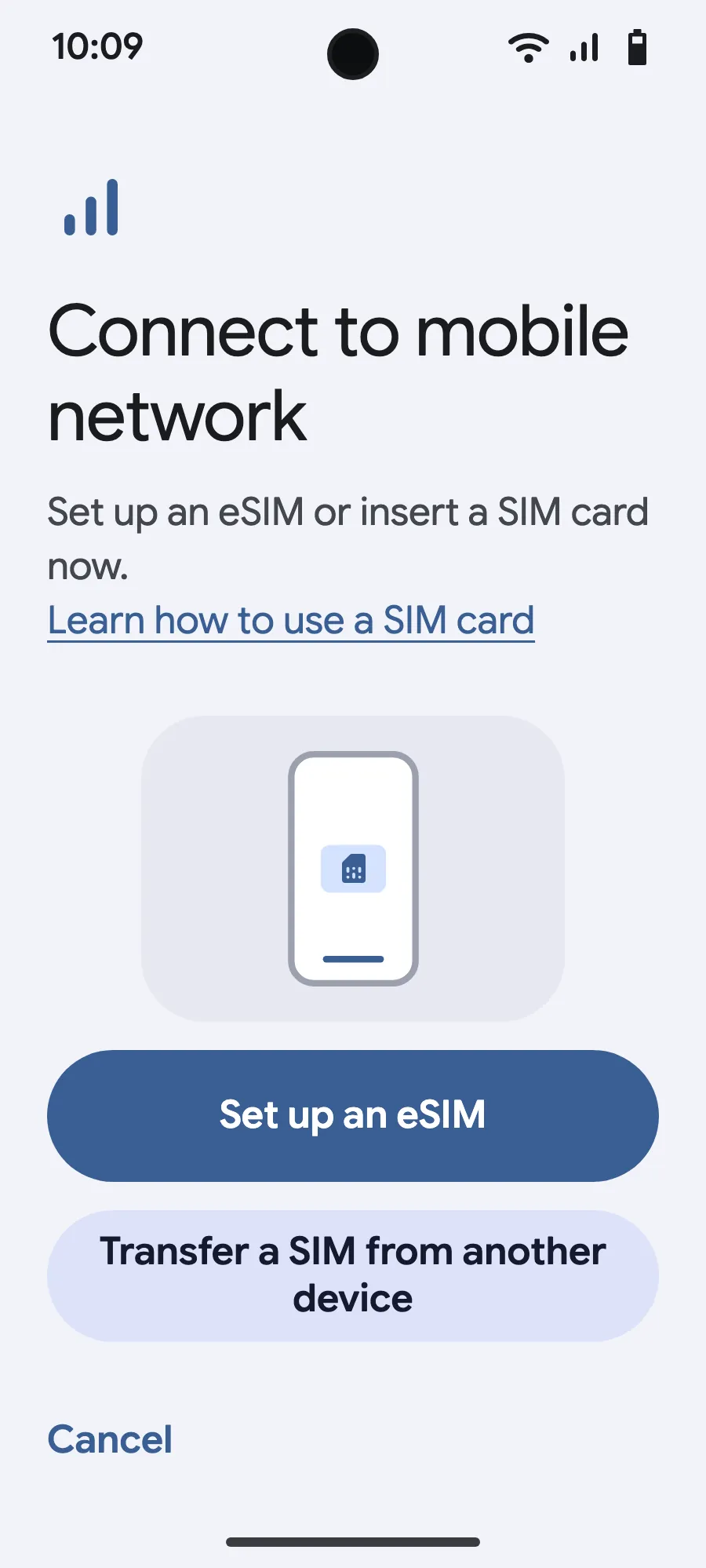
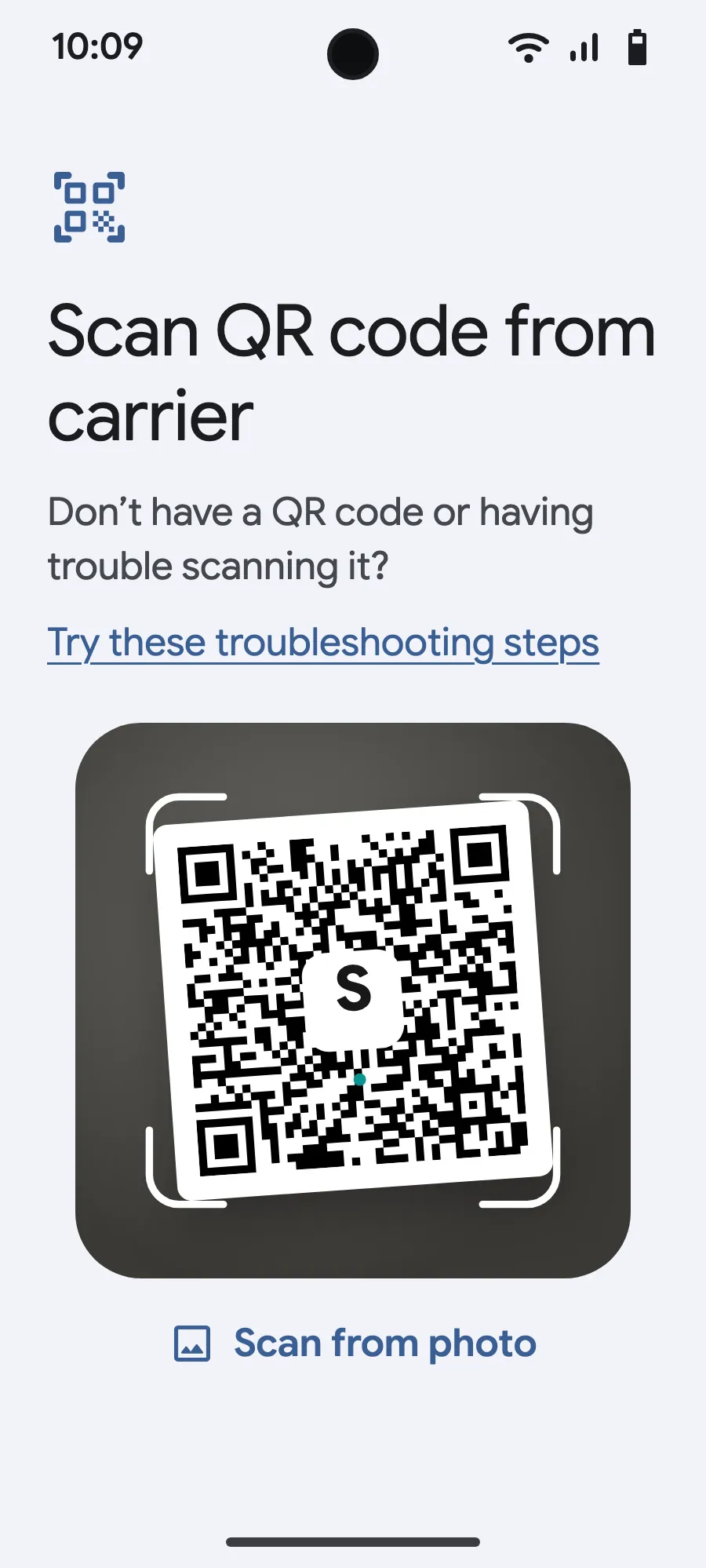
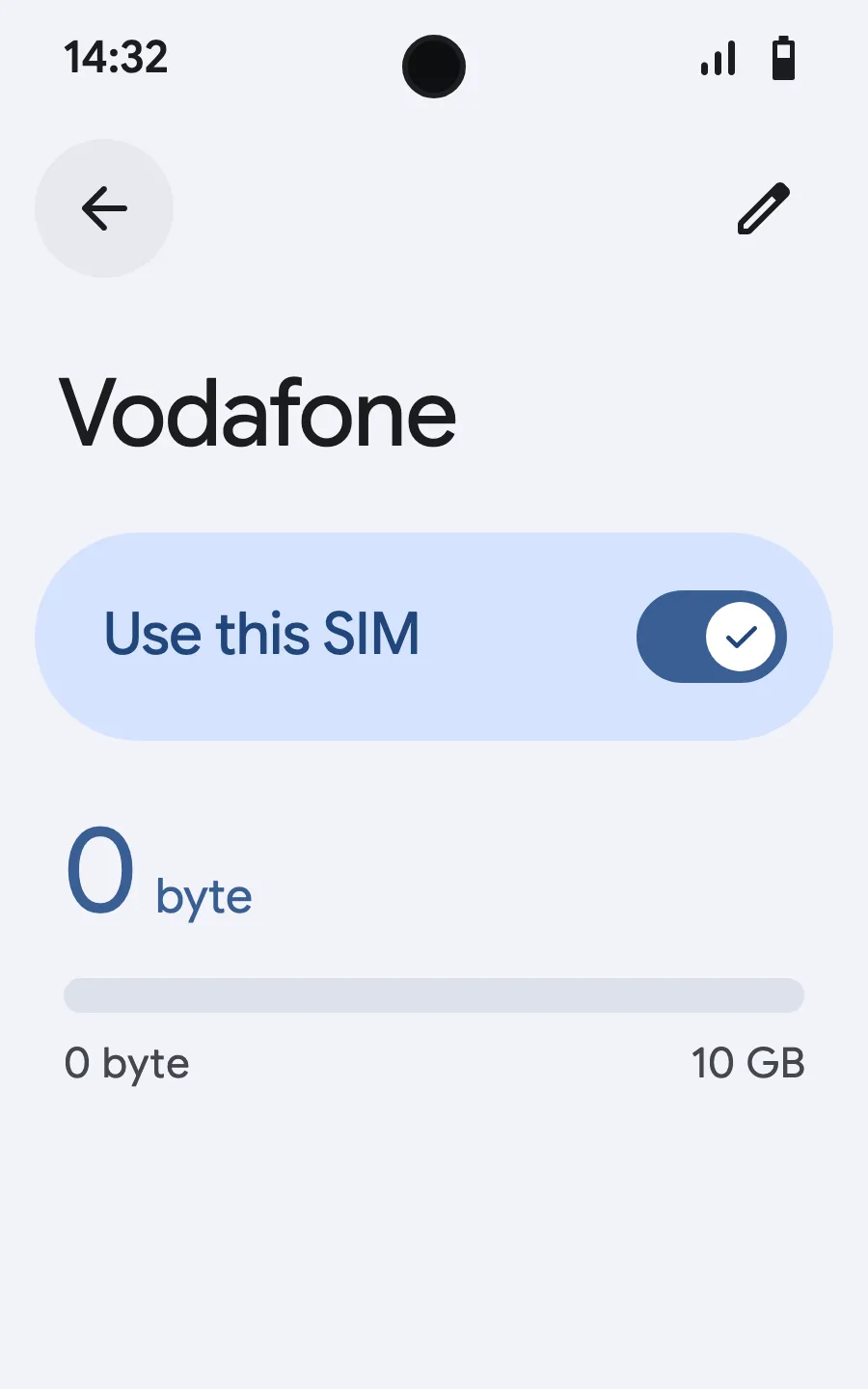
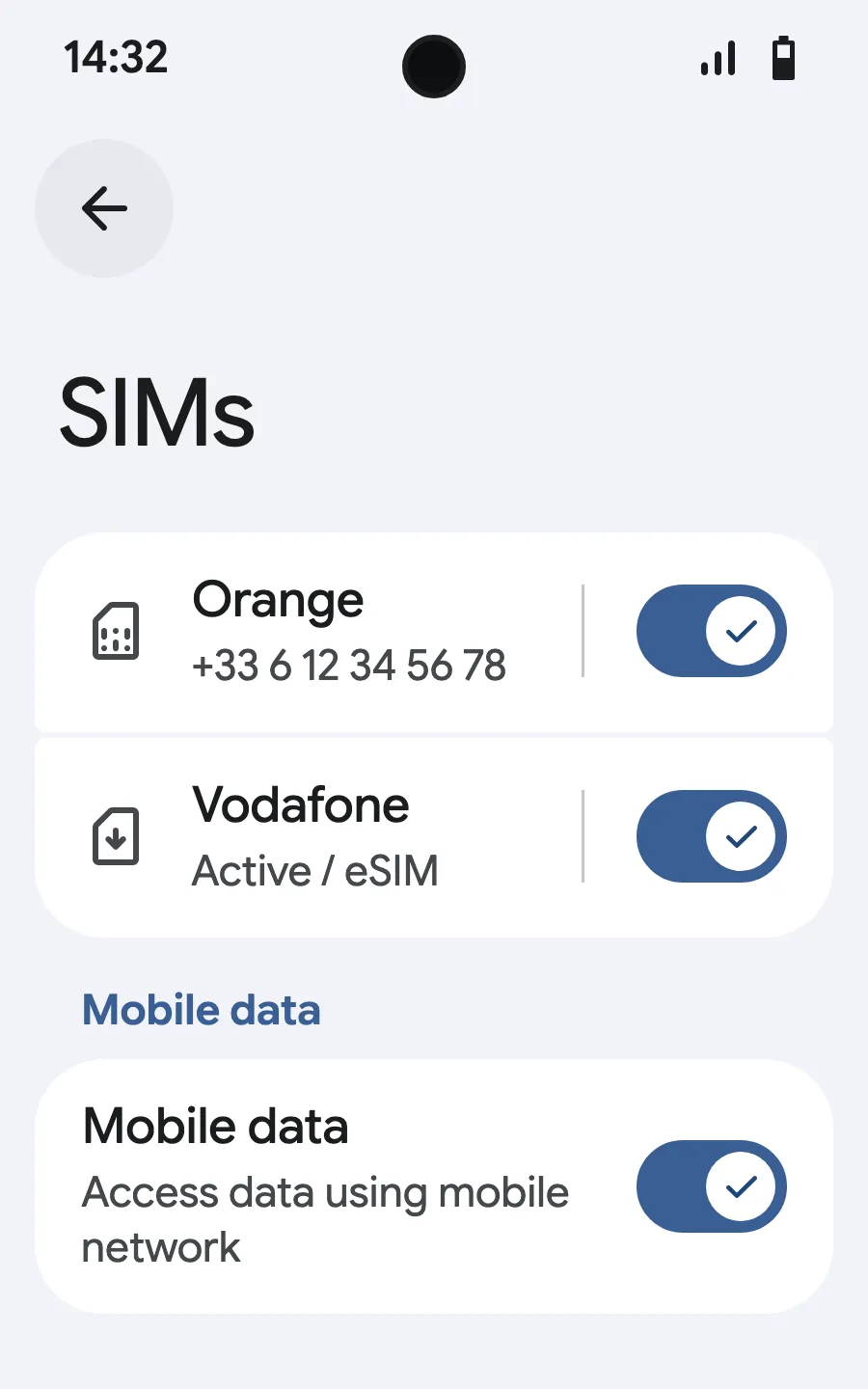
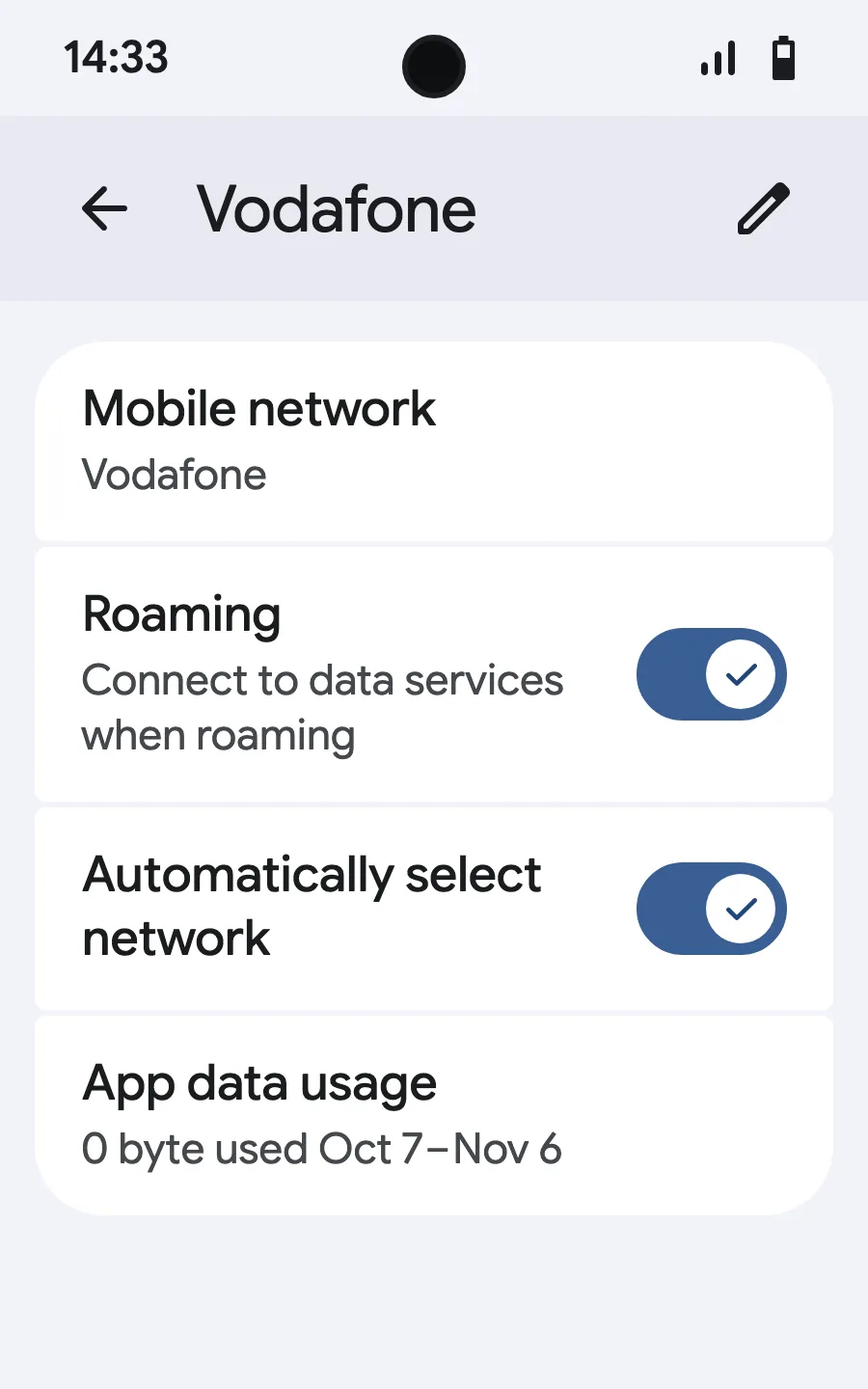
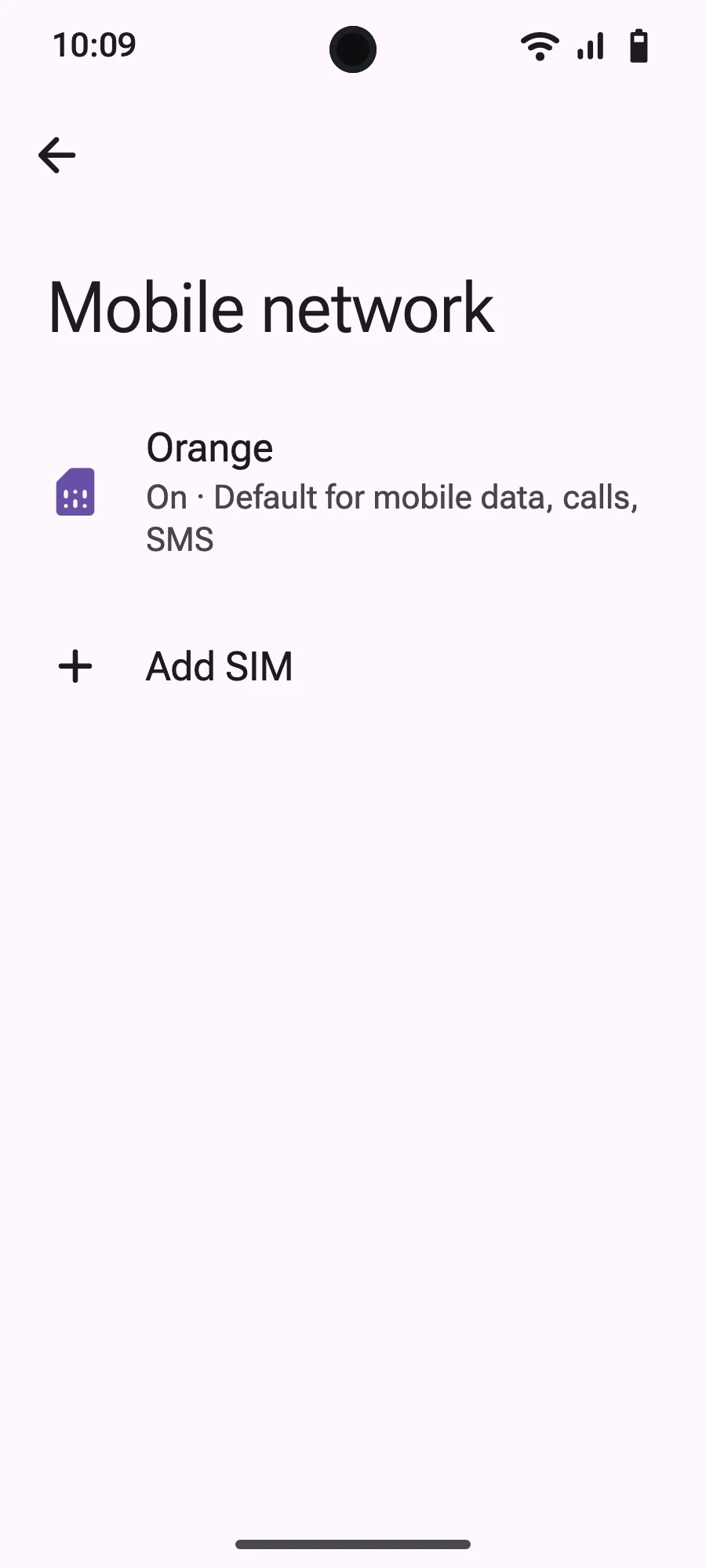
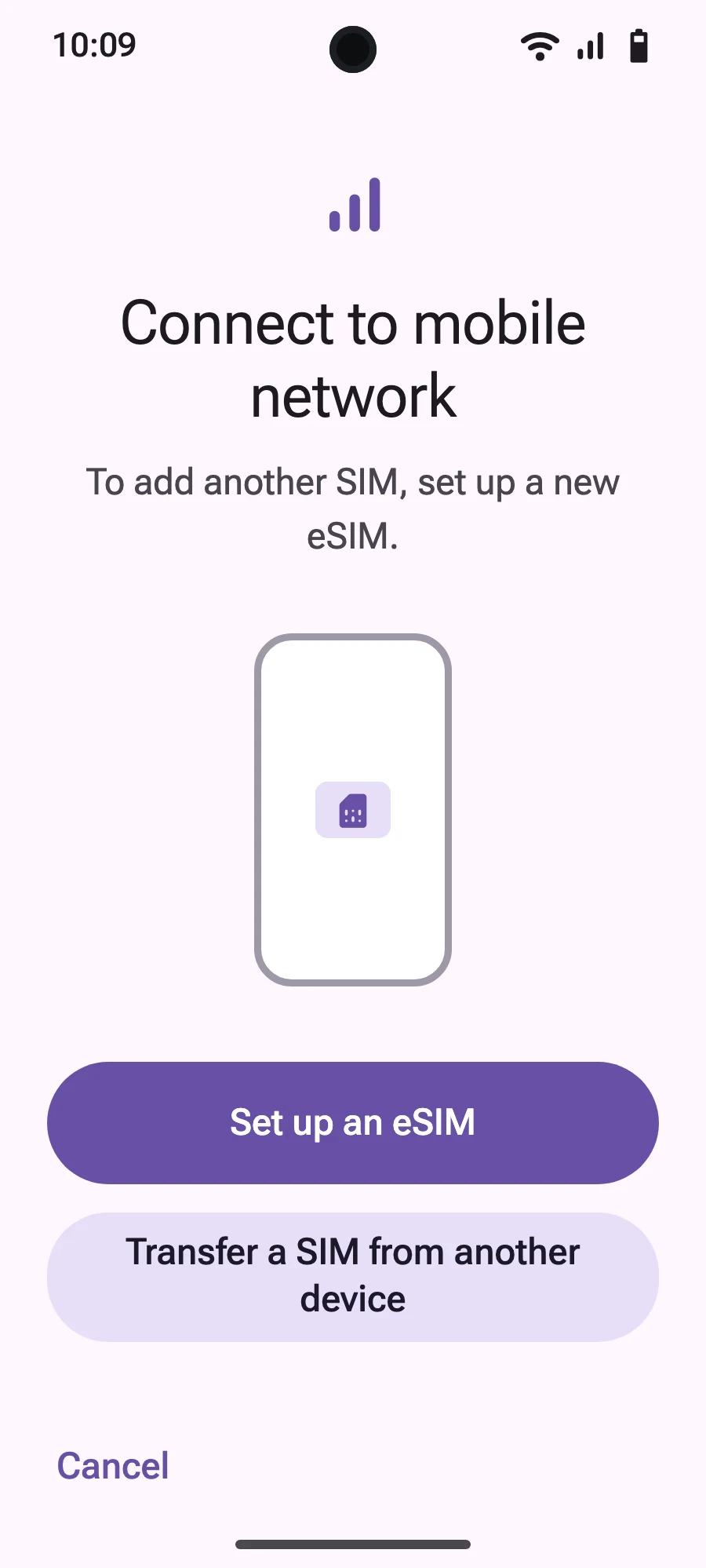
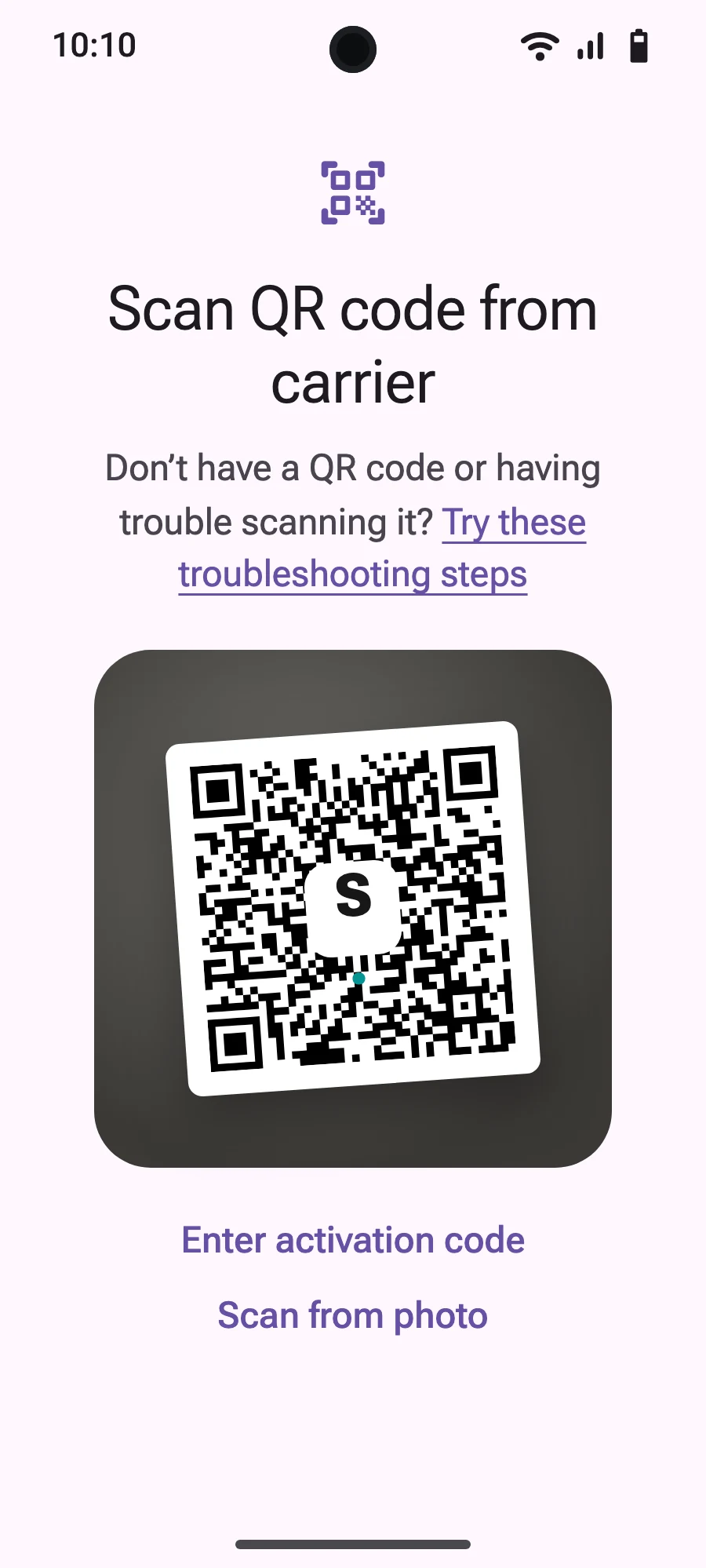
Before you leave: install your eSIMStep 1 of 8
- Open Settings, then Mobile networks or Network & internet.
- Tap “Mobile network”.
- Tap “Add SIM”.
- Tap “Set up an eSIM”.
- Scan the QR code we email you after purchase (it's also in your account), then confirm.
- When you land, open your new eSIM (it shows the name of a local or partner carrier) and turn on “Use SIM”.
- Turn on mobile data for the new eSIM.
- Turn on roaming. If nothing loads, turn off automatic network selection and pick the network manually.
After you buy, your QR code arrives by email and in your account. Show it on another screen, then follow these steps on your phone. On Xiaomi, Oppo or OnePlus the menus have other names: search for “eSIM” in Settings.
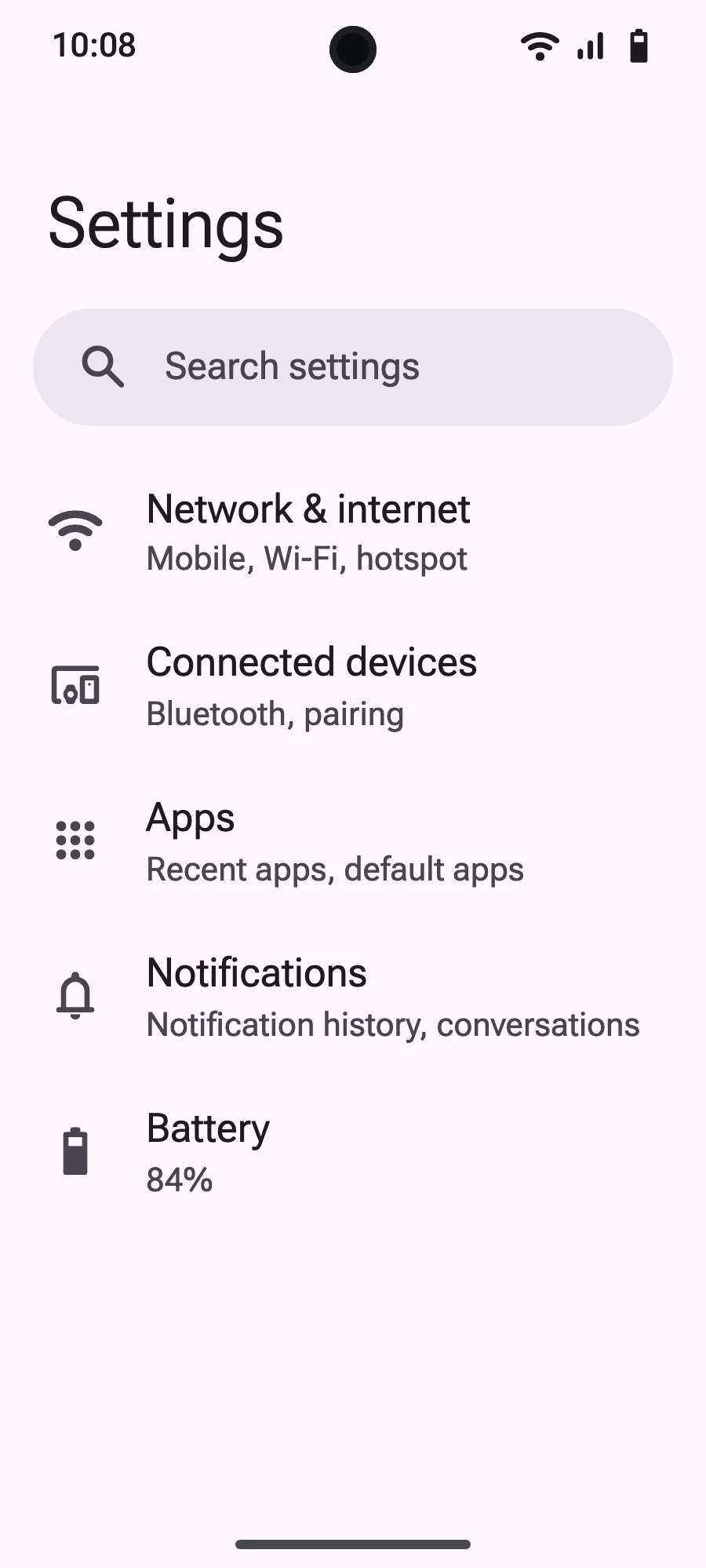
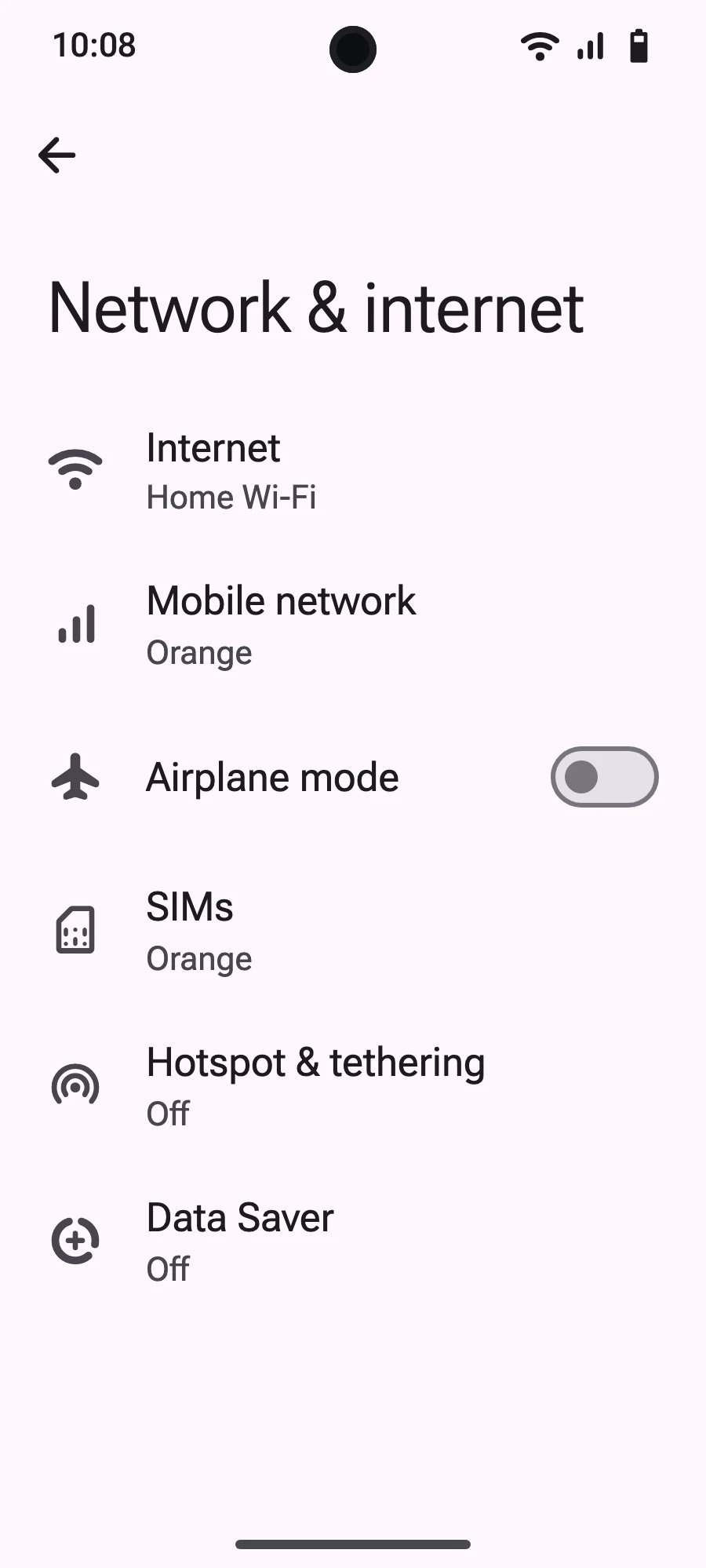
Frequently asked questions
What travelers ask before a trip to Cairo.