How to Transfer an eSIM to a New Phone: iPhone, Android & Travel eSIMs

Transferring an eSIM between phones depends on the operating system, the carrier, and whether it's a travel eSIM. Here's exactly how it works.

Dimitri MorvanTransferring an eSIM is not the same thing as moving a physical SIM card. There is nothing to pop out and slide in — the profile is a piece of cryptographic data tied to a specific device, and whether you can move it depends on three things: the phone you're moving from, the phone you're moving to, and the carrier that issued the profile. This guide walks you through every scenario, including the one most travelers run into: a travel eSIM from a provider like Simsima that simply will not transfer, and what to do instead.
Key Takeaways
- iPhone to iPhone is the easiest case: iOS 16 and later support a Bluetooth-based Quick Transfer that moves the eSIM in a few taps.
- Android to Android is supported on Pixel 7 and newer, plus Samsung Galaxy S23 and newer, using Google's eSIM Transfer feature during setup.
- Cross-platform transfers (iPhone to Android or the reverse) are not supported by any direct method — the eSIM has to be re-issued by the carrier.
- Travel eSIMs (Simsima, Airalo, and similar providers) are usually locked to the device where they were first activated and cannot be transferred.
- When direct transfer is not possible, the fix is always the same: contact the carrier to re-issue the eSIM as a new QR code or activation link.
How eSIM Transfer Actually Works
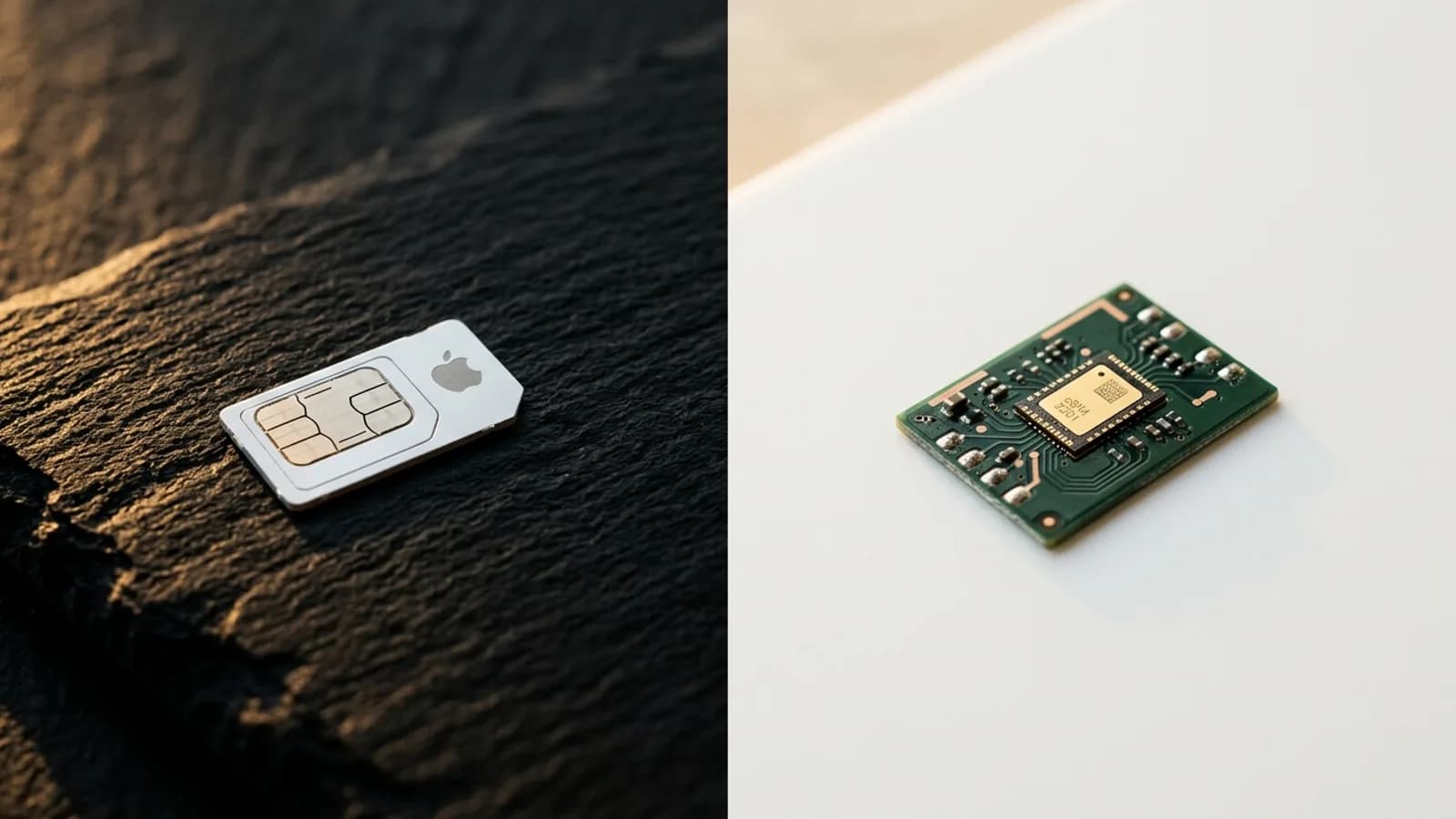
An eSIM profile contains carrier credentials that authenticate your line on the mobile network. For security reasons, the profile is bound to the secure element inside a specific phone. Moving it requires either a manufacturer-supported transfer flow (which re-binds the profile to the new device) or a carrier re-issue (which generates a fresh activation). Without one of those two paths, the eSIM cannot be copied, screenshotted, or extracted — and that's intentional.
Once you understand that, the rest of this guide is just figuring out which path applies to your situation. Use the section that matches your devices, and follow the steps in order.
Transferring an eSIM From iPhone to iPhone
If both phones run iOS 16 or later, Apple's Quick Transfer is the cleanest path. It uses Bluetooth to move the eSIM from your old iPhone to the new one without contacting the carrier and without a QR code. Most major US carriers support it, though some smaller MVNOs do not.
Quick Transfer During iPhone Setup
- Keep your old iPhone unlocked and nearby, with Bluetooth turned on.
- Start the setup process on your new iPhone and sign in to your Apple ID.
- When you reach the Set Up Cellular screen, choose Transfer From Nearby iPhone.
- On the old iPhone, tap Continue when the transfer prompt appears.
- Enter the verification code shown on the new iPhone into the old one.
- Wait for the transfer to complete — the line will deactivate on the old phone and activate on the new one.
Quick Transfer After Setup
- On the new iPhone, open Settings, then Cellular (or Mobile Service).
- Tap Add eSIM, then choose Transfer From Nearby iPhone.
- Confirm the line you want to transfer on the old iPhone.
- Enter the verification code if prompted, and wait for activation.
If Quick Transfer is not offered or fails, you can fall back to your carrier's app or contact them to re-issue the eSIM as a QR code. The original line will need to be canceled on the old device first.
Transferring an eSIM From Android to Android
Android eSIM transfer is newer and more fragmented than Apple's version. Google introduced an official eSIM Transfer flow that works between supported Pixel and Samsung devices, but support depends on both the device and the carrier.
Supported Devices
- Pixel 7, Pixel 7 Pro, and all later Pixel models
- Samsung Galaxy S23 series and all later Galaxy S, Z Fold, and Z Flip models
- Selected Motorola and Xiaomi flagships running Android 13 or later
- Both phones must be signed in to the same Google account on the new device during setup
Using Google's eSIM Transfer
- Start setup on the new Android phone and sign in to your Google account.
- When prompted to copy apps and data, choose to copy from your old Android phone.
- On the eSIM step, select the line you want to transfer.
- Approve the request on your old phone when the notification appears.
- Wait for the line to migrate — the old eSIM is deactivated automatically.
Fallback: Re-Issued QR Code
If your phone is not on the supported list, or your carrier does not yet allow Google's transfer, you'll need to ask the carrier to generate a new QR code or activation link. The new code installs on the second phone, the original profile is deactivated, and the line keeps the same phone number.
Transferring Between iPhone and Android
There is no first-party tool to move an eSIM directly between iOS and Android. The two platforms use different transfer protocols and different secure-element implementations, so a profile activated on iPhone cannot be handed to an Android device or the other way around.
Ready to skip the international roaming charges?
Browse Simsima eSIM plans — instant activation, local Tier-1 networks, no contract.
The workaround is always the same: ask your carrier to re-issue the eSIM. For a postpaid line from a major carrier, this is usually free and takes minutes through their app or support line. For a prepaid SIM, the carrier may charge a small re-issue fee or ask you to verify identity.
Steps to Re-Issue an eSIM
- Open your carrier's app or website and look for an option like Manage SIM, Replace SIM, or Move to a new device.
- If no self-service option exists, contact support by chat or phone.
- Confirm the IMEI and EID of the new phone — you can find these in Settings under About.
- Receive the new QR code or activation link.
- Install it on the new phone, then delete the old eSIM profile from the previous device.
Why Travel eSIMs Usually Cannot Be Transferred
Most travel eSIM providers — including Simsima, Airalo, Holafly, and Nomad — bind the profile to the device that first activates it. That binding is not arbitrary: travel eSIMs are sold at low prices because they piggyback on local wholesale agreements, and the providers protect those agreements by issuing single-use profiles. Once a profile downloads to a phone, the activation token is consumed, and re-downloading it on a second device is blocked at the network level.
Apple's Quick Transfer and Google's eSIM Transfer both require the issuing carrier to opt in to the protocol. Travel eSIM providers generally do not, which is why even between two iPhones a Simsima or Airalo plan will not appear in the Quick Transfer list.
What to Do Instead
- If your current trip is not over yet and you've switched phones, contact the provider's support — many will re-issue the QR code as a one-time gesture if the original phone is no longer usable.
- If you've already used most of the data, buying a new short-term plan is often cheaper and faster than fighting a re-issue.
- Plan ahead: install your travel eSIM on the phone you actually intend to use for the trip, not on a backup.
- Use a provider with free reinstallation if you're worried about accidental deletion — Simsima offers free unlimited eSIM reinstallation on the same device, which solves the most common loss scenario.
Common Errors and How to Fix Them
When a transfer fails, the error message rarely explains what's actually wrong. Here are the failures you're most likely to see and what they usually mean.
- Unable to Transfer eSIM — your carrier has not enabled the transfer protocol. Ask them to re-issue the eSIM instead.
- Your SIM Is Not Supported — the line is on a network the new phone does not recognize. Check that the new phone is unlocked and supports the carrier's bands.
- eSIM Activation Failed — the activation token has already been used. Travel eSIMs almost always fall into this category. Contact the provider for a fresh code.
- No Service After Transfer — give it five minutes for the network to register, then toggle airplane mode. If it persists, restart the phone.
- Old Phone Still Has Service — Quick Transfer occasionally leaves the old profile in place. Delete it manually from Settings to avoid double billing.
- Cannot Add eSIM — the new phone may be locked to a different carrier. Check lock status in Settings before retrying.
Setting Up a Simsima eSIM on Your New Phone
If you cannot transfer your travel eSIM and need connectivity on the new phone fast, Simsima delivers a working plan in minutes. After you order, you receive a Smart Link by email — tap it on the new device and the eSIM installs in one click, with no QR code to scan and no APN to configure. You can pick a destination plan from the Simsima catalog or grab a multi-country trip pack if you're crossing borders.
There is no ID check, no registration, and no waiting for shipping. Every order also earns 4% back in SimCoins (100 SimCoins = €1, no expiry), which you can apply to the next plan. If you accidentally remove the profile from the new phone, free reinstallation on the same device is included.
Troubleshooting Checklist
- Confirm both phones are running the latest OS version before attempting any transfer.
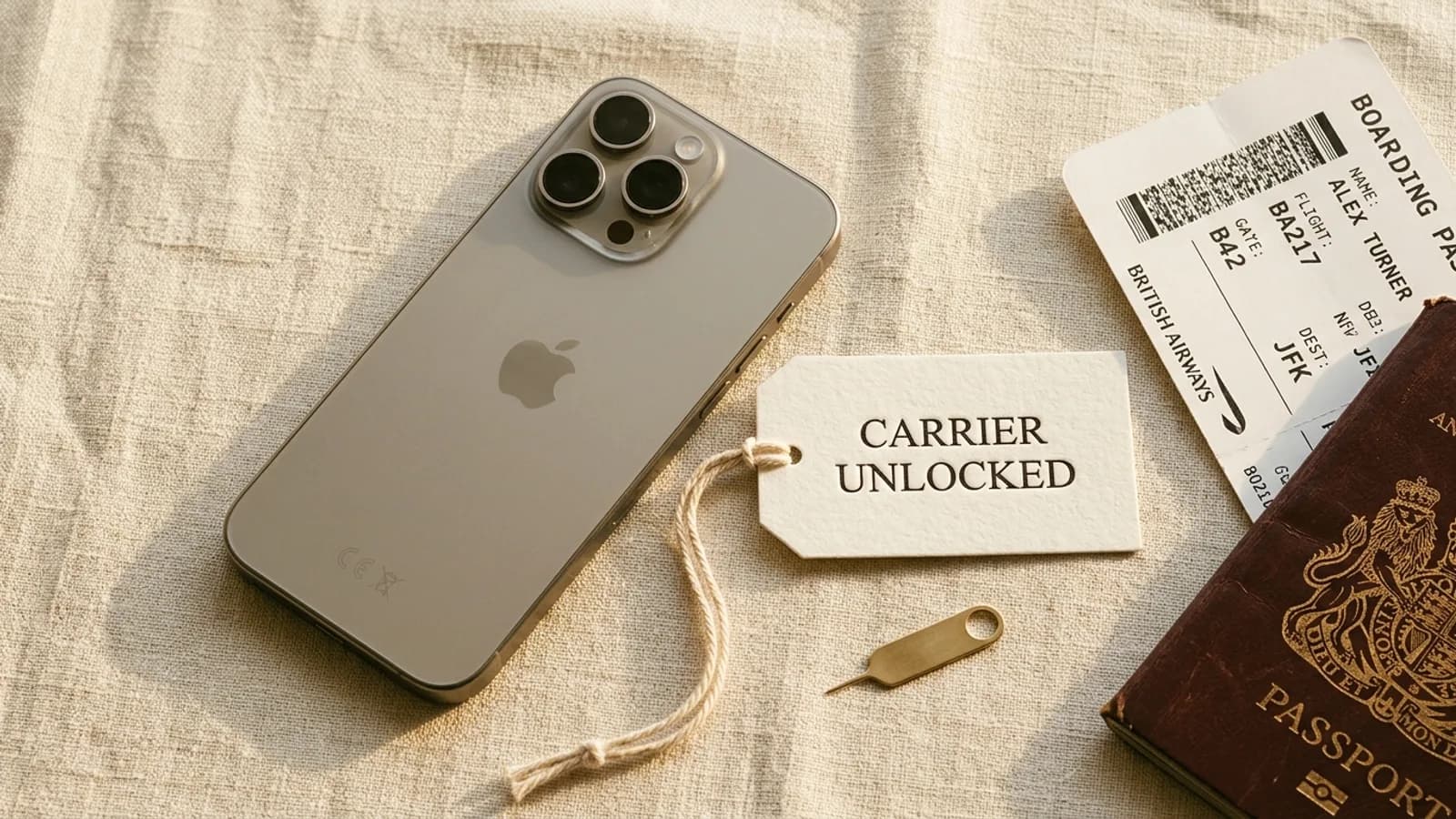
- Make sure the new phone is carrier-unlocked — locked phones often block external eSIM profiles.
- Disable Wi-Fi during the final activation step; some carriers require a cellular handshake to complete provisioning.
- Keep both phones charged above 50% — failed transfers due to a device powering off can leave the line in a locked state.
- If you've already started transfer and it stalls, do not factory-reset the old phone yet — the carrier may need it to release the line.
- Check that you're using the same Apple ID (for iPhone) or Google account (for Android) on both devices.
Frequently Asked Questions
Sometimes. iPhone-to-iPhone and Pixel/Samsung-to-Pixel/Samsung transfers are supported on recent OS versions. Cross-platform and most travel eSIMs are not — those require the carrier to re-issue the profile.
On iPhone, use Quick Transfer in Settings, Cellular, Add eSIM. On supported Android phones, use Google's eSIM Transfer during setup. Otherwise, contact your carrier to re-issue the eSIM as a new QR code.
Not directly. There is no first-party tool that moves eSIM profiles between iOS and Android. You'll need your carrier to deactivate the old eSIM and issue a new activation for the Android device.
Usually no. Travel eSIMs from providers like Simsima, Airalo, and Holafly are tied to the device they were activated on. If you switch phones mid-trip, contact the provider's support — they may re-issue the activation as a courtesy, depending on the plan.
Yes. Both Quick Transfer and a carrier re-issue keep the same phone number. The transfer changes the device the line is bound to, not the line itself.
Either the carrier has not enabled Quick Transfer for that line, or one of the phones is on an older iOS version. Update both phones to the latest iOS, and if the option still does not appear, ask the carrier to re-issue the eSIM.
Usually it is removed automatically by Quick Transfer or Google's eSIM Transfer. If your old phone still shows the line after a successful transfer, delete it manually to avoid confusion and possible double billing.
Most major carriers do not charge for Quick Transfer or for re-issuing an eSIM to a new device. A few prepaid plans charge a small SIM swap fee. Travel eSIM providers vary — many will help once per plan free of charge.
The eSIM profile is wiped, and the activation token is consumed. You'll need the carrier to issue a new QR code or activation link. Always transfer or back up the eSIM before resetting.
Yes. If the eSIM was never installed, the Smart Link in your order email works on the new device. If it was already installed on the lost phone, contact Simsima support and they can reissue the activation.
How to delete an eSIM on iPhone — Clean up old profiles before or after transferring.
eSIM-compatible phones — Check whether your new device supports eSIM transfer features.
Browse Simsima eSIM plans — Get a working travel eSIM on your new phone in minutes.

Founder of Simsima. A passionate traveler based in Barcelona, he helps travelers stay connected without breaking the bank on roaming fees.
LinkedIn