Guides & news
Blog
Discover our latest guides, travel tips, and mobile tech news.
How it works
Learn how to install and use your travel eSIM in a few steps.
Loading...
Guides & news
Blog
Discover our latest guides, travel tips, and mobile tech news.
How it works
Learn how to install and use your travel eSIM in a few steps.
eSIM for 190+ destinations
Online when you land · 14-day refund if not activated
eSIM for 190+ destinations
Travel eSIM
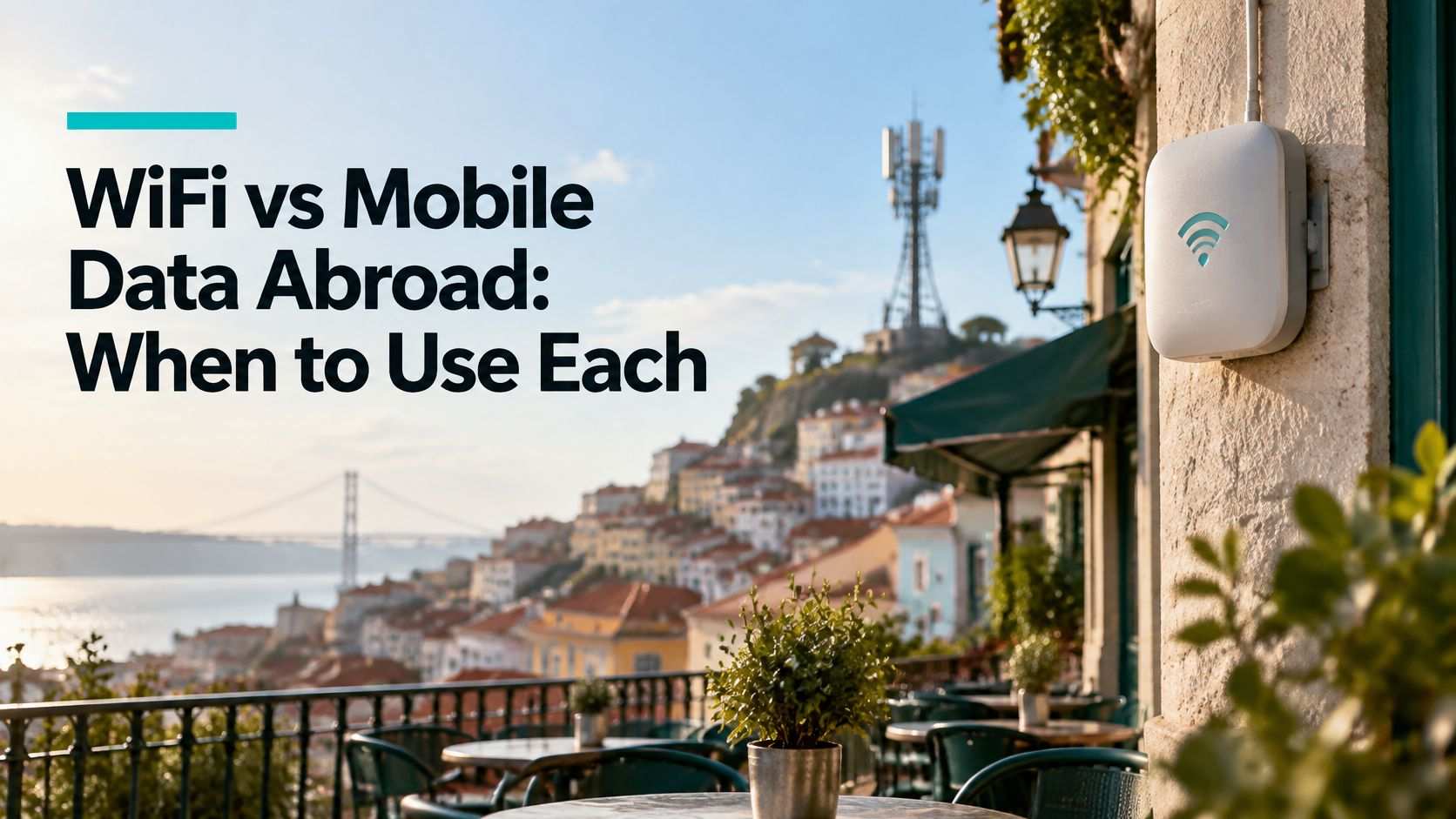
WiFi vs mobile data compared on speed, cost, security and coverage for travelers, with a clear rule for each and when an eSIM helps.
 Dimitri MorvanNovember 15, 202617 min
The usual travel tip is to grab every free Wi-Fi network and treat mobile data as an emergency reserve. That advice saves gigabytes and wastes the hour you needed. A hotel network that drops your call, a captive portal that logs you out mid-upload, and an open café hotspot you used for a bank code all cost more than the data you "saved."
Judge WiFi vs mobile data by cost per usable task and by how sensitive that task is, not by headline Mbps or price per gigabyte. A connection that finishes a video call is cheaper than a free one that makes you redo it. A connection that keeps a password off a shared radio is worth paying for even when lodging Wi-Fi is included.
Wi-Fi and mobile data grew up as partners, not rivals. Wi-Fi rides a fixed broadband line and covers a room, a lobby, or a gate. Mobile data runs on licensed cellular networks and stays with you between cities, on trains, and on foot, wherever the signal holds.
Most phones hop between the two on their own. The decision that matters is which one you trust for the task in front of you.
Wi-Fi and mobile data compared on the criteria that matter abroad
| Criterion | Wi-Fi | Mobile data |
|---|---|---|
| Typical cost | Usually included with lodging or free in public venues, though some venues charge | Paid through home carrier roaming or a prepaid travel eSIM, billed by plan |
| Coverage | Only where a network exists, such as hotels, airports and cafes | Follows you between cities, on trains and while walking, where signal is available |
| Speed | Fast on a good connection, but slows sharply at busy times | Strong 5G can rival a good fixed line; a weak signal or a loaded cell is slower |
| Latency | Low locally, but shared access points can spike under load | Steady on good signal; drops in dead zones and underground stretches |
| Security | Safe with WPA or WPA2 encryption; open networks are unsafe for sensitive data | Generally lower risk than untrusted Wi-Fi, with no shared local network segment |
| Multiple devices | One connection serves a laptop, phone and tablet at once | Shared through a personal hotspot, which draws on plan data |
| Best for | Large downloads, video calls and cloud backups | Navigation, translation, messaging and banking on the move |
Those cells describe typical conditions. A crowded lobby or a dead basement will flip them.
Practical rule: Use trusted Wi-Fi for heavy, stationary work. Use mobile data for anything that must keep running while you move, and for logins you would not want on a shared network.
When one phone has to feed a laptop, the hardware choice matters as much as the plan. A phone hotspot and a dedicated travel router behave differently on battery, range, and how many devices they can hold. The mobile hotspot or 5G router breakdown from SwiftNet Wifi is a clear way to see which box fits a solo laptop versus a small group.
A speed test can look excellent while a call falls apart. Throughput is how much data moves. Tail latency is how long the slowest packets wait. Video calls, VPNs, and live uploads fail on those slow packets, not on the average.
In a controlled Wi-Fi 6 versus 5G NSA evaluation published through the University of Waterloo, 5G downlink averaged approximately 140–210 Mbps on one route segment and 220–260 Mbps on another, while uplink stayed comparatively stable at about 70–87 Mbps. Unloaded Wi-Fi 6 showed 0% packet loss and 4.9–7.0 ms average round-trip time. Under sustained traffic, its 99th-percentile downlink latency climbed to about 384 ms on one trajectory and 1,554 ms on another. In the same test, 5G's 99th-percentile downlink latency stayed roughly 71 ms to 200 ms.
A strong, lightly loaded hotel or café Wi-Fi network can still be excellent for calls and cloud work. A shared access point can queue traffic so badly that a speed test still reports high throughput while faces freeze.
Ofcom points to measurable causes of speed swings: time of day, how many people and devices share the network, and whether the device is on Wi-Fi or a wired link. On cellular, building walls, distance from the cell site, and how loaded that cell is do the same job. An airport network that feels fine at 6 a.m. can stall at boarding. There is no universal winner between Wi-Fi and 5G once you start walking.
Run the test at the hour you will actually work, not at checkout when the lobby is empty.
You leave with a yes or no: this network is stable enough for the next call, or it is time to leave it.
Price per gigabyte hides the bill that matters. The useful number is what it costs to finish today's tasks without repeating them.
Included lodging internet is free only when it stays up. Public venues sometimes charge by the hour or the day, so "free Wi-Fi" is a label, not a promise.
Hidden costs show up as time:
Home-carrier international roaming is one path. Charges, speed caps, and included allowances change by plan and country. Do not trust a screenshot from last year. Open the carrier's own site, write down the month and year you checked, and confirm again before you fly. A practical walk-through of what to turn off sits in our guide on how to avoid roaming charges.
The other path is a prepaid travel eSIM bought for one country or a multi-country route. You pay a fixed data amount up front instead of discovering roaming line items after you land.
A personal hotspot changes the math again. Our eSIM data can be shared via personal hotspot with a laptop or another phone, so one plan can cover a working session. That is often the cheaper setup for one person with one phone. Two people with two laptops burn through the same allowance much faster, because every tethered device draws on that plan.
If Wi-Fi only works for the download and mobile data is what lets you find your way, bank, and message between stops, the "more expensive" option can be the better value.
A login page is not a lock. Security follows encryption and whether you trust the network, not whether a browser asked for a room number.
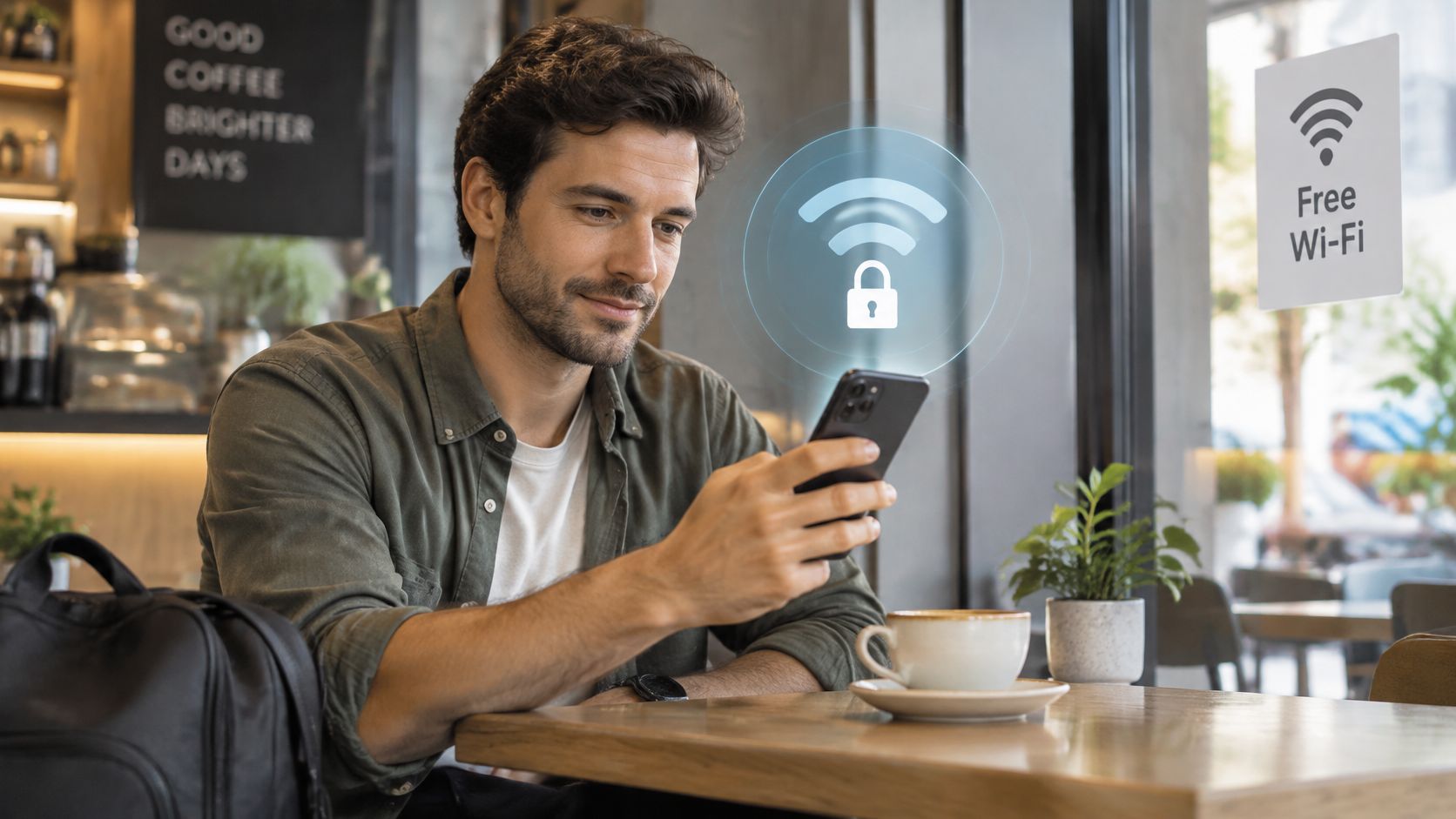
The Federal Trade Commission says most public hotspots do not encrypt traffic and recommends treating a network as unsecured unless it asks for a WPA or WPA2 password. A captive-portal password only grants internet access. It does not prove the wireless link is encrypted. Hotel, airport, café, and rental-apartment Wi-Fi all fall under that warning.
HTTPS encrypts traffic between your device and that one website. It does not automatically protect other apps, email clients, or background sync. Check for HTTPS on every page you use for anything private, not only the login screen.
For work or banking on unfamiliar Wi-Fi, the FTC also recommends a VPN, and notes that a VPN shifts trust to the VPN provider. It does not make you anonymous. Pick a provider you would trust with the same files, and turn it on before you open mail.
A short FTC walk-through of those risks is worth watching before you treat the lobby network as "basically fine."
Connection choice by task and security sensitivity
| Task | Public Wi-Fi | Mobile data | Personal hotspot |
|---|---|---|---|
| Banking and account recovery | Avoid unless the network is encrypted and the site uses HTTPS | Preferred | Preferred |
| Work files and VPN sessions | Use only with a VPN on a verified network | Preferred | Preferred, with a strong hotspot password |
| Casual browsing on HTTPS sites | Acceptable on a verified network | Acceptable | Acceptable |
| Large downloads and streaming | Acceptable when stable and trusted | Uses plan data | Uses plan data |
Three habits close the gaps a table cannot:
Laptops and tablets that never see a company policy still need a filter before they join a strange network. Protecting unmanaged devices before they connect, from Purple Shield, explains how DNS filtering blocks known-bad destinations even when you do not control the Wi-Fi. For a wider look at hotspot risks and travel connectivity options, see our travel Wi-Fi guide.
A travel eSIM is a digital SIM that adds a mobile data line without a physical card. Your phone gets data abroad. Your home number stays available for calls and texts.
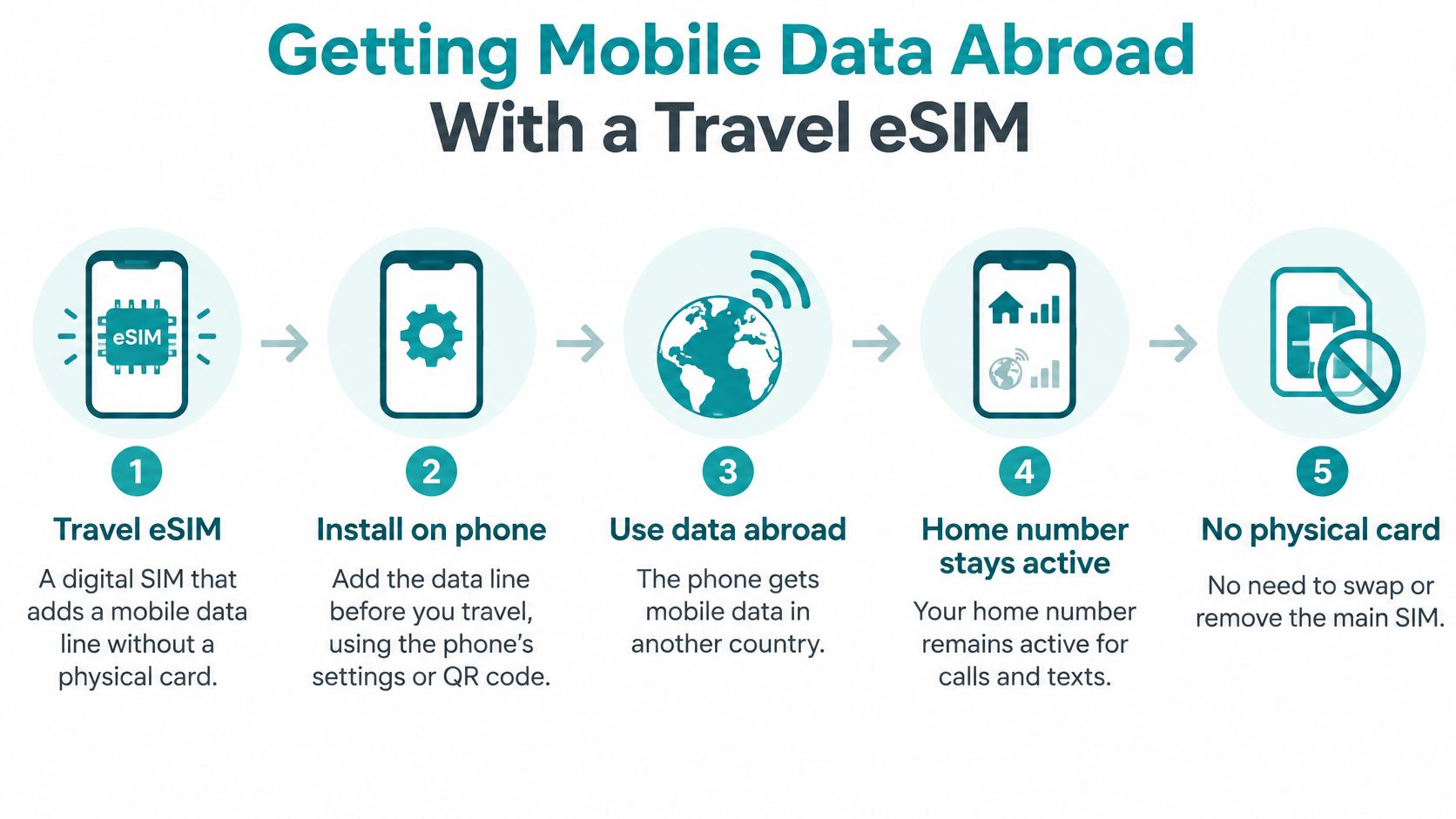
We offer fast 5G/4G mobile data in 190+ destinations with no physical SIM card to swap. Setup is easier before the flight than in a jet-lagged arrivals hall.
One thing to test at home: some bank or streaming apps behave oddly on an eSIM because they detect location. Open them once on the new line before you rely on a transfer or a download abroad.
Land with a data line already installed, and you are online when the plane door opens instead of hunting for a network name on the jet bridge.
Match the connection to the task, not the venue. A bank login belongs on mobile data even when Wi-Fi is free, because the task is short and sensitive. A large upload belongs on tested Wi-Fi even though it costs nothing in allowance, because the task is heavy and forgiving. The table follows the order a trip unfolds.
Primary and backup connection by travel situation
| Situation | Primary choice | Backup |
|---|---|---|
| Hotel with included Wi-Fi | Wi-Fi for downloads and calls | Mobile data for maps and messages |
| Airport gate or long layover | Mobile data for banking and transit apps | Wi-Fi only on a secure, verified network |
| Walking, transit and ride-hailing | Mobile data | Wi-Fi at known, stable stops |
| Laptop plus phone on the road | Personal hotspot from mobile data | Venue Wi-Fi if it is encrypted and trusted |
| Video call or large cloud upload | Trusted Wi-Fi after a speed and ping test | Mobile data with a hotspot |
| Rental apartment with unchecked router | Mobile data until the network is verified | Personal hotspot for laptops |
At a hotel with included internet, put downloads, software updates, and tested video calls on Wi-Fi. Keep maps and messages on mobile data so a lobby reboot does not strand you between the elevator and the street.
At a gate or on a long layover, banking and transit apps belong on mobile data. Join Wi-Fi only after you have confirmed the exact network name and seen WPA or WPA2. A portal that keeps logging you out means switch to data. Repeated logins cost time and still leave the session unverified.
Walking, changing trains, and ride-hailing need a connection that does not stop at the door. Mobile data leads here. Wi-Fi earns a role at a café or station you already know is stable. Rural stretches and underground lines drop cellular signal, so download offline maps before those legs. If you are sizing the plan for a week of maps plus calls, our note on how many gigabytes you need ties the estimate to activities instead of a round number.
A laptop plus a phone on the road is a hotspot job unless the venue Wi-Fi is encrypted and trusted. One trusted Wi-Fi network can serve several devices at once, which is why groups often prefer the hotel line for evening backups. Mobile data reaches those same devices only through a hotspot, and every extra screen spends the plan.
For a video call or a large cloud upload, run the speed and ping check first. If latency spikes mid-call, move to mobile data with the hotspot rather than waiting for the access point to recover.
A rental apartment is the case people skip. The router may be open, named after the building, or still using a default password. Stay on mobile data until you have verified encryption, and keep banking and logins off the network in the meantime. A serviced-flat listing can advertise "Wi-Fi included" the way a housing explainer such as temporary housing in Norwich explained describes the amenity, yet the phrase says nothing about encryption or who controls the router. Test it yourself, and let a personal hotspot cover the laptop until the check is done.
Judge each connection by the cost of the task it carries and the sensitivity of that task. The right choice is the one that holds for the next hour.
Waiting until baggage claim to decide how you will get online is how roaming surprises and bad hotspots happen. Set the cellular path before you fly. Test Wi-Fi after you arrive, before you trust it with a call or a login.
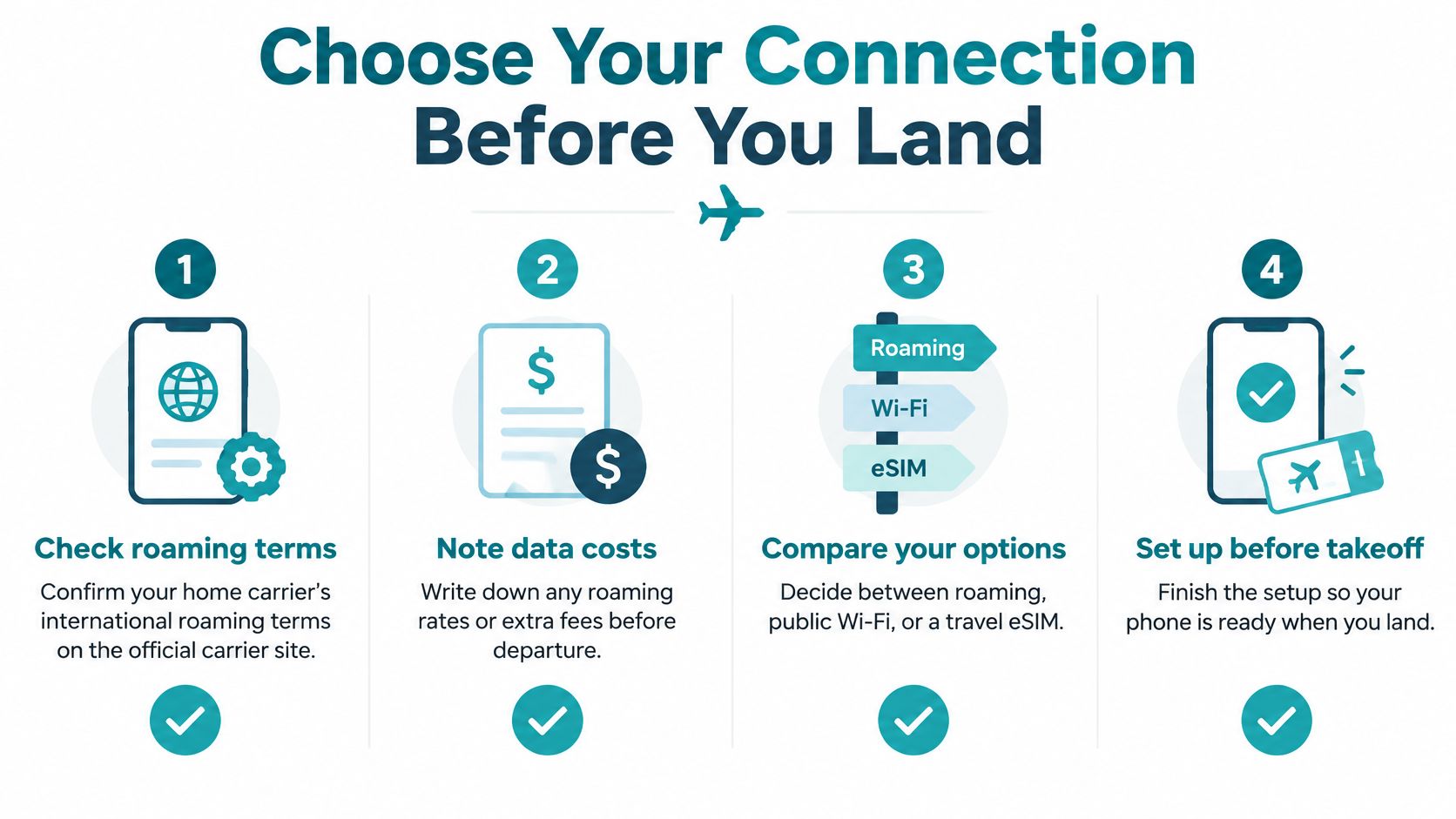
The split most travelers settle into is simple. Wi-Fi earns its place when reliable internet comes with the accommodation, when several devices share one connection, or when a job needs volume, such as software updates and cloud backups. Mobile data handles navigation, ride-hailing, translation, and messaging while you walk, change trains, or leave the building. Judge each task by two things: what it costs on the connection you have, and how much damage a hostile network could do to it.
Before you board:
For a multi-country trip where you do not want to depend on public hotspots, a prepaid travel eSIM keeps mobile data working across borders. Simsima's Global plans cover 120+ countries on a single purchase, so the same data line follows you from the first arrival hall to the last. Check device compatibility and destination coverage on the eSIM catalog before you buy. Then split the work by sensitivity: verified hotel or venue Wi-Fi carries the large transfers, while mobile data carries every session that has to keep running once you leave the building.
Set up mobile data before you land. Test the Wi-Fi before you trust it.
Simsima provides prepaid travel eSIM data so you can stay on mobile networks abroad instead of gambling on every lobby hotspot. Plans cover local, regional, and multi-country trips, and you can share data to a laptop with a personal hotspot when the work requires it. Visit Simsima to match a data plan to your route before you fly.
Founder of Simsima. A passionate traveler based in Barcelona, he helps travelers stay connected without breaking the bank on roaming fees.
LinkedIn