-5% on your 1st eSIMuntil October 31
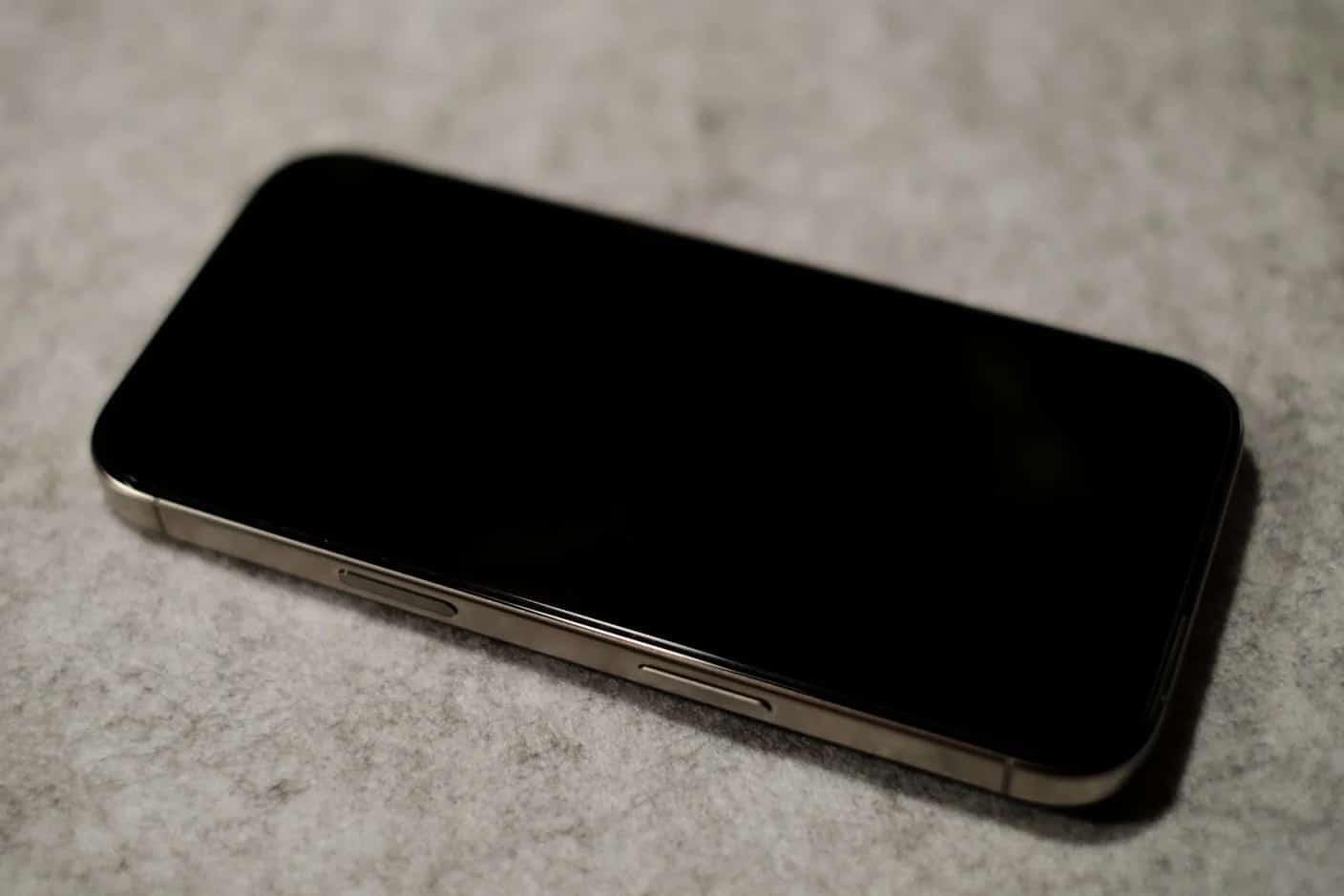
An eSIM for iPhone is a digital SIM built into the phone: instead of inserting a card, you download a plan from a carrier or travel provider. Every iPhone from the XS and XR (2018) onward supports it, an iPhone can hold eight or more eSIMs, and iPhone 13 and later can run two at once, according to Apple.
Key takeaways
- Every iPhone from the XS and XR onward supports eSIM; the iPhone Air has no SIM tray anywhere
- iPhone 14 and later sold in the US, and the iPhone 17 and 18 Pro ranges in several other countries, are eSIM only
- Your iPhone must be unlocked to add a travel eSIM: look for No SIM Restrictions in Settings > General > About
- Installing needs Wi-Fi; a Simsima eSIM then activates on its own when it connects at your destination
- Only one line carries mobile data at a time, so set the travel eSIM as the data line abroad
Which iPhones have eSIM, and which have no SIM tray
All iPhones since the XS, XS Max and XR support eSIM. What varies is whether a nano-SIM tray sits beside it. According to Apple's model identification page, the iPhone Air has no SIM tray in any country. The iPhone 17, 17 Pro, 17 Pro Max, 17e, 18 Pro and 18 Pro Max have no tray in the United States, Puerto Rico, Canada, Japan, Mexico, Guam, the US Virgin Islands, Saudi Arabia, the UAE, Qatar, Kuwait, Bahrain and Oman, and keep one elsewhere. US models have been eSIM only since the iPhone 14.
Mainland China is the exception. Many iPhones sold there use two nano-SIM cards instead, and Apple's Dual SIM page says only the iPhone 18 Pro, 18 Pro Max, 17e and Air support eSIM in China mainland.
Two checks in Settings before you buy
- eSIM support: Settings > General > About. If an EID number appears on that screen, the phone can take an eSIM.
- Carrier lock: on the same screen, No SIM Restrictions next to Carrier Lock means the iPhone is unlocked. If it says anything else, ask your carrier to unlock it before the trip.
- Your model: Simsima's device compatibility page lists the iPhones that work with our plans.
Setting up a travel eSIM on iPhone
The whole thing takes a few minutes on Wi-Fi. With Simsima, you get a Smart Link by email after you buy.
- Choose the country or region in Simsima's catalog and a plan that fits your trip.
- Open the order email on your iPhone, connected to Wi-Fi, and tap the Smart Link. On iOS 17.4 or later, an Activate New eSIM prompt appears: tap Allow, then Continue.
- If you prefer a QR code, go to Settings > Cellular > Add eSIM > Use QR Code and scan it from another screen.
- Give the new line a label such as Travel, so you can tell it from your home line.
- When you arrive, set the travel line as your Cellular Data line and turn on its Data Roaming. The eSIM activates by itself when it connects to the local network.
On iOS 26 and later, the iPhone may show a Turn On Travel eSIM notification when you land, which offers to use the travel eSIM alone or alongside your current line, as Apple explains in its travel eSIM guide. APN settings are applied automatically on most plans; if data does not start, our support team can give you the right APN.
Simsima recommendation
Ready to skip the international roaming charges?
Browse Simsima eSIM plans — activation on arrival, local networks, no contract.






Home number and travel data on one iPhone
Dual SIM lets the iPhone keep two lines on at once. A physical SIM plus an eSIM works from the iPhone XS, XR and SE (2nd generation); two eSIMs need an iPhone 13, SE (3rd generation) or later, per Apple's iPhone User Guide. A travel eSIM is data only, so the usual setup is your home line for calls and texts, and the travel line for data.
- Choose the data line in Settings > Cellular > Cellular Data. Only one line uses mobile data at a time.
- Keep Data Roaming off on your home line, on for the travel line.
- Apple notes that when data roaming is on for the data line, your voice-only line loses Visual Voicemail and MMS.
- Allow Cellular Data Switching lets the iPhone use either line's data depending on coverage. Leave it off abroad, so data does not fall back to your home line.
Calls on your home number still reach you as long as that line is on. To call home without roaming charges, use FaceTime or WhatsApp over your travel data.
Buying an eSIM for iPhone in India
For a local line, Indian carriers handle eSIM themselves. Apple's list of carriers that support eSIM names Airtel, Reliance Jio and Vi for eSIM Carrier Activation, with Airtel and Jio also supporting Quick Transfer from a previous iPhone. For a trip out of India, a travel eSIM bought online installs the same way as anywhere else, provided the iPhone is unlocked.
Removing old eSIMs without losing one you need
Expired travel lines can be deleted in Settings > Cellular: tap the plan, then Delete Plan (or Delete eSIM if it is your only one). Apple's page on erasing an eSIM warns not to delete an eSIM as a troubleshooting step. That matters for travel plans: a deleted Simsima eSIM cannot be reinstalled on your own, and you need to contact support, which usually replies within 24 hours.
If you change iPhones, eSIM Quick Transfer moves phone numbers from carriers that support it. For a travel eSIM, contact the provider rather than deleting it from the old phone. Our guide on dual SIM on iPhone covers running two lines in more depth.
Frequently Asked Questions
No. The eSIM chip is already inside every iPhone since the XS and XR. What you buy is a plan, which downloads to that chip as a profile. You never handle anything physical.
From your carrier for your main number, or from a travel eSIM provider for data abroad. With Simsima, you pick a destination plan online, pay, and receive a Smart Link by email that installs the eSIM on your iPhone in one tap.
The same way as on any recent iPhone: tap the provider's link or scan the QR code in Settings > Cellular > Add eSIM, while on Wi-Fi. A US iPhone 14 has no SIM tray, so eSIM is its only option, and it can run two eSIMs at once.
Apple says eight or more. Two can be active at the same time on iPhone 13 and later, or one eSIM plus a physical SIM on earlier models that have a tray.
Yes. Check Settings > General > About: No SIM Restrictions next to Carrier Lock means it is unlocked. iPhones bought directly from Apple are usually unlocked; carrier-financed ones may not be.
Yes. Your home line stays on for calls and texts while the travel eSIM handles data. The travel eSIM itself has no phone number.
eSIM supported devices — Check whether your specific iPhone model supports eSIM
how Simsima works — See the full eSIM purchase and activation process
browse travel eSIM plans — Find eSIM plans for over 190+ destinations worldwide
#eSIM#iPhone#travel connectivity#device guide#setup

Dimitri MorvanFounder
Founder of Simsima. A passionate traveler based in Barcelona, he helps travelers stay connected without breaking the bank on roaming fees.
LinkedIn