-5% on your 1st eSIMuntil October 31

When a travel eSIM is not working, check four things first: the eSIM line is turned on, it is the line selected for mobile data, Data Roaming is on for that line, and you are already at your destination. Then turn Airplane Mode on for 15 seconds and off again. That sequence fixes most cases on iPhone and Android.
One thing not to do: delete the eSIM. Apple's page on erasing an eSIM says not to erase one as a troubleshooting step, and a deleted Simsima eSIM cannot be reinstalled on your own. Everything below can be tried without removing anything.
Key takeaways
- Most failures abroad come from one of four settings: line off, wrong data line, Data Roaming off, or a plan that has not started yet
- Check first that the phone supports eSIM, is unlocked, and actually lists the eSIM line in its settings
- On iPhone the key screens are Settings > Cellular and the travel line's own page; on Android, Settings > Network & internet > SIMs, or Settings > Connections on Samsung
- Resetting network settings can switch Data Roaming off again, so check it afterwards
- Never delete the eSIM to fix a problem: contact support with your order number instead
Three checks before you change any setting
- Does the phone support eSIM? iPhones from the XS, Pixel phones from the Pixel 3 and Samsung Galaxy phones from the S20 do. See the list of eSIM-compatible phones for other brands.
- Is the phone unlocked? On iPhone, Settings > General > About > Carrier Lock must read No SIM Restrictions. A phone locked to your home carrier refuses eSIMs from other providers, whatever you change elsewhere.
- Is the eSIM really installed? An email with a QR code is not an installed eSIM. The line must appear in Settings > Cellular on iPhone, in Settings > Network & internet > SIMs on a Pixel, or in Settings > Connections > SIM manager on a Samsung Galaxy.
If one of these answers is no, that is the problem, and no other setting will fix it. If all three are yes, carry on.
No service after landing: turn on the line, the data and roaming
A line can be installed and still switched off, or switched on without being allowed to use data abroad. These are separate toggles, and each one blocks the connection on its own.
On iPhone
- Open Settings > Cellular and tap the travel line.
- Make sure Turn On This Line is enabled.
- Go back, tap Cellular Data and select the travel line, not your home number.
- Tap the travel line again, then Cellular Data Options if it appears, and turn on Data Roaming.
On a Pixel or a Samsung Galaxy
- Pixel: open Settings > Network & internet > SIMs, tap the travel SIM, make sure Use this SIM is on, then turn on Mobile data and Roaming. Google lists these options on its Pixel mobile network help page.
- Pixel, data line: under Your primary SIMs, tap Mobile data and choose the travel SIM.
- Samsung: open Settings > Connections > SIM manager, switch on the travel eSIM and set it as the primary SIM for mobile data.
- Samsung, roaming: go to Settings > Connections > Mobile networks and turn on Data roaming. If the switch is greyed out, Samsung's support page says to turn on Mobile data first.
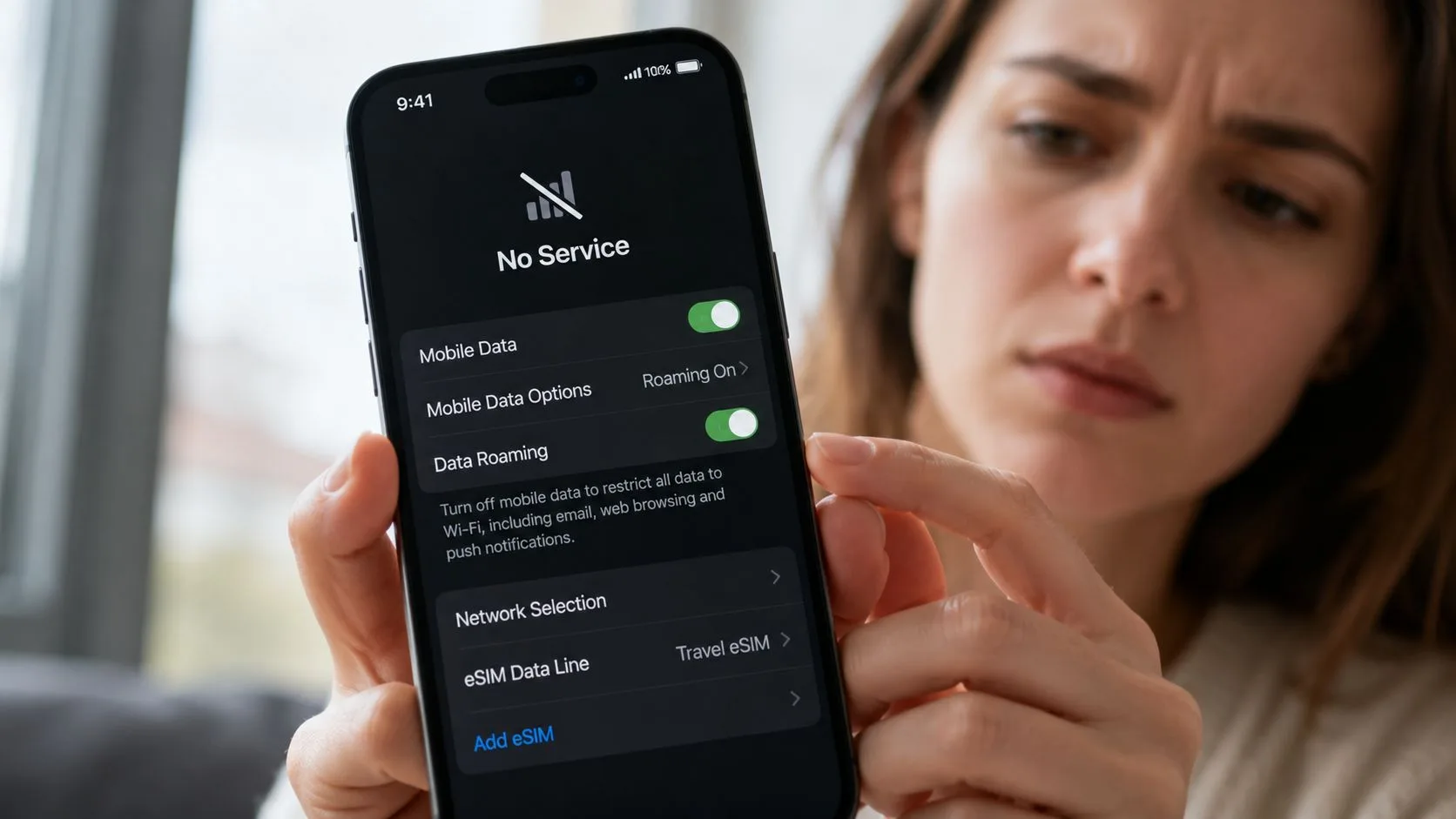
Turning roaming on is safe for the travel line: the data is prepaid, so it cannot run up a bill. Keep roaming off on your home line instead, since that is the one your carrier charges for.
The eSIM never finished installing
If the travel line is missing from the list, the download was interrupted, usually because Wi-Fi dropped or the setup screen was closed too early. Most QR codes and install links work only once, so trying again often fails with an error.
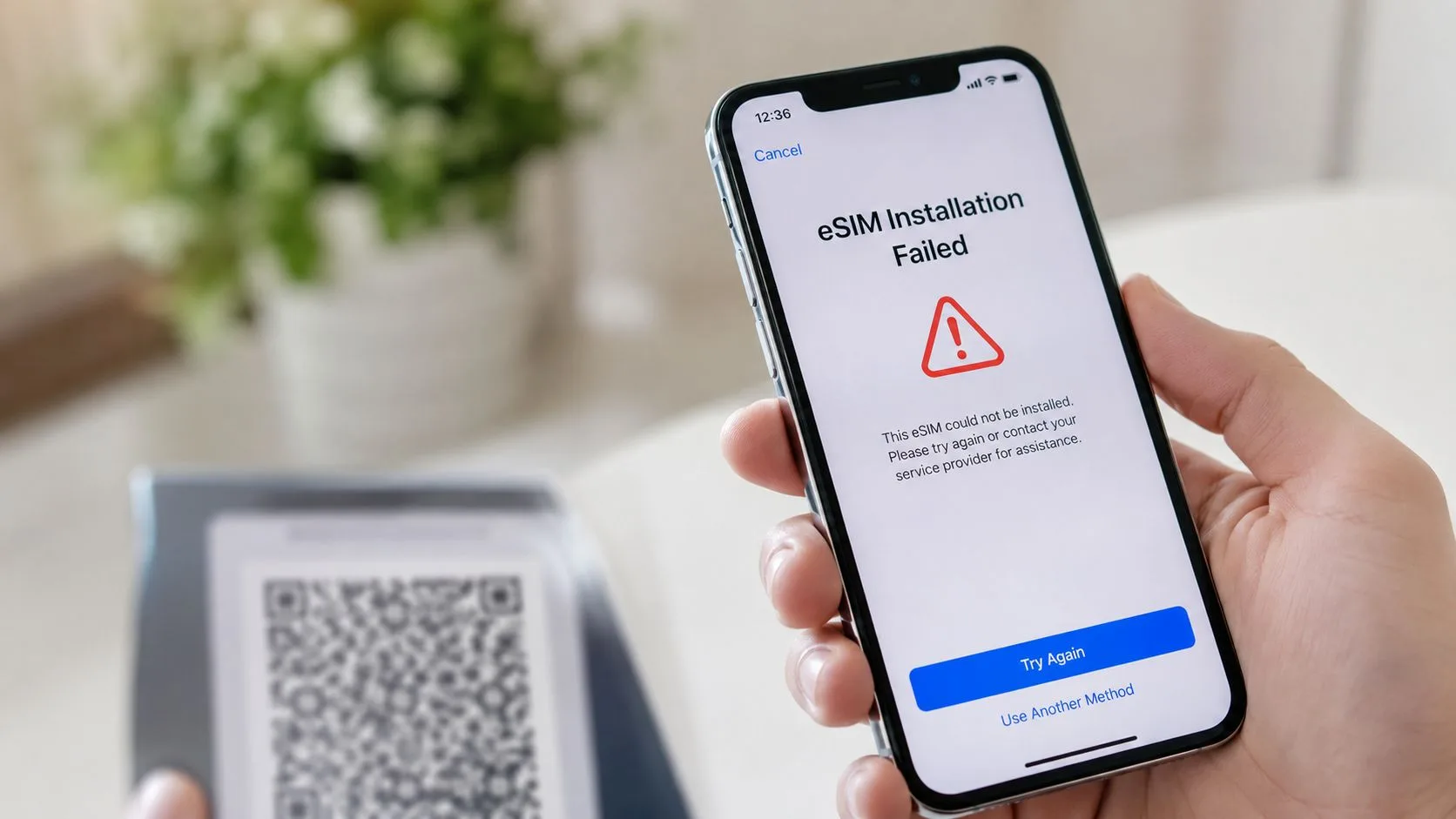
Do not buy a second plan and do not delete anything. Contact Simsima support with your order number and the phone model, ideally with a screenshot of the SIM list. An eSIM that was never activated can be refunded within 14 days.
Bars on screen but no internet: data line, APN and network
Signal bars only prove that the phone has found a tower. Data needs three more things to be right.
- Data falls back to the home line. On iPhone, turn off Allow Cellular Data Switching in Settings > Cellular > Cellular Data, so the phone stays on the travel eSIM.
- The APN is empty or wrong. Most plans set it automatically. If data still does not start, ask support for the correct APN, then enter it on iPhone in Settings > Cellular > travel line > Cellular Data Network, or on a Pixel under Access point names in the SIM's settings, as described in Google's guide.
- The phone is stuck on a manual network. On iPhone, open Settings > Cellular > travel line > Network Selection and turn on Automatic; on a Pixel, use the Network option in the SIM's settings. Give it a minute to register.
SOS, No Service or Searching: reading the status bar
According to Apple's support article on SOS and No Service, SOS or SOS only means the iPhone is not connected to its own network but can still place emergency calls through other networks, a feature Apple offers in Australia, Canada and the United States. No Service or Searching means the iPhone is not connected to any cellular network.
Apple's first fixes are the ones that work most often with travel eSIMs: turn on Airplane Mode for at least 15 seconds and turn it off, then restart the phone. Next, install any carrier settings update offered in Settings > General > About while on Wi-Fi. Apple also suggests asking whether the local government requires IMEI registration for phones bought abroad, a rule that exists in some countries.
Simsima recommendation
Ready to skip the international roaming charges?
Browse Simsima eSIM plans — activation on arrival, local networks, no contract.






Resetting network settings without losing the eSIM
If nothing above helps, resetting network settings clears corrupted carrier and network data. On iPhone, go to Settings > General > Transfer or Reset iPhone > Reset and tap Reset Network Settings. Saved Wi-Fi networks and VPN settings are removed, and Apple notes that cellular data roaming may also be turned off, so turn Data Roaming back on for the travel line afterwards.
On the same iPhone screen sits Delete All eSIMs. Do not tap it: it removes every eSIM on the phone. On a Pixel, the equivalent is Settings > System > Reset options > Reset Mobile Network Settings.
The plan has not started, or the coverage is the problem
A Simsima plan starts when the eSIM first connects to a local network at your destination. Installed at home, it shows No Service until you land, which is expected. After landing, give the phone a minute or two with Airplane Mode off before concluding anything.
Also check that the plan covers the country you are in. A plan for one country will not connect next door, while a regional plan works across its whole zone. If the signal disappears only in a basement, on a ferry or in the mountains, try again outdoors or in town: the eSIM is fine, the network simply does not reach that spot.
Last checklist before you contact support
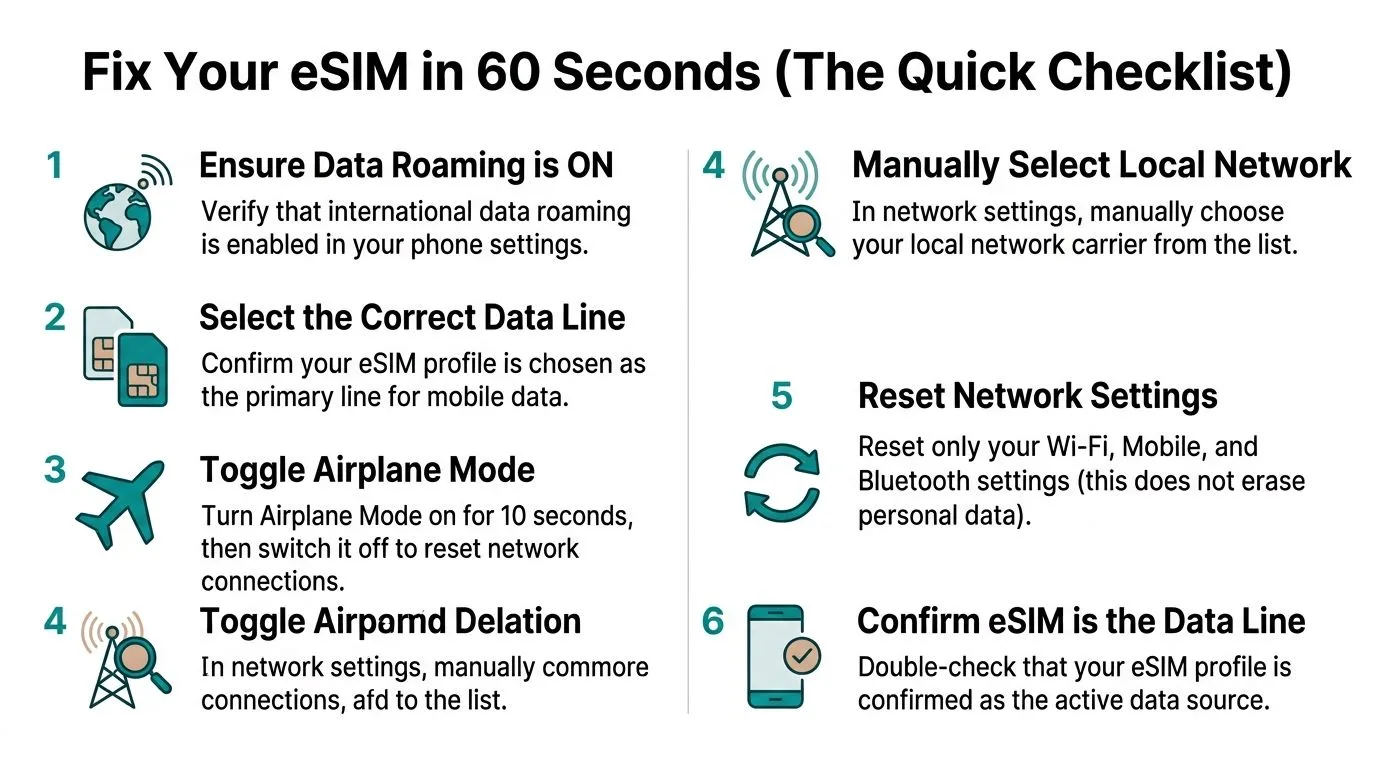
- The phone supports eSIM and is unlocked.
- The travel line is listed and turned on.
- The travel line is selected for mobile data.
- Data Roaming is on for the travel line, and off for the home line.
- Automatic network selection is on.
- Airplane Mode has been toggled after landing, and the phone restarted once.
- You are inside the country or zone the plan covers.
If every item is checked and the line still shows No Service after ten minutes on the ground, contact Simsima support. Send the order number, the phone model and a screenshot of the travel line's settings. Support usually replies within 24 hours.
Frequently Asked Questions
Abroad, the cause is usually that the travel line is off, Data Roaming is off for it, or the plan has not started because you are not yet at your destination. If those are fine, toggle Airplane Mode, restart, and set network selection to Automatic.
Either the phone does not support eSIM, or it is locked to your home carrier. Some models sold in China mainland, Hong Kong and Macao also use two physical SIM slots without eSIM. Check the model, then the carrier lock status.
Work in this order: turn on the line in Settings > Cellular, select it under Cellular Data, turn on its Data Roaming, toggle Airplane Mode, restart, then reset network settings. Do not delete the eSIM at any stage.
Apple's eSIM Quick Transfer needs both iPhones on iOS 18.4 or later, signed in to the same Apple Account, close together with Bluetooth on, and a carrier that supports it. Travel eSIMs generally cannot be moved by yourself: for a Simsima eSIM, contact support.
At home, the eSIM only installed; it has not connected yet. It needs to reach a supported network in the country your plan covers, with Data Roaming on for that line.
With Simsima, an eSIM that has not been activated can be refunded within 14 days. If it was installed and still fails, contact support with your order number so the problem can be looked at.
Check which phones support eSIM — Before troubleshooting any further, confirm your device is on the eSIM compatibility list.
How to activate an eSIM on iPhone — A step-by-step iOS walkthrough if your install never completed cleanly.
Browse Simsima eSIM plans — If your current eSIM is permanently stuck, install a fresh Simsima plan in one tap via Smart Link (iPhone on iOS 17.4 or later, and Android).
#Troubleshooting#eSIM#Activation#Support

Dimitri MorvanFounder
Founder of Simsima. A passionate traveler based in Barcelona, he helps travelers stay connected without breaking the bank on roaming fees.
LinkedIn