Guides & news
Blog
Discover our latest guides, travel tips, and mobile tech news.
How it works
Learn how to install and use your travel eSIM in a few steps.
Loading...
Guides & news
Blog
Discover our latest guides, travel tips, and mobile tech news.
How it works
Learn how to install and use your travel eSIM in a few steps.
eSIM for 190+ destinations
Online when you land · 14-day refund if not activated
eSIM for 190+ destinations
Travel eSIM
What is Wifi Assist on iPhone? Learn how it uses cellular data abroad, its possible costs, and how to turn it off on your trip.
 Dimitri MorvanNovember 18, 202615 min
Wi-Fi Assist is an iPhone setting, on by default, that sends an app's request over cellular data when the Wi-Fi network is too weak to load it. Apple has shipped it since iOS 9 arrived in September 2015, and it stays switched on for many users who never go looking for the toggle.
You're in the hotel lobby with full Wi-Fi bars on screen and a map that won't load. Or you're at the gate, connected to an airport network that worked five minutes ago and now just spins. The phone still shows Wi-Fi as connected. Meanwhile, something behind the scenes has already decided that this network isn't worth waiting for, and your cellular plan is taking over the work.
That decision is Wi-Fi Assist, and for a traveler on a prepaid eSIM it's the difference between a plan that lasts the trip and one that disappears in two days. What follows is the mechanism, the costs, the limits that apply specifically while you're abroad, and the exact menu path to switch it off before you board.
Think of a backup generator wired into a house. The grid runs fine and the generator sits idle. The moment the grid stutters, the generator kicks in and the lights stay on. Wi-Fi Assist is that generator, with one difference that matters: the fuel is your mobile data plan, and abroad that fuel is metered and paid for.
Three things are worth knowing before anything else.
What triggers it. A foreground app making a new request while the connected Wi-Fi is failing, not merely showing low bars. A page load, a search, a route calculation.
What it costs. Cellular data from whichever line is set as your mobile data line. If that line is a travel eSIM, the feature spends your travel allowance.
Where the control lives. Settings, then Cellular (Mobile Data in some regions), then scroll past the list of apps to the bottom of the screen.
You can usually see it working. When cellular takes over, the cellular data icon appears in the status bar even though Wi-Fi still shows as connected. That single icon is your only on-screen evidence.
Two clarifications that clear up most confusion. Wi-Fi Assist is not a signal booster and not a speed upgrade; it doesn't improve the hotel network at all, it bypasses it. And it doesn't switch Wi-Fi off, which is exactly why people miss it happening. iPhones have this feature, Android phones don't use the same name or menu, so a second phone in your bag may behave differently.
What matters for a traveler is narrower than the general definition: whether this setting can reach a data plan you pay for by the megabyte, and how to stop it doing so.
A driver checks traffic before setting off, not halfway down the motorway. Wi-Fi Assist behaves the same way. It looks at the available connection when a new request begins and picks the path it thinks will work, rather than dragging a request that's already in flight from one network to the other.
Say you're in a hotel an hour from home, on your usual carrier plan, and you open a page in Safari. The access point is technically connected, but packets are dropping and the page hangs. The iPhone judges that Wi-Fi connection unusable for this request and sends it over cellular instead. The page loads. Nothing on screen tells you which network served it, apart from the cellular indicator in the status bar.
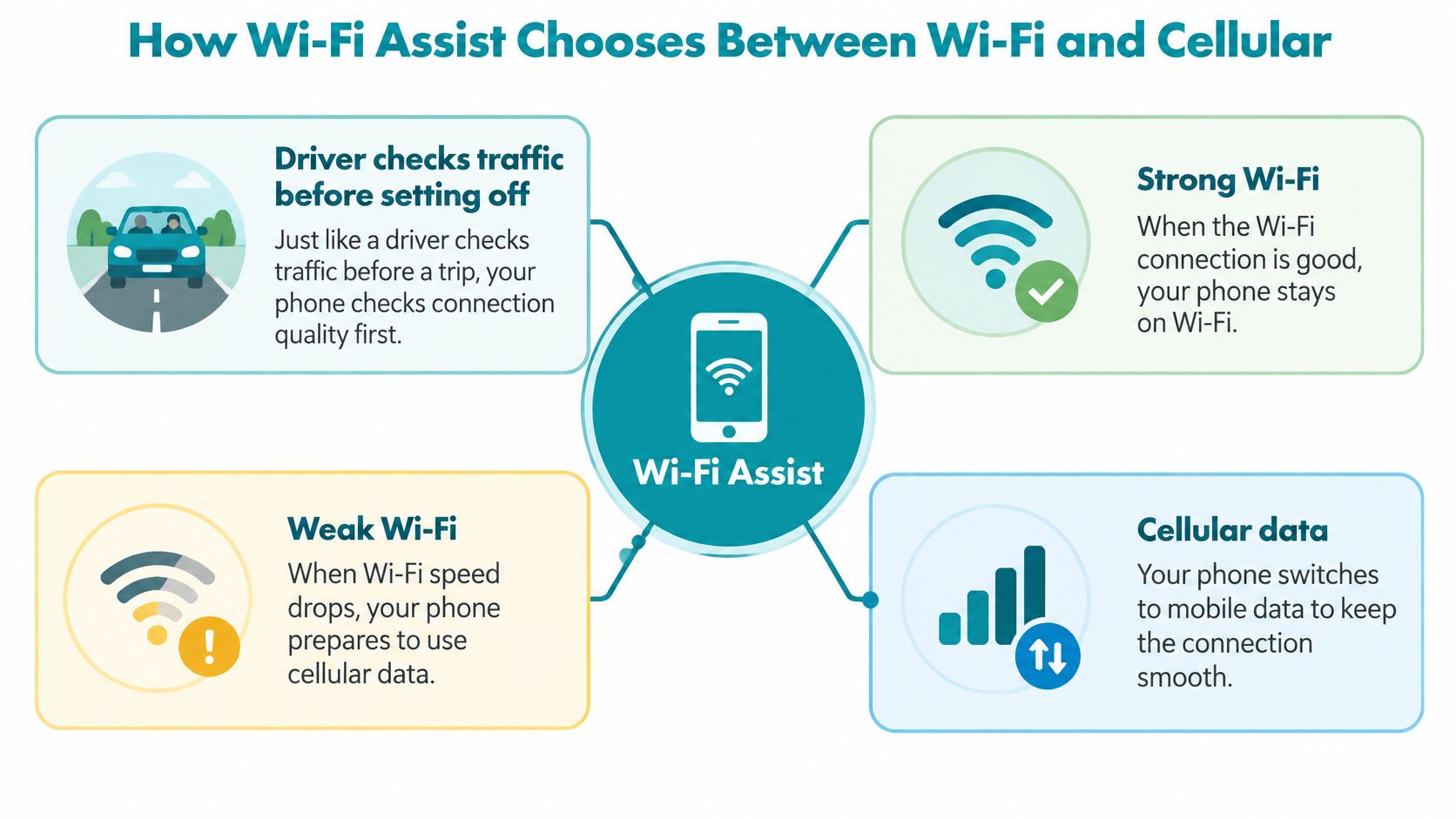
Apple introduced the feature with iOS 9 in September 2015 to keep foreground activity from stalling, and leaves it on by default so the handover happens without you disconnecting from Wi-Fi manually. It works with foreground apps such as Safari, Apple Music, Mail, and Maps, and the aim is continuity rather than speed (Apple's support document on Wi-Fi Assist).
The core idea: Wi-Fi Assist chooses which path a new request takes. It does not make your Wi-Fi faster.
Low bars alone won't trigger anything. Apple's documentation describes an evaluation of whether the connection is usable, so a weak-looking network that still delivers will keep carrying your traffic. The switch happens when a request can't proceed effectively over Wi-Fi.
Three limits are documented, and they're the ones travelers ask about. Background downloads don't get cellular fallback, so app updates and cloud syncs stay where they are. Some third-party audio and video streaming apps and large attachment downloads are excluded, because those sessions could consume substantial data. And the decision is made per request, so an app already running isn't lifted mid-stream; the next request is what gets rerouted.
That per-request design means a single app can mix both networks in one session: one page load over Wi-Fi, the next over cellular, then back to Wi-Fi once the access point recovers. There is no ongoing "cellular mode" to exit. Every new request triggers a fresh evaluation.
If you want the wider picture of which network does what and when, our explainer on Wi-Fi versus mobile data walks through the trade-offs.
Here's the short checklist for spotting the feature in the wild.
Get all three at once and the next thing that app asks for goes out over cellular.
Apple says Wi-Fi Assist generally causes only a small increase in cellular data use for most users (Apple support). That estimate assumes the Wi-Fi you meet is mostly usable. It becomes less useful as a guide when hotel, airport, and café networks fail repeatedly and the apps you open keep asking for fresh data.
The feature has a history worth knowing, because it explains why so many people distrust the setting. When iOS 9 shipped in 2015, many customers were still on capped plans or paid overage charges. Within weeks, coverage described a user's monthly usage rising from about 3 GB to 4 GB, roughly a 33% increase, after using an iOS 9 beta that included Wi-Fi Assist, and in October 2015 a Florida couple filed a proposed class-action lawsuit alleging the feature could push users past their allowances (Business Insider's 2015 report).
| Activity | Can switch to cellular? | Cost risk when traveling |
|---|---|---|
| Loading a page in Safari | Yes, when Wi-Fi is weak | Depends on the active data line and whether roaming is enabled |
| Navigating in Apple Maps | Yes, when Wi-Fi is weak | Route requests can use data if fallback is allowed |
| Reading and sending Mail | Yes, in the foreground | Low for text, higher with attachments |
| Background downloads and updates | No | Not from this feature |
| Some third-party audio and video streaming | Often excluded by the app | Low if excluded, higher if it streams over cellular |
| Large attachment downloads in some apps | Excluded for some apps | Low if the app is excluded, higher if it isn't |
The risk scales with your allowance, not with the feature. On a home plan with tens of gigabytes, a few rerouted requests may be noise. On a capped travel eSIM, any data that does move through the active line matters more, especially when maps, mail, and page loads keep retrying on a poor connection. Abroad, whether Wi-Fi Assist can spend that allowance depends on the setup: the travel eSIM must be the active data line, and roaming conditions must allow the connection. Ordinary app traffic on that line uses data whether Wi-Fi Assist exists or not.
Two habits keep it contained. Check per-app cellular usage after your first travel day, and trim background and automatic data with our guide to data-saving mode.
Geography is the wrong place to look for this feature's limits. When your travel eSIM is the active data line and data roaming is turned on for it, Wi-Fi Assist can reroute a weak-Wi-Fi request to cellular in a foreign hotel exactly as it would on your home broadband. The exclusions sit elsewhere. Background downloads and updates stay on Wi-Fi or wait, and audio or video streaming and large attachments in many third-party apps are also kept off the switching list, per Apple's description of the feature.
So the setting protects your plan from silent background traffic while you sleep on hotel Wi-Fi, yet every page you actively open on a stalling network is fair game for a cellular reroute. Foreground requests in Safari, Maps, and Mail can all cross over to your eSIM line. A slow café connection can still cost data even with the feature doing exactly what it was designed to do.
A two-minute test beats a theory. One page load on a weak network tells you more about your own setup than any general rule.
You can rehearse this before you fly. At home, stand at the edge of your Wi-Fi range, load a Safari page, then request a route in Maps, and watch the status bar for the cellular icon appearing beside the Wi-Fi symbol. Open Settings, then Cellular, and compare the per-app figures before and after. Flat counters and no icon mean fallback is not your culprit on that network. A climbing number beside one app names it precisely.
Behavior can shift between iOS versions, so the rehearsal is worth repeating on a new phone. If the wider bill worries you more than this one toggle, our guide to how to avoid roaming charges covers the rest of the picture.

Maya lands in Lisbon with a travel eSIM installed and set as her cellular data line. Breakfast on the rooftop works fine: the hotel network loads mail, the weather, a tram timetable. By evening the same bar is packed, everyone is on the same access point, and the network stalls.
She opens Maps to find her way back. The requests stay on the struggling Wi-Fi. Her eSIM is data roaming, and in that state automatic fallback to cellular does not apply, so each map tile request crawls along on the weak connection instead of jumping lines. The cellular icon never appears next to the Wi-Fi symbol. Her route arrives eventually, once the network catches up, and her plan pays for none of it.
That evening's spend is zero. The next morning's upload is the interesting case. Assume, purely as an illustration, that she starts a 300 MB photo backup to a shared album over the hotel Wi-Fi, and the network weakens mid-transfer.
The upload keeps going on Wi-Fi. Wi-Fi Assist evaluates the connection when a task begins, not partway through, so a transfer already in progress does not hop to cellular even when the network sags underneath it. Her backup finishes slowly and spends no mobile data.
Same phone, same weak network, two quiet outcomes. Here is the part worth remembering: where fallback is permitted, every new request is a fresh decision, and a run of small requests can slip onto cellular one at a time. And any traffic that does land on a cellular line spends the plan regardless of this setting. Had Maya run that same backup over her eSIM, it would have cost her 300 MB of data, feature or no feature.
Two things decided her evening: which line was active, and whether roaming allowed fallback at all. Wi-Fi Assist is a per-request selector working inside those limits. A look at the per-app usage figures after her first travel day would show exactly what each app spent, if anything.
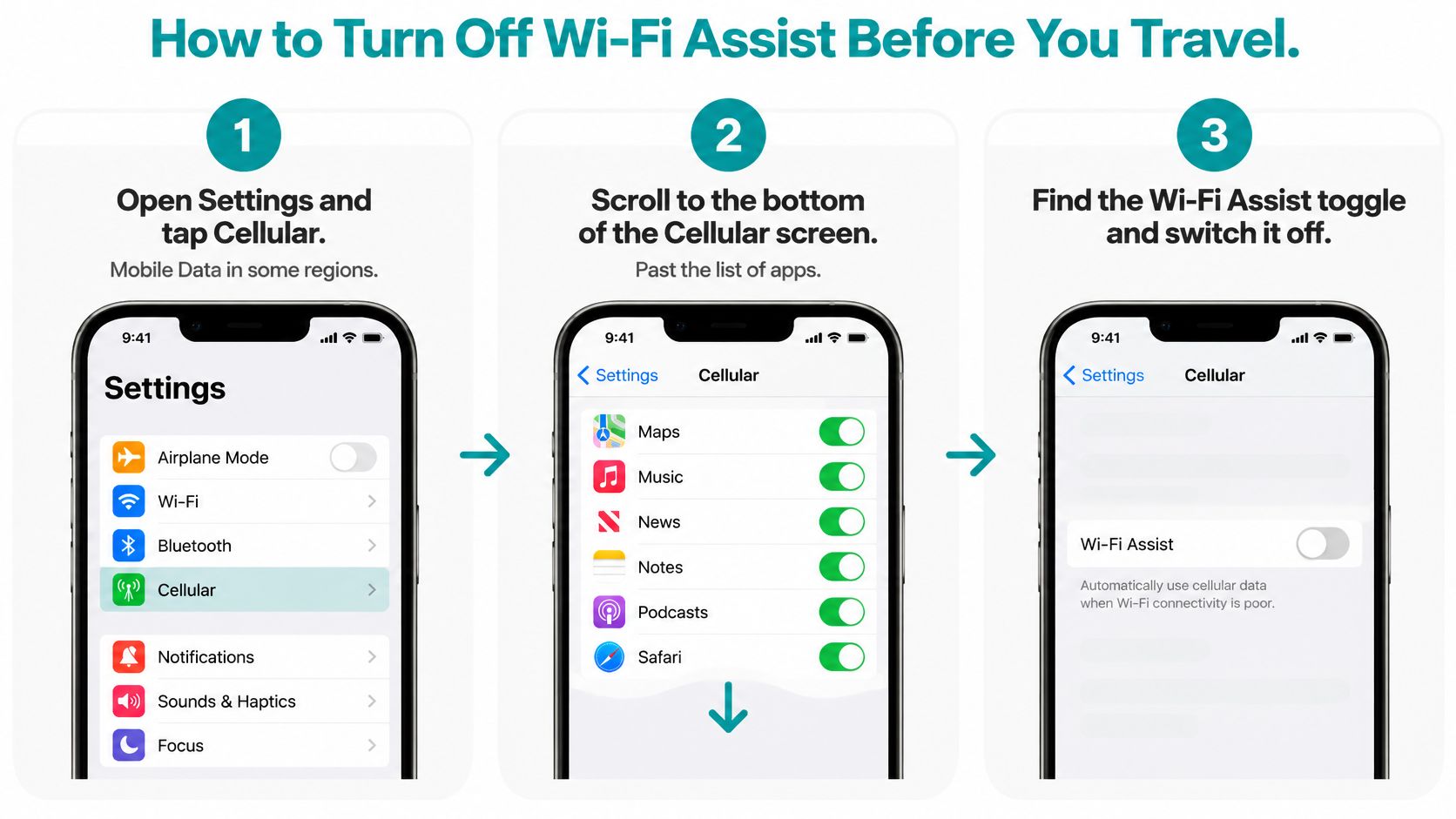
Switching it off takes about twenty seconds and is fully reversible. On a current iPhone:
Open Settings and tap Cellular. In some regions the menu reads Mobile Data. Apple keeps this control among the cellular-data settings because the feature spends cellular data (Apple support).
Scroll to the bottom of the Cellular screen. You'll pass every app's individual data switch on the way. The toggles below that list are system-level settings, not app permissions, which is why people scroll past them.
Find Wi-Fi Assist and switch it off. Automatic fallback stops immediately. A page that would have loaded over cellular will now stall or fail until Wi-Fi recovers or you join a better network.
Confirm which line is your data line. On the same screen, check that your travel eSIM is selected under Cellular Data, and that Data Roaming is on for that line if your destination needs it. The common slip is leaving the home SIM selected and then blaming the eSIM for not working.
Reset the usage statistics to start a clean count. Every app's cellular consumption is listed on this screen; tapping Reset Statistics at the airport gives you a trip-specific tally, and our guide to cellular data on iPhone explains how to read it.
One caveat on labels. Apple has moved and renamed settings between iOS releases, so if the toggle isn't at the bottom of the Cellular screen, look at the bottom of the Wi-Fi screen in Settings before concluding it's gone.
The trade-off in one line: with the toggle off, you become the switch. When the hotel network stalls, you move to a stronger one or you accept the wait.
The decision rule is one sentence long. Keep Wi-Fi Assist on if your plan has generous data and you often lean on weak hotel or café Wi-Fi; turn it off if your plan is capped or an unexpected overage would hurt.
Then set the rest up before you leave, not at the arrival gate.
Before you board, three items on the checklist: the data line is set to your travel eSIM, the Wi-Fi Assist decision is made on purpose, and you know where the per-app cellular usage screen is so you can read it after day one.
Your maps, messages, and boarding passes all depend on a network you control, not the one the hotel happens to be running that evening. Simsima sells prepaid travel eSIM data for 190+ destinations, installed before you fly and activated when you land, so a weak café connection is a minor annoyance instead of an expensive one. Visit Simsima to pick a plan for your destination and sort your data line before the trip, not after the first surprise.
Founder of Simsima. A passionate traveler based in Barcelona, he helps travelers stay connected without breaking the bank on roaming fees.
LinkedIn